

Connect ChatGPT
Create and update opportunities, clients, suppliers, contacts, leads and notes from ChatGPT, as yourself, in the company you choose.
Paste a tender email into ChatGPT and say "create this opportunity in Costimate". Later, say "the closing moved to 3 November, add a site visit on the 28th". ChatGPT does it in Costimate, as you, and answers with the link.
Connecting ChatGPT is part of the paid plans.
What it can do
- Read your opportunities, clients, suppliers, contacts, leads and notes, as you see them: nothing you may not see, and no price you may not read.
- Create and change them, with the same rules as Costimate's own forms. ChatGPT asks you before each change.
- Add suppliers and the people at a client or supplier. "Add these six suppliers of modular buildings" makes six suppliers. "Add Maria Lopez, procurement lead at Kestrel Bay" adds a contact there. A contact works at a client or a supplier you already have; if you have not got it yet, ChatGPT is told to add that first. A second person of the same name at the same place waits for you to confirm it is someone else.
- Move an opportunity to another stage. A move that needs an approver still waits for one.
- Call work off a framework. "Register this as a task order under ECO-2026-0007": ChatGPT finds the framework and adds the task order, mini-competition or purchase order under it, with its lot, dates and reference. Only someone who can see the framework's prices records a purchase order.
- Add files you attach in ChatGPT on the web or the desktop app to a bid or a call-off, under a category and in a folder you name. On a phone it passes none, so add those in Costimate.
- Never delete anything, and never approve or price.
Connect it
- In ChatGPT on the web, open Settings › Plugins, click Add and choose Add custom MCP server. On Business or Enterprise, your workspace admin may have to allow custom servers first.
- Name it "Costimate", keep Server URL and give
https://app.costimate.net/mcp, choose OAuth, tick I understand and want to continue, and click Create as a plugin. - ChatGPT opens Costimate: sign in, choose the company it should work in, and Allow.
- In a chat, pick Costimate under + in the message box and ask, for example, "How many opportunities do we have in Costimate?"
ChatGPT changes its screens from time to time; its help pages have the current ones.
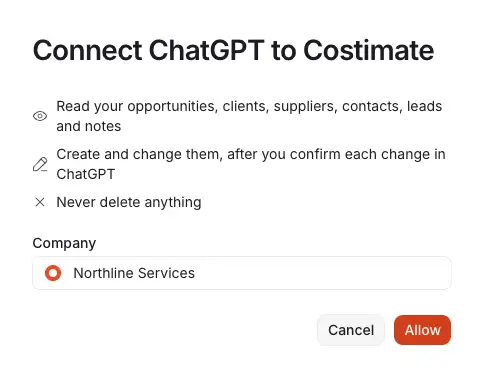
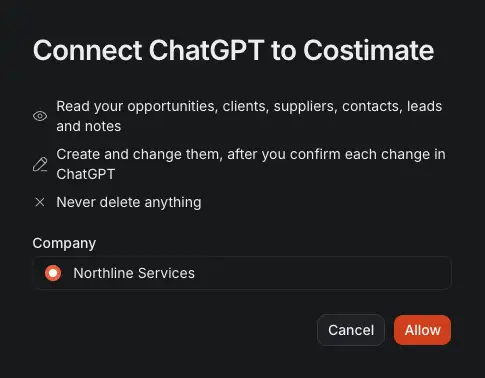
- What ChatGPT may do in Costimate, as you: read, create and change after you confirm, never delete.
- The company it will work in, among those you may connect it to.
- Allow connects it; ChatGPT carries on from there.
What it made
Everything ChatGPT creates carries a purple mark beside its name, in the lists and on its page: opportunities, clients, suppliers, contacts, leads and notes. Hover it to see who created it through ChatGPT, and when. Each of these lists has a Created via filter: Costimate or ChatGPT. A change ChatGPT makes to an opportunity is in its activity, with the same mark.
Log an email on a bid
With your mailbox connected in the same app (its own Outlook or Gmail connector), say "find the clarification email from UNDP about RFP-2026-114 and log it on the opportunity". The app finds the bid, asks you when more than one may match, and logs the email on the opportunity's Activity tab: who it was from and to, when, its subject, a summary and its text, never its attachments. The same email is logged once.
- Prices stay with people who can see prices. The summary everyone reads has no amount. The summary with the amounts, and a text that states prices, are shown only to people who can see that bid's prices.
- A change the email asks for is separate. "The closing moved" is a change to the opportunity, which the app asks you to confirm on its own.
Costimate never reads your mailbox itself: the app reads the email you point at. You can also log an email by hand: Email in the Activity tab's form.
Disconnect it
- Your own: Settings › Security › Connected apps. Change the company it works in, or Disconnect: it stops at once.
- The whole company: the owner or an admin opens Company profile › AI connectors, sees who connected an app, can disconnect any of them, or switch connected apps off for everyone.
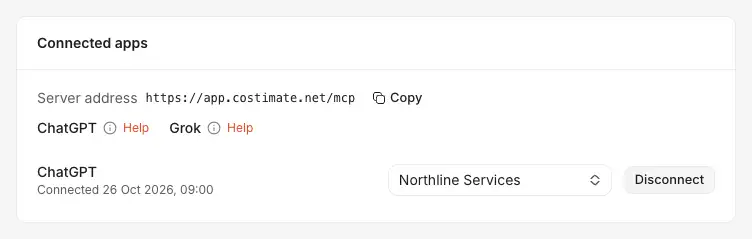
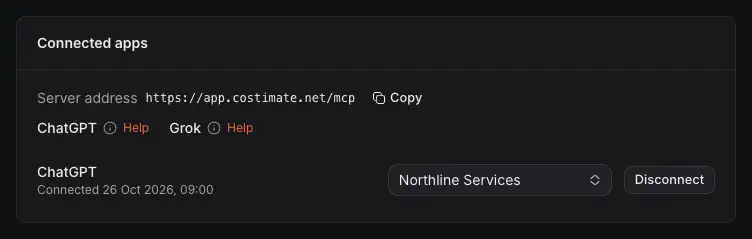
- The address an app is given to reach Costimate.
- Copy copies it.
- How to connect each app, on these pages.
- The company an app you connected works in: choose another here.
- Disconnect stops it at once.
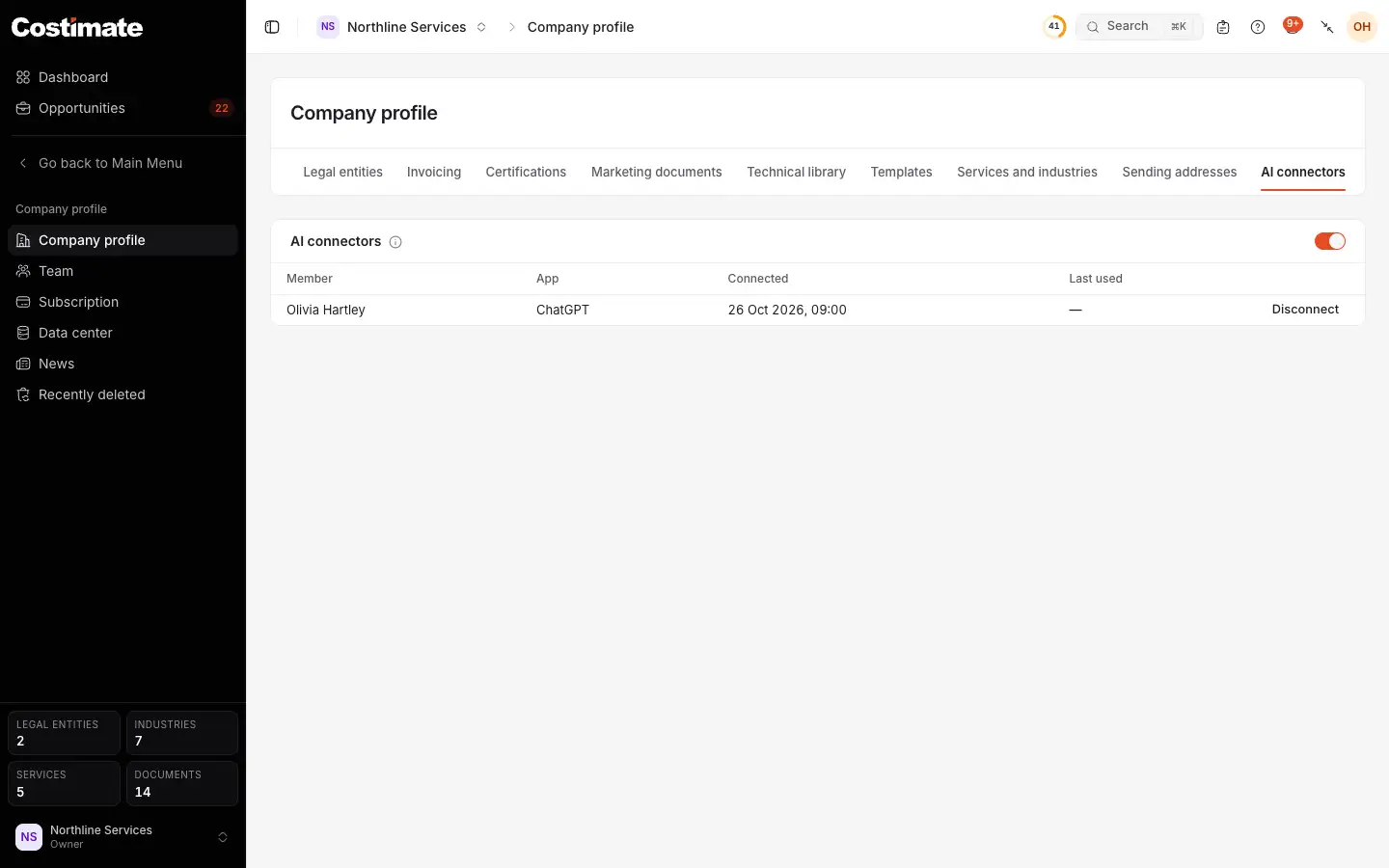
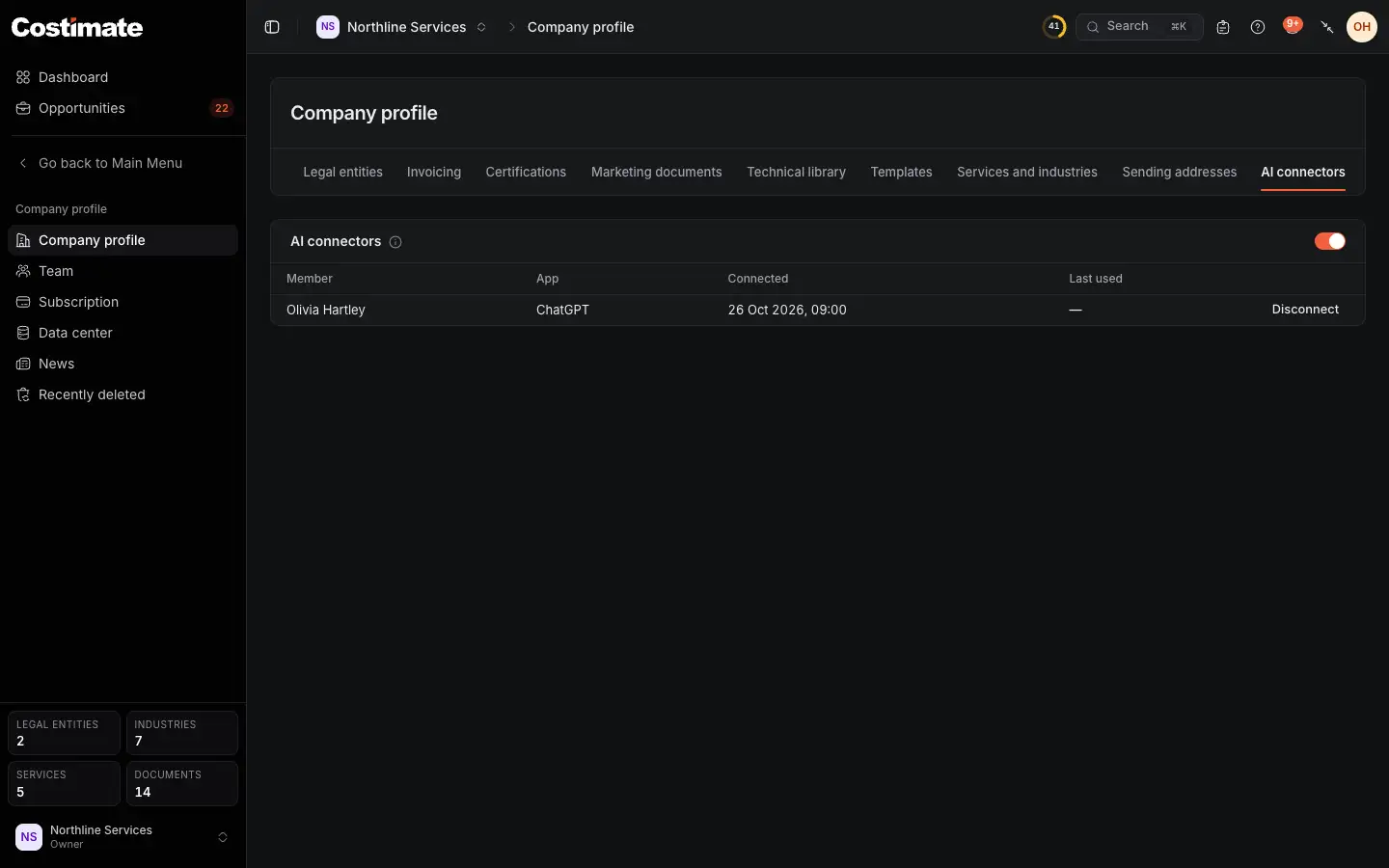
- The company profile's AI connectors tab, for the owner and the admins.
- The switch for the whole company: off, no connected app reaches it.
- Who connected which app, each with its Disconnect.
What ChatGPT reads goes to OpenAI under your own ChatGPT account and its terms. See What AI does here, and never does, Security and your data and the Privacy Policy.