

Invite your team and choose roles
Invite members, give each a role, change one person's access, make roles of your own, and decide who sees prices and pay.
Everyone who works in your company's workspace is a member, and each member takes a seat. The owner and admins invite people and choose what each one may do, on Team, in the company menu at the foot of the left menu.
Invite a member
- On Team, choose Invite.
- Type the person's work email and pick their role. You can change it later.
- If you like, tick what to add on top of the role: Sees pricing, or Sees personal details and pay.
- Choose Send invitation. They get an email with a link that works for that address only. They sign up or sign in, and join your company.
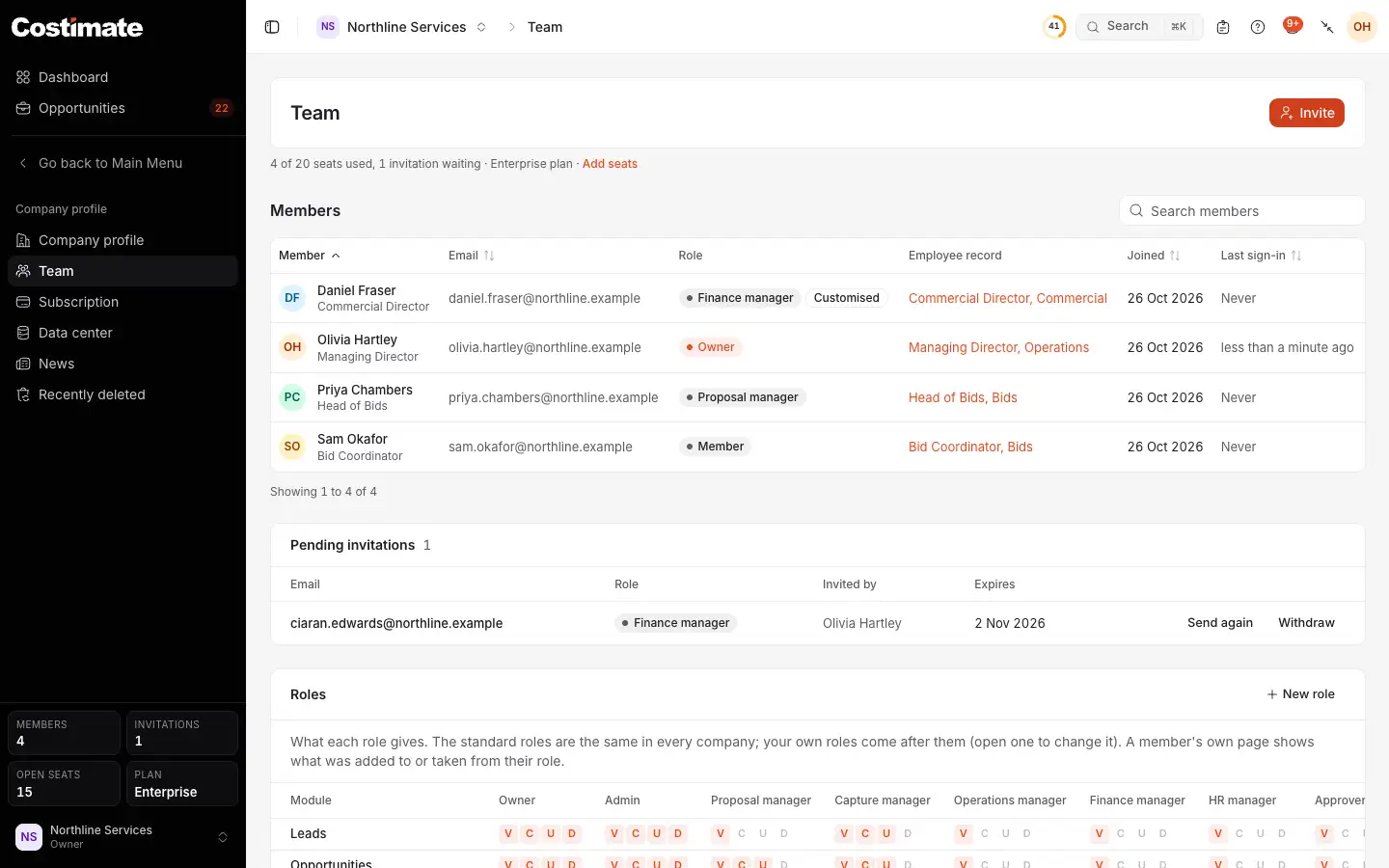
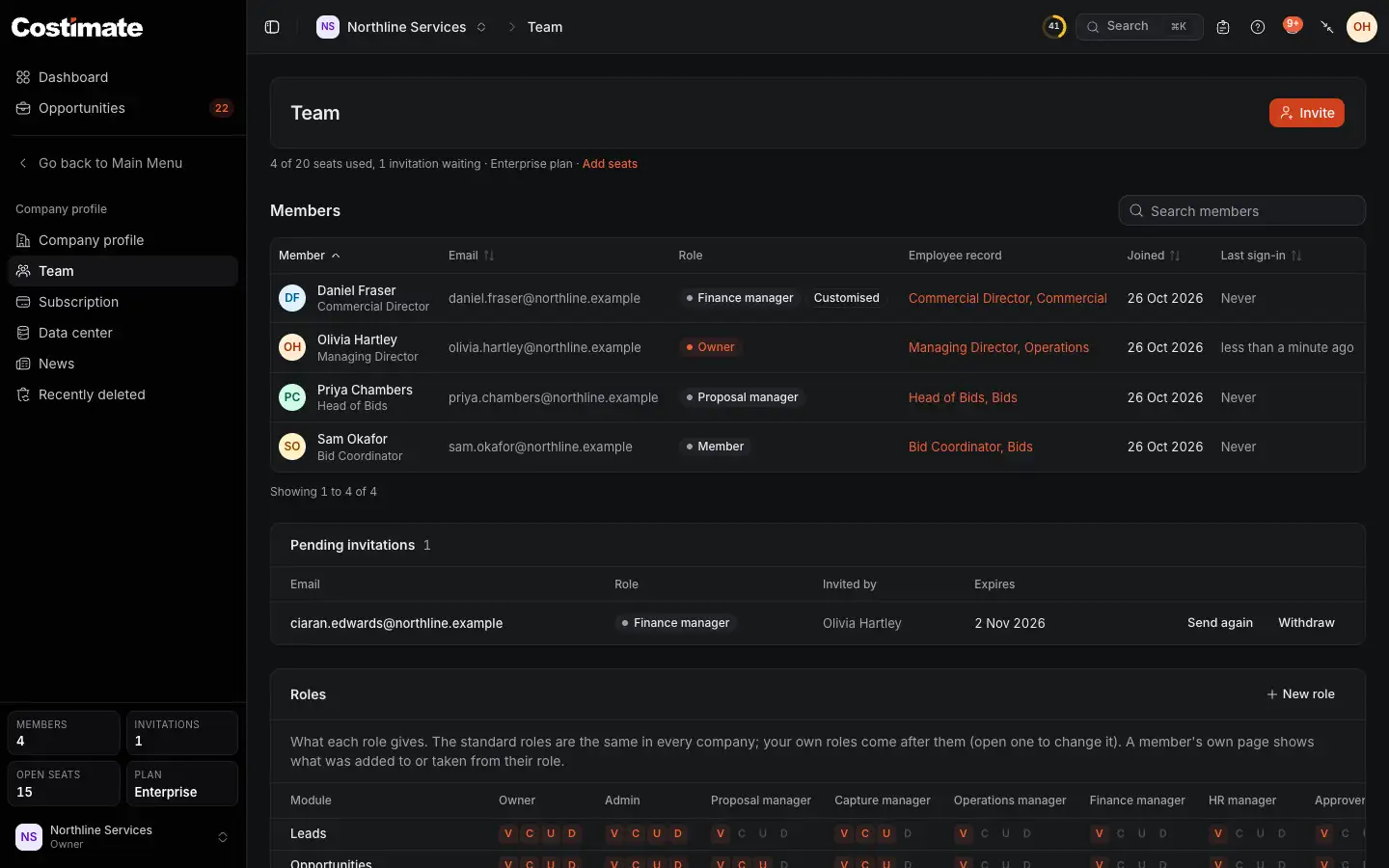
- Invite opens the invitation.
- How many seats are used, and your plan. An invitation that is waiting holds a seat, so you never have more members than seats.
- A member's role. Customised means permissions were added to their role, or taken away.
- The invitations waiting, with Send again and Withdraw.
- What each role may do, module by module. New role makes a role of your own.
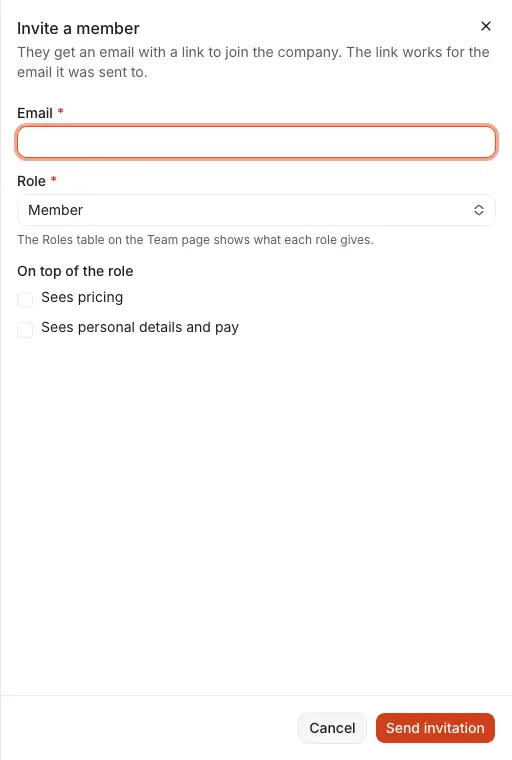
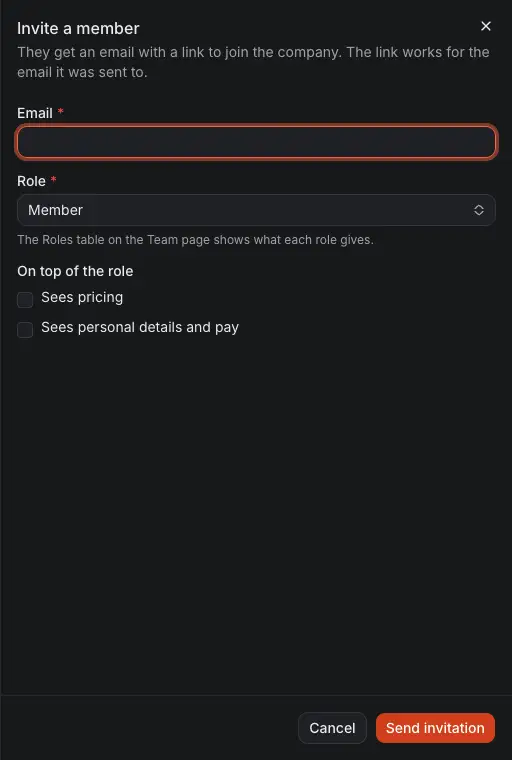
- The email address the invitation goes to.
- The role: one of the standard roles, or one of your own.
- What to add on top of the role: seeing prices, or seeing employees' personal details and pay.
- Send invitation sends the email.
If the person is already one of your employees but has no login, invite them from their page in Employees with Invite to Costimate. They join as that employee.
Roles
A role is a set of permissions, module by module: whether a person may view, create, change and delete. Costimate comes with nine roles: Owner, Admin, Proposal manager, Capture manager, Operations manager, Finance manager, HR manager, Approver and Member. The Roles table on Team shows what each one gives, with a few permissions of their own, such as moving an opportunity to any stage, seeing selling prices, or approving the bills of suppliers.
Change one person's access
- On Team, click the member.
- Choose another role and Change role, or tick and untick in the Access table to add to their role or take away from it.
- Choose Save access. Reset to the role gives them their role's permissions back, nothing added or taken away.
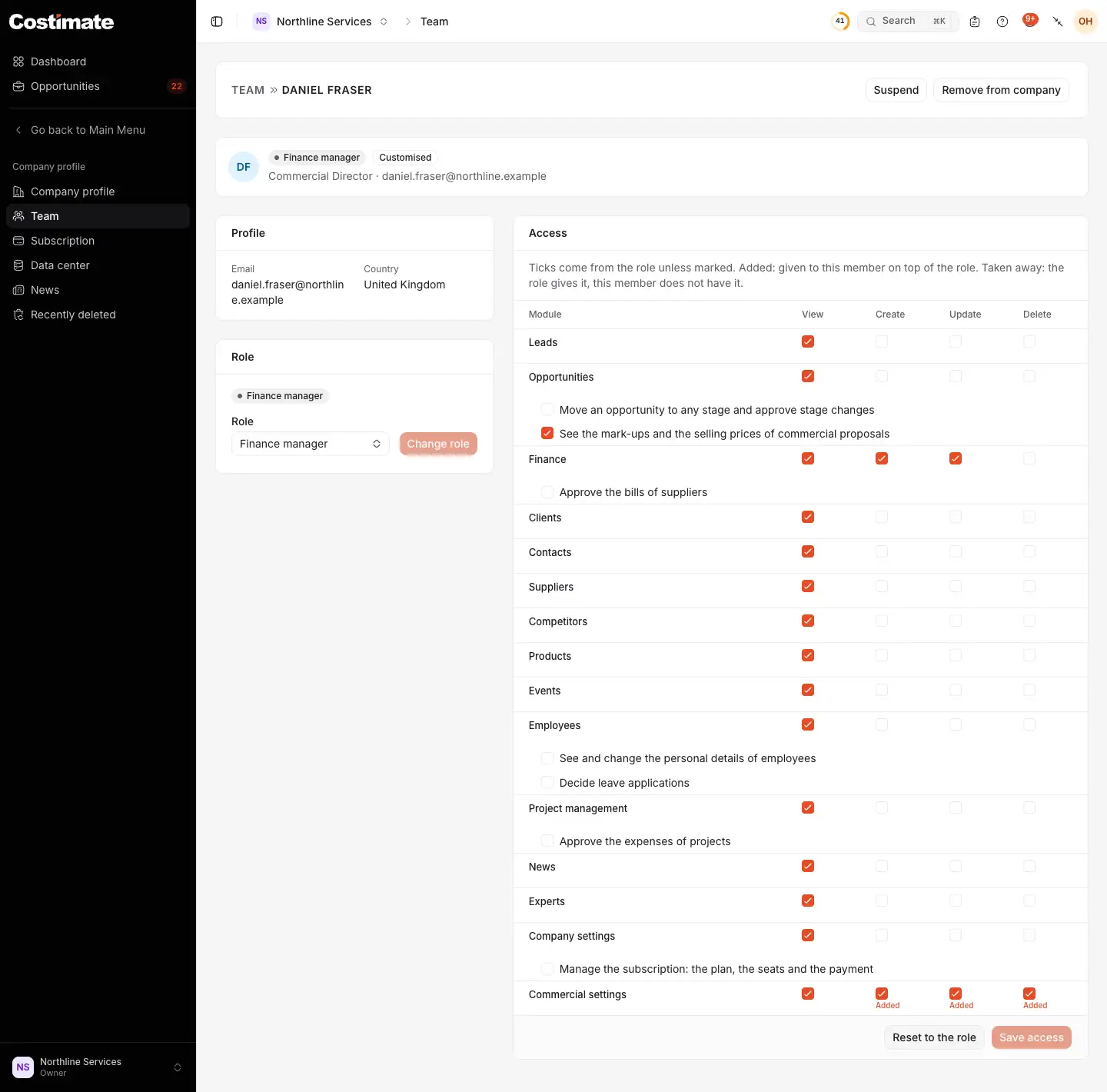
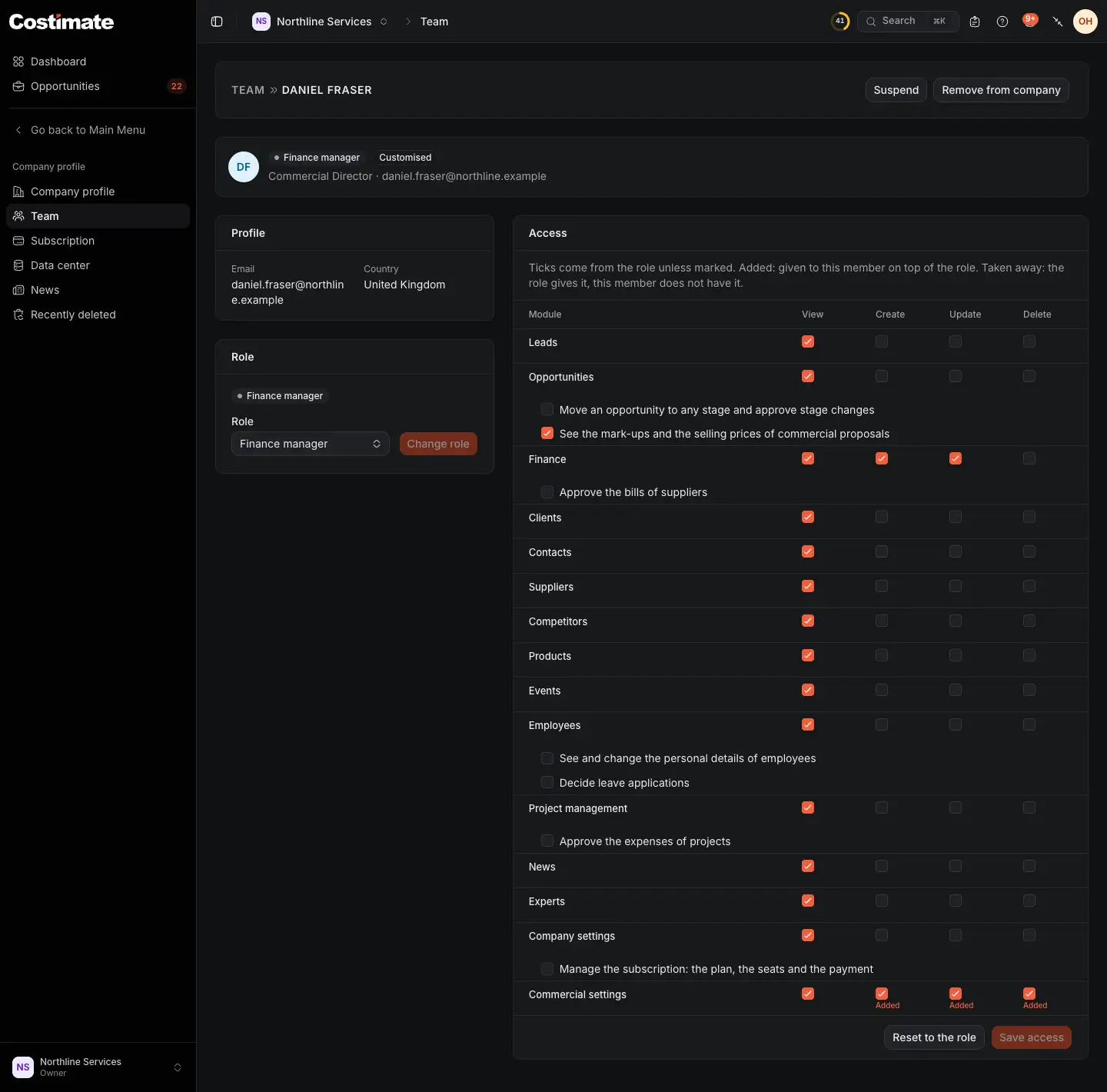
- The member's role, marked Customised because their access differs from it.
- Change role gives them another role.
- A permission given to this member on top of their role is marked Added. One the role gives but they do not have is marked Taken away.
- Permissions of their own, such as seeing the mark-ups and selling prices of commercial proposals.
- Save access keeps your ticks.
- Suspend and Remove from company.
Make a role of your own
- On Team, under Roles, choose New role.
- Give it a name and pick a role to start from: its ticks are copied.
- Tick what the new role may do, module by module, and choose Create role.
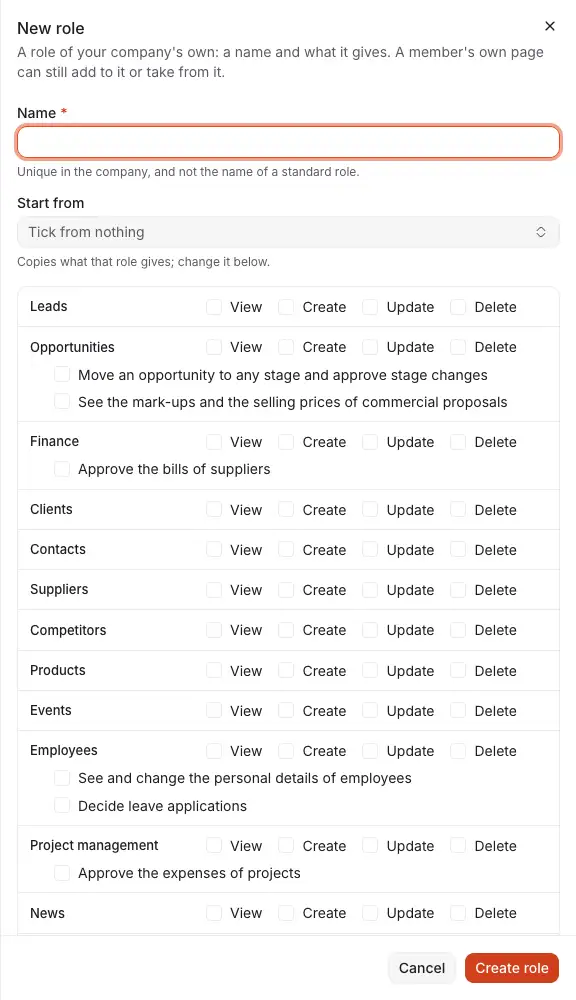
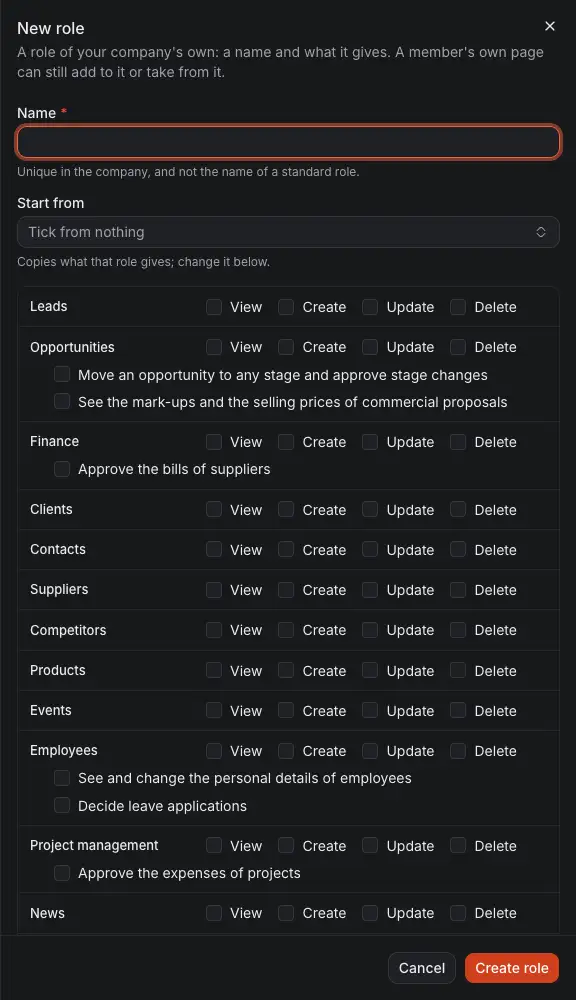
- The role's name, which no other role of yours may have.
- The role whose ticks it starts from. Change them below.
- What the role may do in each module.
- Create role adds it after the standard roles, ready to give to anyone.
To change or delete a role of your own, click its name in the Roles table. Deleting it asks which role its members move to.
Who sees prices and pay
Costs are open to the team. Prices are not. Mark-ups, selling prices, the value a bid was submitted at, a project's price, and quotations and invoices are only for people whose role or own access lets them see prices, and for the people named on that opportunity.
For everyone else, these figures are not hidden on the screen: they are never sent. So they are not in a list, a total, an export or a PDF either. Pay works the same way: what an employee earns is only for people allowed to see employees' personal details and pay.
Suspend, remove, hand over
On a member's page, the owner and admins can Suspend someone: they keep their history but cannot open the company, and their seat is free again. Remove from company takes them out of it. The owner can hand the company over to an admin with Make owner, and becomes an admin.
Good to know
- Nobody changes the owner's access or their own, and nobody gives a permission they do not have themselves.
- On Free your company has 1 seat, so Invite explains what a paid plan gives instead.
- A member of your company is also one of your employees: joining links them to their employee record, or makes one.