

Submit and follow up
Check what may still be missing, move the bid to Submitted with the day the client is expected to decide, answer the client's questions round by round, and follow the bid to its decision.
Once the technical proposal is written and the commercial proposal is finalised, you hand them in the way the tender says, usually on the buyer's portal. Then you tell Costimate with a move to Submitted. After that, the client may send questions: you record each round, answer it, send your response, and Costimate follows the bid until the client decides.
Submit
- When your proposal has gone to the buyer, choose Move to › Submitted.
- Read the check of what may still be missing.
- Say the day the client is expected to decide, if you know it.
- Choose Move to Submitted. The move waits for an approver, unless you are one.
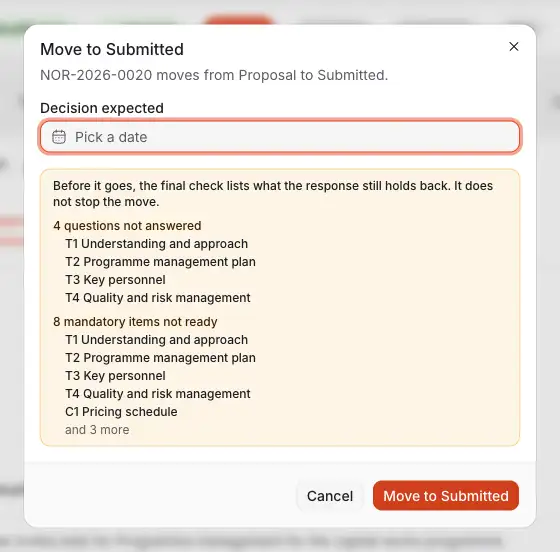
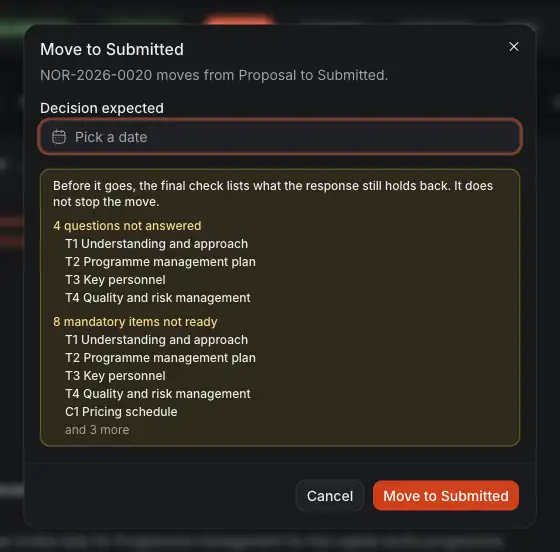
- The day the client is expected to decide. If it passes with no decision, the account owner is reminded the next morning.
- What may still be missing: questions not answered, answers over their limit, guesses AI made that nobody confirmed, evidence you do not hold, mandatory items not ready. It only warns, and never stops the move.
- Move to Submitted makes the move, or asks the approver for it.
Costimate keeps what you submitted as version 1: the finalised commercial proposal and its price. If a bid is submitted before its proposal was finalised, the opportunity asks for it, and so does the Workflow of the people who can change the bid, until you finalise the proposal or upload the file you sent.
Record the client's questions
- On the opportunity's Clarifications tab, choose New round.
- Fill in when you received it and when the answer is due, and attach the client's letter.
- On the round, choose Read the letter: AI lists the questions in it, each with the passage it was read from. Tick the ones to add. You can also add a question by hand with New question.
Recording the first round moves the bid to Clarification, with the usual approval.
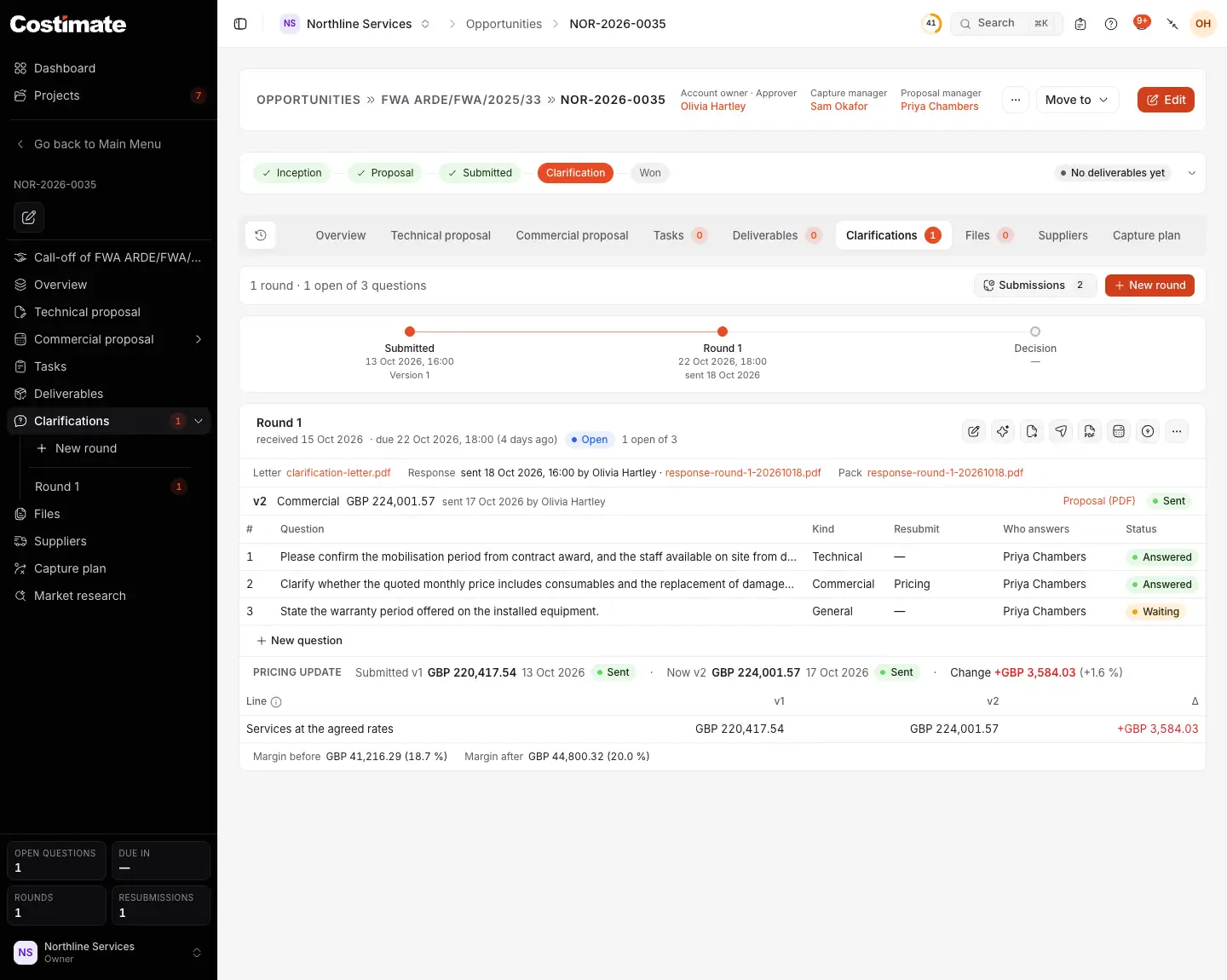
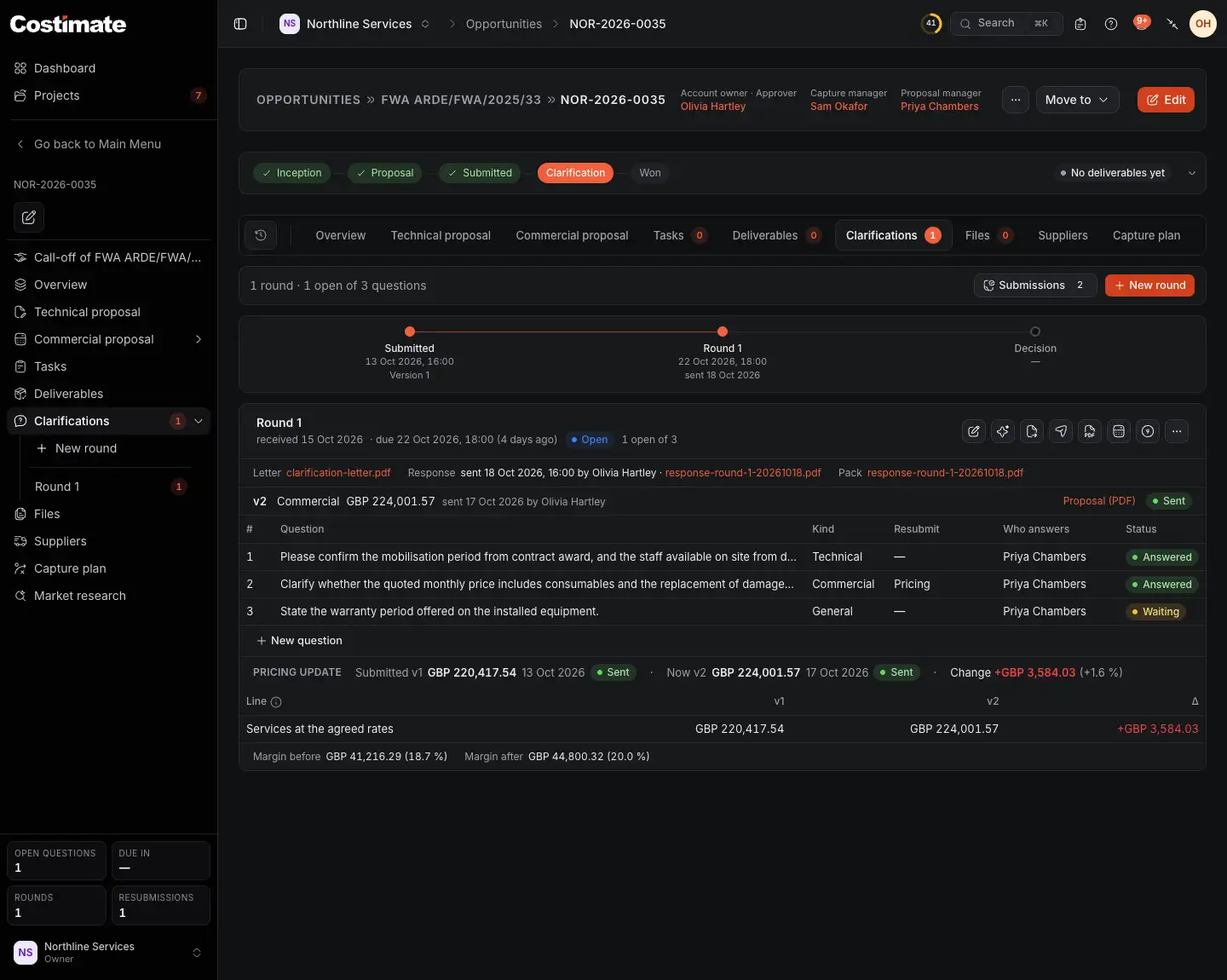
- New round records the client's next letter.
- The timetable: when you submitted, when each round's answer is due, and when the client is expected to decide.
- A round: when it arrived, when the answer is due, and where it stands.
- The client's letter, your response, and the response pack you sent.
- A question: what kind it is, whether something must be sent again, who answers it, and where it stands.
- For people who can see prices: the price you sent before and the price you sent again, line by line.
Answer a question
Click a question to open it.
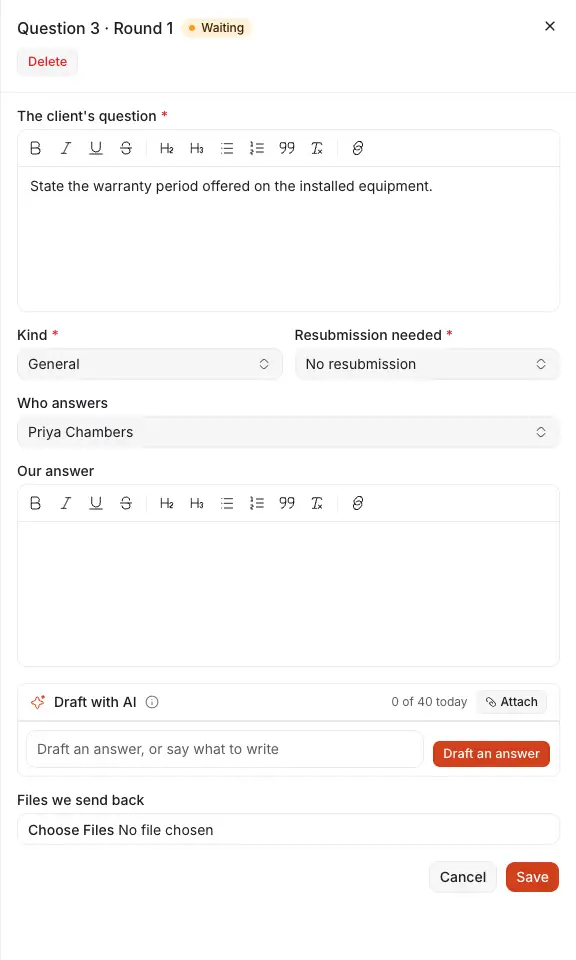
- The kind of question, and whether it needs the technical or the commercial proposal sent again.
- Who answers it: a team member, an employee, or the bid's expert, who then gets it as a task.
- Your answer.
- Draft with AI: AI drafts an answer from the question, your proposals and the bid's files. Any figure or name it cannot find is marked "[to confirm]". Choose Use this draft to put it in your answer.
- Save keeps the answer.
Send your response
- On the round, choose Generate response pack: one PDF with a cover, your answers and the PDFs you attach.
- Send it to the client the way they asked.
- Choose Mark response as sent.
If a question changes the price, choose Reprice for this round. It reopens the proposal's pricing. Finalise it again: the new version waits for an approver, and once you mark it as sent, it becomes the opportunity's submitted value.
Until the decision
- The day before an answer is due, the bid's people and whoever answers its open questions are told.
- When the client decides, choose Move to › Award, or Lost.
Good to know
- Nobody but the people who can see prices sees the price of a version, the pricing update, or the pricing files.
- The opportunity's Overview shows where a submitted bid stands: the rounds, the answers due, and the decision expected.