

Leave Tracker
Apply for leave for yourself or record it for an employee, approve or reject it, read each person's balance, see who is away on a calendar, and keep your public holidays.
The Leave Tracker, under Human Resources, holds every application for leave: who asked, for which days, and whether it is approved. Costimate counts the working days, keeps each person's balance for the year, and clears the shifts of a project on the days someone is away.
Before you start
- Each person who takes leave is one of your Employees. A member of your company is an employee too.
- The leave types and what each gives in a year are set in Leave settings, the gear beside My leave. Costimate starts you with common ones. They are a starting point, not legal advice: set your own.
- Deciding needs the permission "Decide leave applications": the owner, admins, the Approver and the HR manager have it. A person's direct manager can decide their team's leave too.
Apply for leave
- For yourself: open My leave and choose Apply for leave. You need no other right to do it.
- For an employee: in the Leave Tracker, choose Apply for leave and pick the Employee. You need the right to change employees. A shorter notice than the type asks for is allowed, and said, since you are recording what happened.
Then pick the Leave type, the Start and the End. Under the two days, choose whether the first day is a Whole day or Afternoon only, and whether the last is a Whole day or Morning only. The drawer counts the working days, and leaves out weekends and the public holidays of the person's country. Add a reason and, if the type asks for one, an attachment such as a fit note.
An application is refused, with the reason, when it overlaps another, runs longer than the type allows in a row, or leaves too few days in the year.
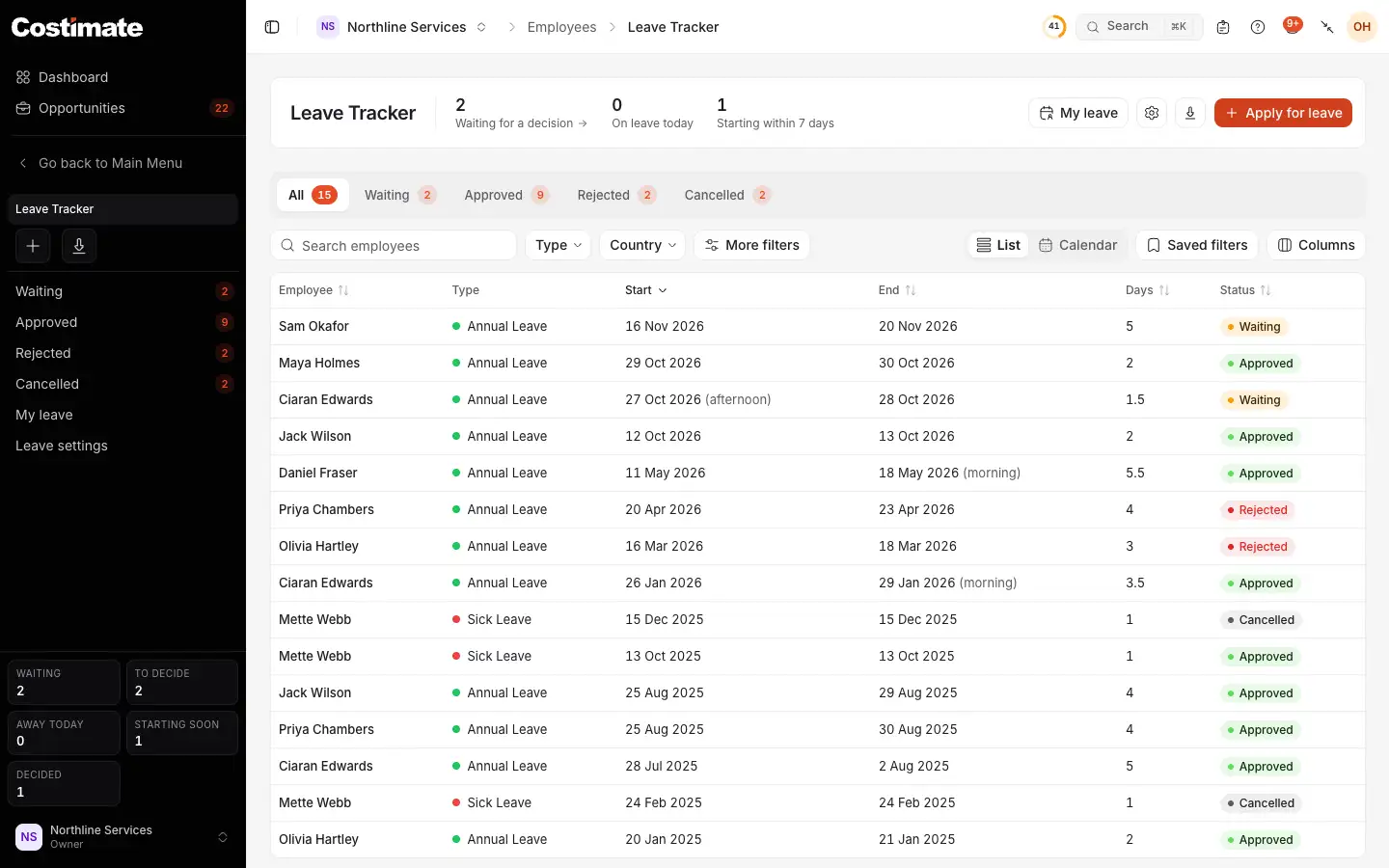
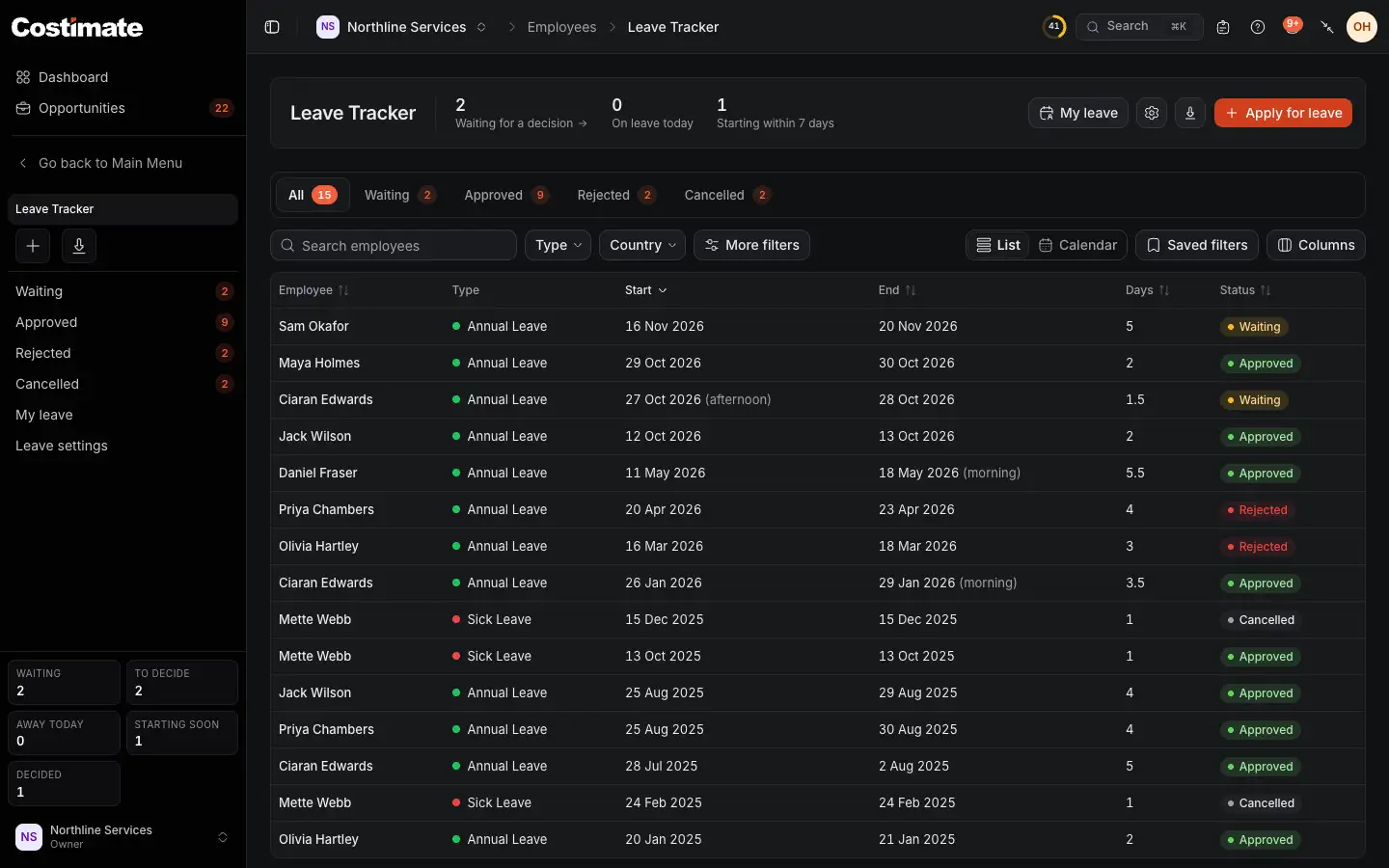
- How many applications wait for a decision, who is on leave today, and who starts within 7 days.
- Apply for leave.
- The views by status: Waiting, Approved, Rejected and Cancelled.
- List or Calendar.
- An application waiting for a decision.
Decide an application
- Click the application in the list, the calendar or Workflow.
- Read its days, type, balance and reason.
- Choose Approve, with a note if you like, or Reject, with a reason, which is required.
Approving first says which shifts of which project it will clear on those days, and clears them. Nobody decides their own leave, except the company's owner.
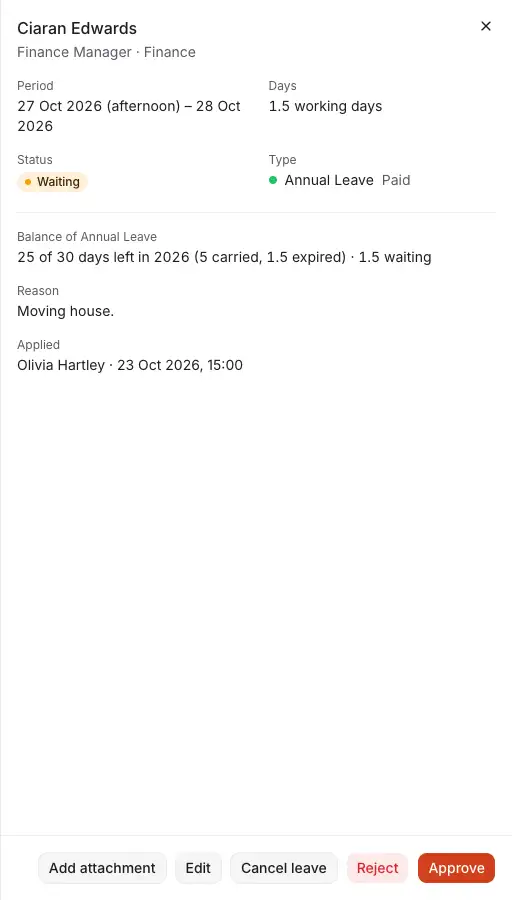
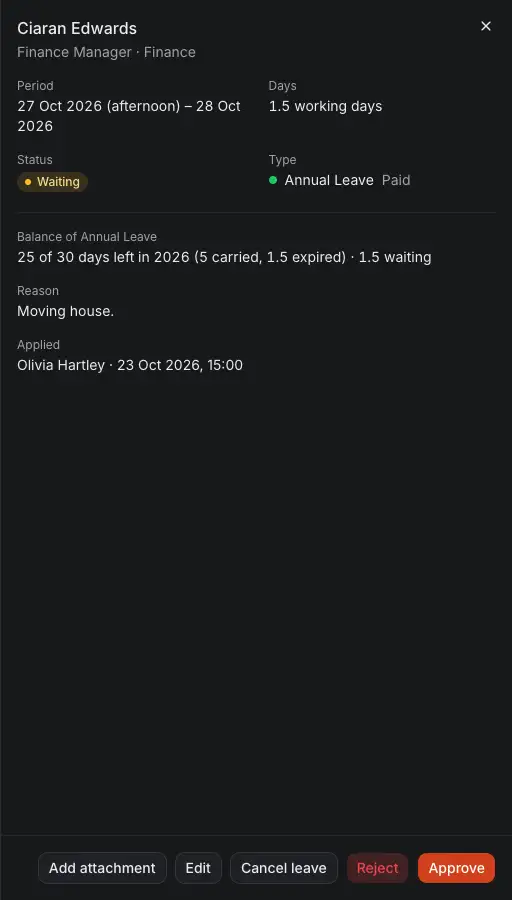
- The period, with its halves, and how many working days it takes.
- What is left of that type in the year, with what was carried and what waits.
- The reason the person gave.
- Cancel leave. Cancelling approved leave asks for a reason, and gives the days back.
- Reject asks for a reason.
- Approve approves it.
See who is away
Choose Calendar to see the same applications as people by days, a month or a week at a time. Each leave is a bar across its days.
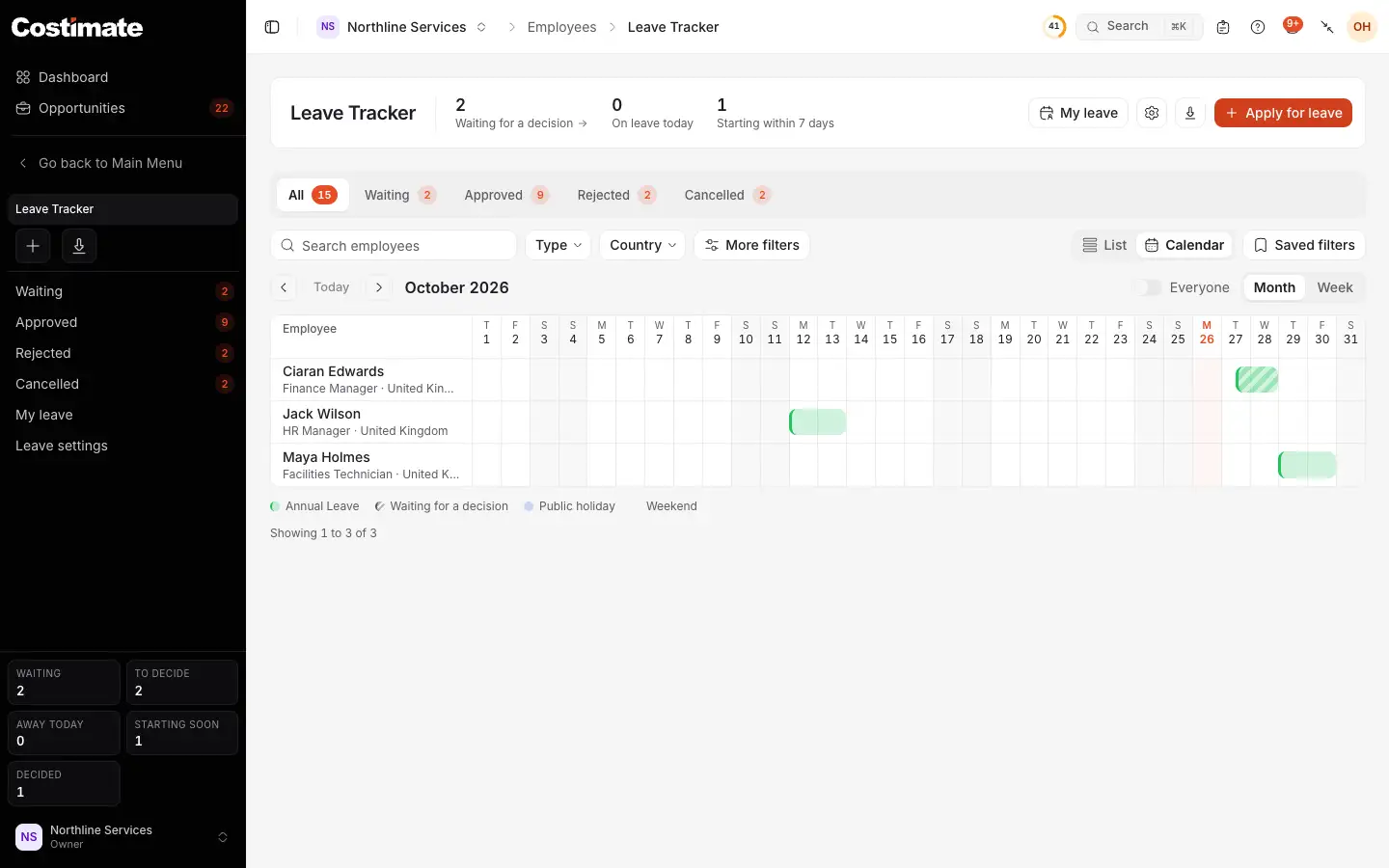
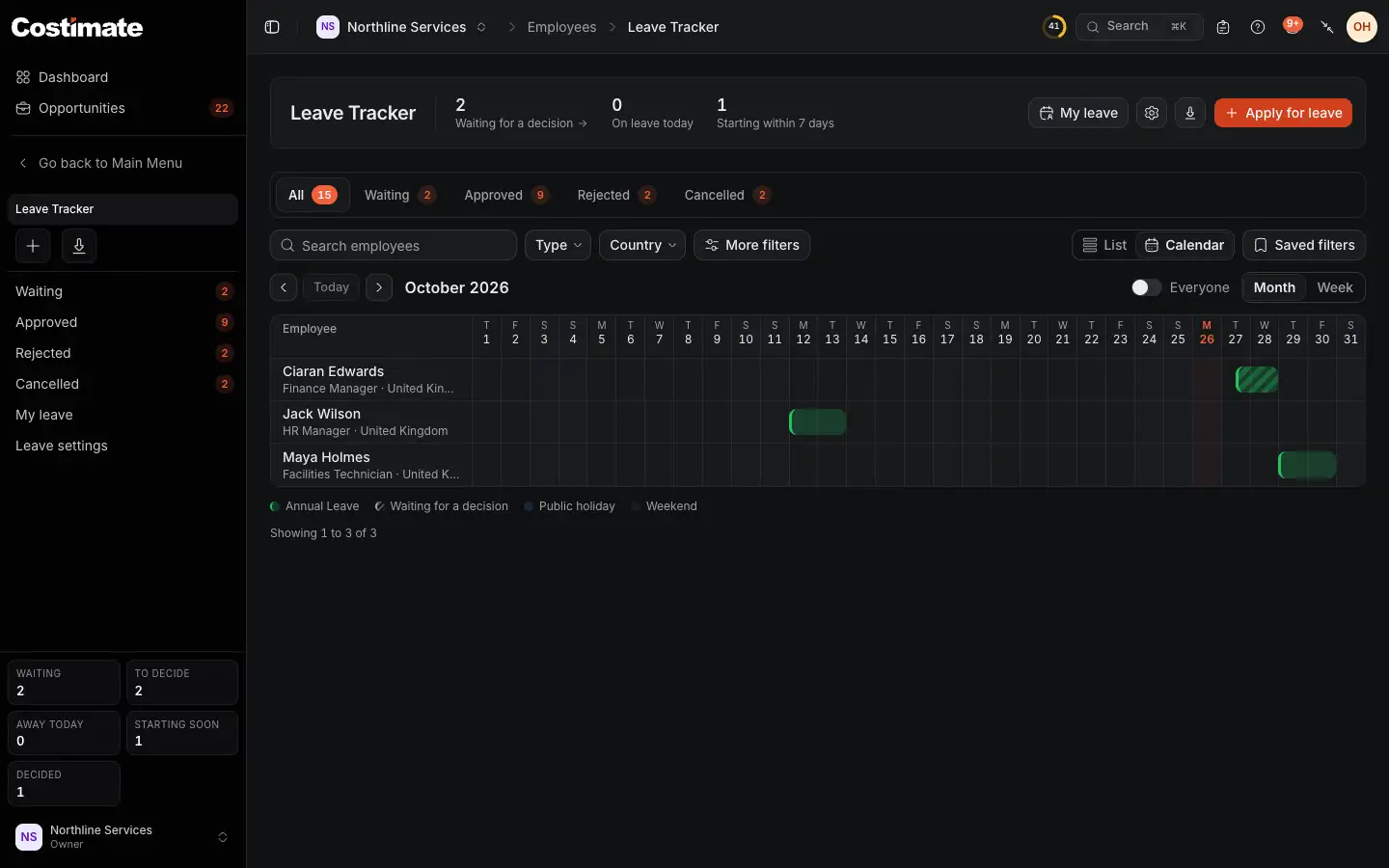
- The month before or after, and Today.
- Everyone adds the people who are not away, so you also see who is in.
- Month or Week.
- A leave waiting for a decision is striped and says "Waiting".
- Approved leave is a full bar in its type's colour.
Weekends and each person's public holidays are shaded.
Read a balance
Each employee's Leave tab, and your own My leave, has the year's balance of each type.
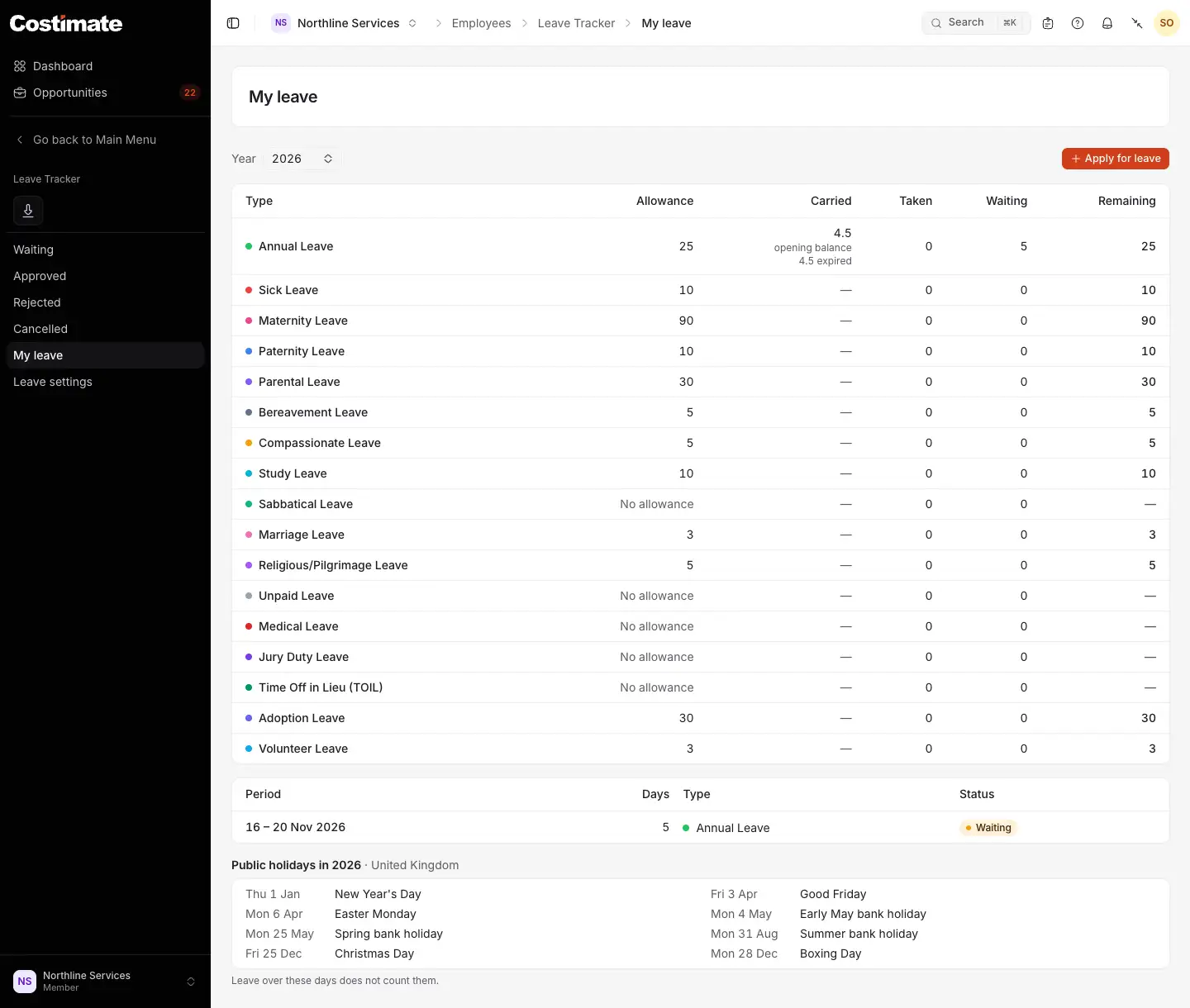
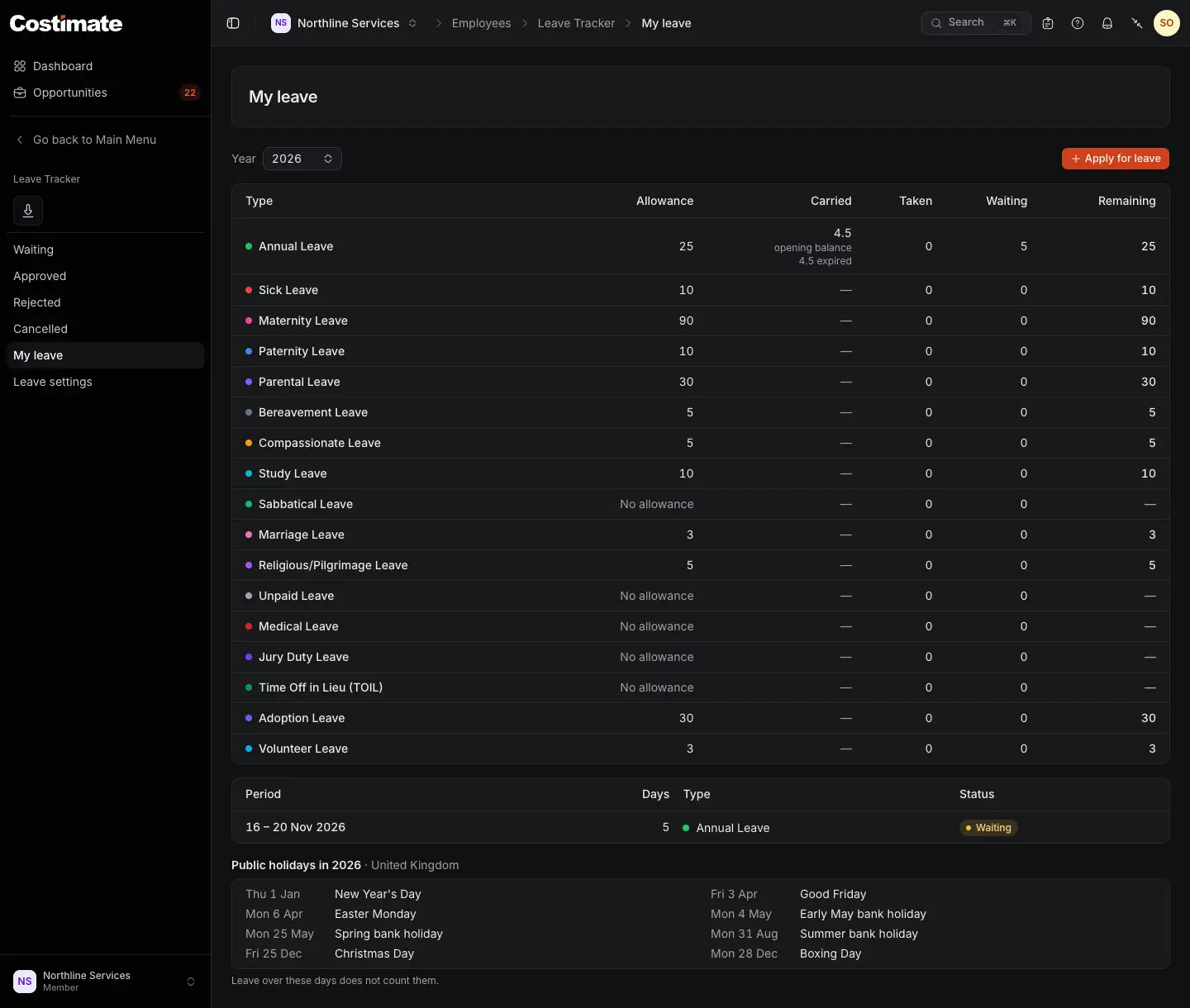
- Apply for leave, for yourself.
- Carried: days brought from last year, to be used by a day the type sets, and what expired.
- Remaining: what is left this year.
- Your application, waiting for a decision.
- The public holidays of your country this year. Leave over them does not count them.
- Allowance is what the type gives in a year. In the year someone joins or leaves, a type set to Pro rata gives the share of the year they work here, rounded up to a half day.
- Carried days are used first. A type can carry unused days into the next year, up to a limit, to be used by the end of a month you choose.
- Opening balance, on an employee's Leave tab, records the days a person brought from your records before Costimate.
Public holidays
Leave settings, tab Public holidays, lists each country's holidays by year. Costimate loads them from a public calendar; you can add, change or remove a day, and a load never undoes what you changed. Where the calendar has none for a country, add them yourself, or start from last year's with Copy from.
Good to know
- That someone is away, and when, is open to everyone who can read employees. The type, the reason, the attachment and the balance are only for the person, who recorded it, who decides it, and people allowed to see employees' personal details. Anyone else sees a grey bar that says "Away".
- A rejected or cancelled application stays in the list as history.
- Cancelling approved leave brings back no shift it cleared.