

Write the technical proposal
Build the technical proposal section by section, written here or uploaded as a PDF, with what your library holds and drafts from AI, then print it as one PDF.
The Technical proposal tab is your answer to what the buyer asks, printed as one PDF between a front and a back cover. Each section is written in Costimate, or is a PDF you upload. Once you have read the tender with AI, each question you answer in your own document is a section already, with what the tender asks of it. Anyone who can change the opportunity can write it.
The sections
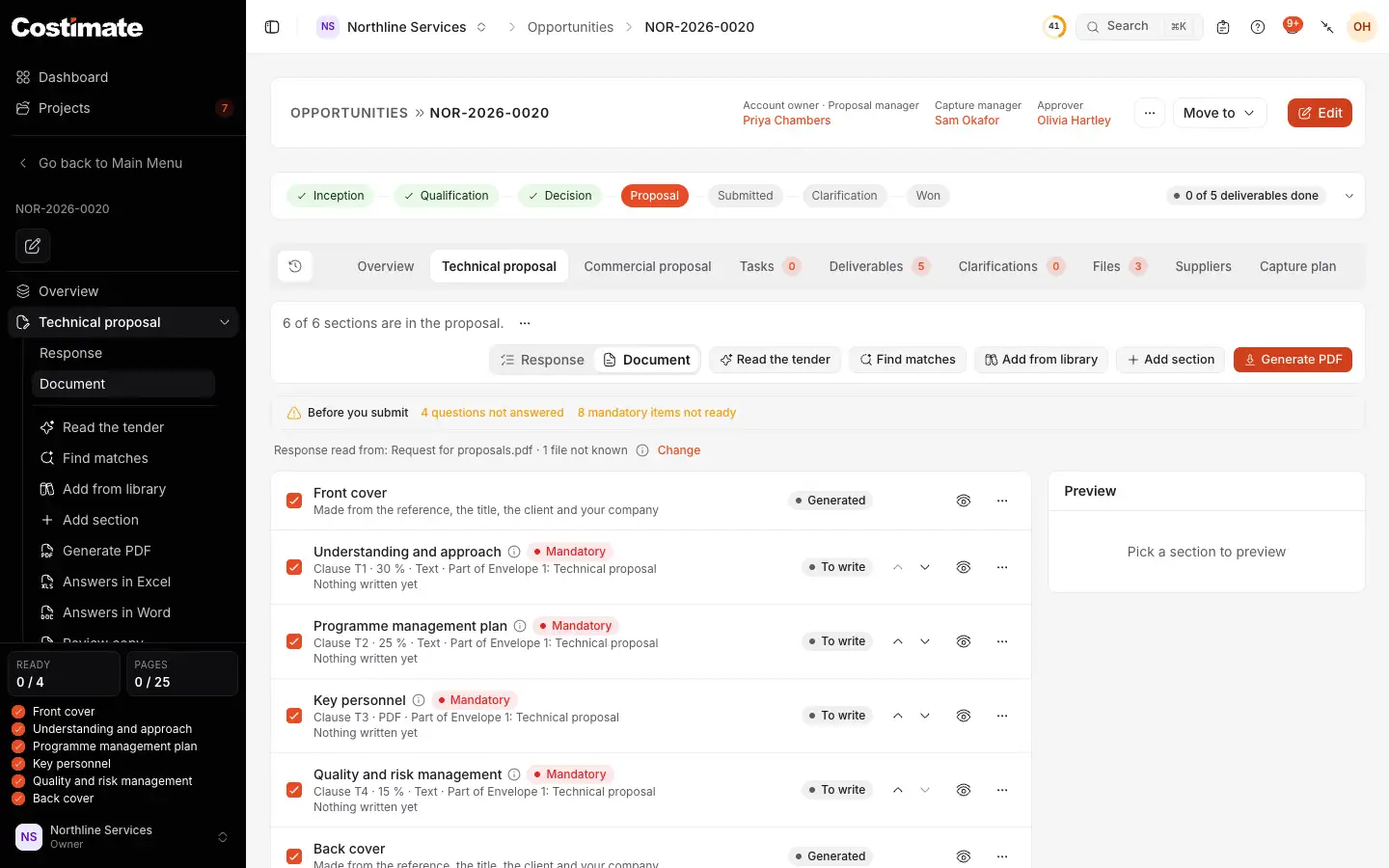
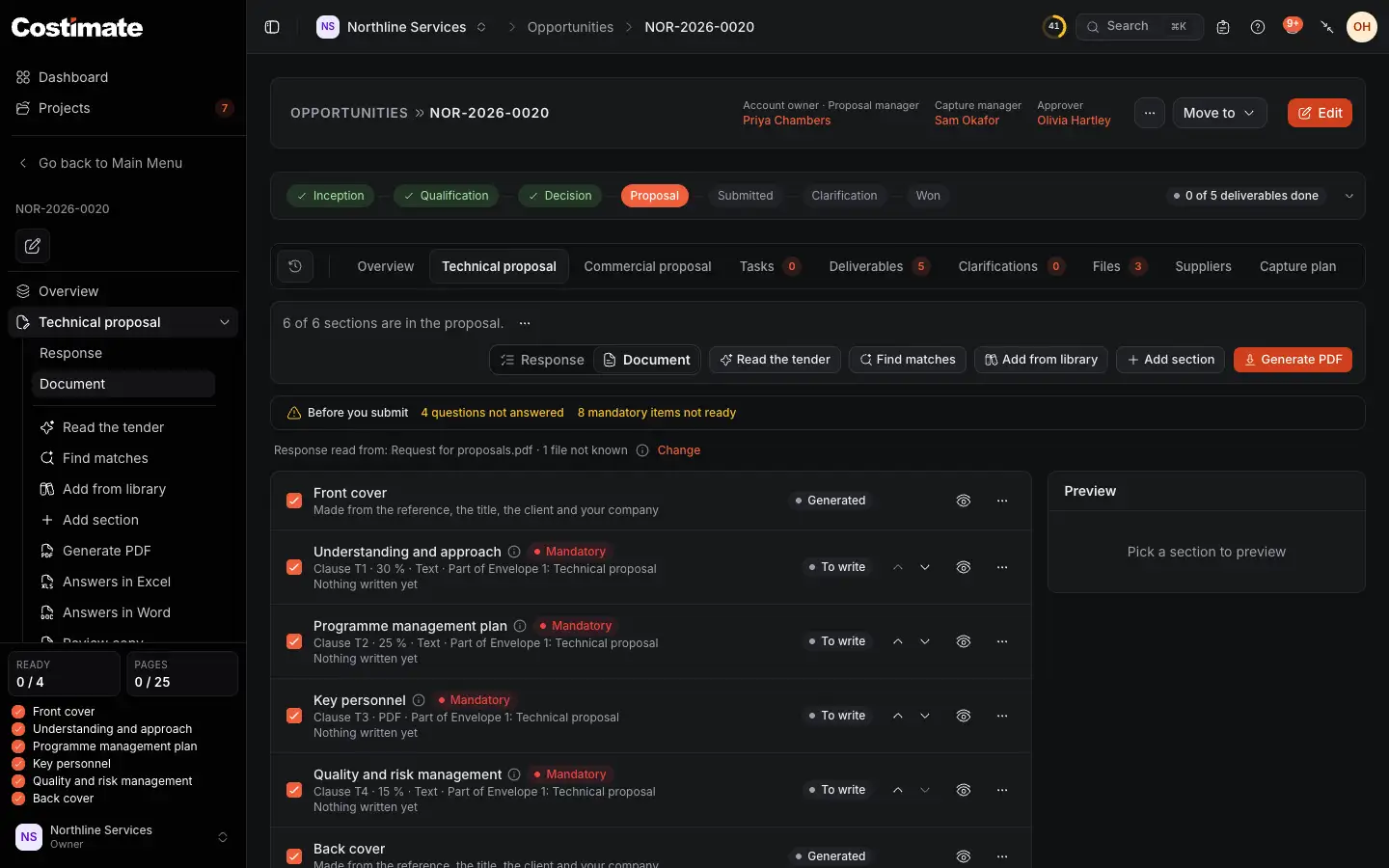
- Response lists the tender's questions in the buyer's order, wherever each one is answered. Document is your document, section by section.
- Before you submit: what is still not answered, over its limit or not ready. Press a count to see the items.
- A section still to write, with what the tender asks of it: its clause, weighting, format and the document it belongs to. Mandatory shows until it is ready.
- Add from library takes a document of your company profile, such as a policy, a CV or a case study.
- Add section adds a section to write, or a PDF.
- Generate PDF prints the sections that are ticked, in their order, as one PDF.
- The preview: click the eye on a section to see it as it will print.
Write a section
- Open the section's ⋯ menu and choose Edit.
- Choose Written here and type the text, or A PDF and upload the file.
- Check What the tender asks: its clause, its limits and its weighting.
- Choose Save. The section becomes a draft.
- When it is final, open its ⋯ menu and choose Mark as ready.
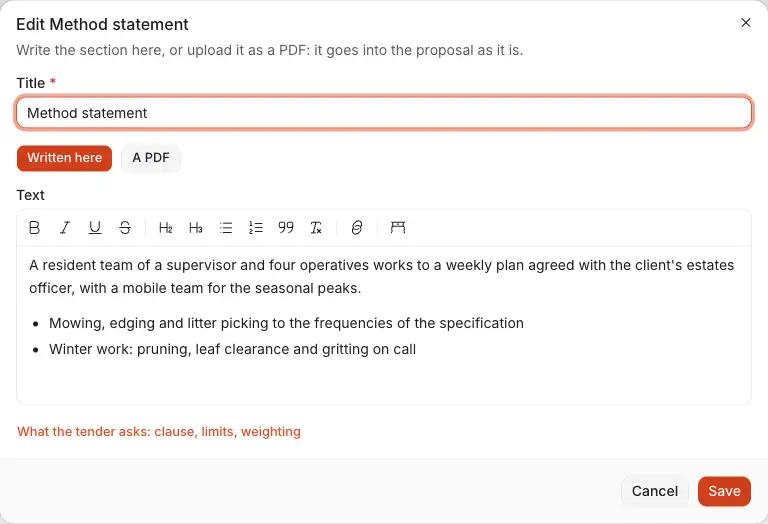
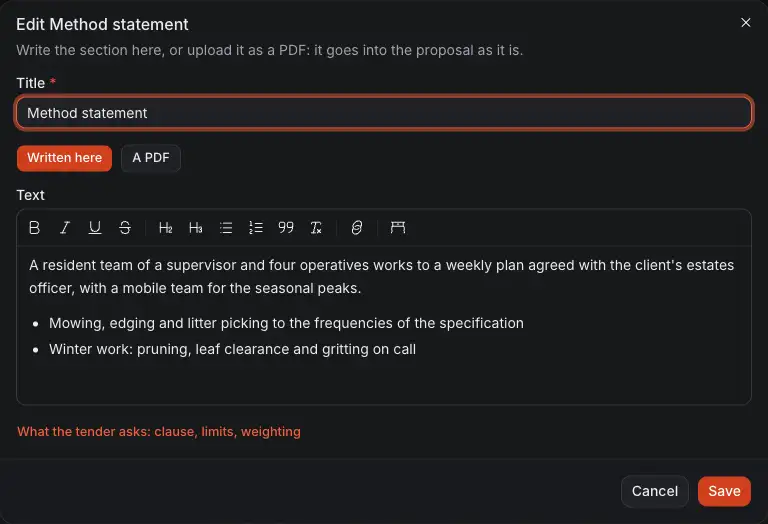
- Written here, or A PDF uploaded as it is.
- The text, with headings, lists and tables.
- What the tender asks of the section: its clause, page and word limits, and weighting.
- Save keeps it as a draft.
Draft a section with AI
For a section that holds nothing yet, open its ⋯ menu and choose Write with AI. AI drafts the answer from the question as the buyer wrote it, the tender, and your company's records: its profile, certificates, projects, CVs, and the win themes you confirmed in the capture plan.
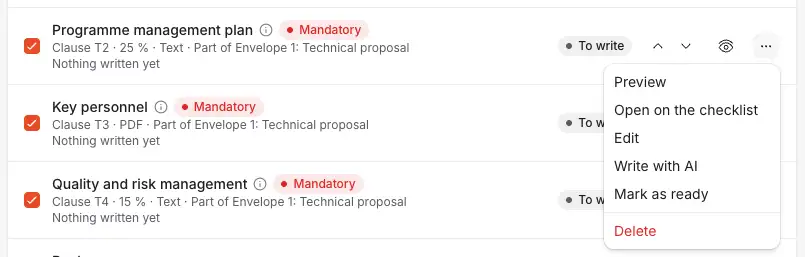
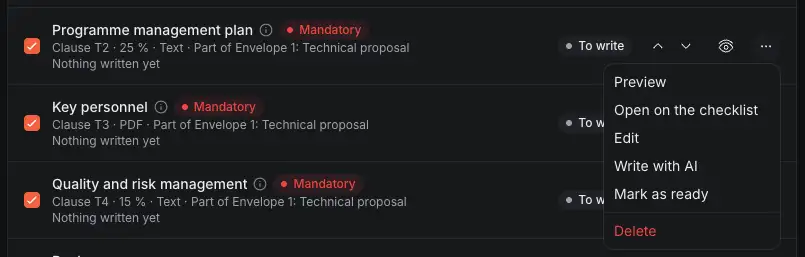
- A section with nothing written yet.
- Write with AI drafts it.
- Open on the checklist shows the item the section answers, on the Deliverables tab.
The draft opens in the editor. Any fact your records do not hold, such as a figure or a certificate number, is marked as a guess, for you to confirm or replace. Nothing is saved until you save.
Use what you already have
While some sections wait to be written, Find matches looks in your company profile for what can answer each one: documents, certificates, CVs, case studies and bids you won. A section then shows how many things were found. Open the list to see each with a score and the reason, and choose Use to take it into the section.
Print it
Generate PDF prints the sections that are ticked, between the covers, with page numbers. The bar under the sections says how many are ready, how many pages the proposal comes to against the tender's limit, and which mandatory sections are missing. Pages are estimated, at about 500 words a page, until you generate the PDF.
Good to know
- Ready is your word. AI never marks a section ready, and a draft from AI stays a draft until you say it is written.
- If the tender forbids covers, or the answers go into the buyer's portal, the covers are left out of the PDF, and the tab says why.
- A PDF that cannot be read is named in a message, so you know which section to replace.