

Company profile
Your company's details, the legal entities your documents are issued by and their bank accounts, how your invoices are numbered and reminded, and what the profile still misses.
The Company profile, in the company menu at the foot of the left menu, is who your company is: its details, the legal entities that issue your quotations and invoices, their bank accounts, and how your invoices are numbered and reminded. Everyone in your company can read it. The owner and admins change it.
Its tabs: Overview, Legal entities, Invoicing, Certifications, Marketing documents, Technical library, Templates, Services and industries, Sending addresses and AI connectors. This page is about the first three.
Your company's details
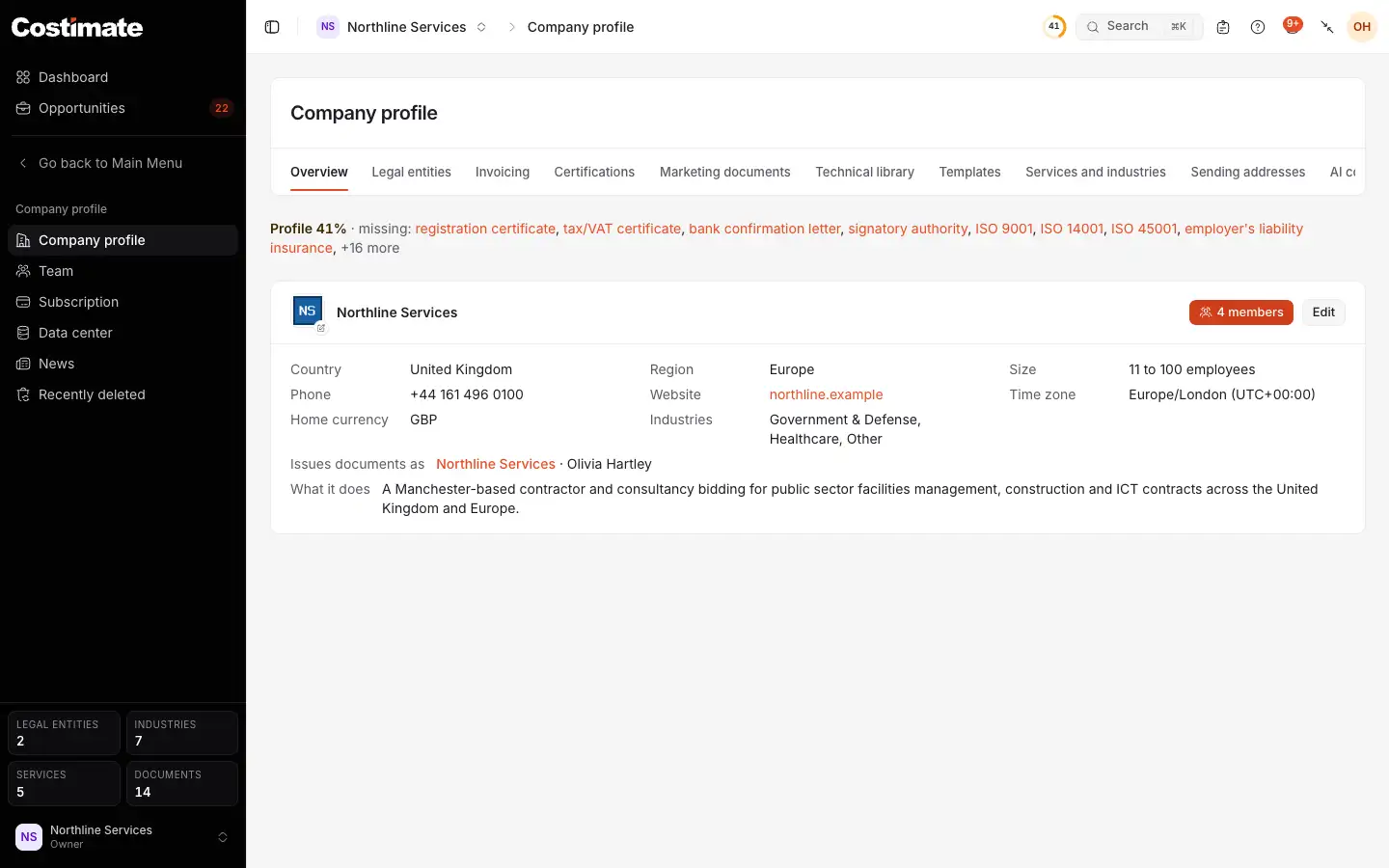
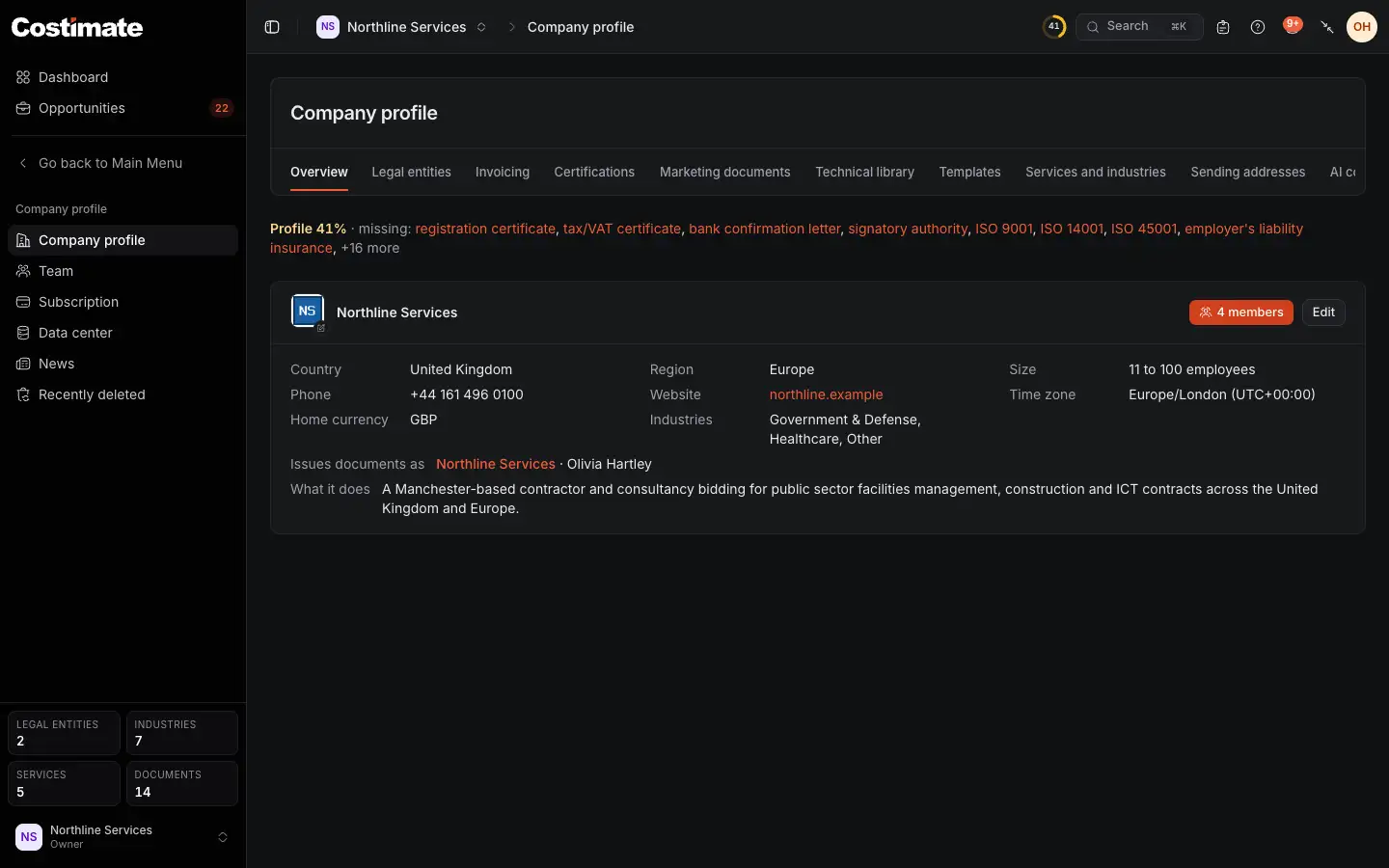
- Overview, the first of the tabs.
- What the profile still misses, each item a link to where you add it. The line goes once the profile is complete.
- Edit changes every detail of the card, the industries included.
- The company's details, such as its time zone.
- Click the logo to change it.
- In Edit, Complete with AI reads your company's website and fills the fields that are still empty. Each one says Suggested: check it until you confirm or change it, and nothing is saved until you choose Save.
- The time zone is your company's day: when a bid is overdue, when reminders go and what "today" means everywhere in Costimate.
- The home currency is what a new record starts in. Nothing is converted into it.
- The card lists the country, region, size, phone, website, time zone, home currency and industries.
- Needs attention lists the papers that have expired, or expire within 30 days.
Legal entities
A legal entity is a company that issues documents: its name, address, registration and tax numbers, and bank accounts. Most companies have one. A group that bids through more than one company adds each. One is the Default: what a new quotation or invoice starts with, and who Costimate's own invoices for your subscription are made out to.
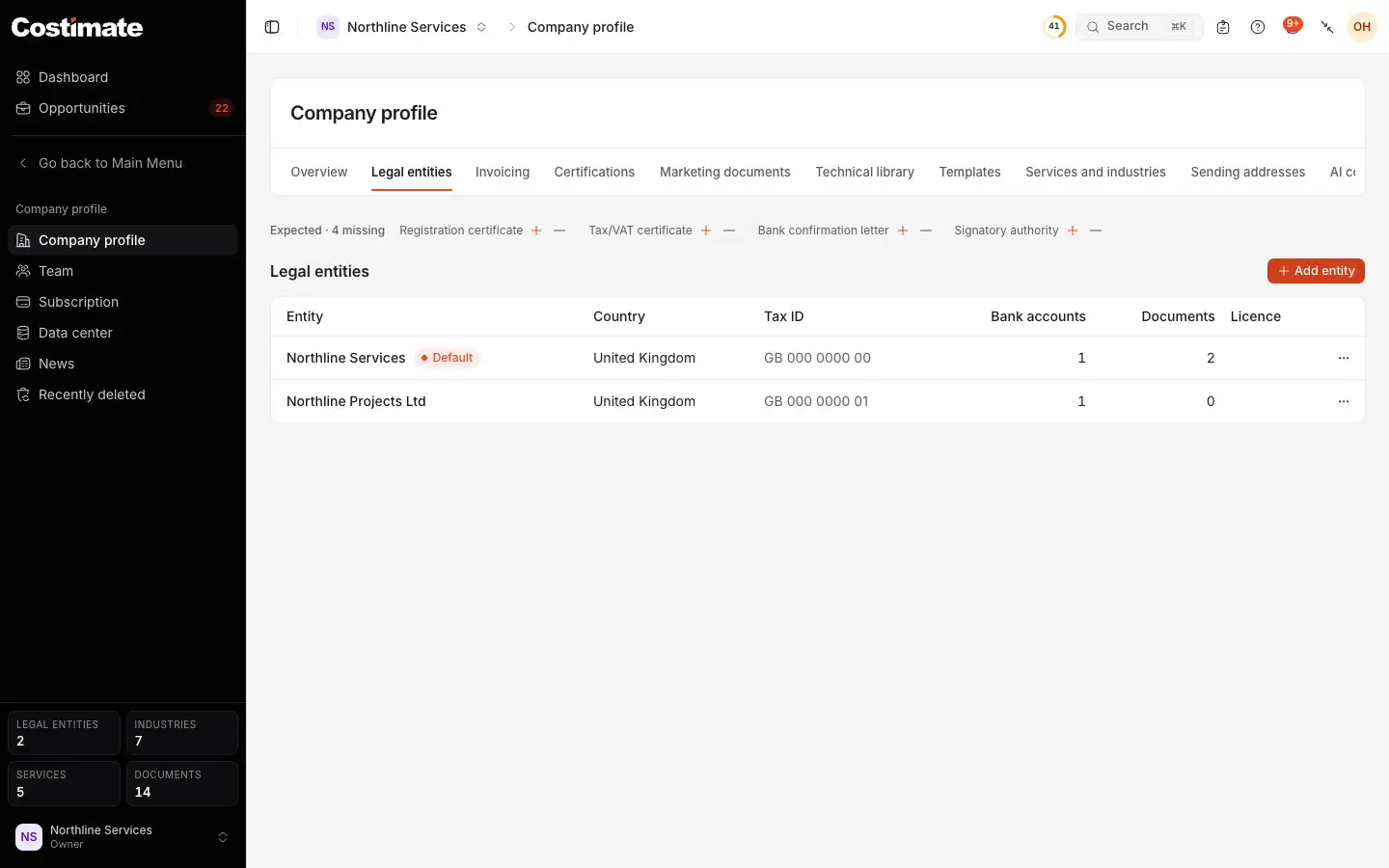
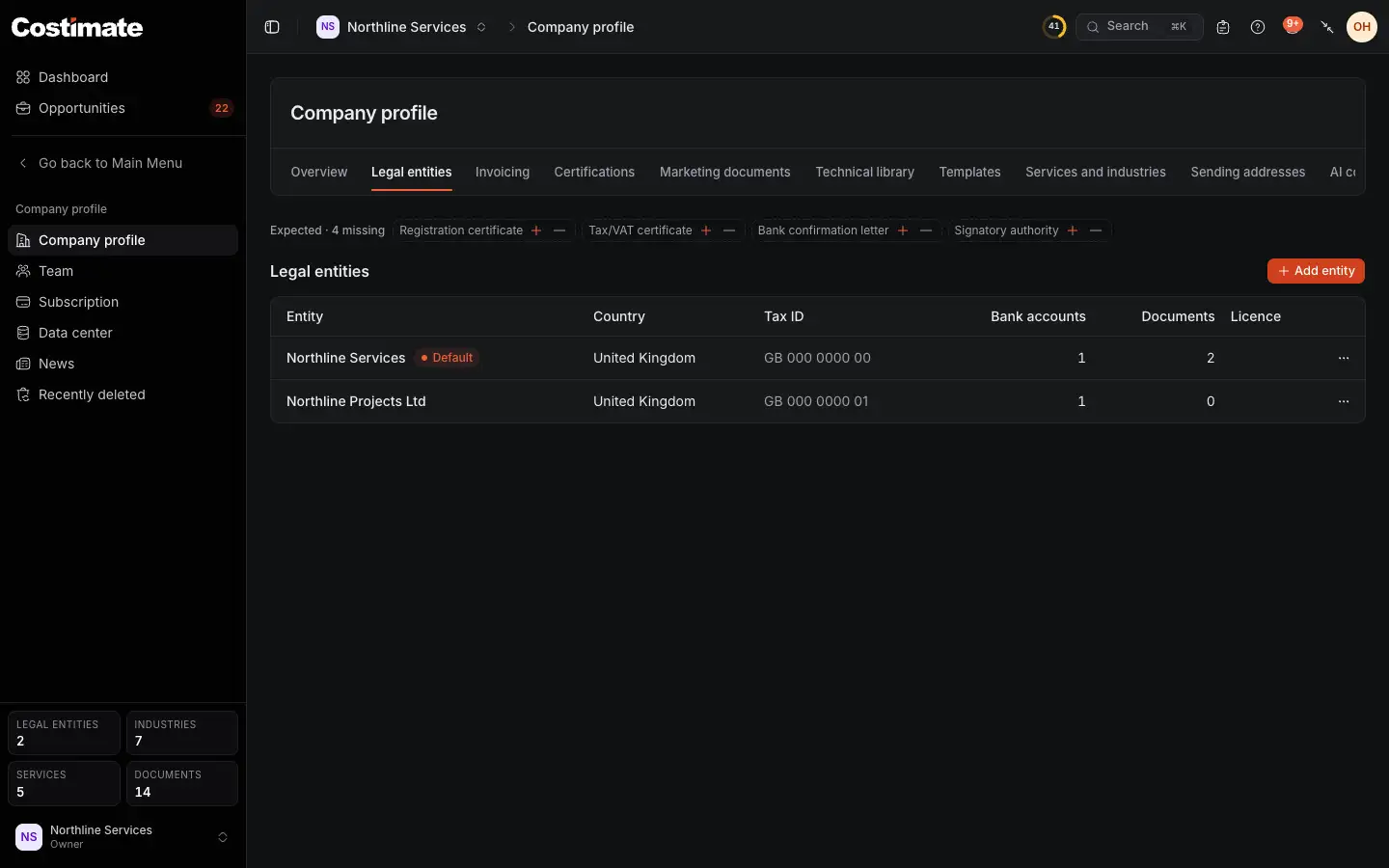
- Legal entities.
- The papers expected of your default entity, such as its registration and tax certificates. Each missing one has + to add it, and – if it does not apply to you.
- The default entity.
- Add entity.
Click an entity to read it in a pane.
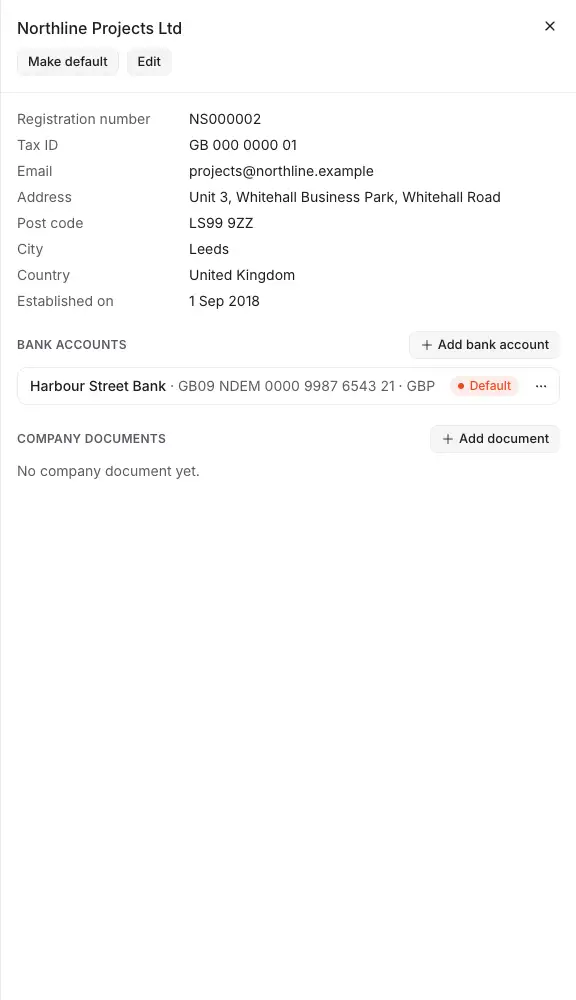
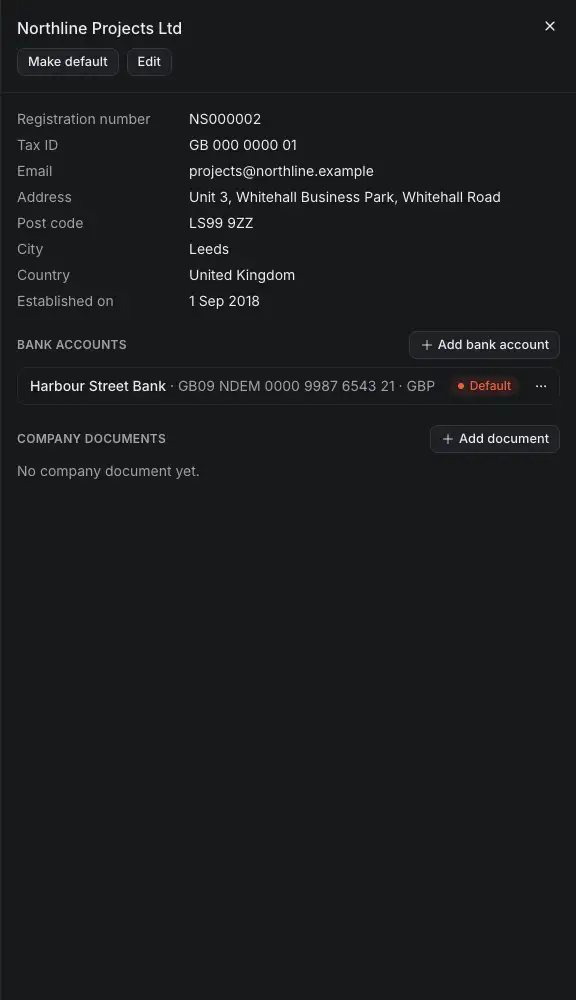
- Make default makes it the entity new documents start with.
- Edit changes its details. Complete with AI there reads the legal pages of your website, and never looks for a bank detail.
- Its bank accounts. Add bank account suggests banks by name, with their SWIFT code, and checks an IBAN as you type it.
- The company documents of this entity, such as its certificates.
What an entity and its bank account print is fixed into each quotation and invoice when it is issued. Changing them here never changes a document already sent.
Invoicing
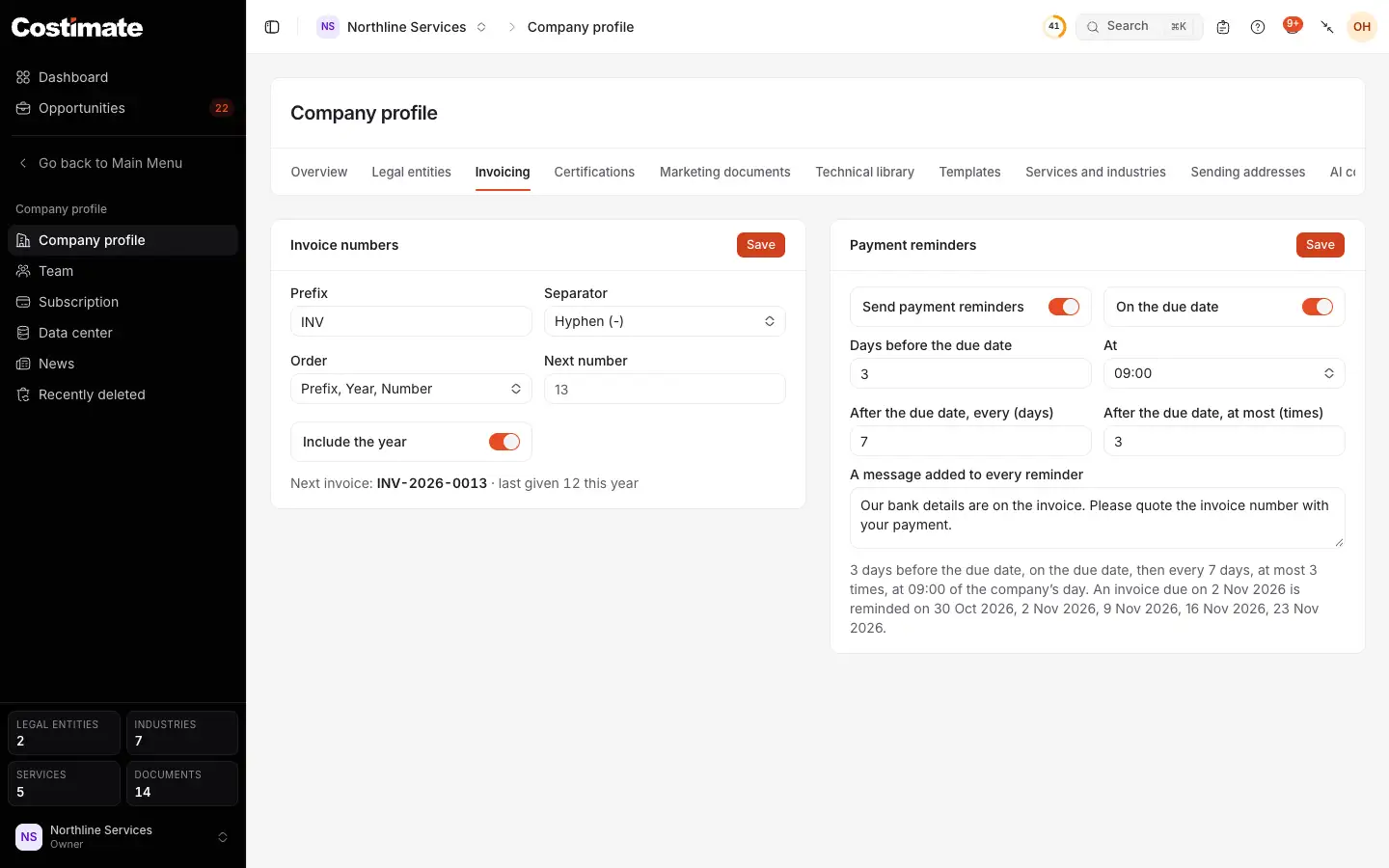
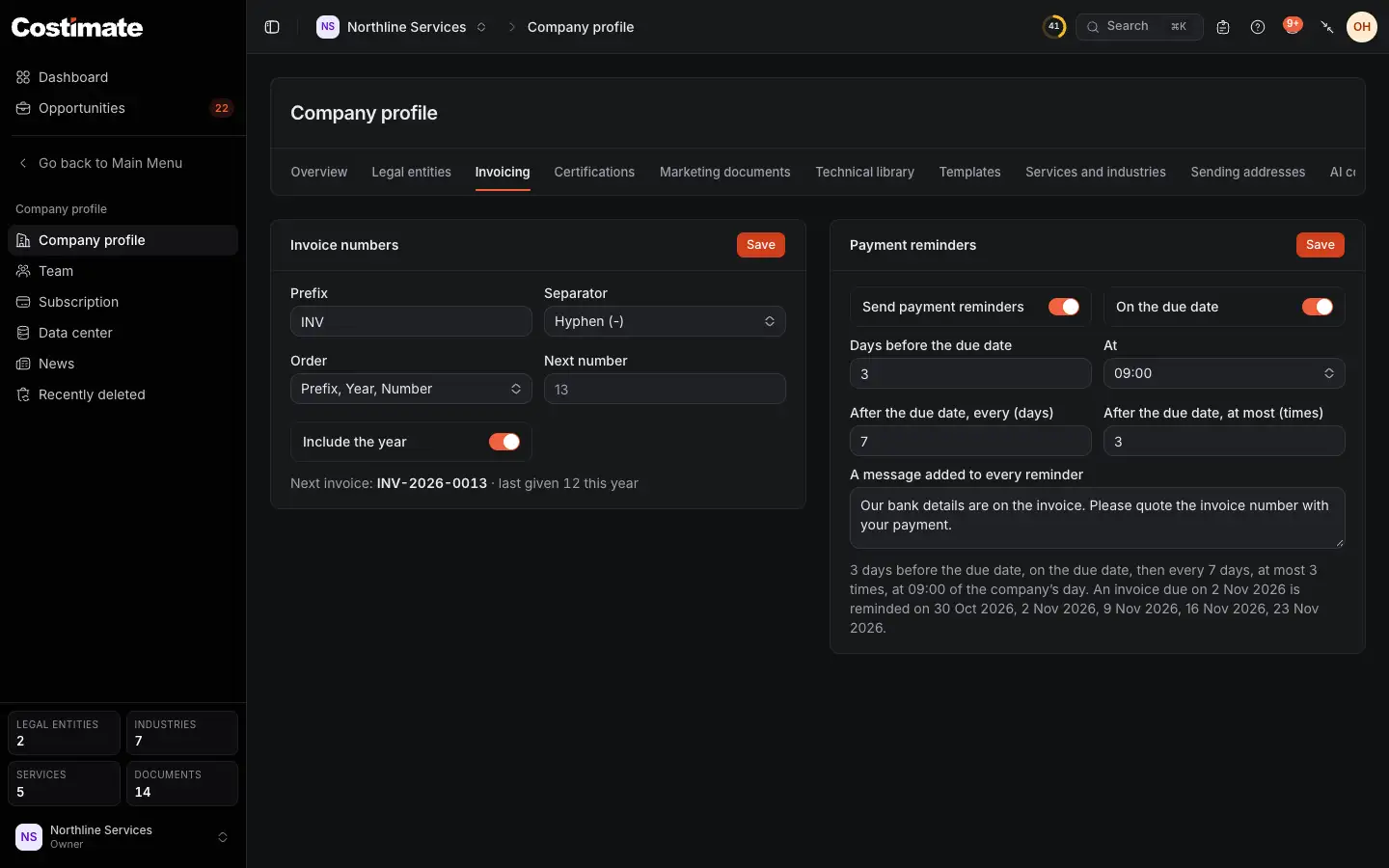
- Invoice numbers: the prefix, the separator, the order of their parts, the next number and whether to include the year.
- The number the next invoice gets, and the last one given.
- Payment reminders: whether they go, before, on and after the due date, at which hour of your company's day, and a message added to each.
- Send payment reminders switches them on or off for the whole company.
- The schedule in one sentence, with the days an invoice due soon would be reminded.
Numbers follow the order of the issue dates, and an invoice gets its number only when it is issued. Reminders go only for an invoice whose reminders someone confirmed. See Invoices and payments.
The other tabs
- Certifications, Marketing documents and Technical library hold the papers your bids draw on: certificates, policies, case studies, CVs. Each tab says which papers a bidding company is expected to hold.
- Templates sets how your proposals, quotations and invoices look.
- Services and industries are the lists your opportunities and projects pick from.
- Sending addresses lets your documents leave from your own address, on a paid plan.
- AI connectors shows who connected ChatGPT or Grok. See Connect ChatGPT.
Good to know
- Reading the profile needs no further permission. Changing it is for the owner and admins. Every member sets their own sending address, on Sending addresses.
- Nothing on the profile stops a save or a bid: what it misses is a list of what to add, not a lock.