

Your rate card
Your company's rate card in Commercial settings, which every bid copies when its pricing starts, with the templates of service lines and the scorecard of the bid decision.
Commercial settings is your company's rate card: what a position, a material, a subcontractor and other direct costs cost you, and the mark-ups a new bid starts with. It also keeps your templates of service lines and the scorecard of the bid decision.
When a bid's commercial proposal is started, it takes its own copy of the card. A later change here reaches no bid that was already started.
Open it
Commercial settings is reached from a bid:
- Settings on the bar of the bid's commercial proposal, or
- Commercial settings, the last page under Commercial proposal in the bid's menu.
Opened from a bid, it shows Back to that bid. You can also find it with Search. With the standard roles, everyone can read it, and the owner, admins, proposal managers and capture managers can change it.
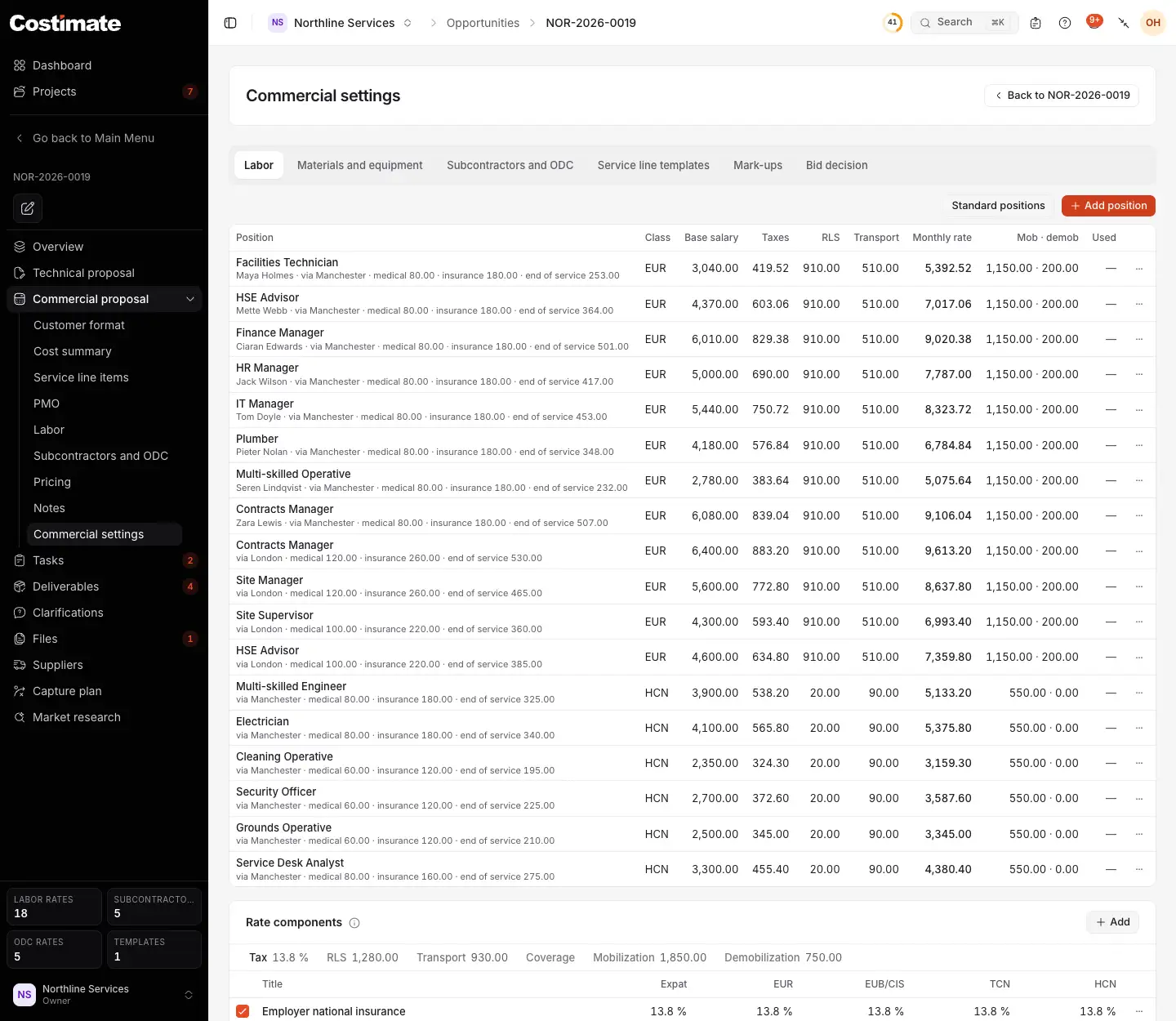
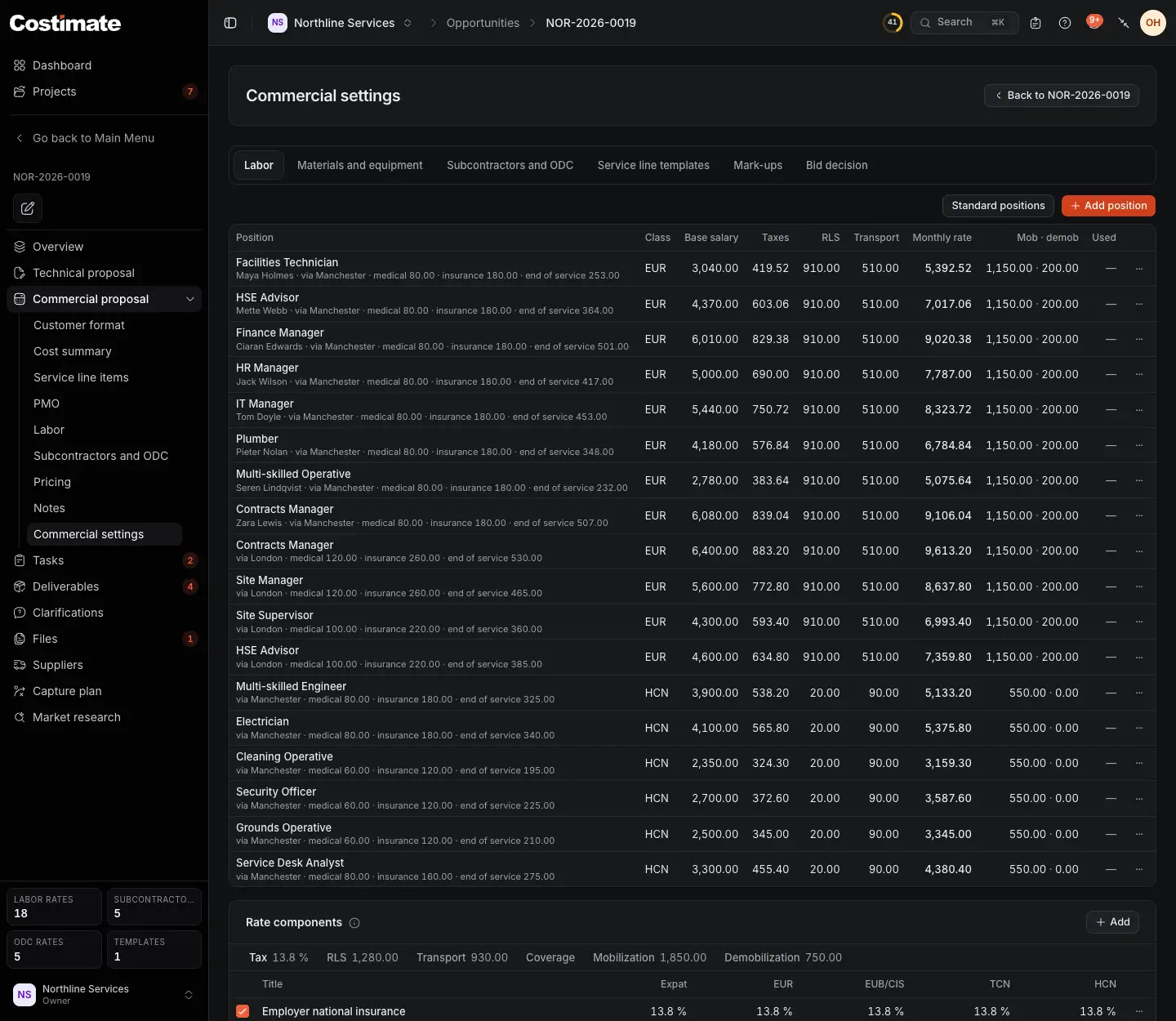
- Back to the bid you came from.
- The tabs of the rate card.
- Add position adds a position to price people with. Standard positions adds a ready-made set.
- Each position's monthly rate, which Costimate works out from its salary and its components. You never type it.
- Rate components: what is added to a salary, such as taxes, transport, insurance and mobilisation, with a figure for each class of staff.
What each tab holds
| Tab | What it holds |
|---|---|
| Labor | Your positions, their salary and what is added to it, and the monthly rate that results |
| Materials and equipment | Your products with their prices, read from Products |
| Subcontractors and ODC | Your subcontractors' rates and your other direct costs, such as vans, licences or insurance |
| Service line templates | Sets of service lines saved from a bid, to start another from |
| Mark-ups | The mark-ups a new bid starts with. Only people who can see prices see this tab |
| Bid decision | The scorecard of the capture plans, its pass mark, and the warning at Decision |
Templates of service lines
On a bid's Service line items, Save as template keeps its lines and their entries. They are listed on Service line templates: click one to open it. In another bid, Load template brings them in: each entry is matched to that bid's own rates, and an entry with no match keeps the figures it was saved with. You can add a template's lines to those the bid has, or replace them.
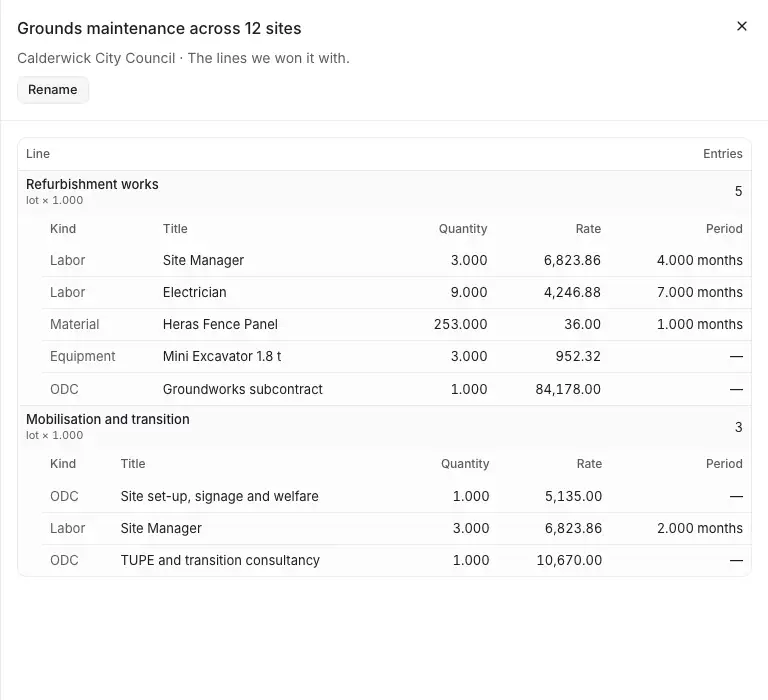
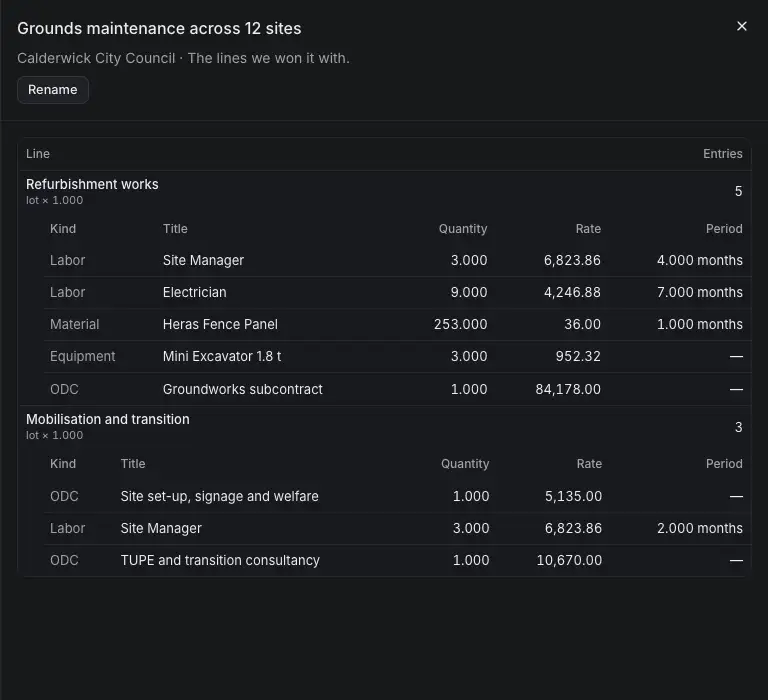
- The template: the service and the client it was saved for, with its note.
- Its lines, each with its entries: their kind, quantity, rate and period.
- Rename renames it. In the list of templates, its ⋯ menu also has Duplicate and Delete.
The bid decision
The Bid decision tab sets how the capture plans of your bids are scored.
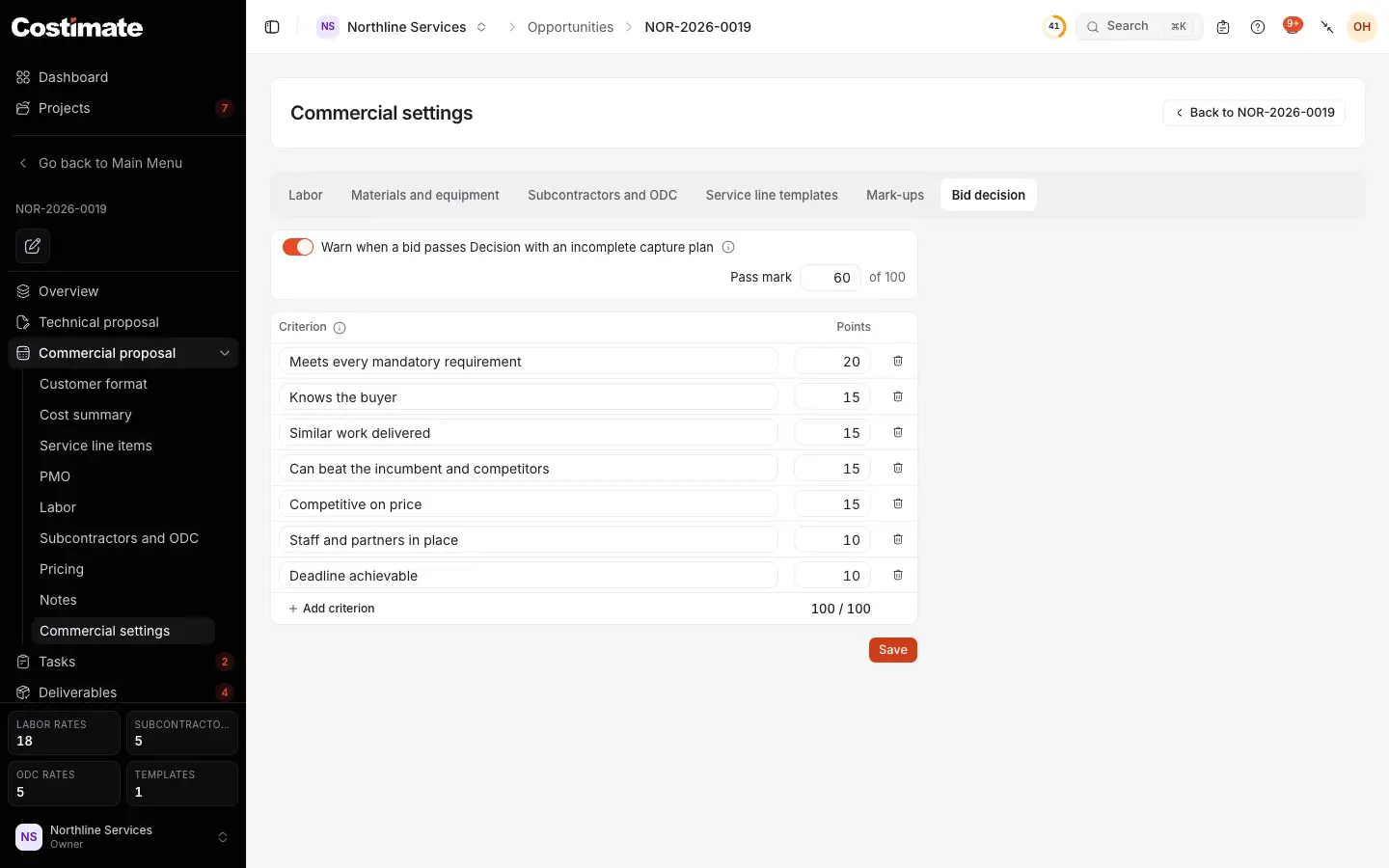
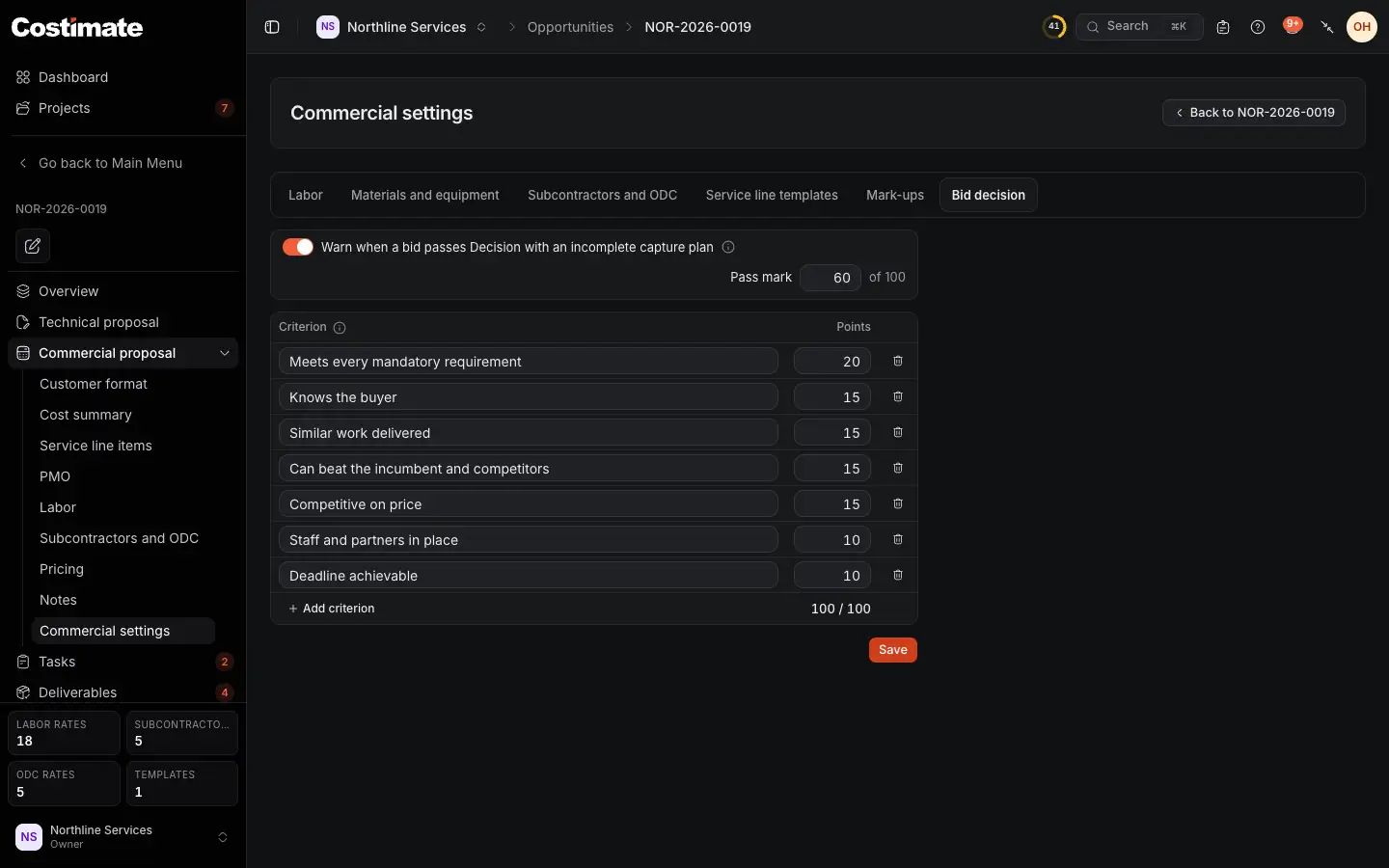
- Warn when a bid passes Decision with its capture plan not complete. The warning never stops a move. Only someone who can approve stage changes can switch it.
- The pass mark: the score a bid should reach, out of 100.
- A criterion. Change its name, or add one of your own with Add criterion.
- The criterion's points.
- The total of the points. They must add up to 100: the total shows in red until they do.
- Save keeps the scorecard.
A capture plan keeps the scorecard it was made with, so a change here only reaches the plans made after it.
Good to know
- Changing the rate card never moves a bid that was already started. To bring a new position into a started bid, use From company card on the bid's own Labor or Subcontractors and ODC screen.
- The rates are costs, which everyone on the team can see. The mark-ups are prices, and only people who can see prices see them.