

Workflow: decisions waiting for you
One list of every decision that waits in your company, stage moves, costs, sign-offs, expenses, bills, leave, swaps and more, with what you need to decide each without opening it.
Workflow, at the top of the left menu, is one list of everything in your company that waits for someone's decision. Its number in the menu is what waits for you. Each row has the same buttons as the record's own page, so you can clear your list from one place.
What waits there
| Kind | What waits | Decided by |
|---|---|---|
| Stage changes | A move of an opportunity to another stage | The opportunity's approver, or who may approve stage changes |
| Proposals | The costs of a commercial proposal | The opportunity's approver, or who may approve stage changes |
| Sign-offs | A checklist item that names an approver | That approver, or the opportunity's approver |
| Deletions | A request to delete an opportunity | Who may delete opportunities |
| Expenses | A project's expense | Who may approve the expenses of projects |
| Shift swaps | A swap of two shifts | Who plans the project |
| Bills | A supplier's bill | Who may approve the bills of suppliers |
| Leave | A leave application | Who may decide leave, and the person's direct manager |
| Time | A week of an expert's time | Who manages experts |
| Clarifications | A commercial answer to a round of the client's questions | The opportunity's approver, or who may approve stage changes |
| No proposal | A bid submitted without its commercial proposal recorded | Who may change the opportunity, on the opportunity itself |
You see only the kinds you may read. A kind you may not see is not listed, counted or named.
Clear your list
- Open Workflow. It opens on Waiting for me: what you may decide, the oldest first.
- Choose a kind above the list to see only that kind, or search by number, title, client, supplier, employee or project.
- Decide a row with its own buttons, or click the row to read it first.
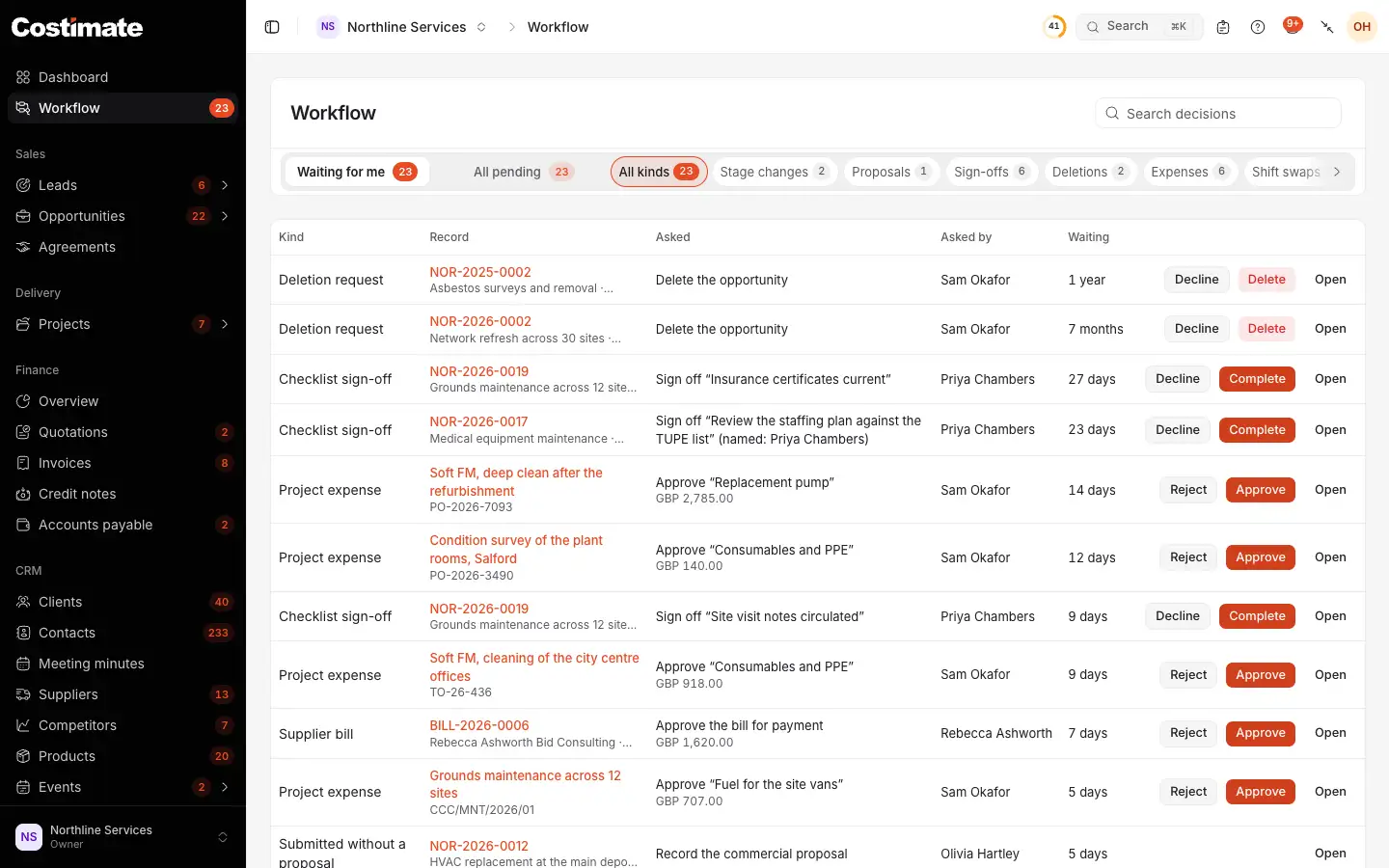
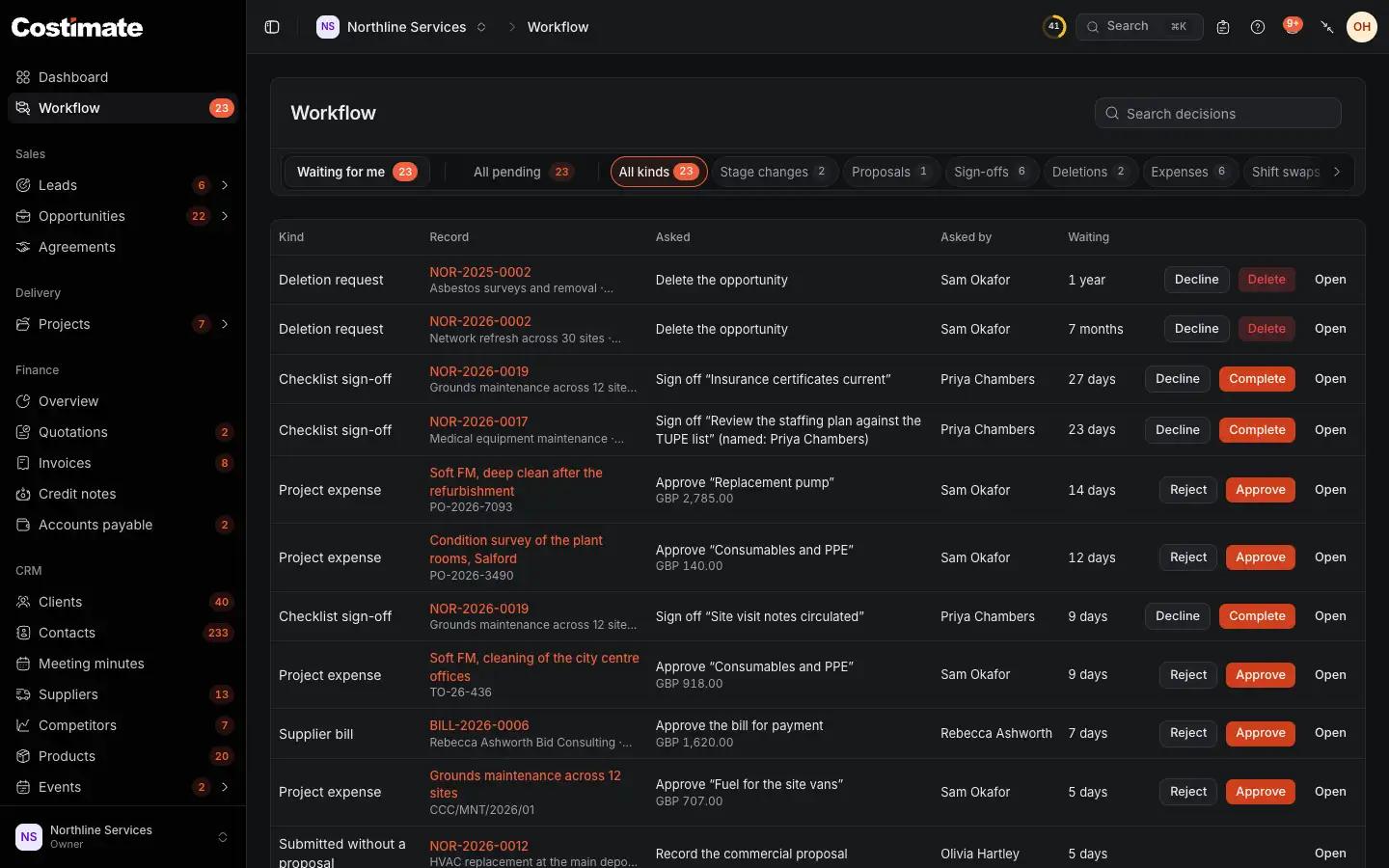
- Waiting for me: what you may decide.
- All pending: everything waiting of the kinds you see, to chase what you asked for.
- All kinds, then each kind, with how many wait.
- What is asked: the move, the costs to approve, the expense with its amount.
- How long it has waited.
- The row's own decision, here Approve, beside Reject or Decline and Open.
A row someone else must decide says "Waiting for someone else", and only opens. A note is asked for where the module takes one, and is required to reject leave, an expense, a bill or an expert's week.
Read a decision before you make it
Click anywhere on a row to open it in a pane at the right: who asked and when, what they wrote, and the facts you need.
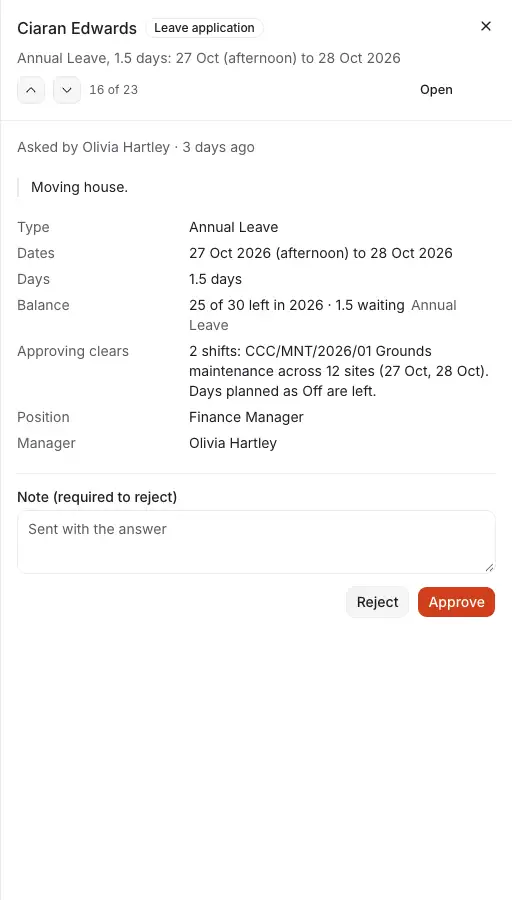
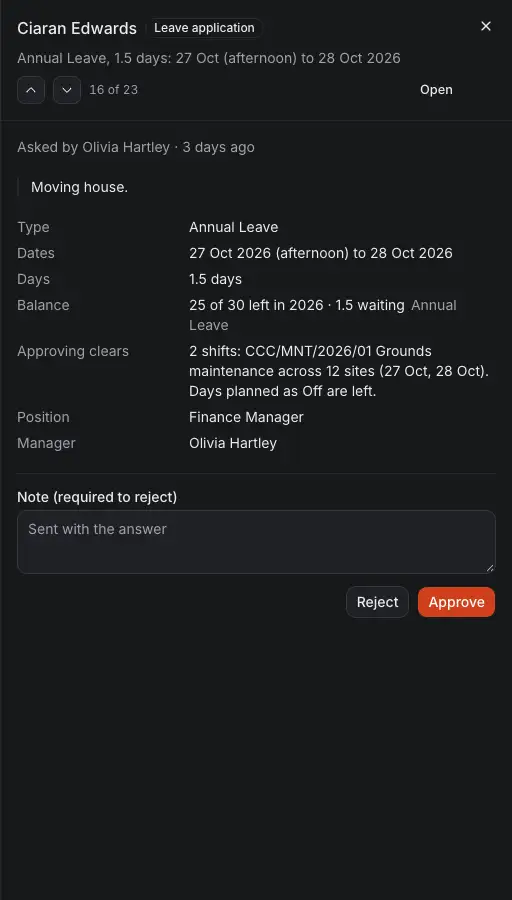
- The next decision, and the one before it. On the keyboard, J and K, or the arrows.
- Who asked, and how long ago.
- For leave, the shifts an approval clears.
- The note, with the decision.
- Approve, or Reject beside it. On the keyboard, A approves and D declines.
After a decision, the pane moves to the next row, and closes when none is left. The open row is in the page's address, so a refresh keeps it.
Good to know
- Nothing new is decided here. Each button does what the record's own page does, with the same rules. A bid submitted without its proposal has Open only: it is recorded on the bid.
- No price. The costs of a proposal wait as "Approve the costs", with no figure. The pane shows the selling price and margin only to people who can see prices. The type of a leave is named only to people who may read it.
- A manager who may not read employees still sees their own team's leave here, and decides it on the row.
- Archived bids and projects wait for nothing: their requests are not listed.
- The dashboard's "Waiting for my decision" counts the same rows as Workflow and its number in the menu.