

Public buyers
Find the public bodies that tender your kind of work, add them as clients, follow them so their new tenders arrive as leads, and make a lead or a bid of an open tender.
Public buyers lists the ministries, councils, agencies and utilities that publish tenders on TED, SAM.gov, UK Find a Tender and UK Contracts Finder, with the tenders they published. It is one of the pages of Leads in the left menu. Anyone who can see your leads or your clients can open it.
Find buyers and add them as clients
- Open Public buyers.
- Look through Suggested for you, or search the whole register further down by name, country or industry.
- Tick the buyers you work with, or want to.
- To get their new tenders too, turn on Follow all in the bar at the foot.
- Choose the button that adds them, such as Add 2 clients.
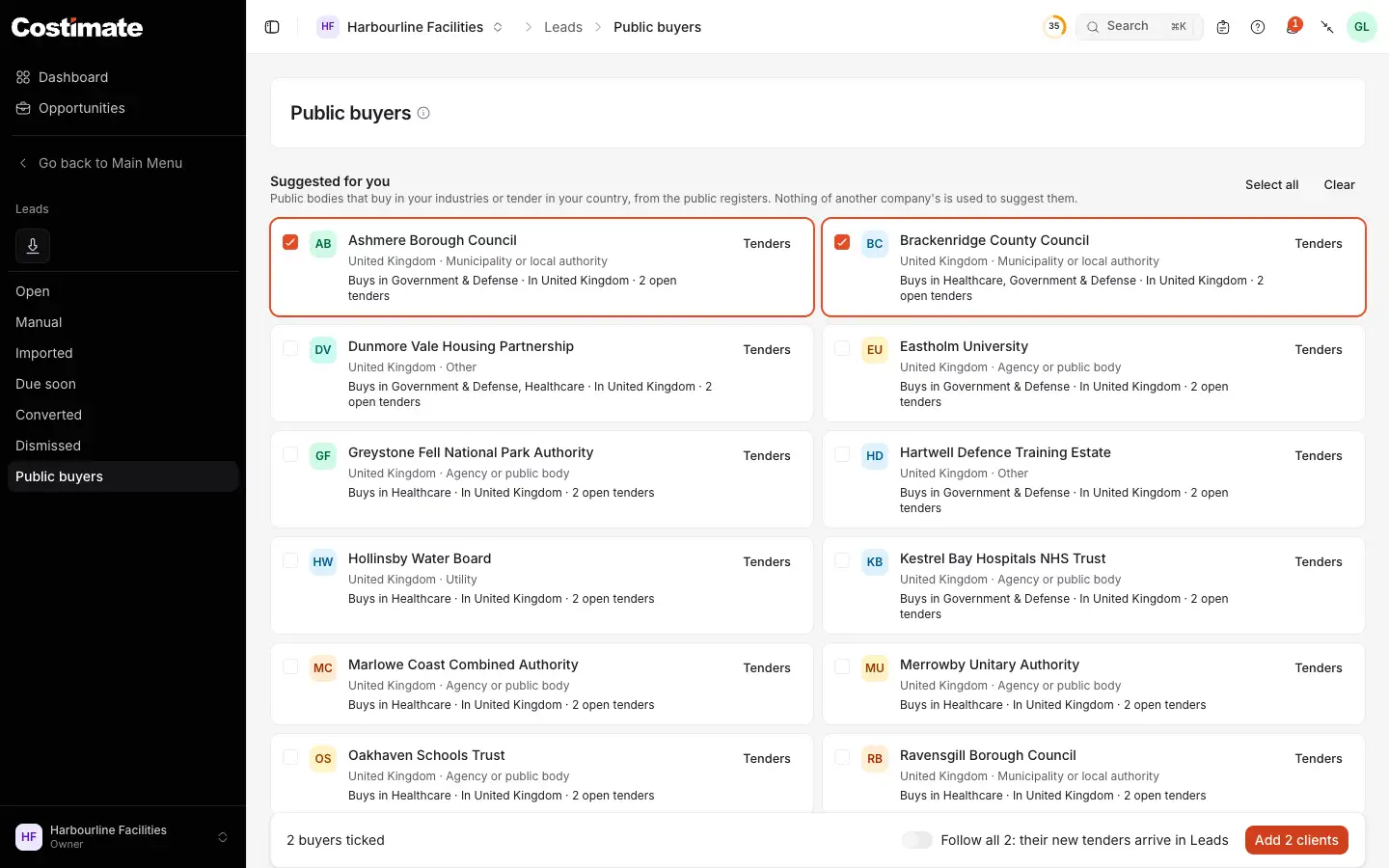
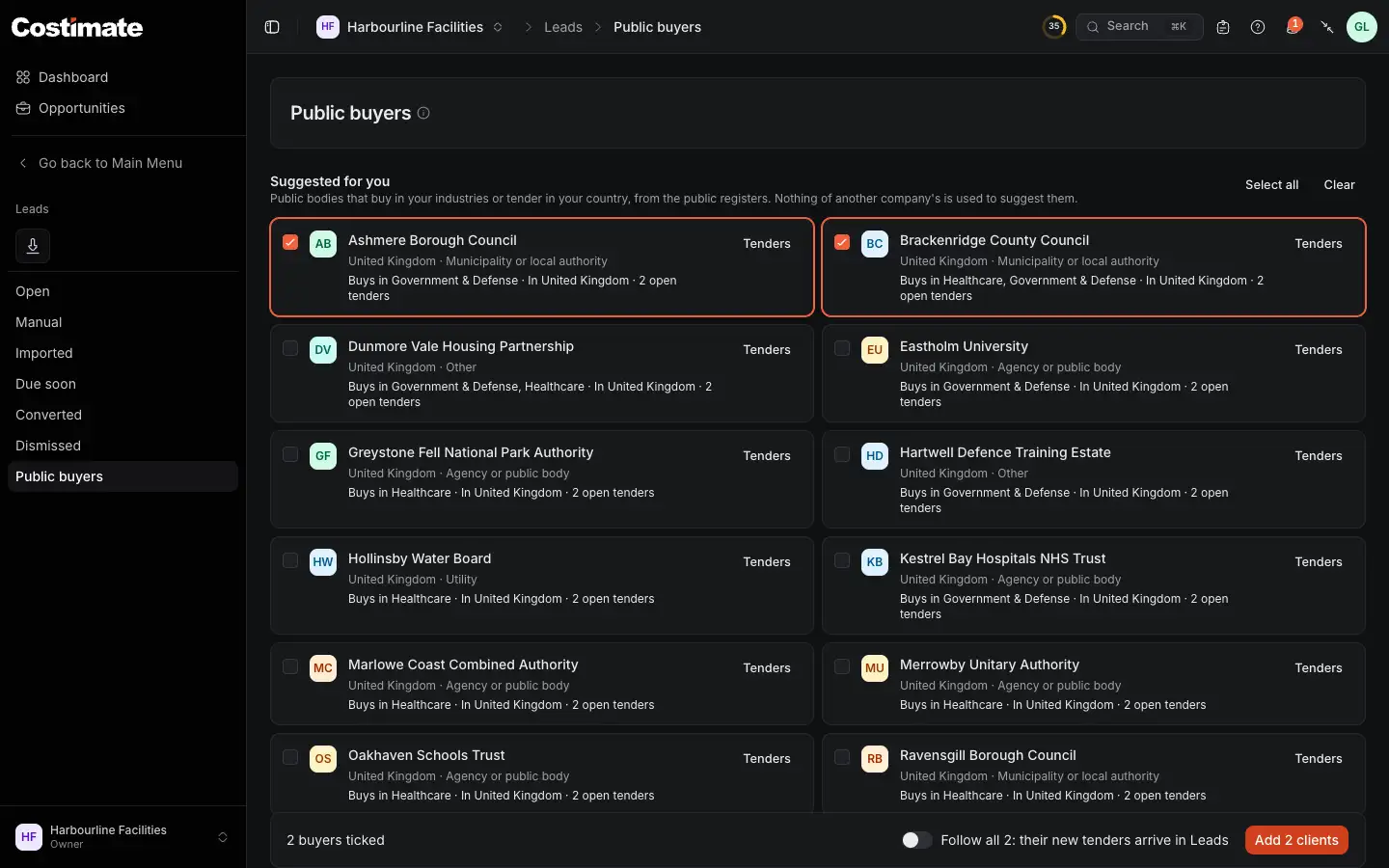
- The buyers suggested for you: those that buy in your industries, or tender in your country, and are not your clients yet.
- Tick a buyer to choose it.
- Tenders opens the buyer with its open and past tenders.
- Select all and Clear tick or untick every buyer shown.
- Follow all: their new tenders arrive in your Leads.
- Add 2 clients makes each ticked buyer one of your clients.
A buyer you add becomes a client with its name, country, website and logo. If you already have a client of that name, Costimate links that client instead and changes nothing of it.
Open a buyer
Choose Tenders on a buyer to see how it buys and what it has published.
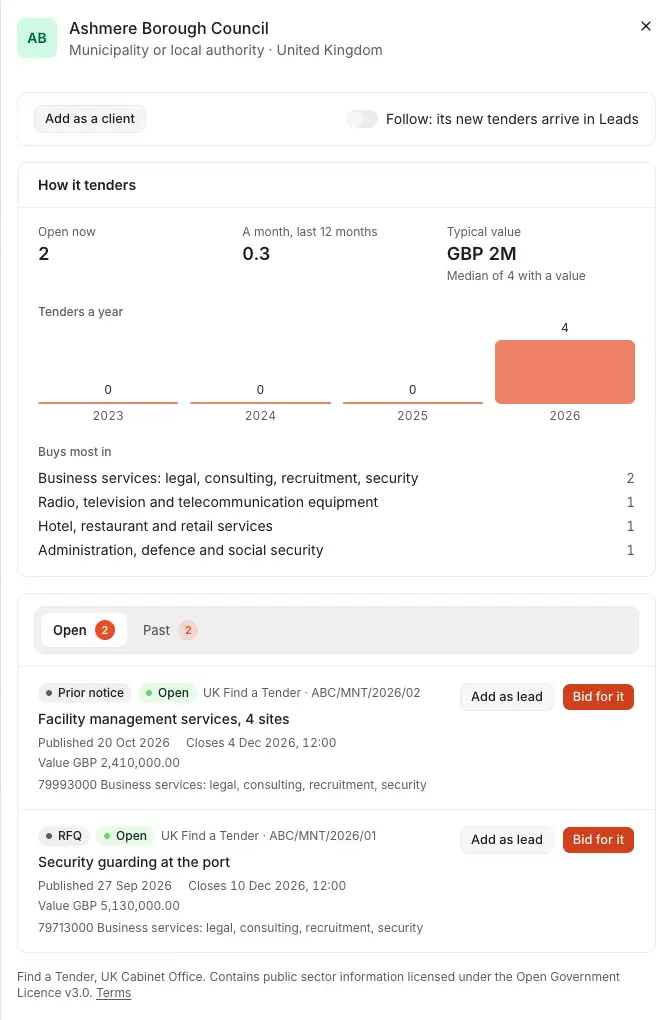
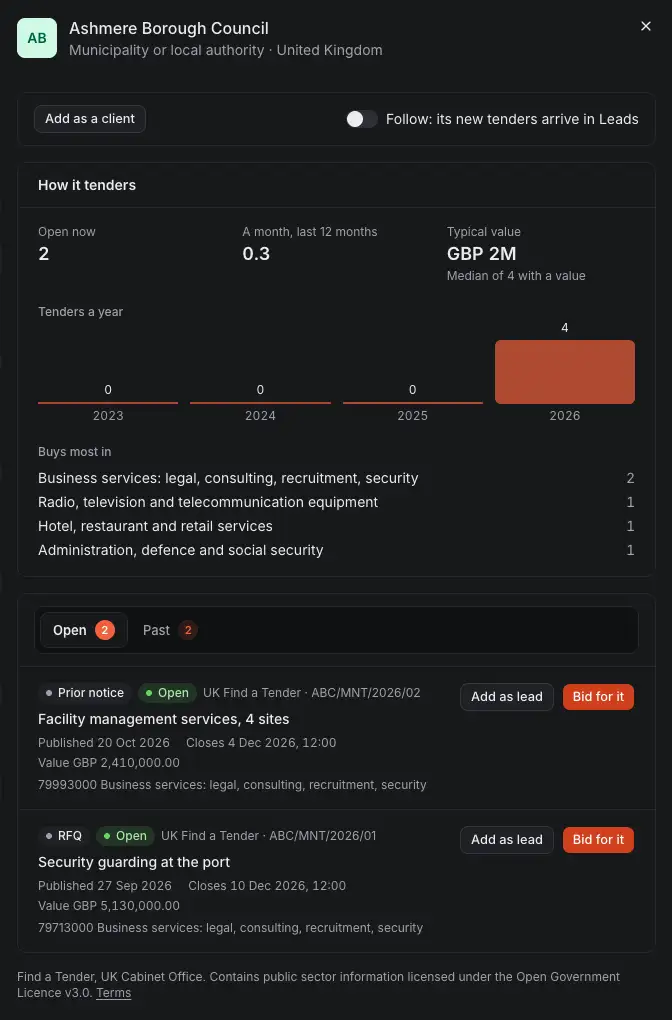
- Add as a client. Once it is your client, this says Your client, with a link to it.
- Follow: its new tenders arrive in your Leads as they are published.
- How it tenders: how many tenders are open now, how often it publishes, its typical value and what it buys most.
- Its Open and Past tenders, with their register, reference, dates and value.
- Add as lead makes a lead of an open tender.
- Bid for it makes the lead and opens it with Convert to an opportunity ready to fill in.
A past tender cannot become a lead, but you can keep it with Keep as history: it goes on your client's Tenders tab, with a note of your own, such as who won and why.
Good to know
- A tender is one lead in your company, however it arrived. Once it is one of your leads, the buyer shows In your leads with the lead's number instead of the buttons.
- Suggestions use your own industries, your country and the registers' data. What other companies choose is never used, and no other company sees which buyers you add or follow.
- The registers' data is shown with its source and its terms, under each buyer.