

Find your way around
The left menu and how it narrows to a record, the top bar, search, notifications, notes, page width, and light and dark.
Every page of Costimate has the same frame: the menu on the left, the bar along the top, and the page itself. This page shows where things are, so you can find any screen in a click or two.
The left menu
The menu lists everything you can open, in groups. You only see the items your role lets you open: a member who cannot see prices has no Quotations or Invoices, for example.
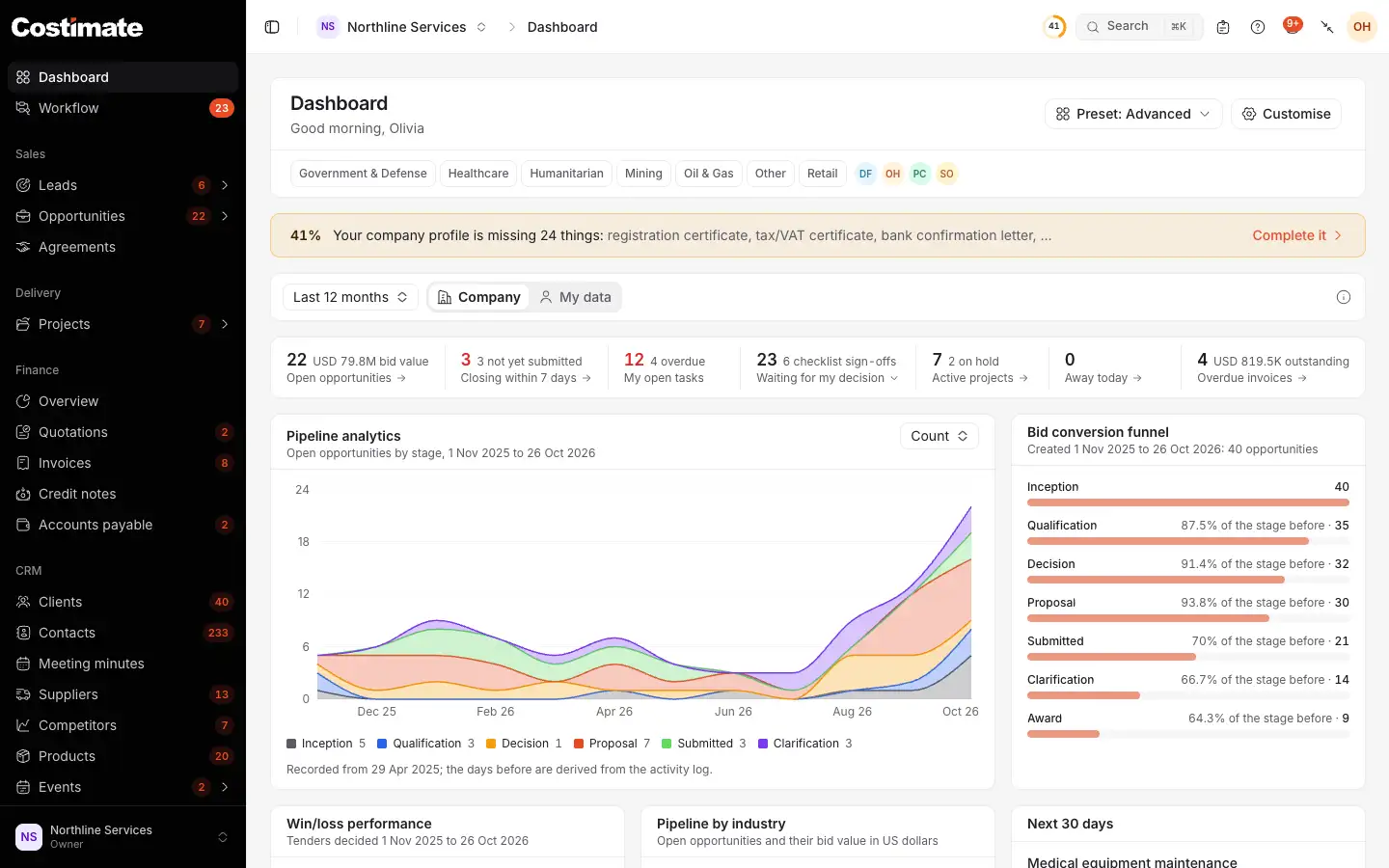
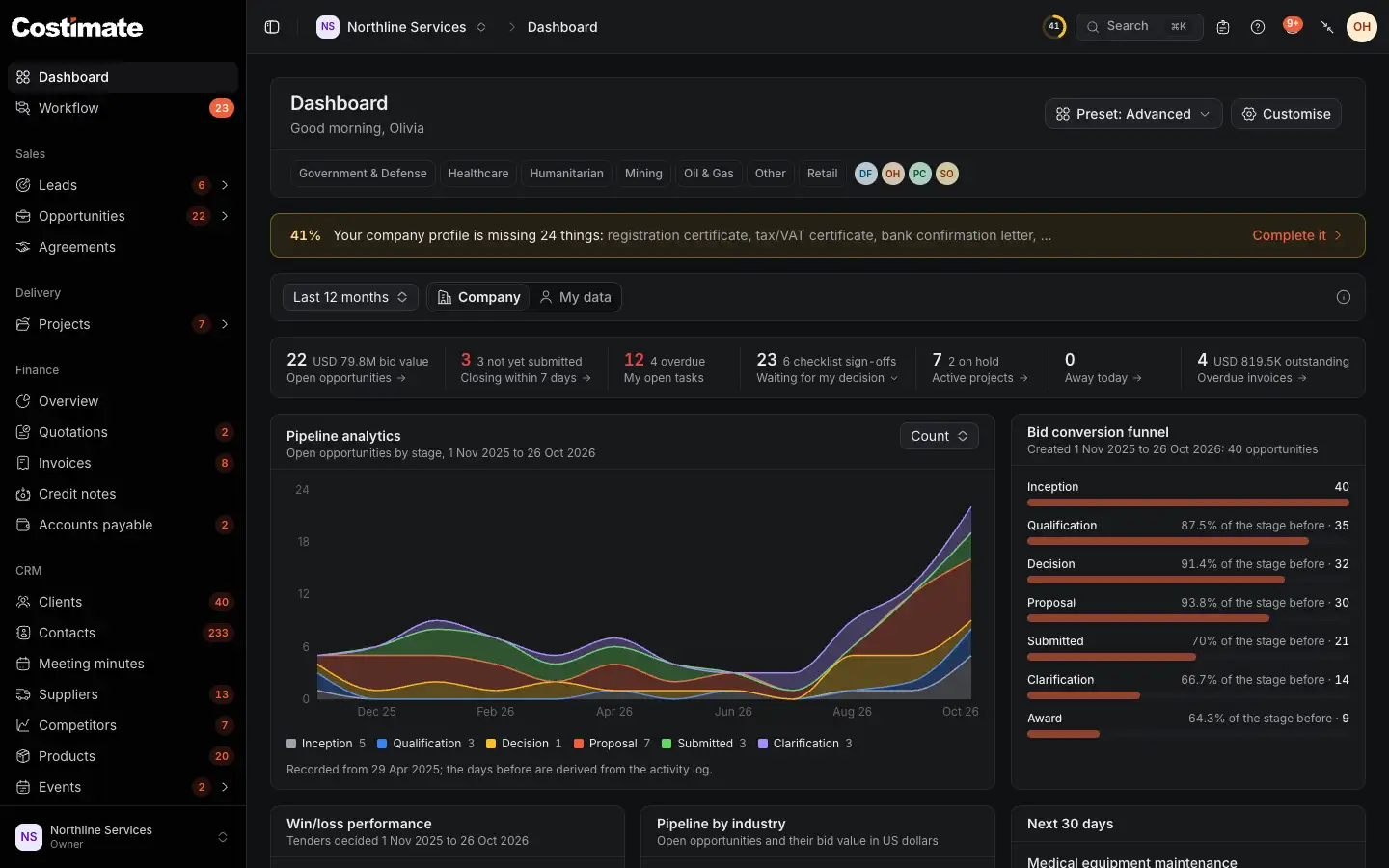
- The modules, in groups: Sales, Delivery, Finance, CRM, Human Resources and Company. The number beside an item counts what is live: open leads, unpaid invoices, active clients.
- Workflow: the decisions waiting for you, such as stage changes, costs and leave to approve, with how many.
- Your company. Click it to open the company menu: Company profile, Team, Subscription, Data center, News and Recently deleted, and how much storage your company uses.
- The company you are working in. Click it to switch to another company you belong to, or to create one.
- Search, or ⌘K (Ctrl+K on Windows).
- Notes: your own notes.
- Help opens the page of these docs about the screen you are on, in a new tab.
- The bell, with how many notifications you have not read.
- Your account menu: Profile, Security, Page settings, Appearance and Sign out.
To hide the menu, use the button at the left of the top bar, or ⌘B (Ctrl+B on Windows). It folds to a strip of icons. To make it wider or narrower, drag its right edge; double-click the edge to reset it.
Open a record, and the menu follows it
When you open a record, such as an opportunity, a client, a project or an invoice, the menu becomes that record's own. Its tabs become the menu's pages, and its main buttons sit under its name.
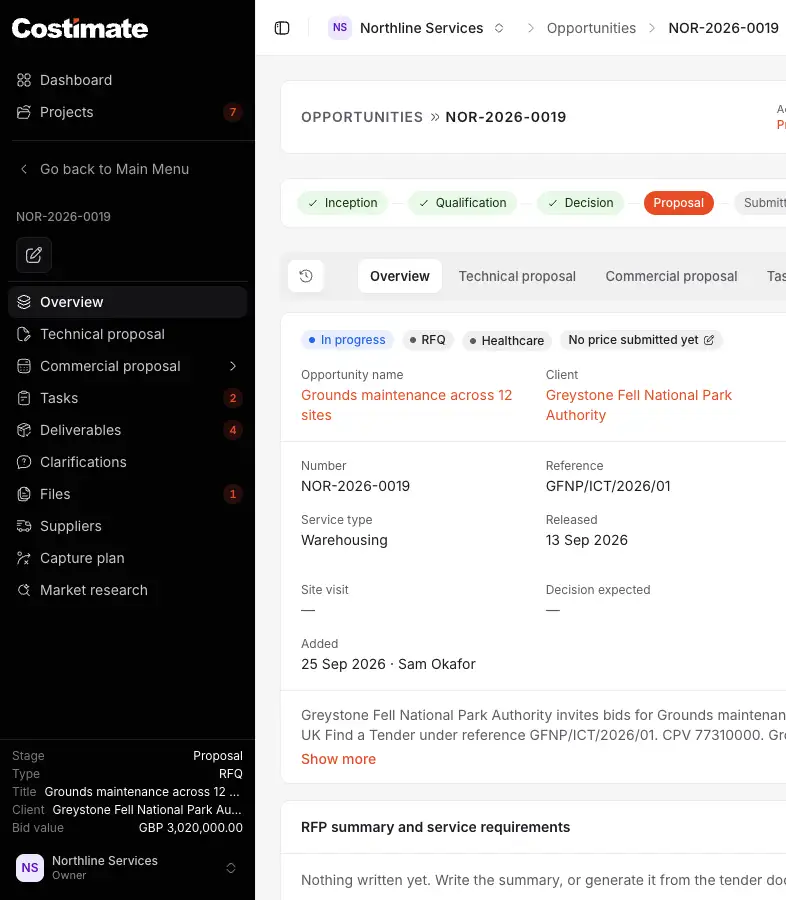
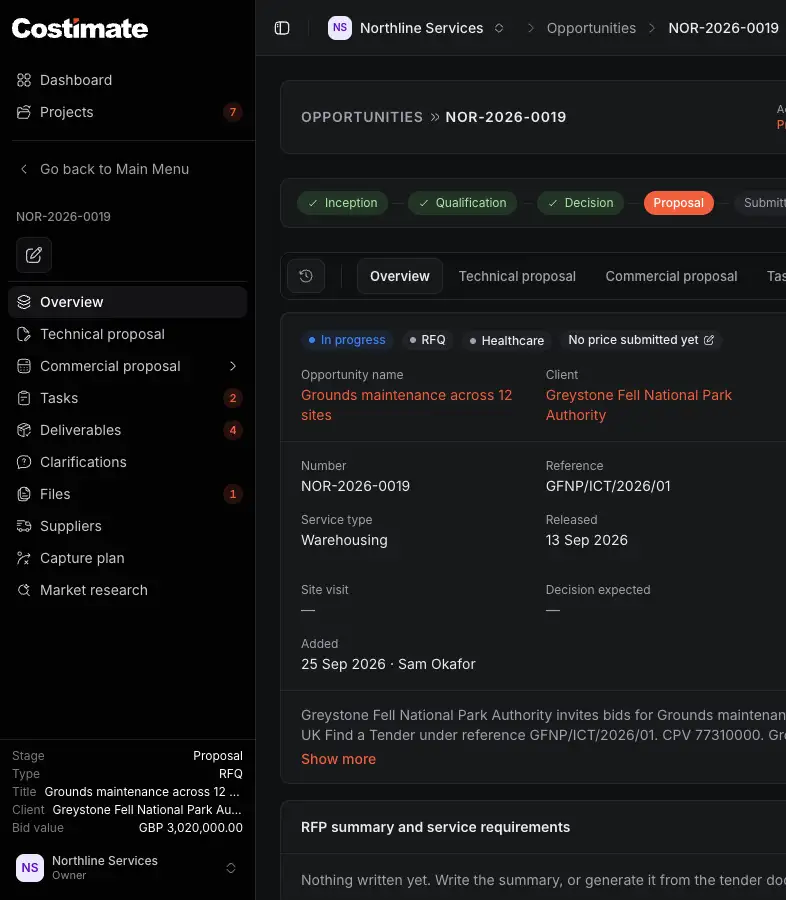
- A few pages stay at the top wherever you are. On an opportunity they are Dashboard and Projects.
- Go back to Main Menu shows the whole menu again.
- The record's name or number, and its actions as buttons. Point at a button to see what it does.
- The record's tabs, as pages. The number beside a tab is the same as on the page.
- The record at a glance. On a list, this place shows the list's figures instead.
- Where you are: your company, the list, then the record. Click the list's name to go back to it.
Search
Choose Search in the top bar, or press ⌘K (Ctrl+K on Windows), and start typing.
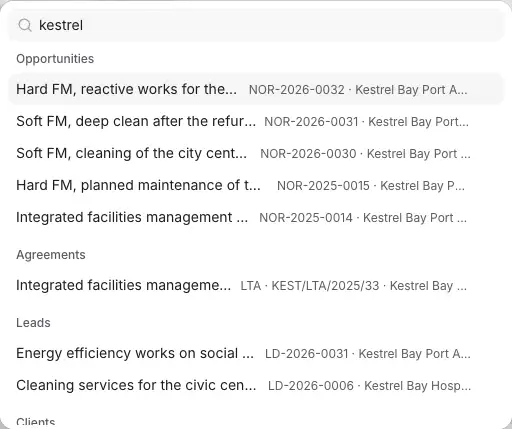
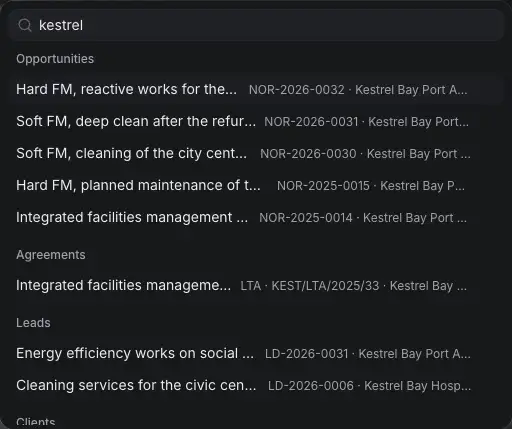
- Type two letters or more to search your records.
- The results come in groups by what they are, opportunities first.
- Leads, clients, projects, quotations, invoices and the rest follow as you scroll. Press Enter, or click a result, to open it.
Before you type anything, the same box lists every page of your menu under Go to, your other companies under Company, and Security, Page settings, Help and Sign out under Account.
Notifications
The bell shows how many notifications you have not read. Open it to see the latest.
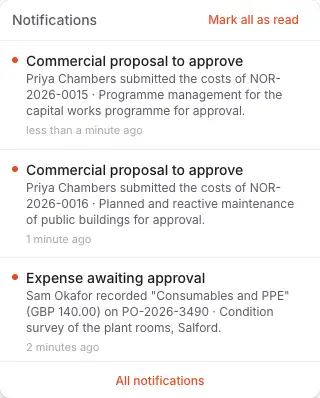
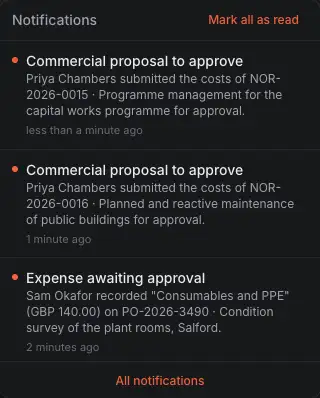
- Mark all as read clears the count.
- A notification says what happened, who did it and when. Click it to open what it is about.
- All notifications opens the full list, where you can show only the unread ones.
The bell lists the notifications of the company you are working in. If you belong to other companies, a line under the list says how many are unread there, with Go there.
Notes
Notes, in the top bar, opens your notes. Choose New note to write one: a title, the text, an opportunity it belongs to if you like, and the team members to share it with. A note is yours until you share it. The people you share it with can read it; only you can change or delete it.
Page width, light and dark
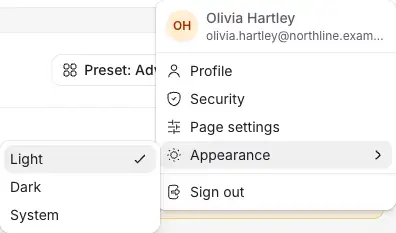
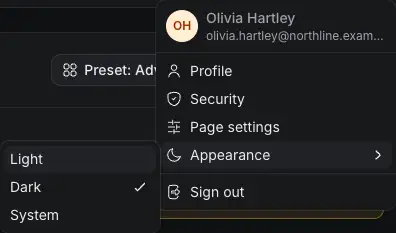
- Page settings: how wide your pages are, and the width Costimate recommends for your screen.
- Appearance, in your account menu.
- Light, Dark or System. System follows your computer's setting.
On a wide screen, the page-width button in the top bar keeps your pages to the width you set in Page settings. Only the page narrows: the menu and the top bar stay where they are.
Good to know
- The page width, the menu's width and light or dark are kept in this browser only. Another computer, or another browser, keeps its own.
- Search and the menu only show what you have permission to open. Search never shows an amount.