

Supplier bills
Record what your suppliers bill you, let AI read the bill for you, approve it for payment, record what you paid, and link it to a project's expense.
A supplier's bill is what you owe for goods or work you bought. You record it in Accounts payable, under Finance, someone approves it for payment, and you record what you paid. A bill states a cost, not a price, so everyone who can open Finance sees bills.
Before you start
- The supplier must be one of your Suppliers. Add it there first if it is new.
- Approving a bill needs the permission "Approve the bills of suppliers": the owner, admins and the Approver role have it. Who records a bill is often not who releases it.
Record a bill
- In Accounts payable, choose New bill.
- Drop the supplier's bill, a PDF, into the drawer and choose Read with AI. What the bill prints fills the form: the supplier, its invoice number, the dates, the currency and the lines. Each field it filled says Read from the bill. Check it.
- Check the fields and the lines read from the bill. Correct a line by hand, remove it, or tell AI what to change in a sentence.
- Pick the Project if the bill is for one.
- Choose Add bill.
The bill gets its own number at once, and the supplier's paper is kept as a file of the bill. You can also fill the form yourself without a paper, and add the lines on the bill's page.
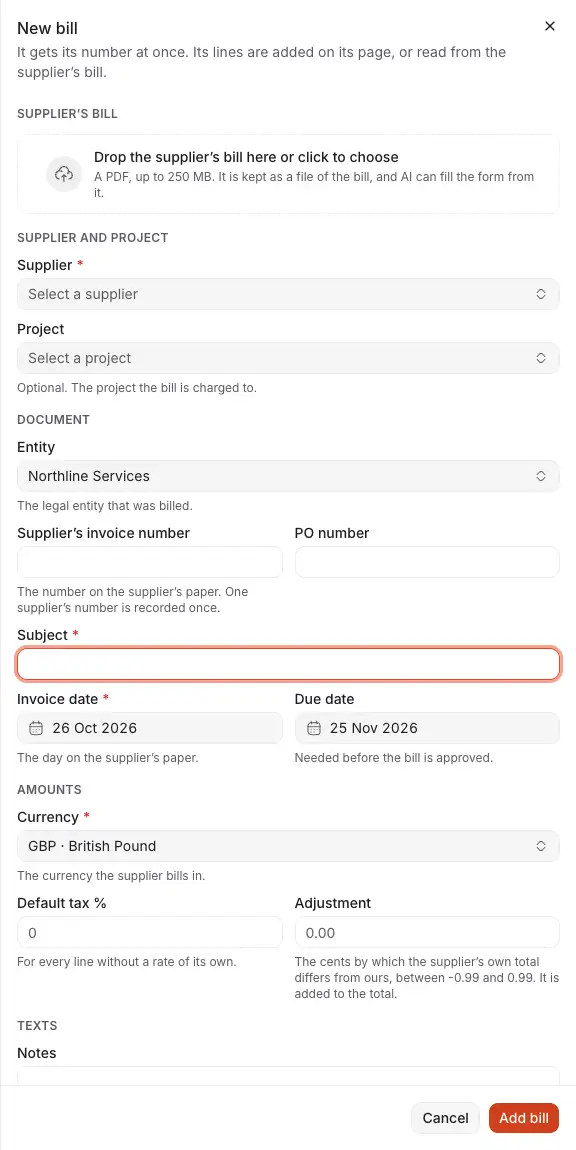
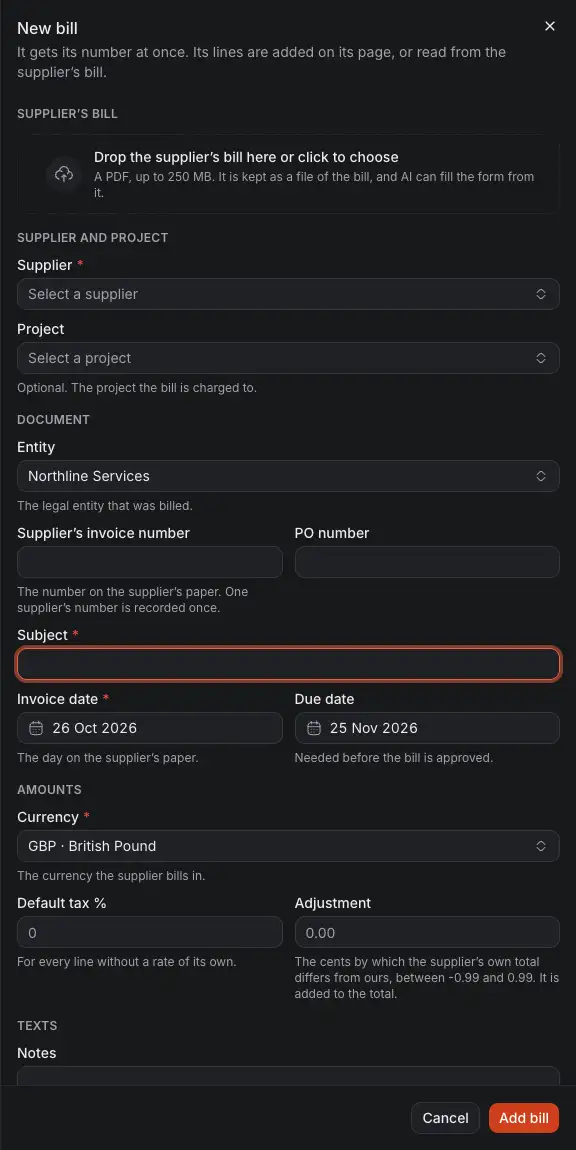
- The supplier's bill, for AI to read. Nothing is saved until you choose Add bill.
- The supplier, picked among yours. A supplier the bill names that you do not have is shown by name, for you to pick or add.
- The project the bill is for, if any.
- The number the supplier gave its bill. Each number of a supplier is recorded once.
- The due date. Without one the drawer proposes 30 days after the bill's date.
- Add bill records it.
AI never guesses. What the bill does not print stays empty, and a total that differs from the lines by less than one unit is proposed as an adjustment. A bigger difference is a warning for you to look at.
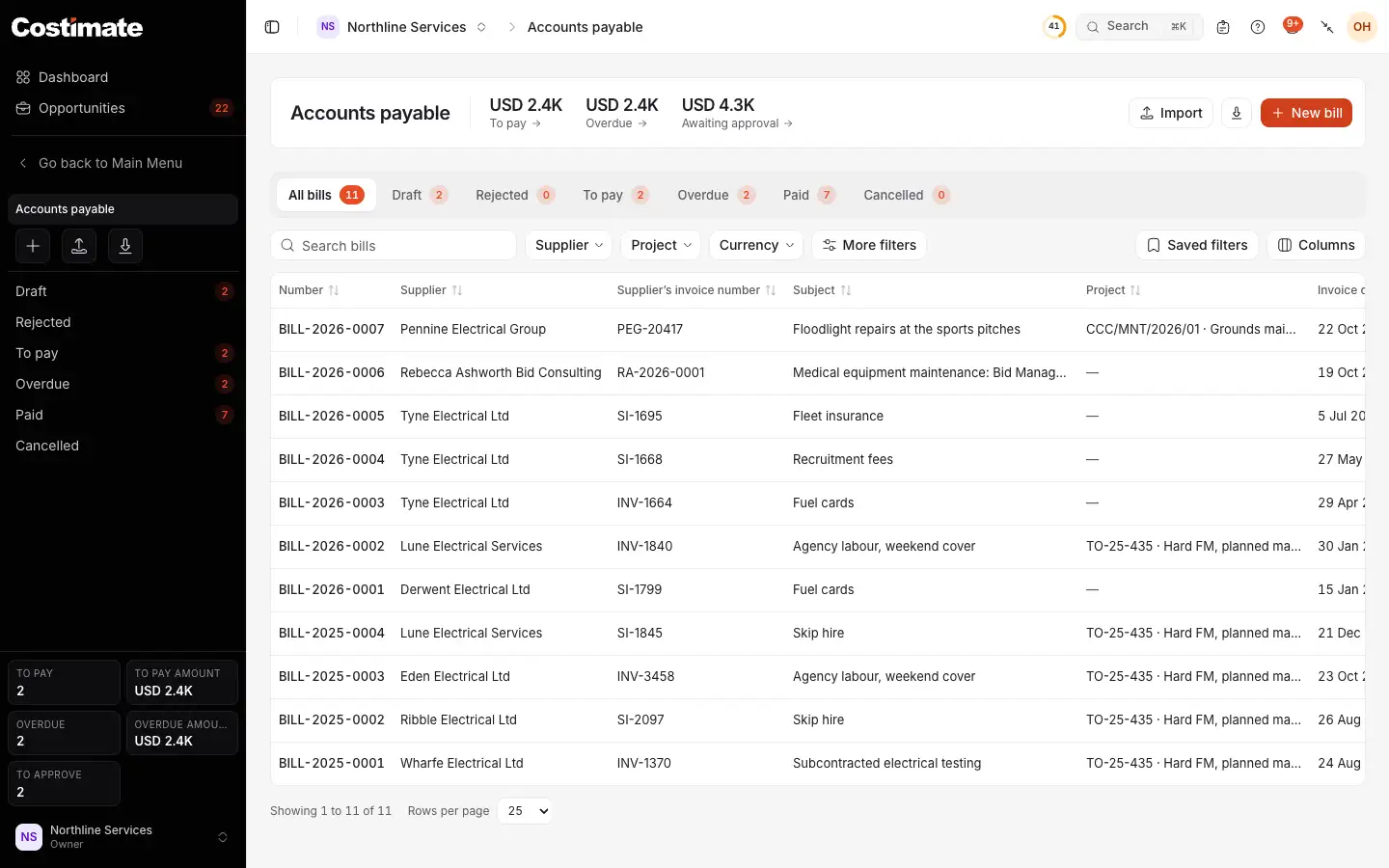
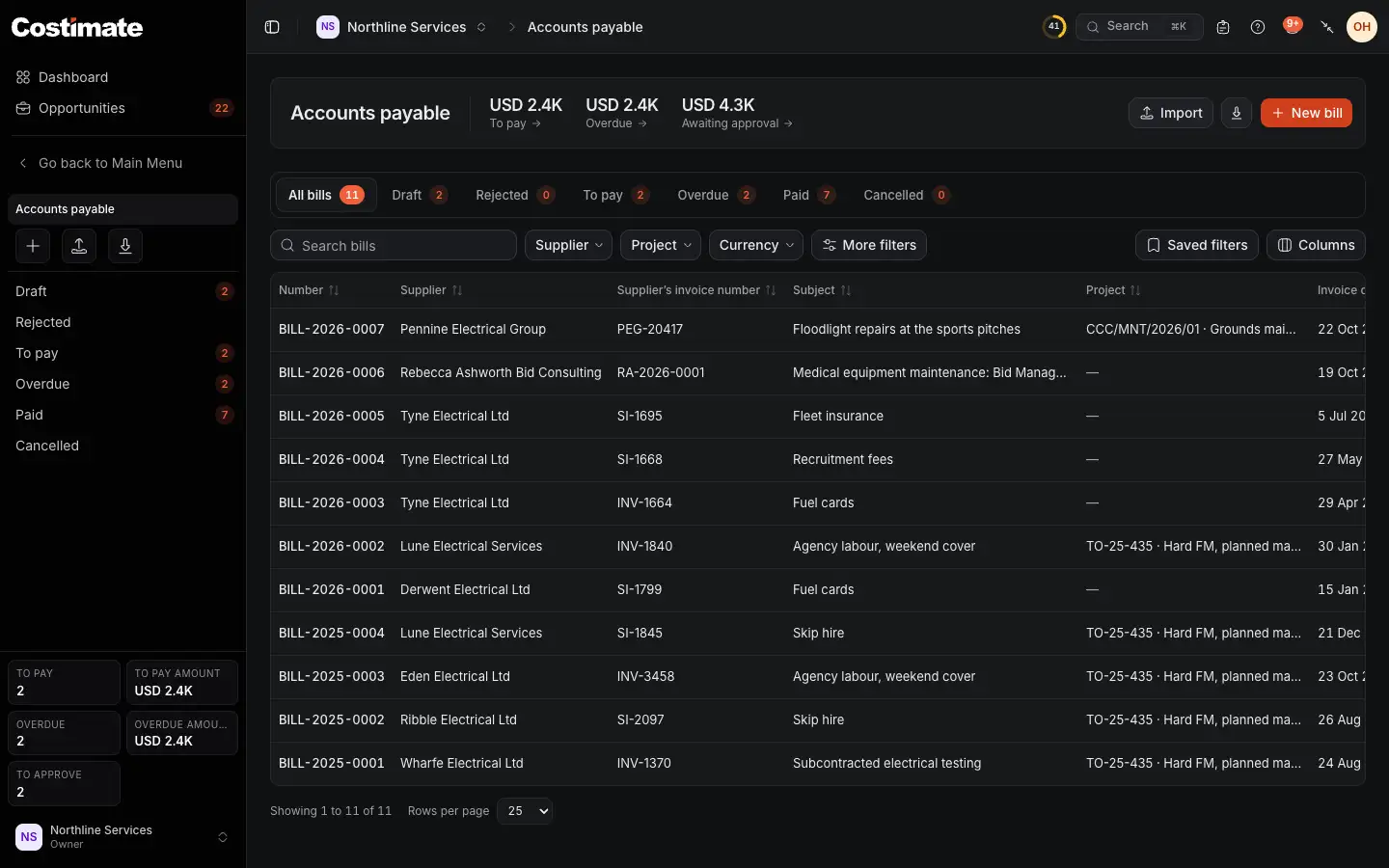
- What is to pay, what is overdue and what is awaiting approval.
- The views by status: Draft, Rejected, To pay, Overdue, Paid and Cancelled.
- Import adds bills from Excel, as drafts.
- New bill.
- The supplier's own invoice number, beside yours.
Approve or reject it
A new bill is a draft, waiting for approval. It is listed in Workflow for the people who may approve it.
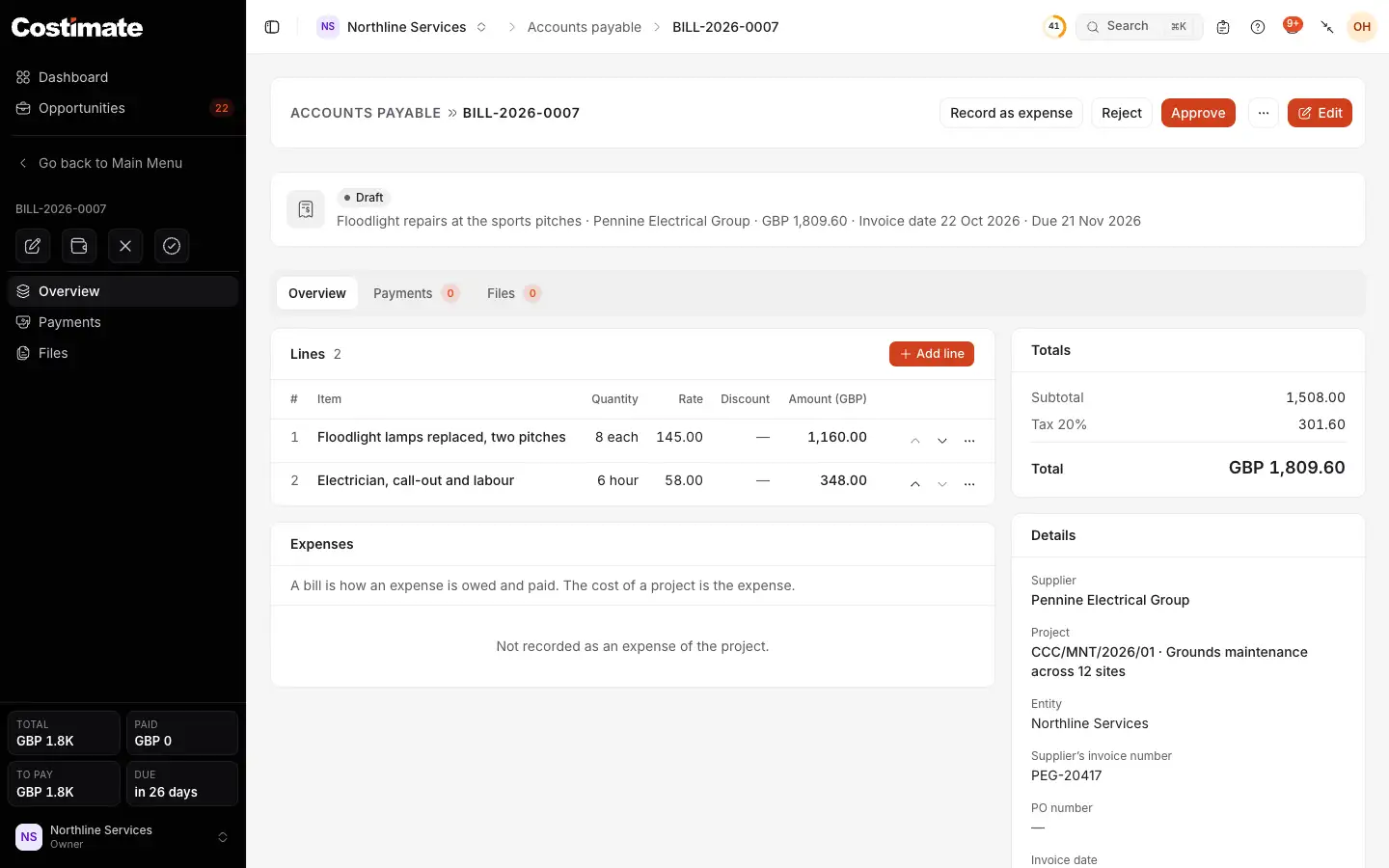
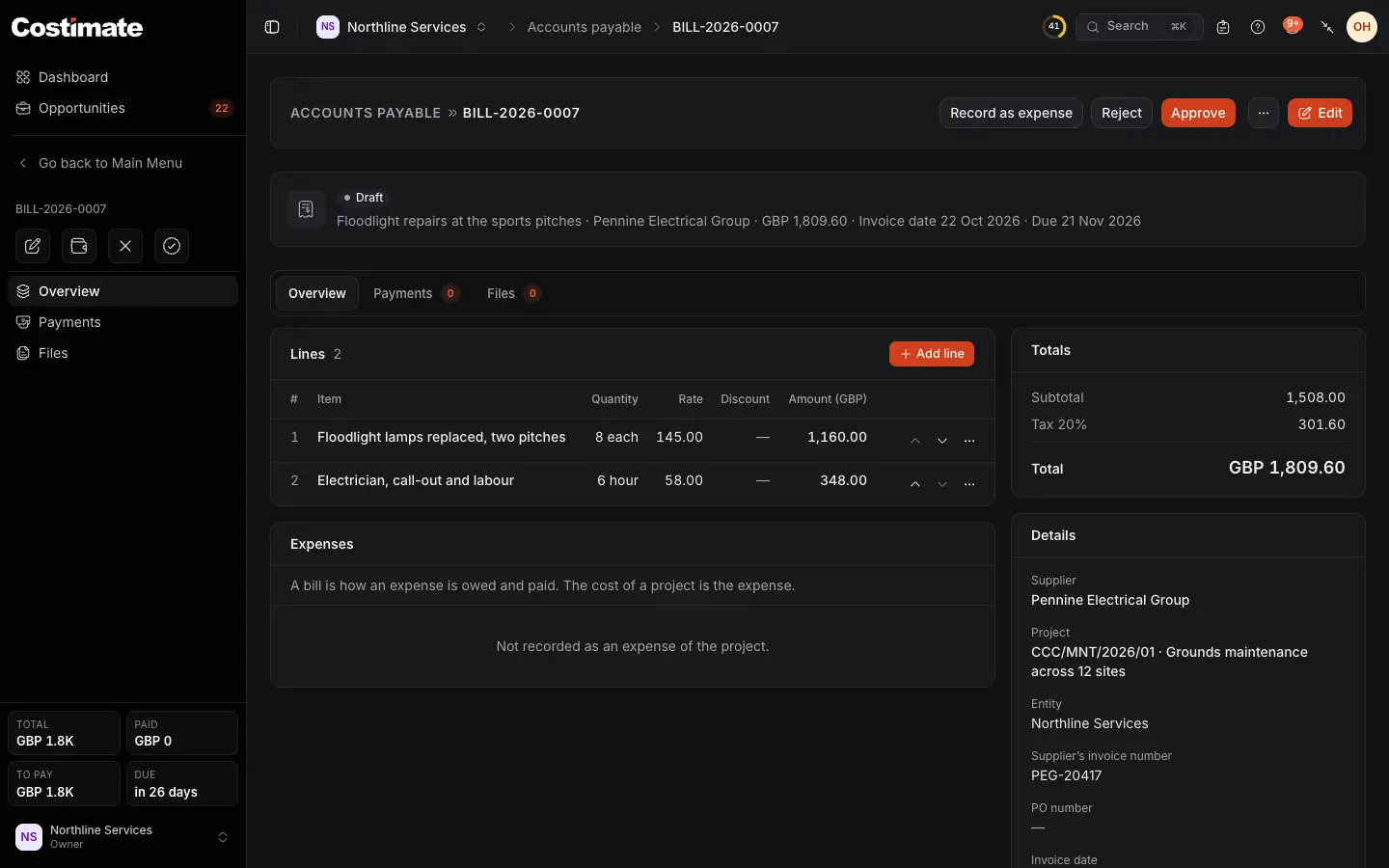
- Its status: a draft, waiting for approval.
- Record as expense records the bill as an expense of its project.
- Reject sends it back, with the reason, which is required.
- Approve says the bill is right and may be paid. It needs a due date and a line.
- The expenses of the project that this bill pays.
- Its supplier, project, entity, numbers, dates and currency.
A rejected bill keeps its reason. Changing it sends it back to wait for approval again. An approved bill cannot change: More, Back to draft opens it again while nothing is paid on it, and Cancel bill cancels it.
Pay it
- On an approved bill, choose Record payment.
- Type the amount, the day and how you paid, and choose Record payment.
The status follows by itself: Approved, then Partially paid, then Paid. Past its due date, an unpaid bill shows Overdue.
A bill and a project's cost
A bill is how an expense is owed and paid. It is not a cost of the project by itself: the project's expense is. Otherwise the same diesel would cost the project twice.
- Record as expense, on a bill with a project, opens the project's expense with the bill's subject, supplier, date and amount filled in. It waits for approval there, like any expense.
- An expense can also name its bill in its own form.
- A project's Cost overview shows its approved bills beside the actual cost, never inside it, and how many are not recorded as an expense yet.
Good to know
- A draft bill can be deleted. An approved one is cancelled instead, by someone who may approve bills, while nothing is paid on it.
- When an expert you work with invoices their approved time, their invoice arrives here as a draft bill, with its PDF.
- A bill keeps its own currency, which need not be the project's.