

Find tenders
Bring in tender notices from TED, SAM.gov, UK Find a Tender and UK Contracts Finder as leads, and turn the right ones into opportunities.
A lead is a tender you might bid for. An opportunity is one you are working on. Your leads are on Leads, under Sales in the left menu. Anyone whose role lets them add leads can bring tenders in.
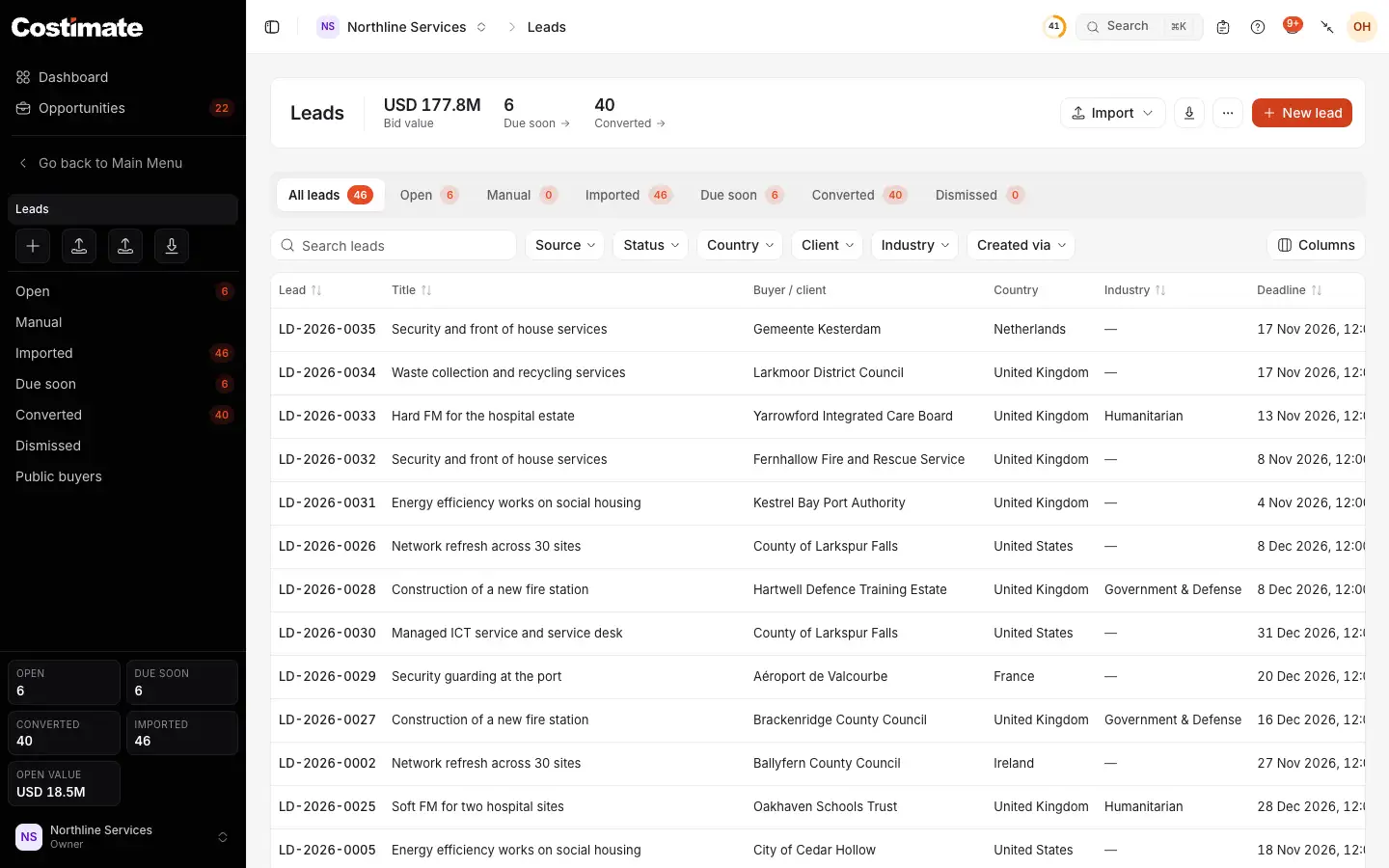
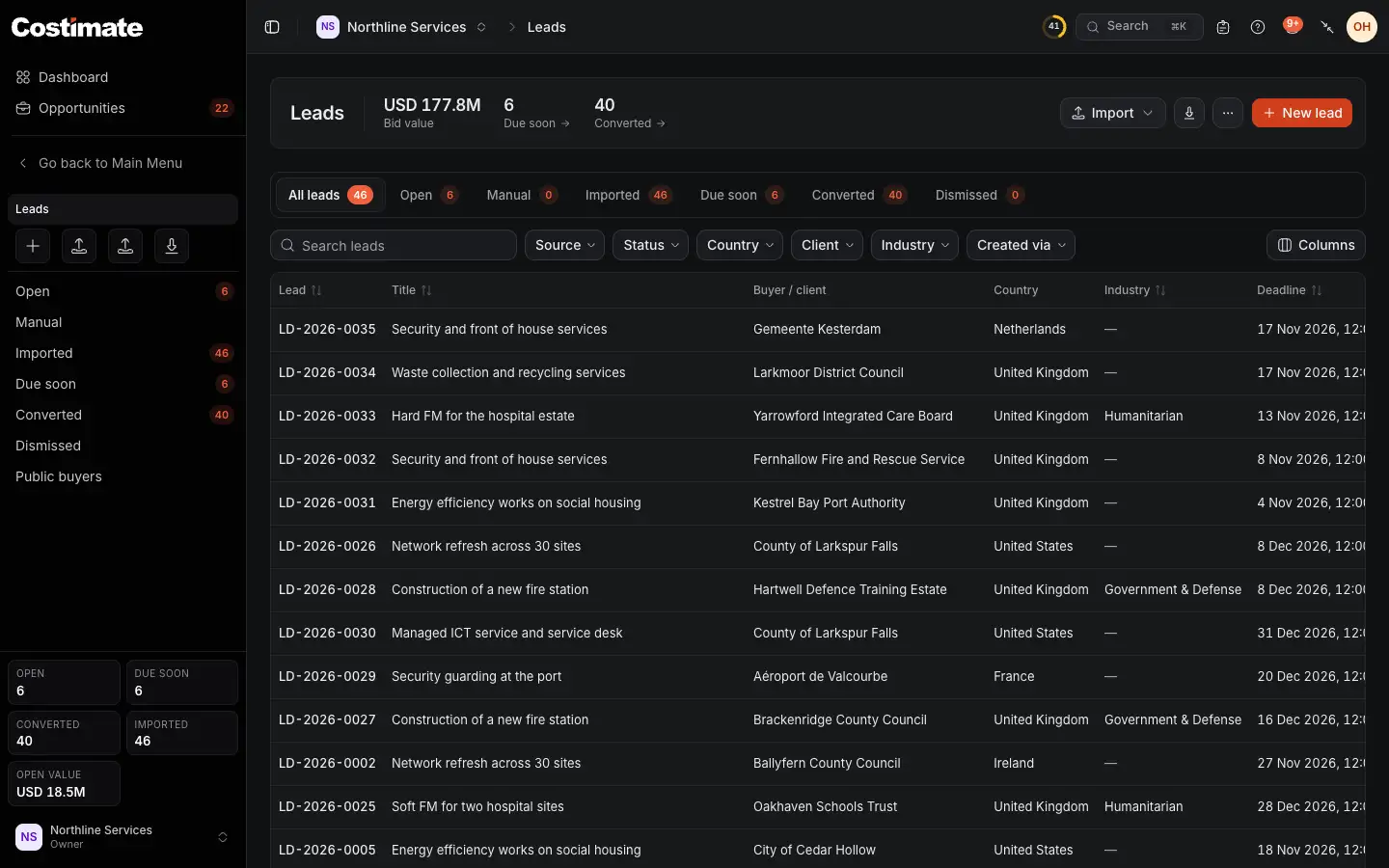
- Import brings in tenders from a register, or leads from an Excel file.
- New lead adds one by hand.
- Your leads by where they stand: open, imported, due soon, converted and dismissed.
- Filters: the source, status, country, client and industry, and Created via: Costimate, or an AI app connected to it.
- Each lead's deadline. Sort by it to see the soonest first.
Import tenders from a register
- On Leads, open Import and choose Import tenders.
- Pick the source: TED (the EU's tenders), SAM.gov (US federal), UK Find a Tender or UK Contracts Finder.
- Say how many days back to look and how many leads to bring in at most. Add keywords and a country if you like.
- Choose Start import.
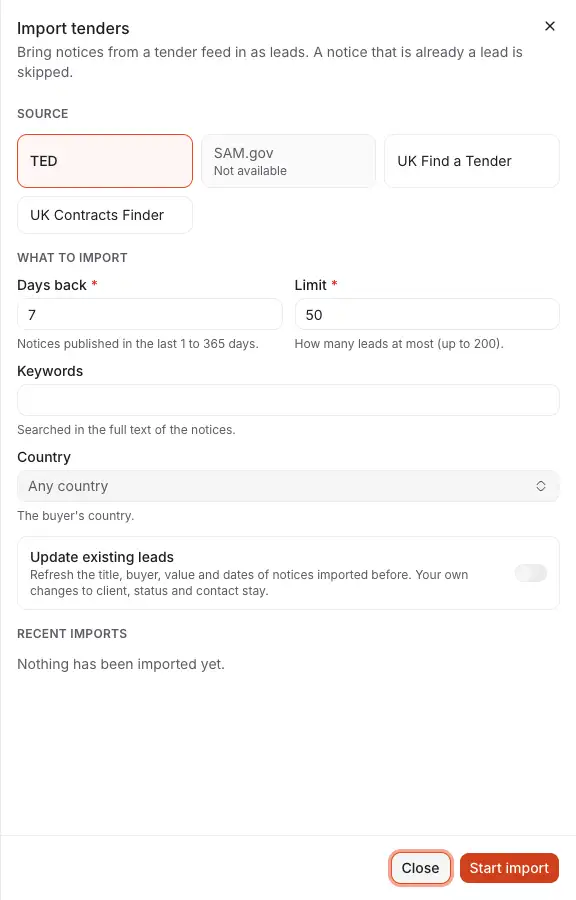
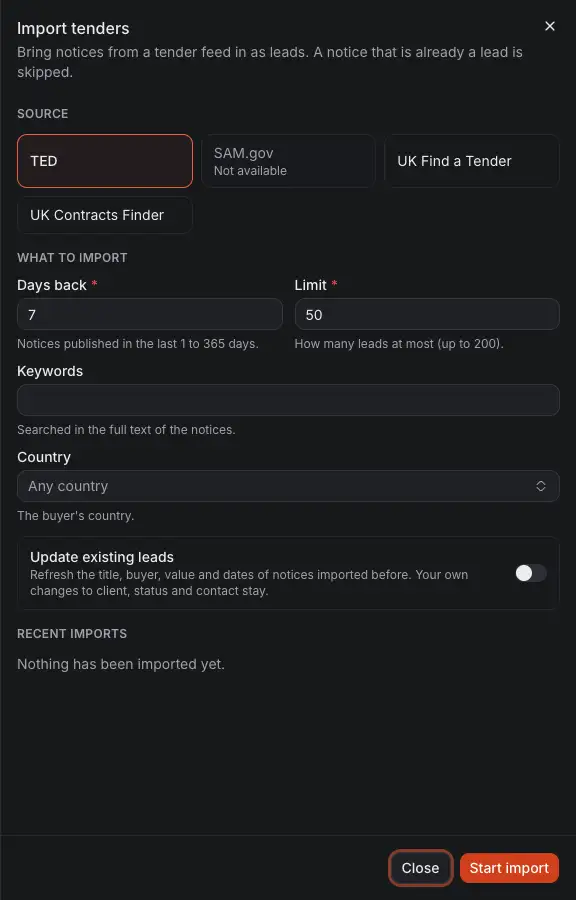
- Where the notices come from. A source this installation has no key for says Not available.
- How far back to look, and beside it how many leads at most.
- Words searched for in the full text of the notices, and the buyer's country.
- Update existing leads refreshes notices you imported before: their title, buyer, value and dates.
- Start import runs in the background. The drawer follows it and lists your recent imports.
Each notice becomes one lead, with its buyer, value, dates and the details the register publishes. A notice that is already a lead is skipped, unless Update existing leads is on. Then the register's details are refreshed, and your own changes to the lead's client, status and contact stay as they are.
Let tenders come to you
On Public buyers, under Leads, you can follow a public buyer. Its new tenders then arrive in your Leads by themselves. See Public buyers.
Add leads from anywhere else
A tender from another portal, or one that reached you by email, is added with New lead. To add many at once, use Import › Import from Excel: its dialog offers a template with every column.
Work the list
- Dismiss a lead you will not pursue. Reopen brings it back.
- Convert to an opportunity opens the opportunity's form, filled in from the lead. The lead remembers the opportunity it became.
Good to know
- An import never adds the same notice twice, whichever way it reached you: from an import, from a buyer you follow, or from Public buyers.
- On Free you can keep as many leads as you like. The limit of 5 is on opportunities.