

Crew and pay
Put people on a project for the days they work on it, record what they earn, change their pay from a day, and know who sees pay and who does not.
The crew is the people who work on a project, and usually its biggest cost. You add them on the project's Manpower tab, each for the days they are on it and with what they earn a month. The cost of the whole crew is open to everyone who can open projects. What one person earns is only for people allowed to see employees' personal details and pay.
Before you start
- To add or change the crew you need to be able to change projects: the owner, admins and the Operations manager can.
- The people are your employees, so add them in Employees first. Someone with no employee record can be added by name.
Add someone to the crew
- Open the project, then Manpower, and choose Add crew member.
- Pick the employee. Their position and department are filled in from their record, and you can change them.
- If the project came from a priced bid, pick the Budget line of the proposal this person is counted against.
- Set On the project from, and Until if you know when they leave.
- If you may see pay, type their monthly gross salary, bonus and taxes withheld, or leave them empty to take the pay from the employee's record.
- Choose Add to the crew.
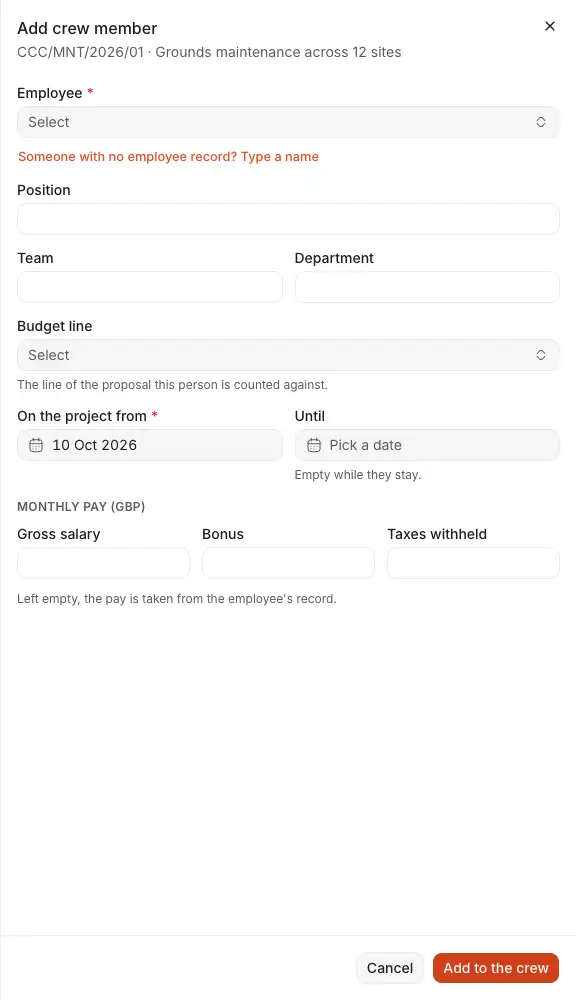
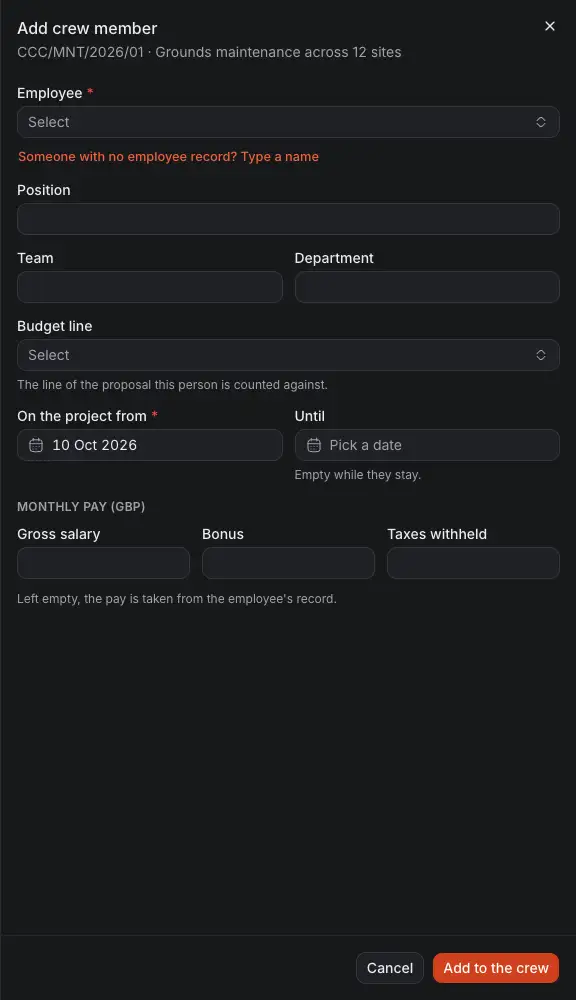
- The employee, or a name for someone with no employee record.
- The line of the proposal the person is counted against.
- The first day they are on the project.
- What they earn a month, in the project's currency.
- Left empty, the pay is taken from the employee's record.
- Add to the crew adds them.
Read the crew
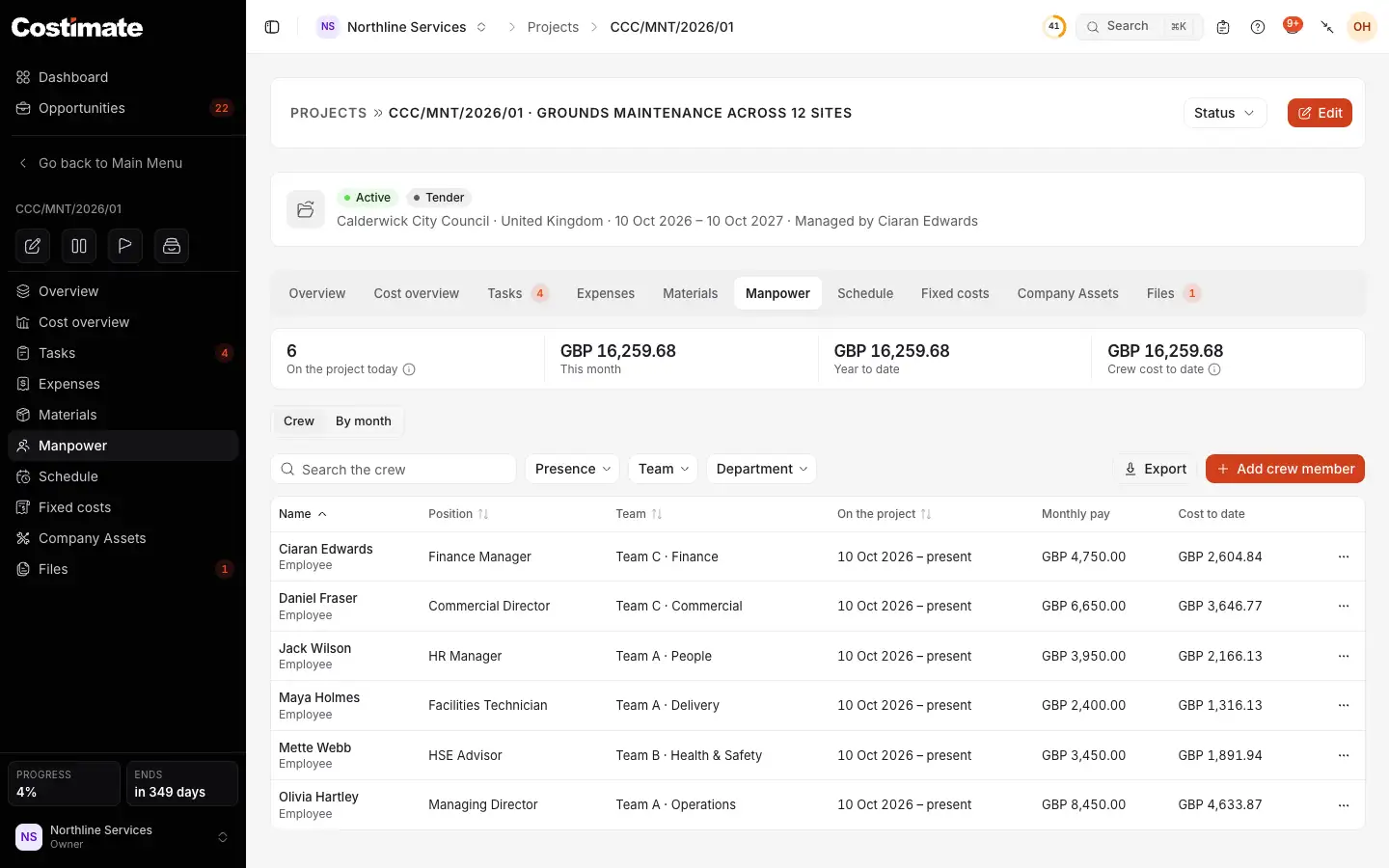
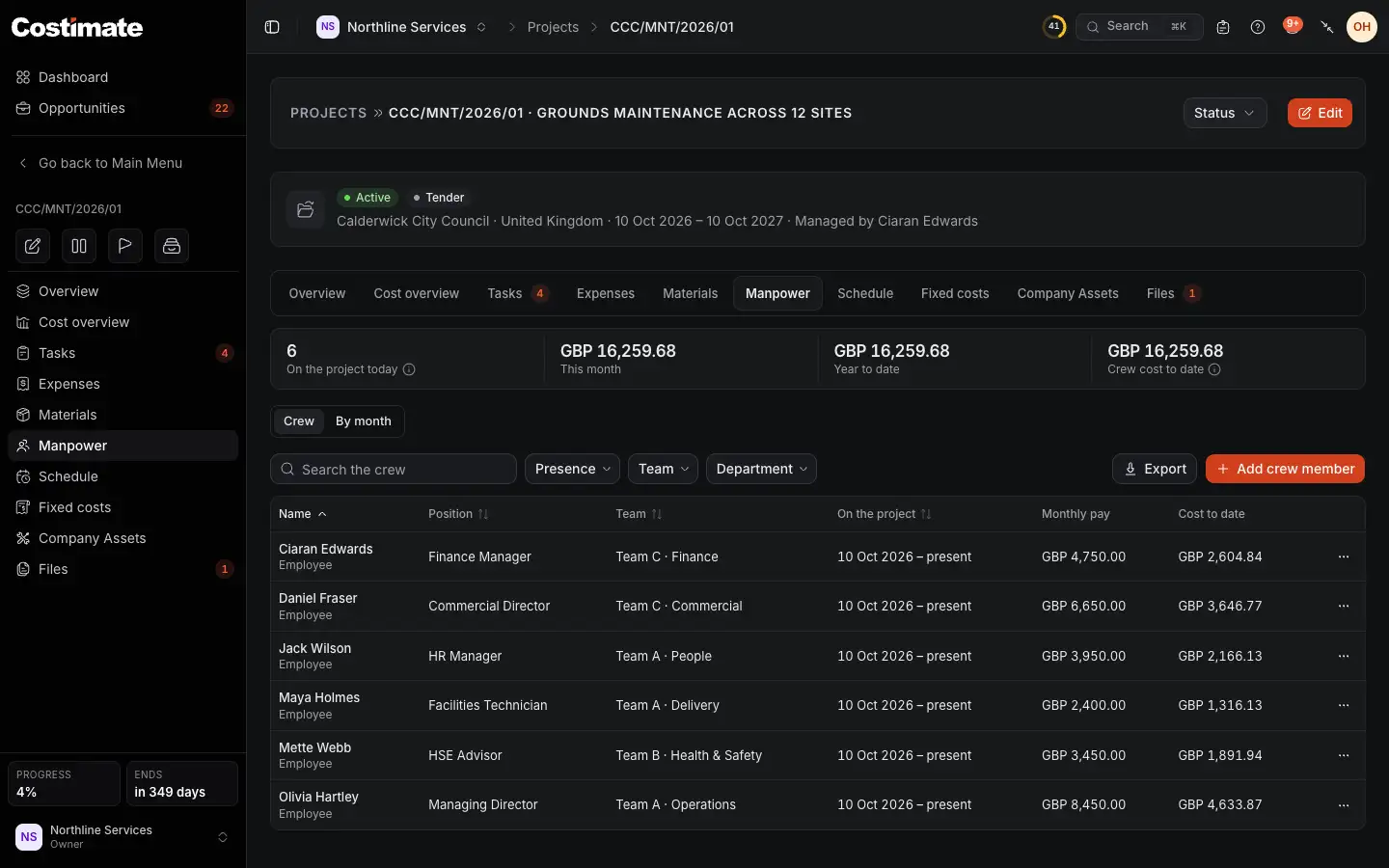
- How many people are on the project today, what the crew costs this month and this year, and its cost to date.
- Crew lists the people; By month shows who was on the project each month and what they cost.
- Add crew member.
- Monthly pay: what each person earns a month.
- Cost to date: what each person has cost the project so far.
- Each person's menu: Periods and pay, Edit, Leaves the project and Remove from the crew.
Someone who may not see pay reads the same crew without the two pay columns. The cost of the crew as a whole is still there, because it is a cost of the project.
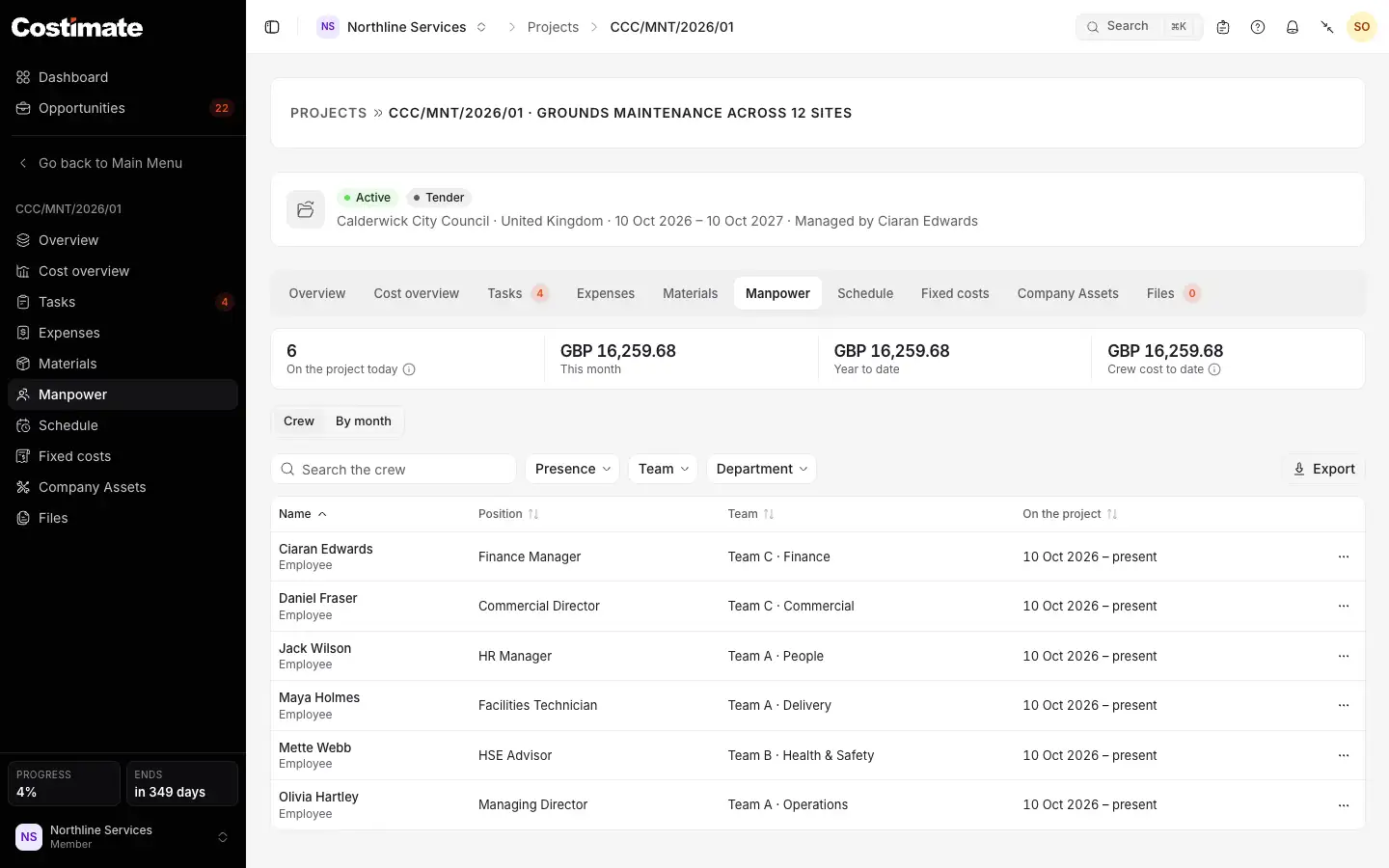
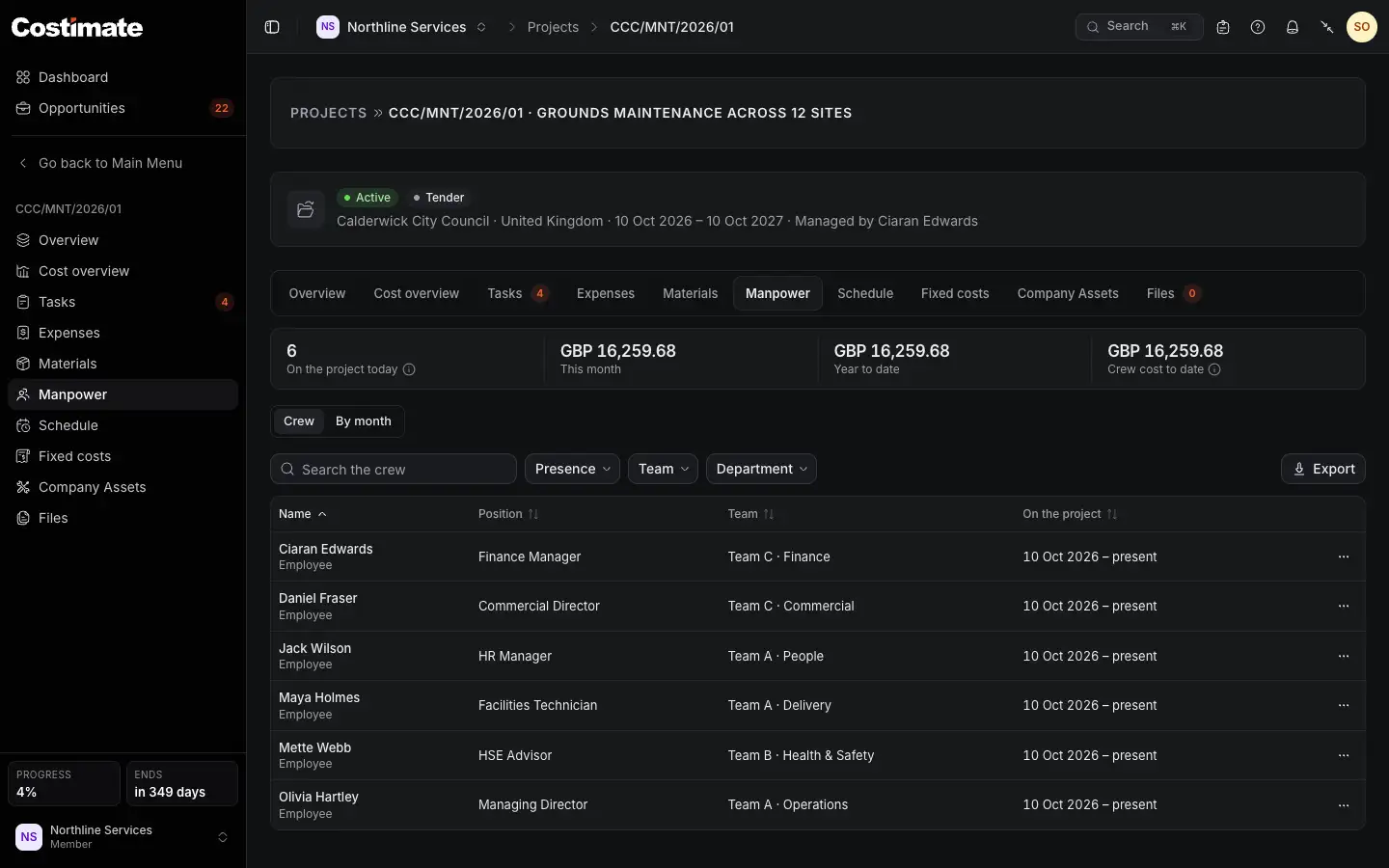
- The cost of the crew, which everyone who opens the project sees.
- When each person is on the project.
Change someone's pay
A raise never rewrites the months that have passed.
- In the person's menu, choose Periods and pay.
- Choose Change pay from a date, pick the day the new pay starts, and type the new pay.
Their current period ends the day before, and a new one starts with the new pay. The months before keep what they cost.
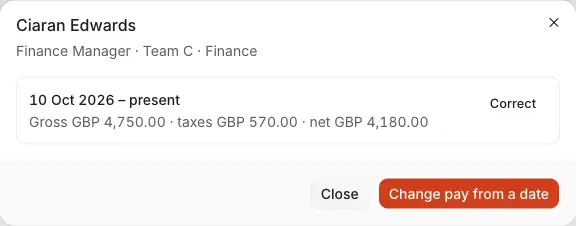
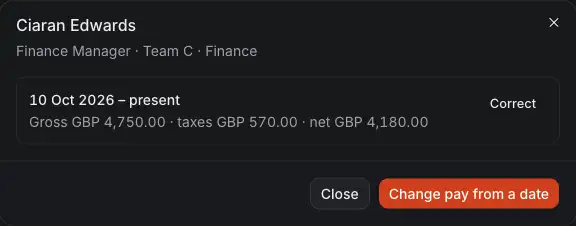
- A period on the project, with its pay: gross, taxes and net.
- Correct fixes a period that was typed wrong. This does change what its months cost, so use it for a mistake, not a raise.
- Change pay from a date starts a new period with the new pay.
When someone leaves or comes back
- Leaves the project asks for their Last day, and End the period ends it there. Their shifts after that day are removed; the earlier ones stay.
- Someone who comes back gets a new period: in Periods and pay, choose Back on the project. Between two periods they are not on the project, and no shift can be planned for them.
- Remove from the crew is for someone added by mistake: their periods and shifts go with them, and what they cost leaves the project's figures.
How the cost is worked out
- What a person costs is their gross salary and bonus. The taxes withheld are not a second cost: they come out of what the person receives.
- Pay is counted by the day. Someone on the project for ten days of a thirty-day month costs a third of their monthly pay that month.
- Shifts add nothing to the cost, because the crew is paid by the month.
Good to know
- Only people allowed to see employees' personal details and pay ever type or read one person's pay. For anyone else the pay fields are replaced by a sentence, and Costimate takes the pay from the employee's record without showing it. A person with no salary on record is marked Pay not set for someone who may see pay to complete.
- The Excel file of the crew has pay columns only for people allowed to see pay.
- The crew's total cost is open, so on a crew of one it shows what that person costs. Keep that in mind when you choose who can open projects.