

Import and export with Excel
Download any list as Excel, fill a template to add records in one go, update records you already have, and read what an import refused.
The lists of your records can be downloaded as Excel files, and most can be filled from one. An import follows the same rules as the form you would type the record into, and saves nothing until every row is right. Importing a list needs the right to create in that module; updating what exists needs the right to change it.
Export a list
- Open the list and narrow it as you like: a view, a search, filters.
- Choose the arrow at the top of the list, Export. Where a list has more than one file, the arrow's menu offers Export this list among them.
The file holds the rows the list shows you, with its columns, as text and numbers, never formulas. It holds only what you may see: no prices if you cannot see prices, no pay or personal details if you may not see them.
Import records
- Open the list, choose Import, and download the template from the dialog. It has every column, with an example.
- Fill one row per record. The first row keeps the column names.
- Drop the file into the dialog, Excel or CSV, and choose Import.
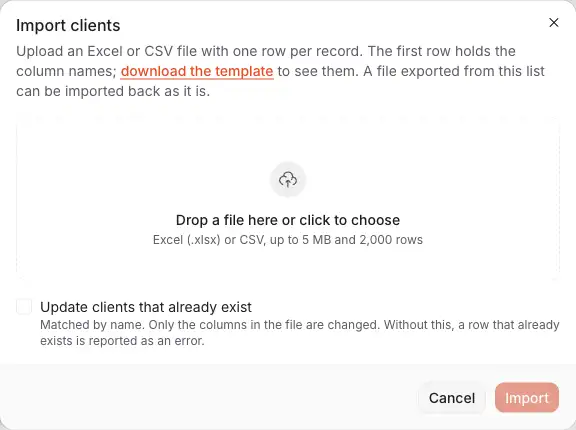
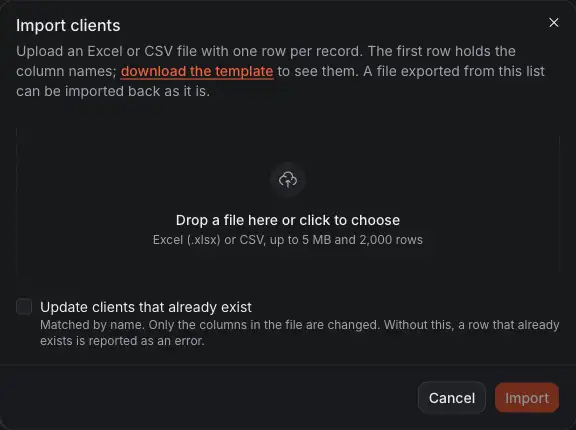
- download the template: the columns the file needs, and an example.
- The file: Excel or CSV, up to 5 MB and 2,000 rows.
- Update clients that already exist: with it, a row whose client you have changes that client. Without it, such a row is an error.
- Import reads the file.
All or nothing. If one cell is wrong, nothing is saved, and the dialog lists every problem with its row and column. Fix them and import the file again.
Update what you have
On Clients, Suppliers, Competitors, Products and Opportunities, tick Update … that already exist to change the records the file names. A client, supplier or competitor is matched by its name, a product by its SKU and an opportunity by its number. Only the columns in the file are changed, and a cell left empty in a column that is there clears that field.
Contacts, meeting minutes, events, employees and leads only add rows: two people may share a name, so there is nothing to match a row to.
A file exported from a list can be imported back as it is. So the simplest way to change many records is to export them, change the cells, and import the file with Update … that already exist ticked.
What an import looks up
- A name in a cell, such as a client, a supplier, an owner or a country, is looked up among your company's records. Nothing is made up: a name you do not have is an error on that cell. Make the record first, then import.
- People are named by their name, or by their email when two share a name.
- Every cell is read as text, so a phone number or a code keeps its zeros and its plus sign.
The Data center
Data center, in the company menu at the foot of the left menu, gathers every list you may open in one place, each with its export, its template and its import.
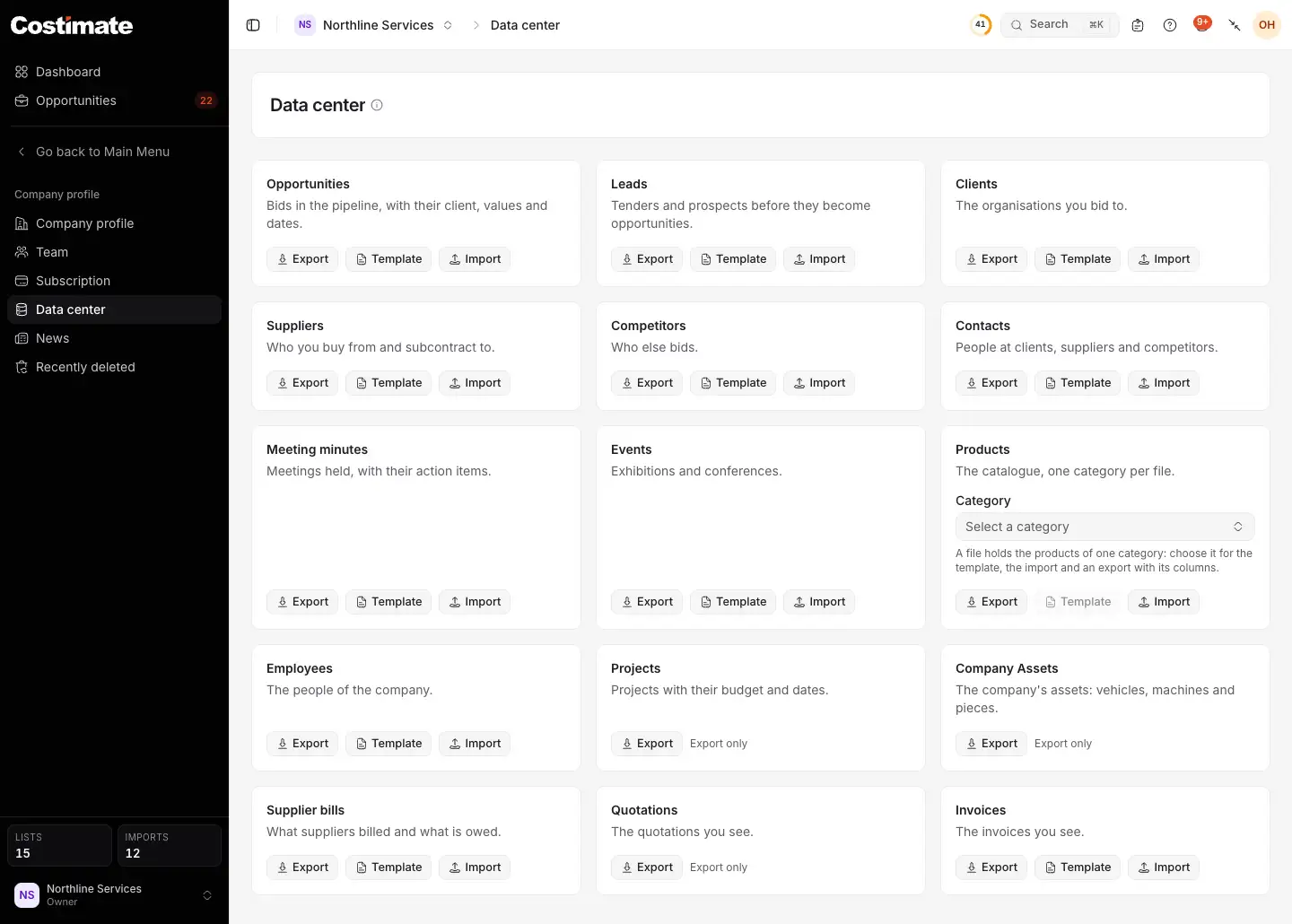
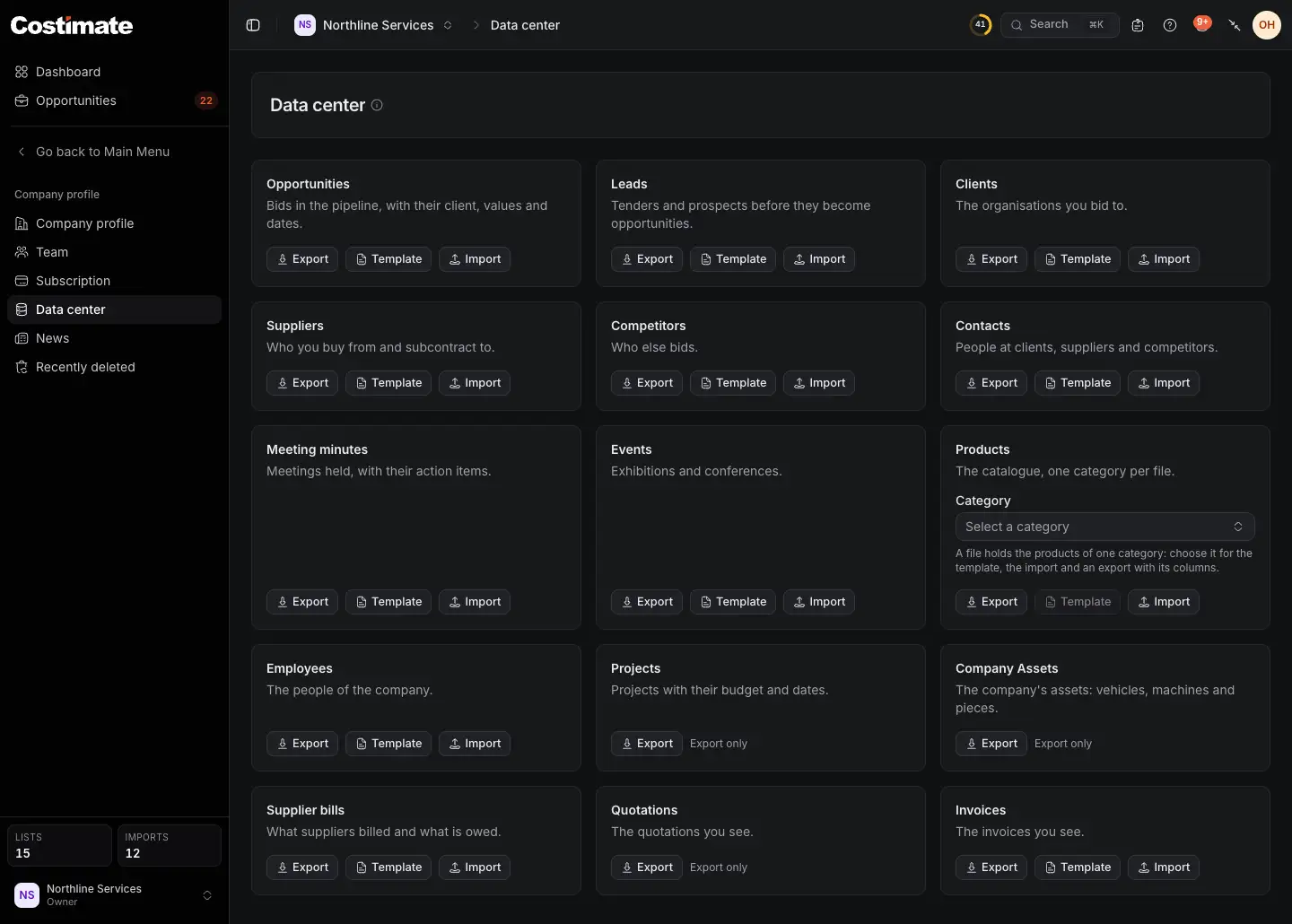
- Export downloads the whole list.
- The template of the list, to fill.
- Import opens the same dialog as on the list.
- Products are imported one category at a time: choose the category first, for its own columns.
- Export only: projects, company assets and quotations are reports to read, not files to import back.
Good to know
- Invoices and supplier bills are imported here or from their own lists, as drafts with their lines, one row per line. Rows that share the value of the "invoice" or "bill" column are one document. A number, a status and a total are never read from the file: Costimate works them out.
- An event's organizer must exist before its events are imported.
- An import never adds a personal detail of an employee from someone who may not see them: the template has no such columns for them, and the import refuses a value.
- Leads also come from the public tender registers. See Find tenders.