

Mark-ups, approval and the final price
Send the costs for approval, set the mark-ups that make the selling price, finalise the proposal and print it for the client, and make a new revision when something changes.
Once the costs of a bid are built, they go to an approver. Then the mark-ups turn the cost into a selling price, and finalising fixes that price as the one you submit. A proposal is always in one of four states:
| State | What can change |
|---|---|
| Draft | Everything |
| Awaiting approval | Nothing: the approver decides |
| Costs approved | The mark-ups, by people who can see prices |
| Finalised | Nothing: the price is recorded |
Before you start
- To set mark-ups and finalise, you need to be able to change the opportunity and to see prices.
- Costs are approved by the opportunity's approver, or by anyone who can approve stage changes.
Send the costs for approval
- On the proposal's bar, choose Submit costs for approval.
- The approver sees it on the proposal and in their Workflow, and chooses Approve costs or Decline, with a note if they like.
If you can approve, your costs are approved as you submit them.
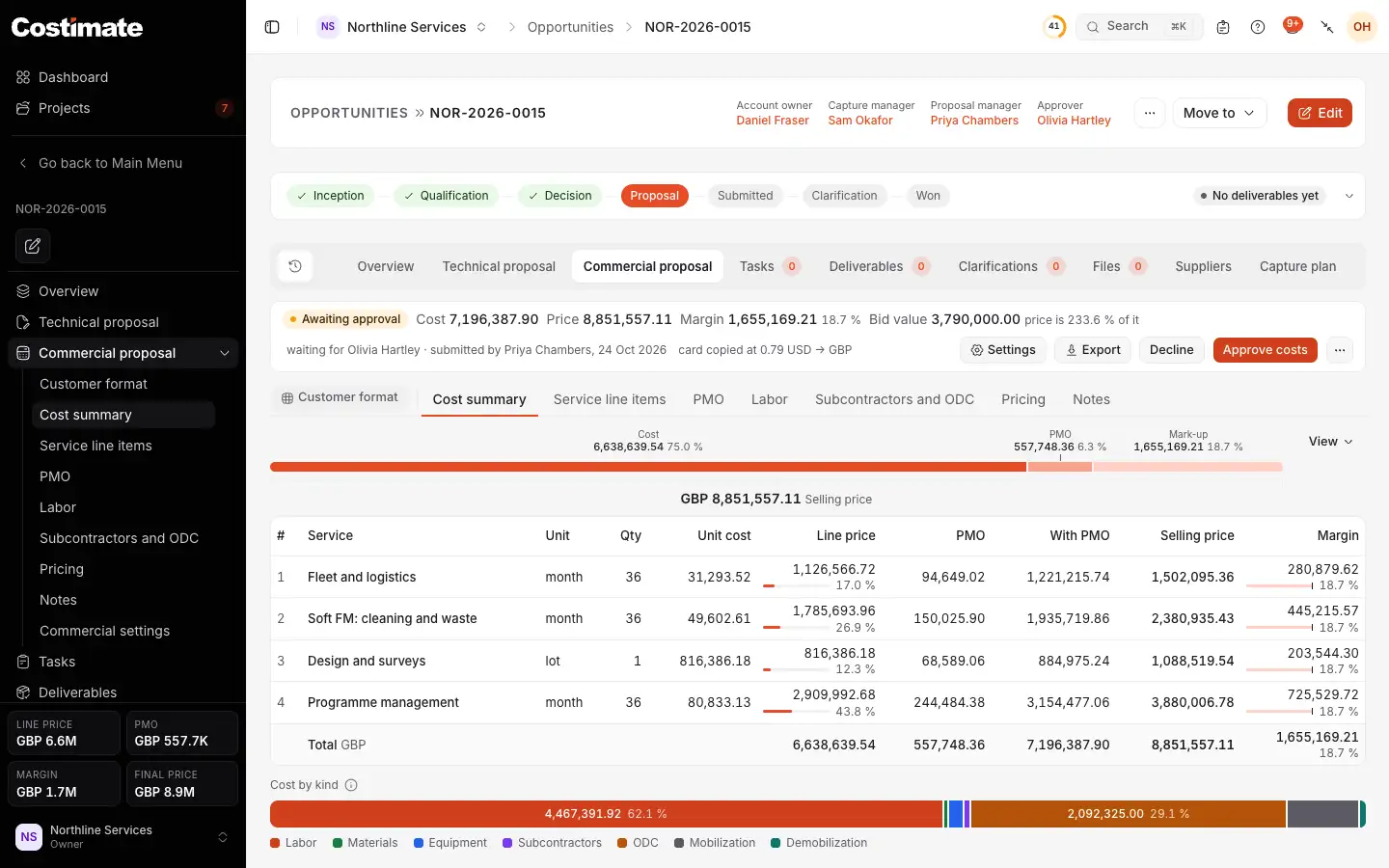
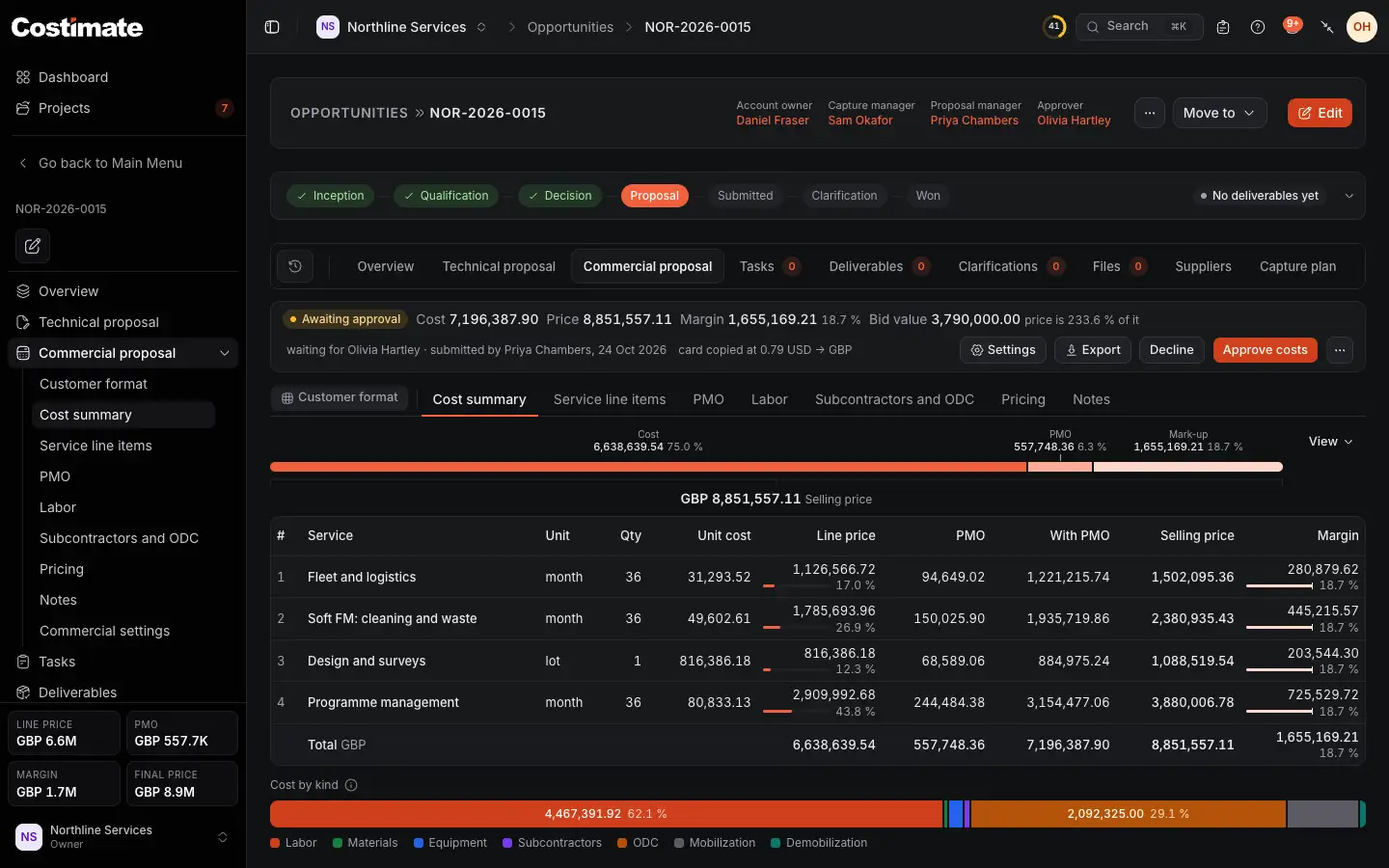
- The costs wait for the approver, and cannot change meanwhile.
- Who they wait for, who sent them and when.
- Decline sends them back to a draft, with the approver's note.
- Approve costs lets the mark-ups be set.
Set the mark-ups
Each mark-up, such as overheads or profit, is a percentage of a line's cost with its PMO. The selling price is that cost plus each mark-up: they add up, and never compound.
- Open Pricing.
- Type each line's percentage under each mark-up. To give every line the same figure, type it in the column's field on the total row and press Enter.
- Choose Save mark-ups.
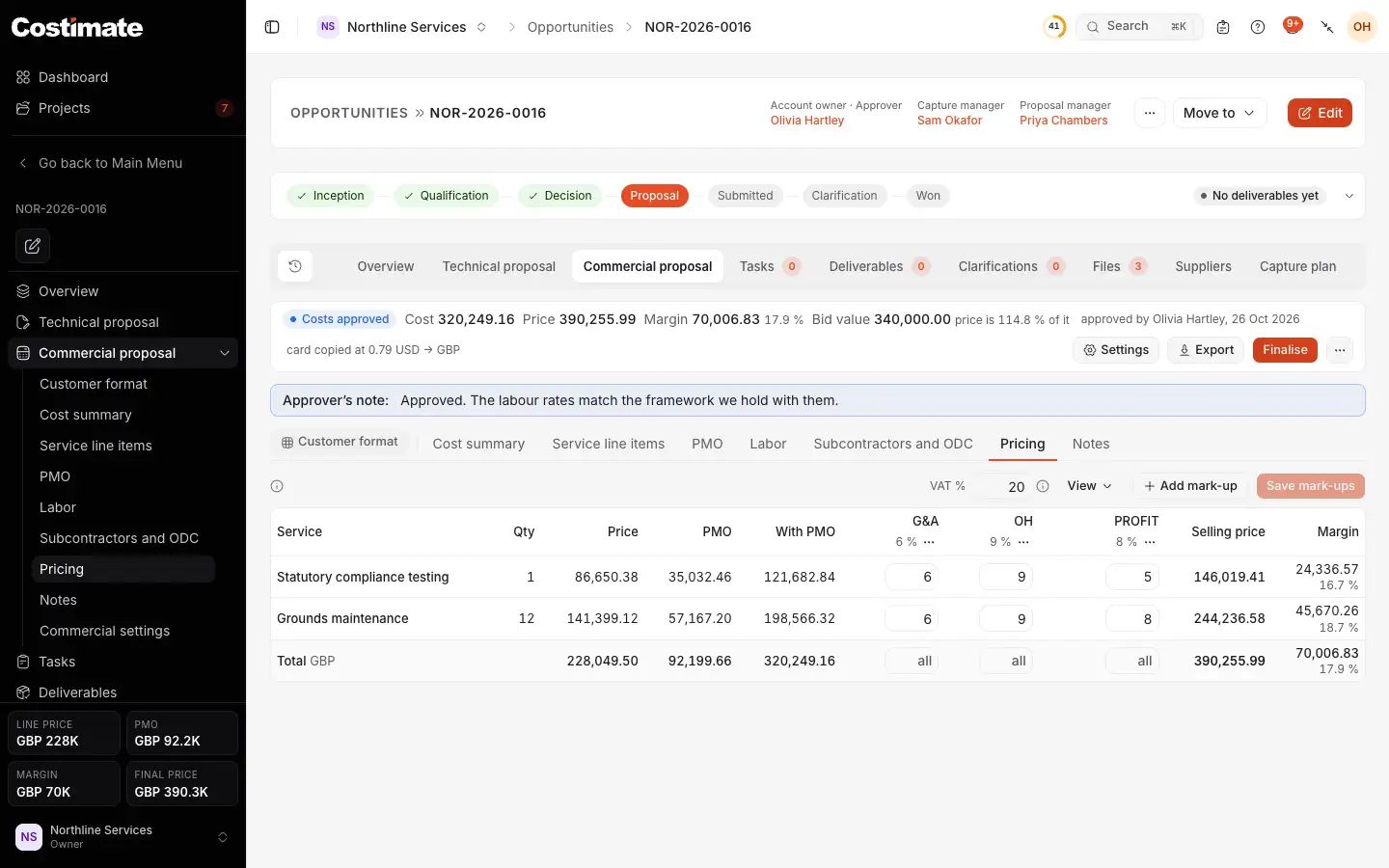
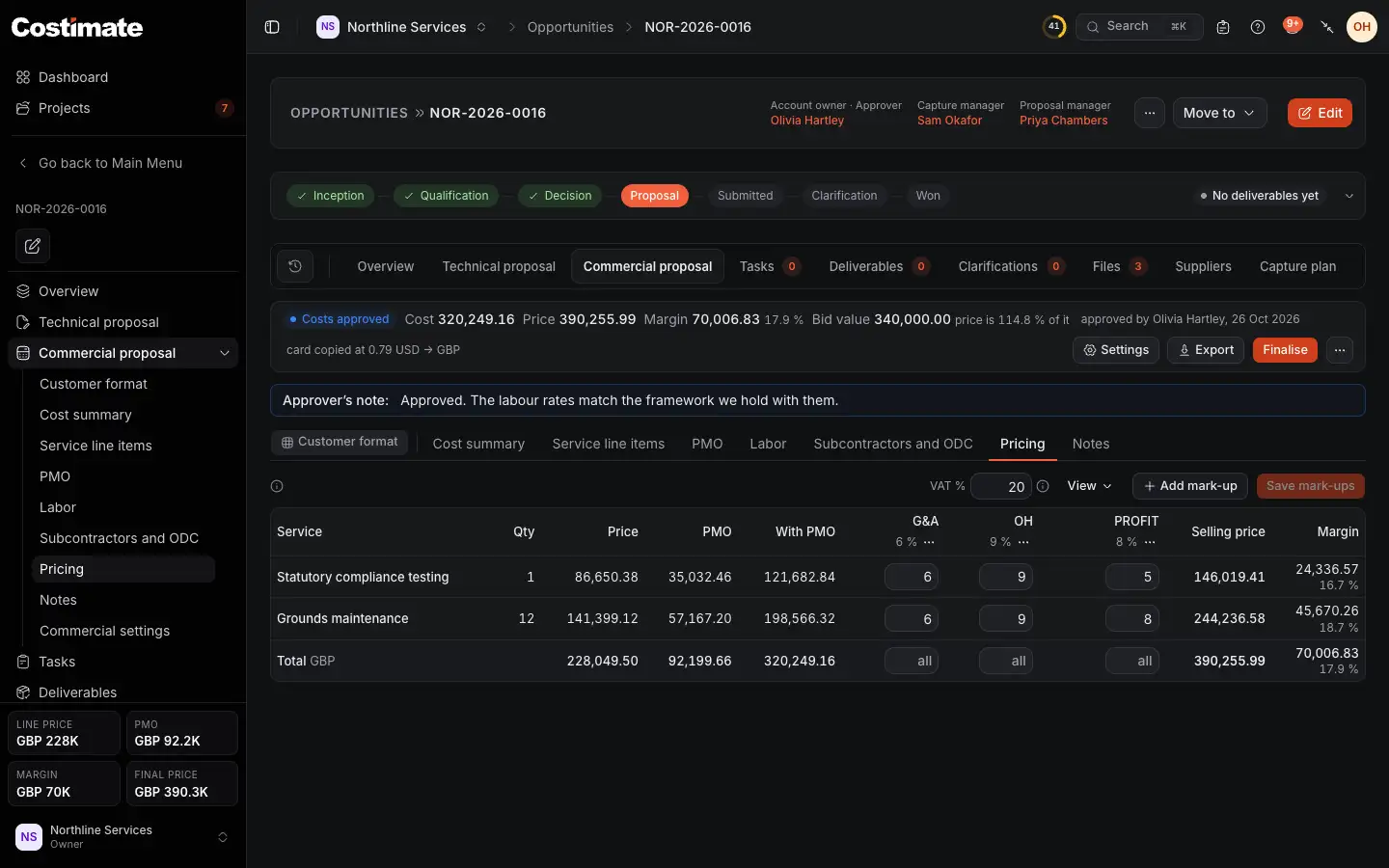
- The costs are approved, so the mark-ups can be set.
- Add mark-up adds a column. A column's ⋯ menu renames it, changes its starting figure or deletes it.
- A mark-up, with the percentage each new line starts with.
- A line's percentage of that mark-up.
- Save mark-ups keeps the percentages.
- Finalise fixes the proposal and its price.
Finalise and print
Choose Finalise on the bar. Costimate records the total selling price as the opportunity's submitted value, and keeps a copy of the proposal as it is: this is revision 1. The bid value you typed on the opportunity is never changed.
Once it is finalised, Export prints the proposal.
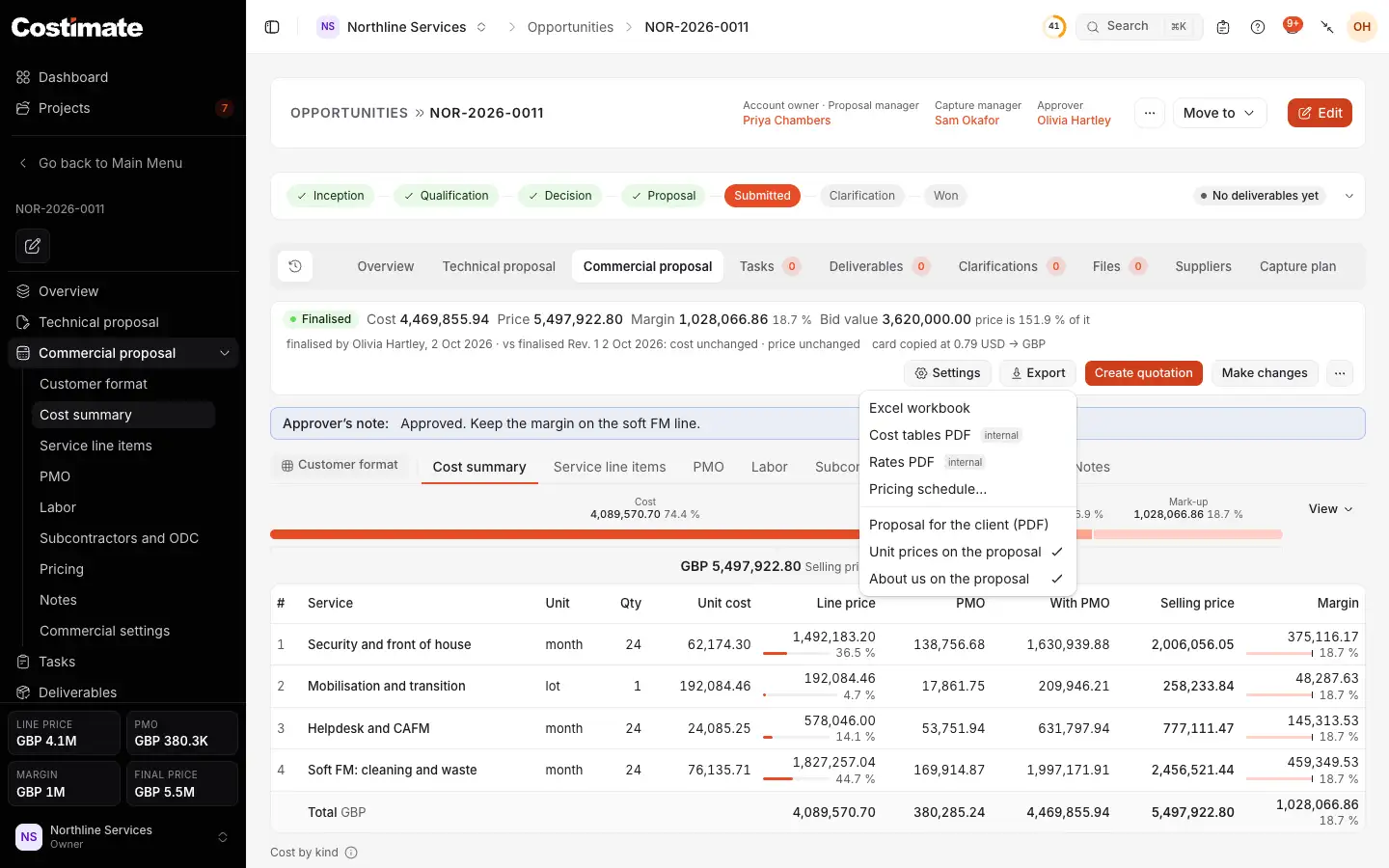
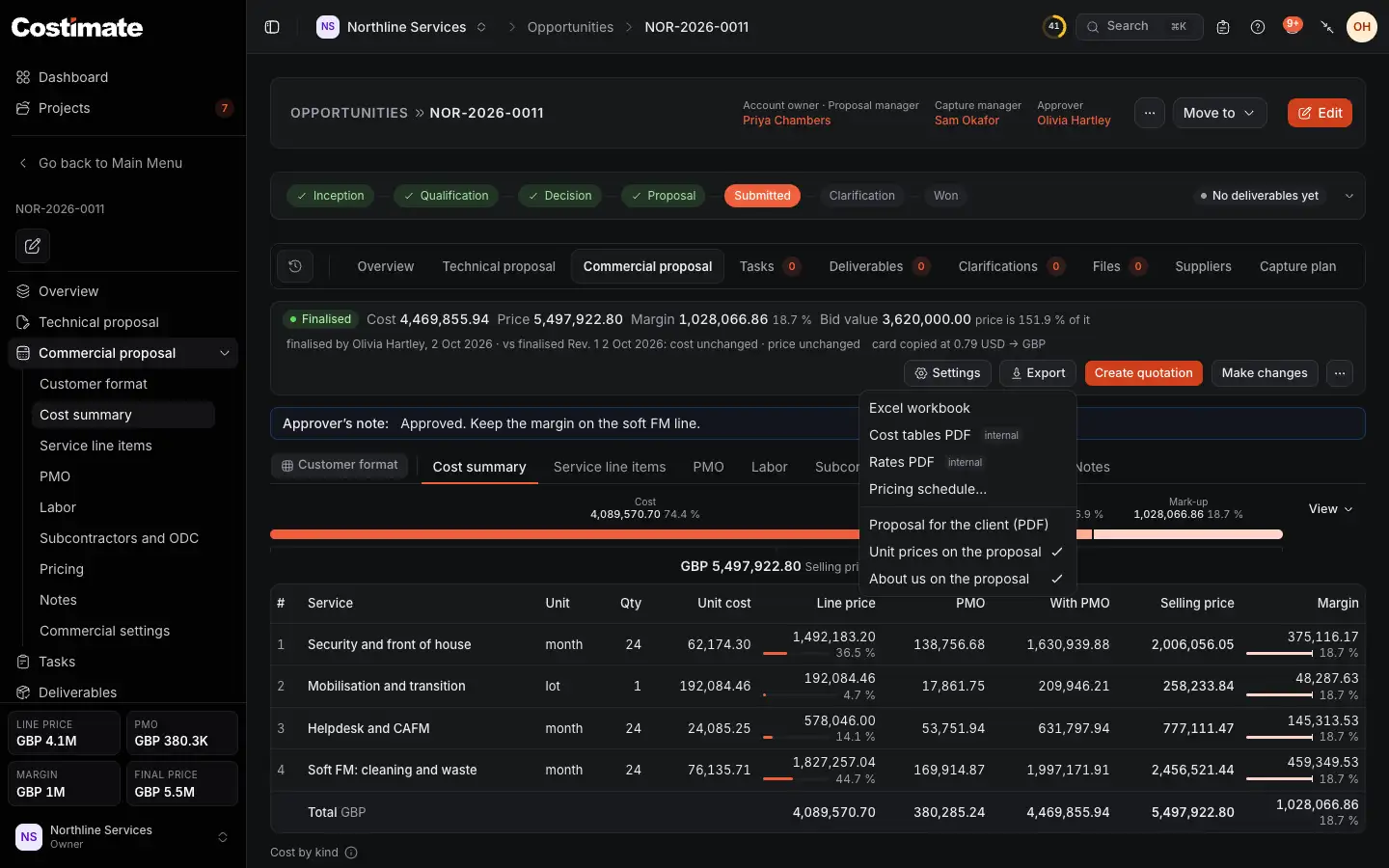
- A finalised proposal: who finalised it and when, and how it compares with the copy kept then.
- Proposal for the client (PDF), with the selling prices. Tick whether it shows the unit prices and the page about your company.
- Excel workbook: every line, cost, mark-up and total.
- Cost tables PDF and Rates PDF, marked internal, for your own team.
- Create quotation makes a quotation of the proposal's lines, in Finance.
Change a finalised proposal
- Make changes opens the mark-ups again. When you finalise again, it becomes the next revision, and its price is recorded again. From revision 2, the client's PDF says "Rev. 2".
- Reopen costs, in the bar's ⋯ menu, takes the proposal back to a draft. Its costs then need approving again.
- Compare with the last version, in the same menu, shows what changed since the last copy was kept.
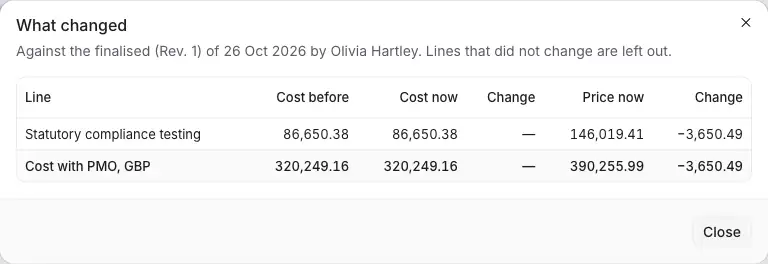
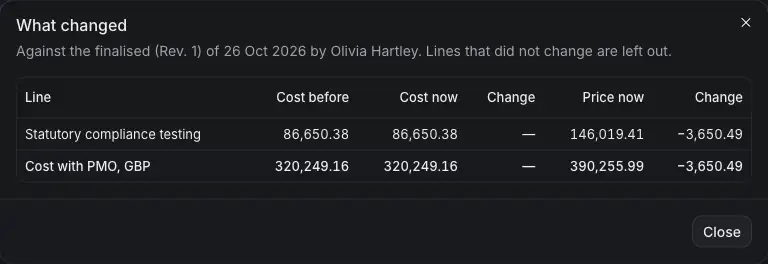
- Which copy it compares with: the last one finalised, when and by whom.
- A line whose price moved, with the figure then, now, and the change.
- The whole proposal's cost with PMO, and its price, then and now.
Good to know
- People who cannot see prices see the costs only. Mark-ups and selling prices are never sent to them, so they are not in any screen, export or PDF they open.
- Once costs are approved, the Export menu offers a draft of the client's PDF, marked as a draft.
- Every submit and every finalisation is recorded in the opportunity's activity, with the price for people who can see it.