

Read the tender with AI
Let AI read the tender's files and list everything you must hand in, with its deadline, limits and weighting, then check the list and keep it as the bid's checklist.
Read the tender reads every file of the tender pack and lists what the buyer asks you to hand in: the documents and envelopes, the questions, the forms, the certificates, and the tasks such as a site visit. For each one it notes what the tender says: whether it is mandatory, its deadline, its page or word limit, its weighting, and the words it was read from. You check the list and keep it. It becomes the bid's checklist on Deliverables, and the questions you answer in your own document become sections of the technical proposal.
Before you start
- Put the tender's files on the opportunity's Files tab. Costimate reads PDF, Word, Excel, CSV and text files, and pictures of scanned pages, up to 40 files at a time. A zip is unpacked for the read.
- You need to be able to change the opportunity.
Read it
- On the opportunity's Technical proposal or Deliverables tab, choose Read the tender.
- Check the files. Every file that can be read is ticked. Beside each, Costimate says what it is, such as the instructions or the specification: change it if it is wrong.
- Choose the button that reads them, such as Read 3 files. A bar follows the read, part by part.
You can close the dialog while it reads: the read goes on, and Read the tender shows it again.
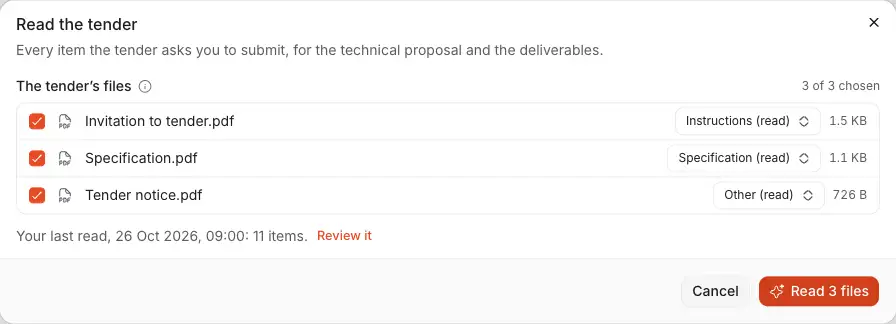
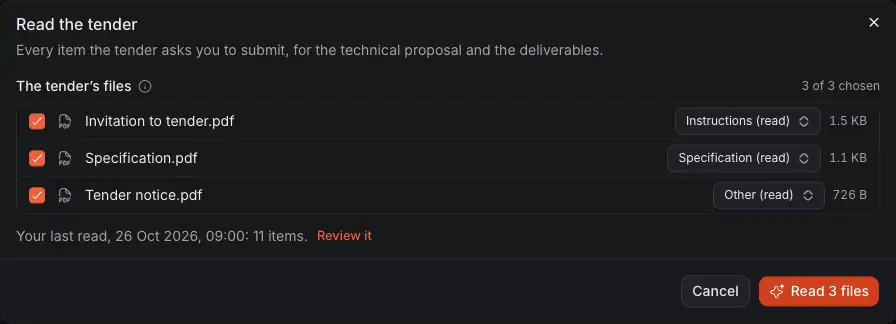
- The tender's files, ticked to be read.
- What each file is. The read takes the instructions and questionnaires first, for the buyer's structure.
- Your last read, with Review it to open what it found.
- The button that starts a read of the files ticked.
Check what was found
The review lists the items in the buyer's order: each document or questionnaire, with its questions and attachments under it.
- Read the line about the pack: how many files were read, any that were not and why, and any document the tender mentions that is not in your files.
- Untick what you do not want. Correct a title, whether an item is mandatory, what it is, where it lives, or its due date.
- If something is wrong across the list, tell AI what to change in a sentence.
- Set a default due date and an owner. Turn on Create a task for each if you want tasks too.
- Choose the button that keeps them, such as Add 3 sections and 11 deliverables.
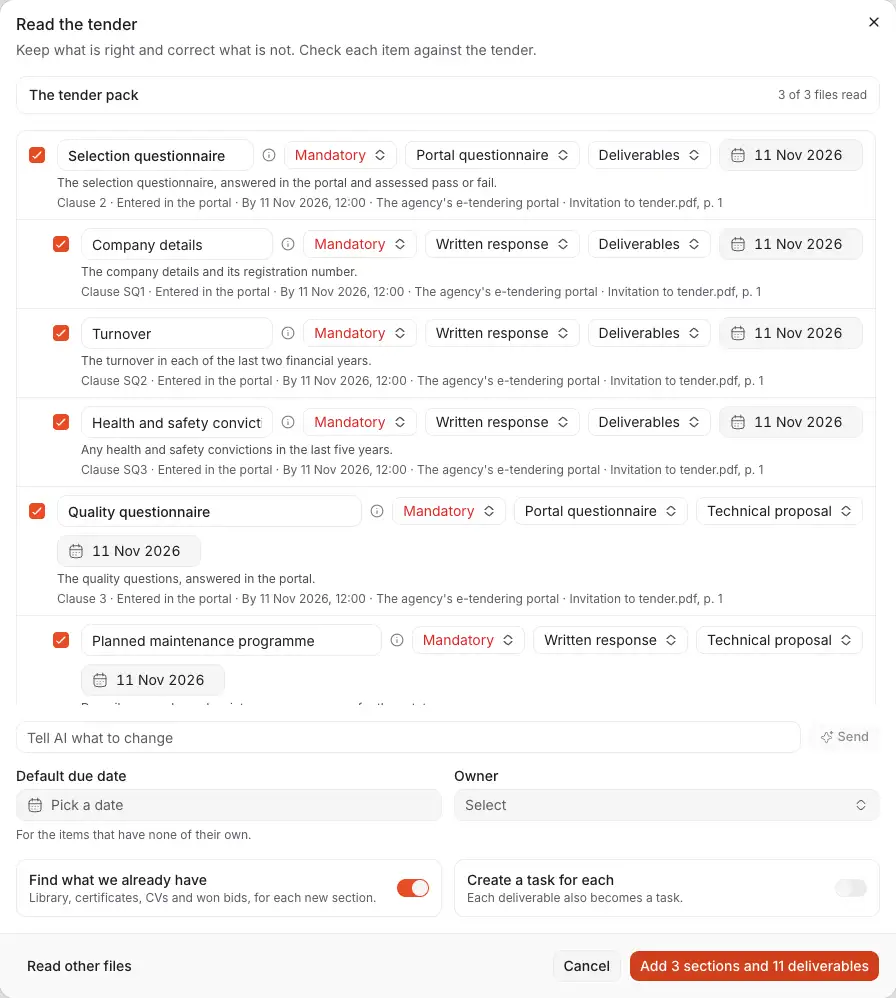
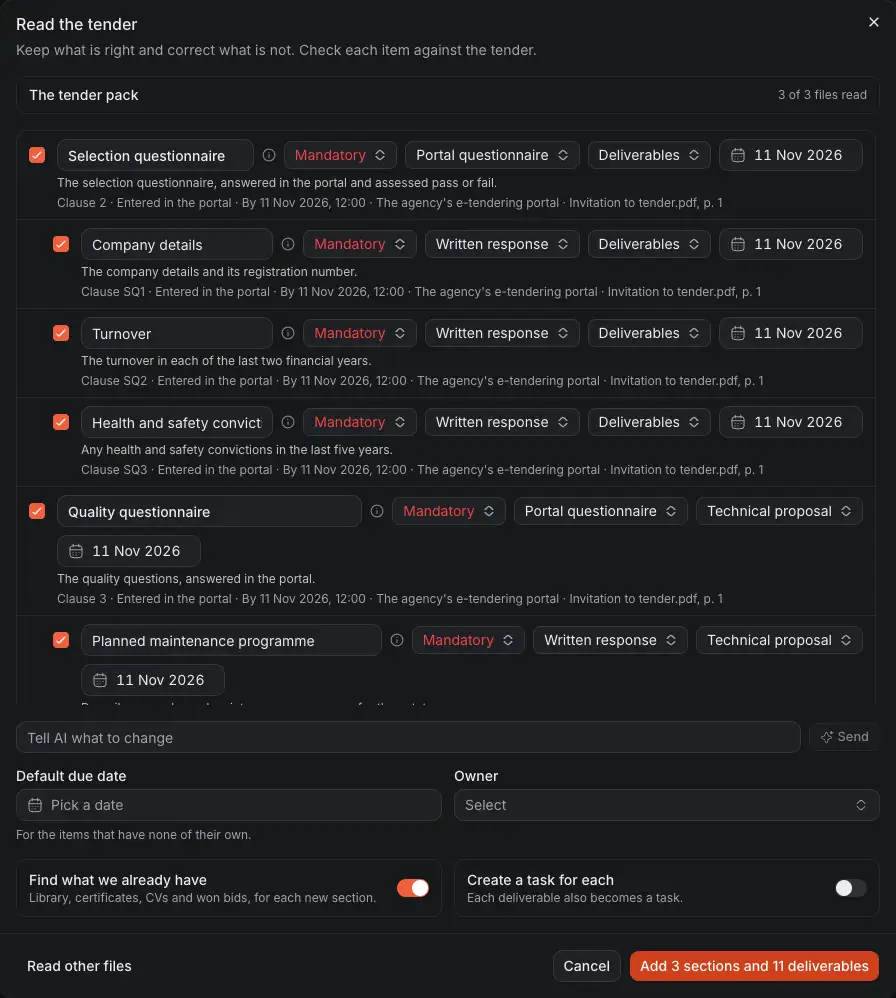
- What was read of the pack. Press it for each file, and what was not read.
- An item as the tender names it. You can correct its title.
- Whether it is mandatory, conditional or optional, as the tender says.
- Where it lives: the technical proposal, the commercial proposal, or the deliverables.
- Tell AI what to change: it corrects the list, and marks what it changed.
- Keep the items ticked. Nothing is saved before.
With Find what we already have on, Costimate also looks in your company profile for what can answer each new section: a policy, a CV, a case study.
The checklist
The Deliverables tab is the checklist of everything to hand in, in the buyer's order.
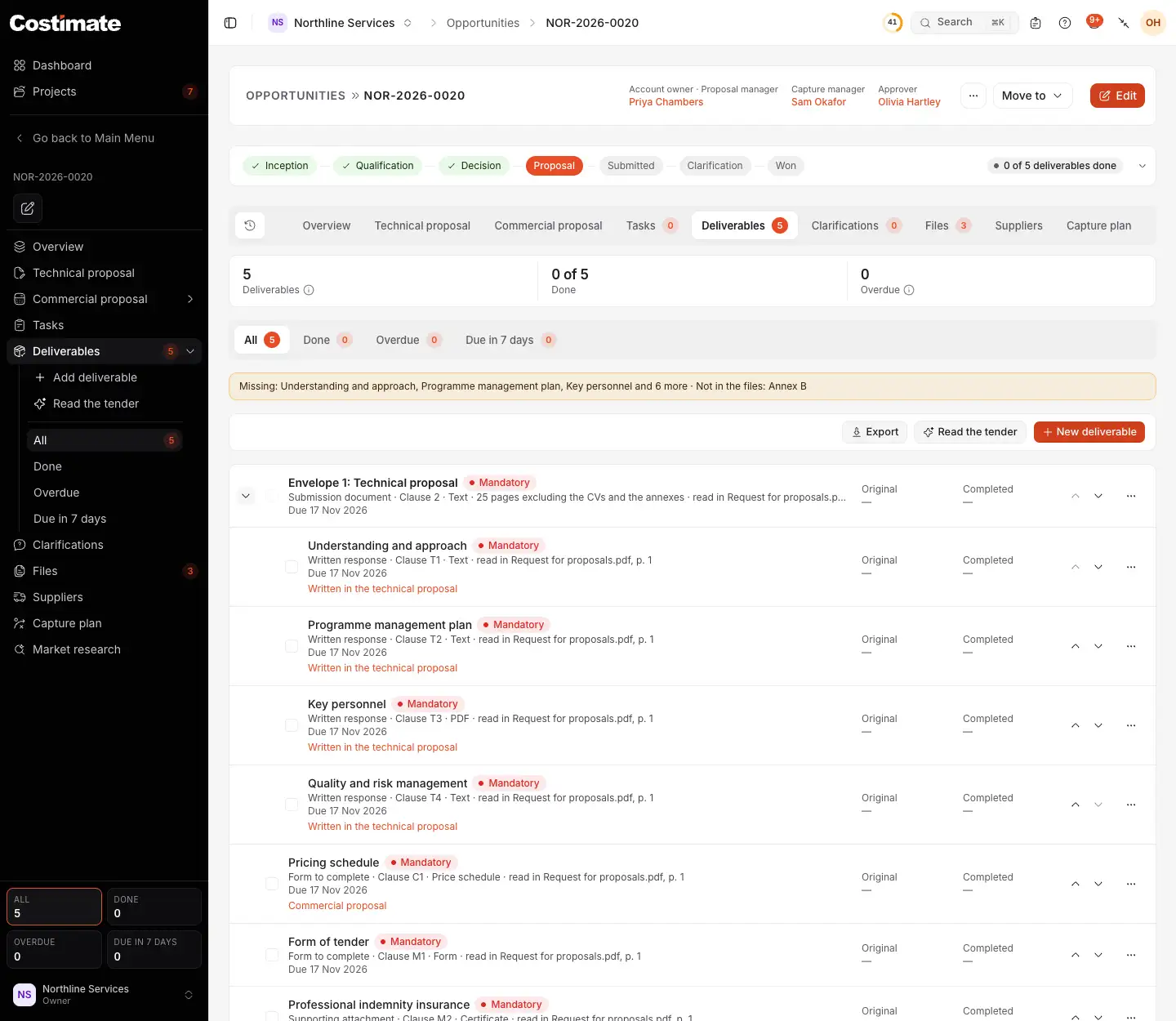
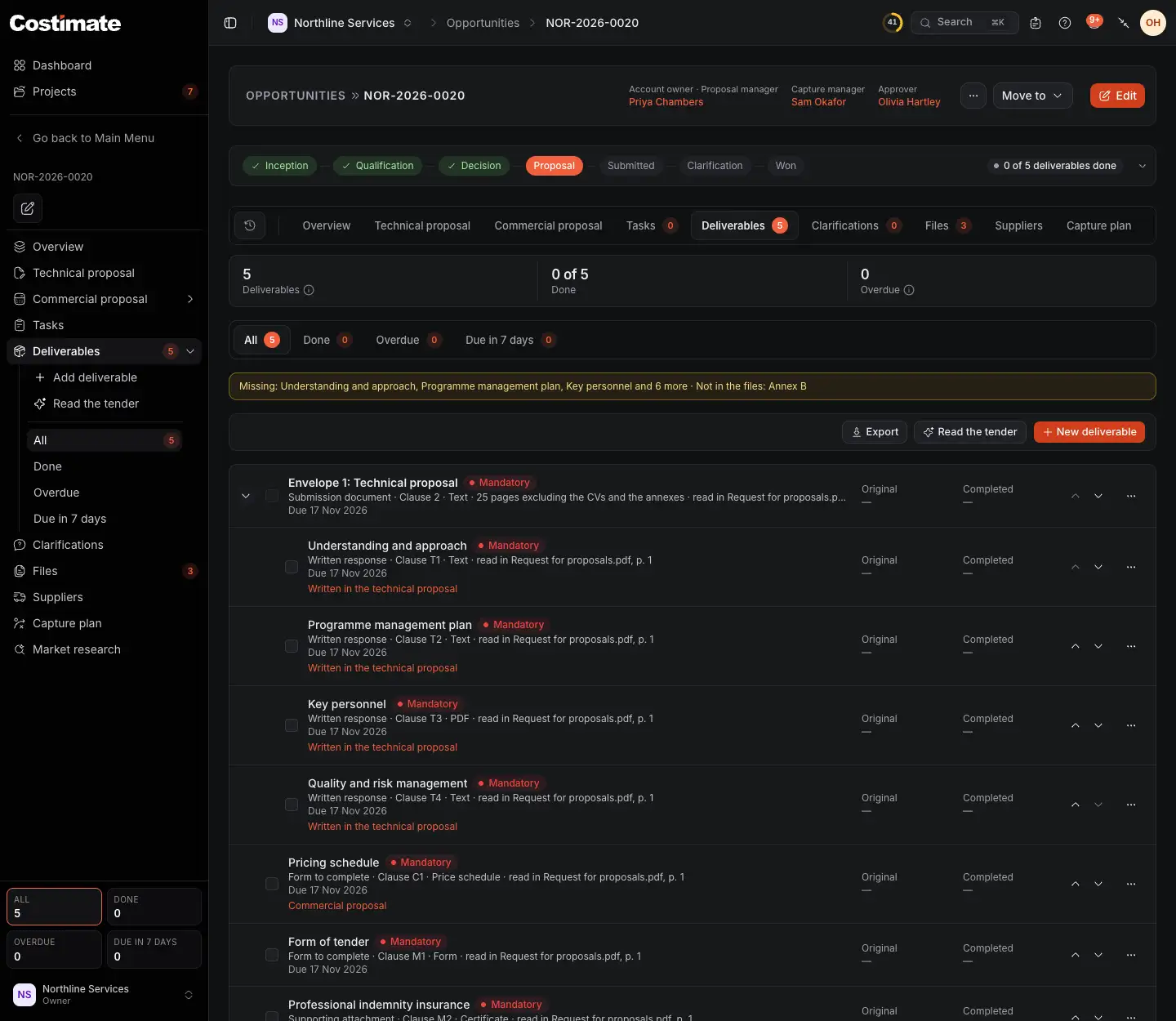
- How many items the checklist has, how many are done, and how many are overdue.
- What still stands between you and the bid: the mandatory items not ready, the facts to confirm, and the documents the tender mentions that you do not have.
- A submission document, with its questions under it.
- A question of that document.
- Where its answer is written. Click it to open the technical proposal at that section.
- Read the tender reads the files again.
Open an item
Click an item to see everything about it in one place.
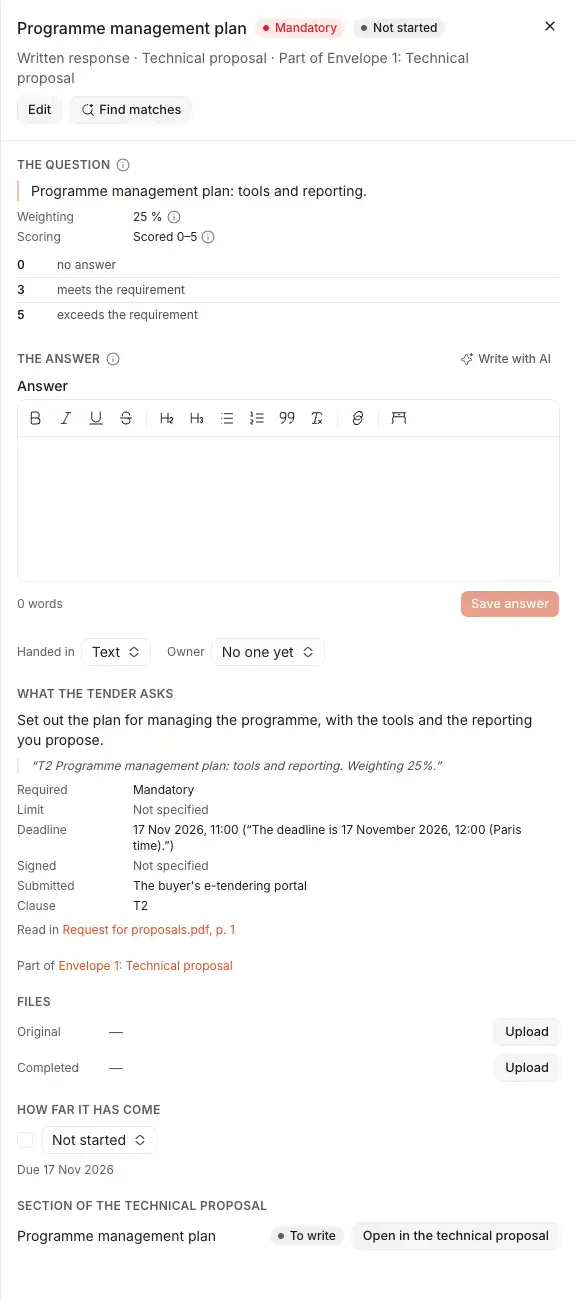
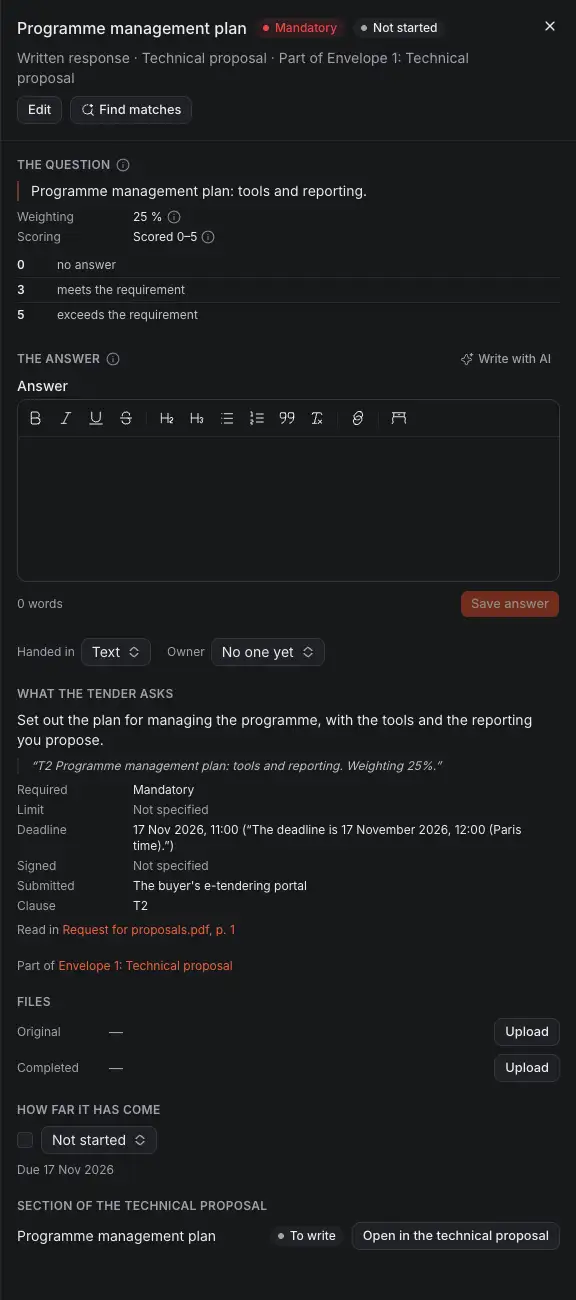
- The question, word for word as the buyer wrote it.
- Its weighting, and how it is scored.
- The answer, with Write with AI to draft it from the question and your records.
- What the tender asks: whether it is required, its limit, its deadline, who signs it and where it is handed in.
- Find matches looks for what your company already has for it.
- How far it has come, in the steps that fit what it is, from Not started to submitted.
Read it again
When the buyer sends an amendment or answers questions, add the new files and choose Read the tender again. The review then compares the new read with your checklist. It marks each item as new, changed (with what changed) or unchanged, and lists what is no longer in the tender, for you to keep, mark as gone or delete. Your answers, files, owners and progress are never touched.
Good to know
- Each fact comes with the tender's own words. A limit, a weighting or a deadline the tender does not state is left empty, never guessed. An item the tender is unclear about says Needs confirmation.
- AI's own advice is marked "AI suggests", never shown as the buyer's.
- The read saves nothing until you keep what it found.