

The schedule
Plan who works when on a project, day by day or by a pattern, see where a shift is short, swap shifts, and send the week to the crew.
The Schedule tab of a project says who works when: one row for each person on the crew, one column for each day of the week. Planning needs the right to change projects. Anyone on the crew with a login can ask to swap a shift of their own. A schedule never shows pay or price.
Before you start
- Add the people to the crew on Manpower first. A shift can only be planned on a day they are on the project. See Crew and pay.
- A project has up to three shifts, Day, Evening and Night, each with its hours and how many people it needs. Change them in the menu ⋯, Shift settings.
Read the week
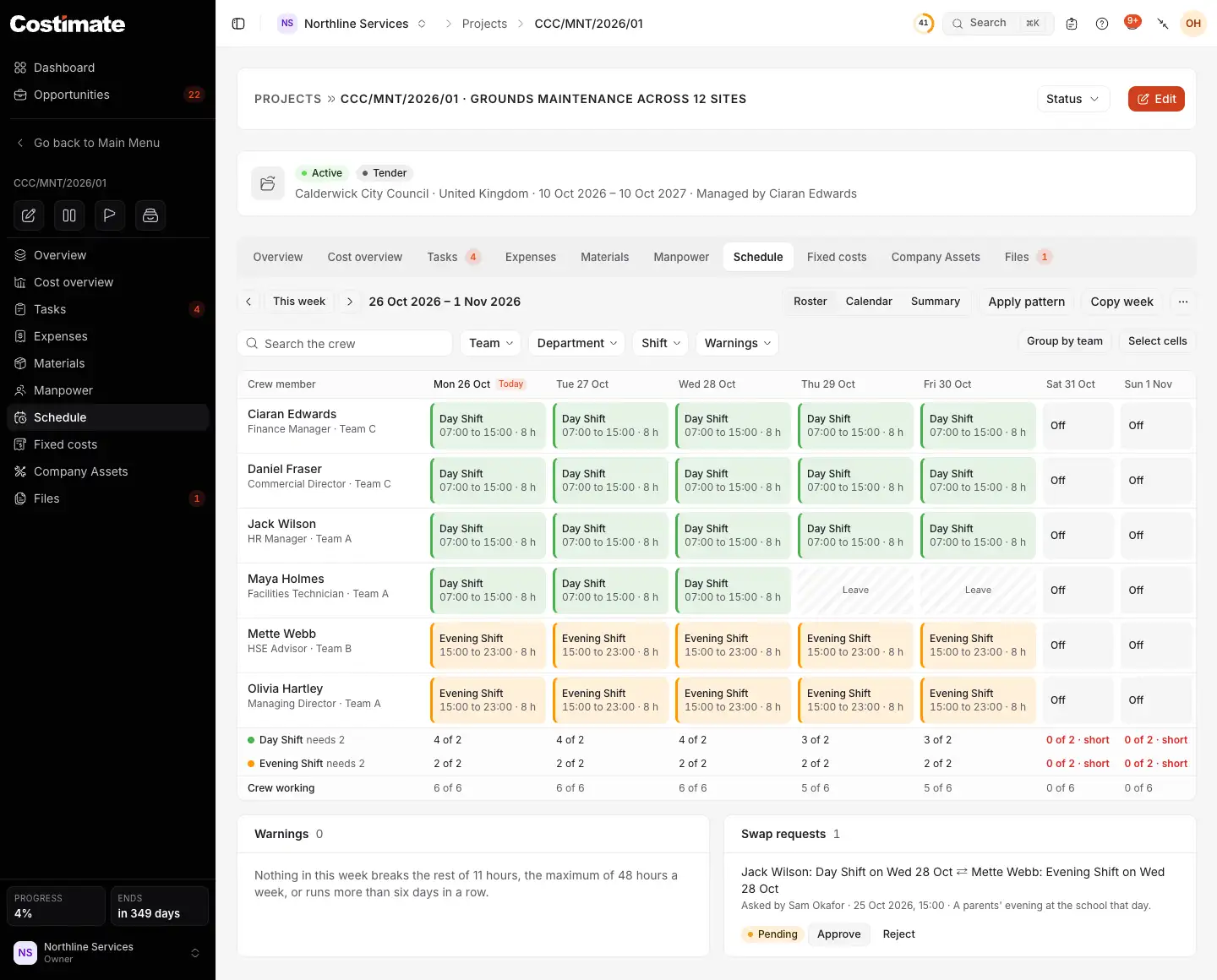
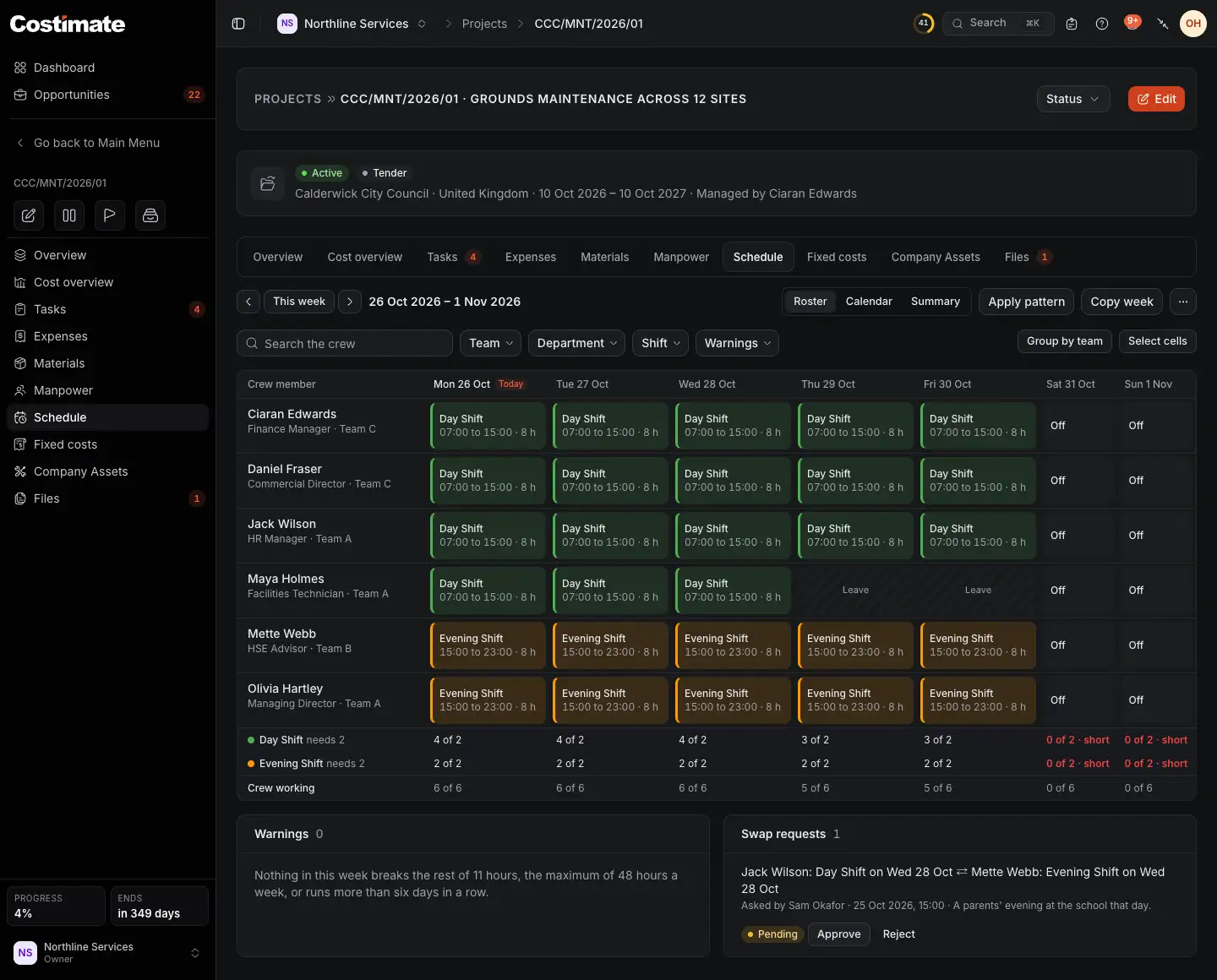
- The week shown. This week brings you back to today's week, and the arrows go a week back or forward.
- Roster, Calendar for a month, a week or a list, or Summary of the days and hours each person worked.
- Apply pattern plans many days at once.
- The menu ⋯: Shift settings, Manage patterns, Send schedule, Export to Excel and Download as PDF.
- A shift, on its colour, with its hours.
- A day of approved leave. No shift can be planned on it.
- What each shift needs each day against what is planned. A shift below what it needs says short in red.
- Swaps waiting for a decision, with Approve and Reject.
A cell can also say Off, which means the day is planned as free, or Not on the project. An empty cell has nothing planned yet.
Plan one day
- Click the person's cell on that day.
- Pick the shift, or Off. The hours come from the shift and can be changed for this day.
- Tick Overtime or Night shift if they apply, add a note, and choose Plan the day, or Save changes for a day already planned.
The dialog also shows the history of that day: who planned or changed it, and when.
To change many cells at once, choose Select cells, pick the cells, then choose a shift, Off or Clear, and Done. Copy week copies the week shown onto the next 1, 2, 4 or 8 weeks: they become this week, its empty days included.
Apply a pattern
A pattern is a cycle of days, each with a shift or a day off, such as day shifts on weekdays with weekends off. Costimate comes with eleven, and Manage patterns makes your own.
- Choose Apply pattern.
- Pick the pattern and the crew members.
- Pick the first day and how many weeks, from 1 to 12.
- To stagger a crew over one pattern, start each person on another day of the cycle with Enter the cycle at.
- Choose Apply pattern.
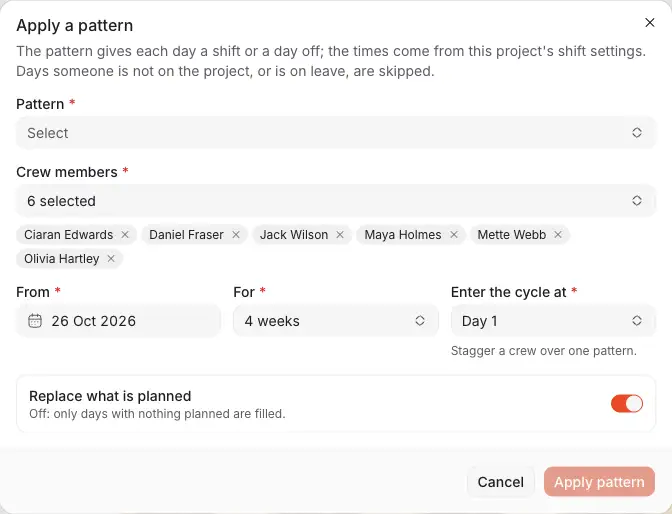
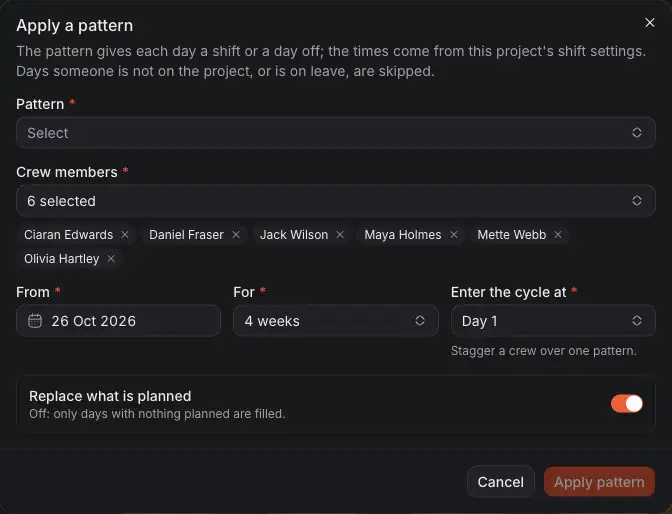
- The pattern.
- The crew members it plans for.
- For how many weeks.
- The day of the cycle to start on.
- On, what is already planned is replaced. Off, only empty days are filled.
- Apply pattern plans the days.
Days when a person is not on the project, or is on approved leave, are skipped, and Costimate says how many.
Warnings
Beside the roster, Warnings lists what breaks your rules: less rest between two shifts than the minimum, more hours in a week than the maximum, more than six days in a row, or the same person planned on two projects on one day. A warning never stops you planning: it tells you what to look at. Set the rest and the weekly maximum in Shift settings.
Swap shifts
- A crew member clicks one of their own shifts, today or later, and chooses Ask for a swap.
- Under Swap with they pick the shift to exchange it with, give a reason, and choose Ask for the swap.
- The request waits under Swap requests and in Workflow. A planner chooses Approve, and the two people exchange their shifts, or Reject, with a note.
A planner can choose Swap with… on anyone's shift: Swap the shifts exchanges them at once. Both people must be free, on the project and not on leave on the day they take. Changing one of the two shifts cancels a swap that waits.
Send the week
In the menu ⋯, Send schedule sends the week as a PDF to the people you pick: members of your company, crew members with an email on their employee record, and addresses you type. Each person gets a message of their own. Download as PDF and Export to Excel give you the same week.
Good to know
- Approving leave clears the shifts planned on its days, and the approval says which ones first. Cancelling the leave later brings no shift back.
- A crew member sees all their own shifts, across your projects, on My shifts.
- Public holidays change nothing on a roster: crews can work them.
- Planned shifts never change what the crew costs, because the crew is paid by the month.