

The welcome: set up in eight steps
After you sign up, a short welcome fills in what your company profile still needs, your team, your clients and your page settings.
Once you have signed up and chosen a plan, Costimate welcomes you with a few steps. They fill in what your quotations and invoices print, bring your team in and pick the public buyers you work with. It takes a few minutes, and you can skip any step and come back to it later.
Before you start
The welcome opens by itself for the company's owner, the first time they come in. Anyone who can change the company profile can open it again later.
The steps
The bar at the top shows where you are: Welcome, Company, Legal entity, Bank account, Team, Clients, Page settings and Done.
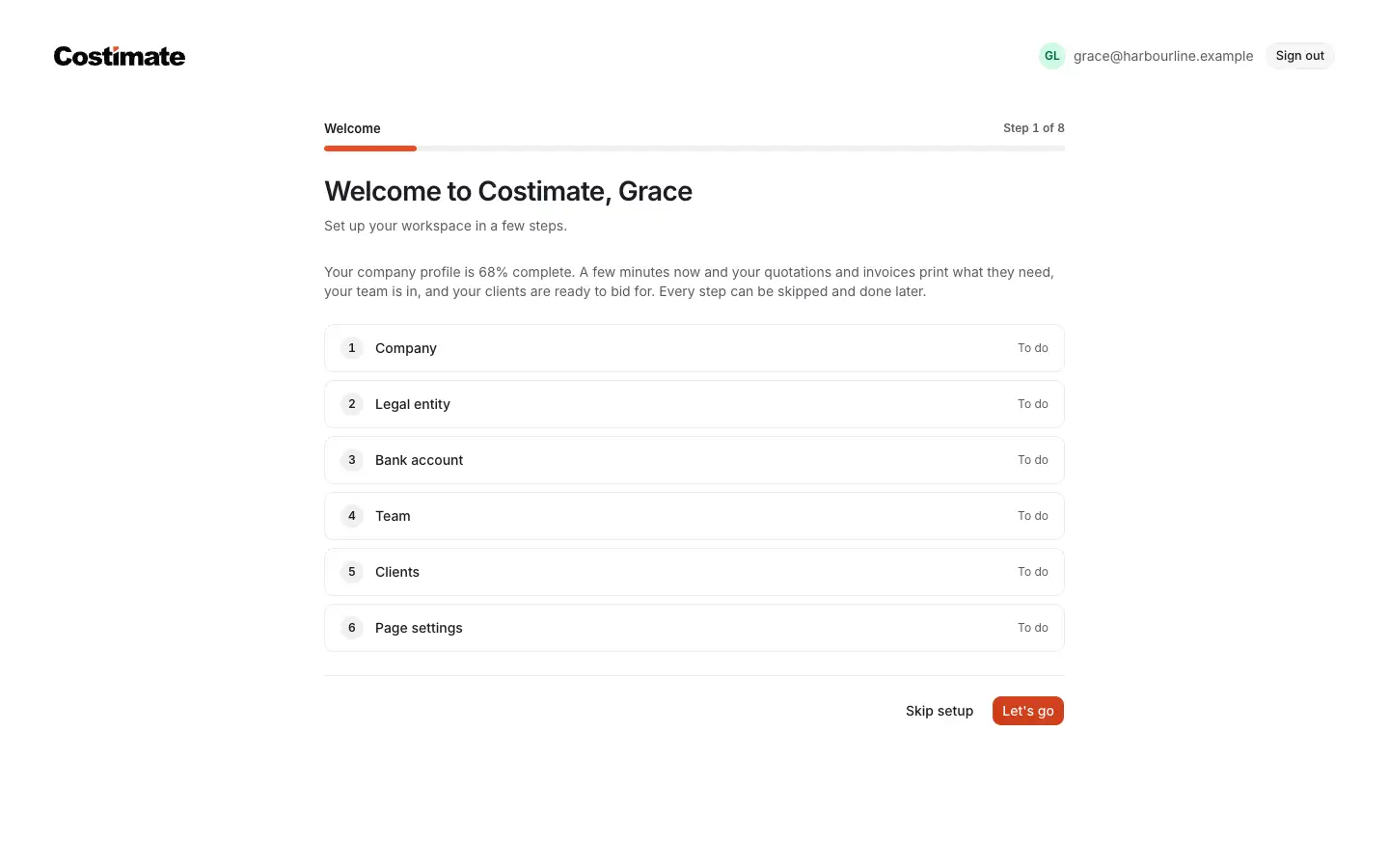
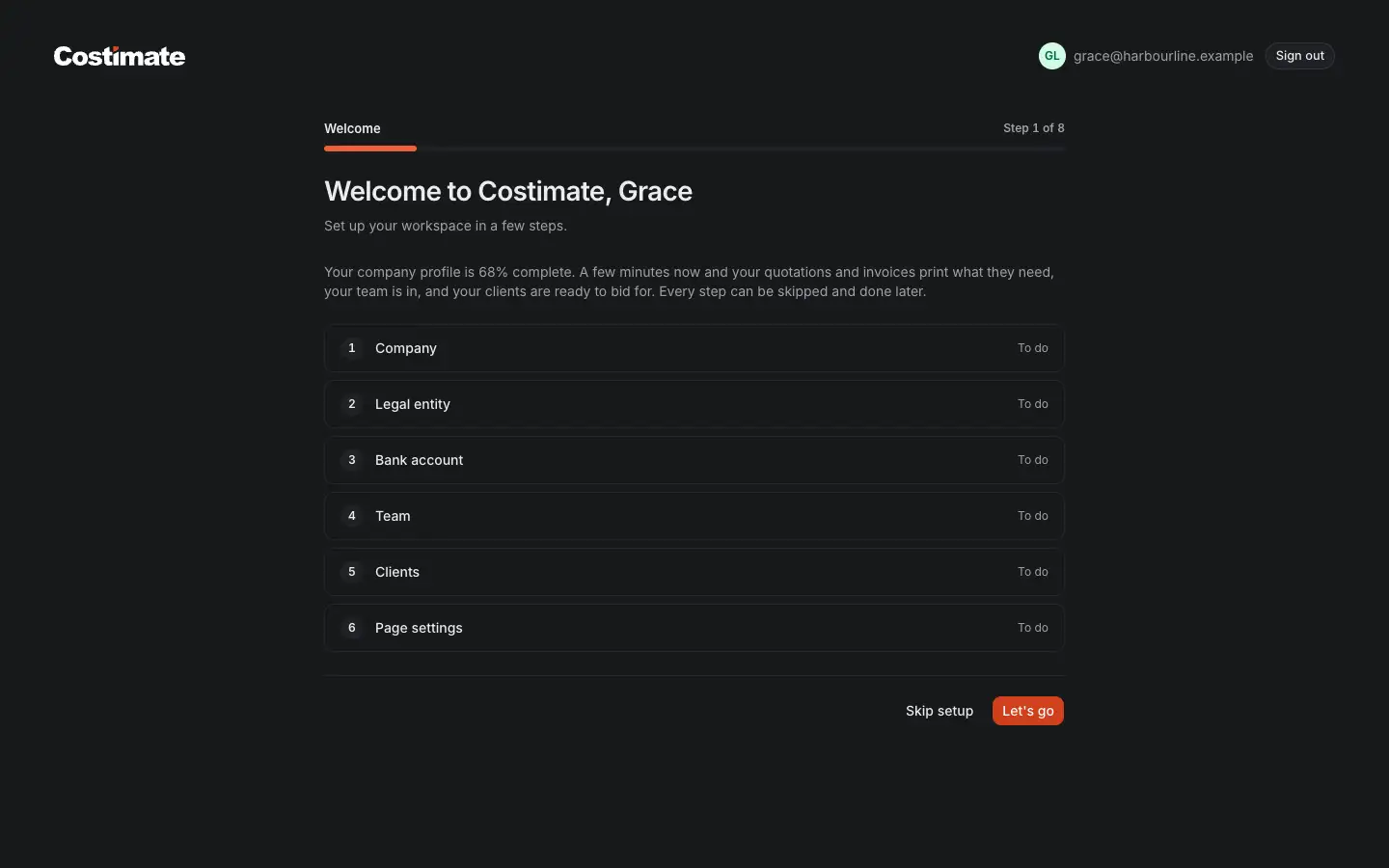
- The step you are on, of eight.
- How complete your company profile is now.
- The six steps ahead, each marked To do or Done.
- Skip setup leaves the welcome and takes you to the dashboard. You can come back to it any time.
- Let's go opens the first step.
What each step asks:
- Company: where the company is, its phone, size, website and time zone, what it does and its logo. If you gave a website, Costimate reads it and fills in the empty fields for you. Each one is marked Suggested: check it until you confirm it or change it.
- Legal entity: the legal name, address, registration and tax numbers that your quotations and invoices print. The website fills these in too, where it states them.
- Bank account: where your invoices are paid. Type the first letters of your bank and pick it from the list, and type the IBAN: Costimate checks it as you type.
- Team: your seats, the invitations waiting, and Invite a member.
- Clients: the public buyers you are likely to work with. Tick them to add them as clients.
- Page settings: light or dark, and how wide your pages are on this screen, with what Costimate recommends.
- Done: what is still missing, and Go to the dashboard.
Each step has Back, Skip for now (nothing is saved), and Save and continue or Continue. Nothing is saved until you press it.
Pick your clients
The Clients step suggests public buyers from the tender registers, by your industries and your country.
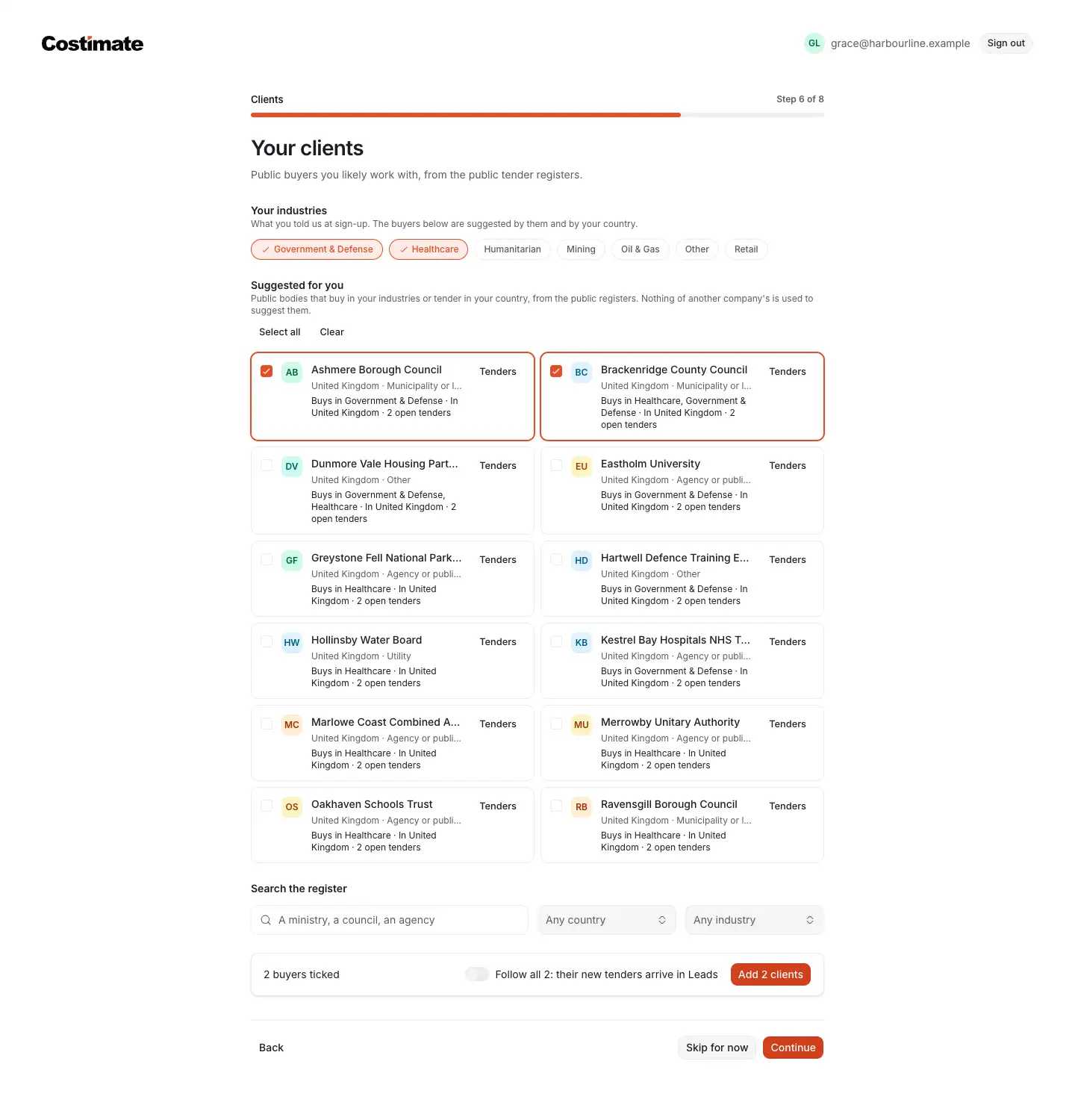
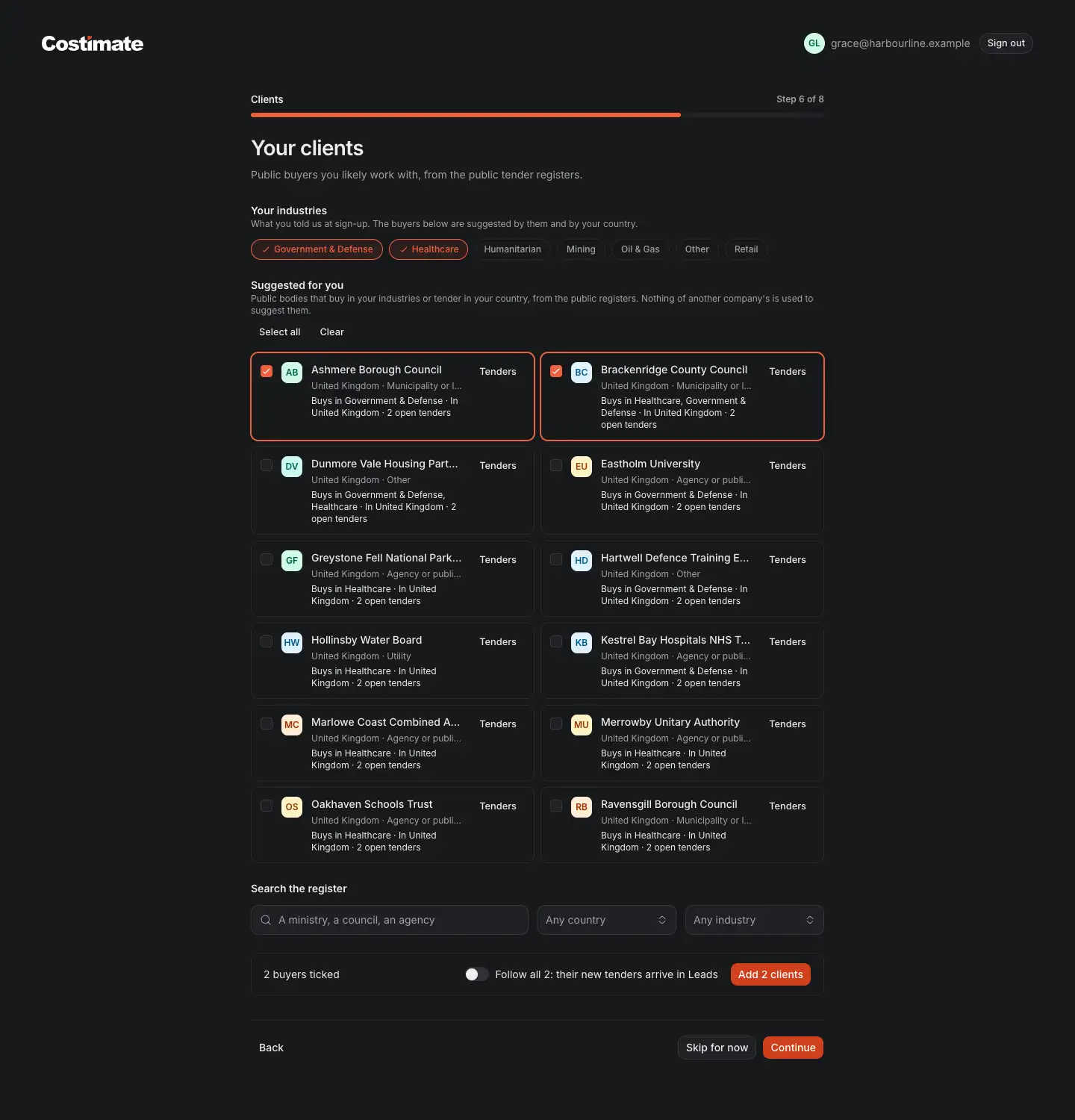
- The industries you chose at sign-up. Change them and choose Save industries: the suggestions follow.
- The buyers suggested for you, with what they buy and how many tenders they have open.
- Tick a buyer to choose it. Select all and Clear tick or untick every buyer shown.
- Add the buyers you ticked as clients. With Follow all, their new tenders also arrive in your Leads.
- Search the whole register by name, country or industry.
- Continue goes on to the next step.
Choose Tenders on a buyer to see its open and past tenders before you decide.
Afterwards
Until nothing is missing, the dashboard shows how complete your profile is, with Continue setup, and the top bar shows the same figure in a ring. Both open the welcome at the first step with something still to do. Once the welcome's steps are done, they open the company profile instead, to show what is left there.
Good to know
- Costimate fills in only fields that are empty, from your own website, and saves nothing until you do. Check what it suggests before you save.
- Suggestions of buyers come from the public registers and from your own industries and country, never from what other companies chose.
- Page settings are kept in this browser only, for this screen.