

Quotations
Make a quotation from a finalised commercial proposal or by hand, send it by email or mark it as sent, record the client's answer, and turn an accepted one into an invoice.
A quotation is an offer of prices to a client. You can make one from a finalised commercial proposal in one click, or type one for smaller work. Quotations state prices, so they are only for people who can see prices: everyone else has no Quotations in their menu, and a link to one shows them a page that does not exist.
Before you start
- To make and send quotations you need to be able to create and change in Finance. The owner, admins and the Finance manager can.
- Your company's legal entities print under "From". Set them, with their bank accounts, on the company profile's Legal entities. See Company profile.
Make a quotation from a proposal
- Open the bid's Commercial proposal once it is finalised.
- Choose Create quotation.
Costimate makes a draft with the bid's client, currency and title, the client's tender reference, and one line for each service line of the proposal at its selling price. A line priced in sub-lines gives one line for each sub-line. There is no tax or mark-up to add: the selling prices already hold the mark-ups. The draft is a copy: changing the proposal later changes no quotation.
Type a quotation
- In Quotations, choose New quotation.
- Pick the client, or a project, which brings its client and currency. Pick the legal entity that makes the offer.
- Set the issue date and Valid until (30 days later unless you change it), a subject and, if the client gave one, their reference.
- Add percentages if you need them: G&A %, OH %, Profit % and Default tax %.
- Choose Add quotation, then add its lines on its page with Add line. A line can have a tax rate of its own.
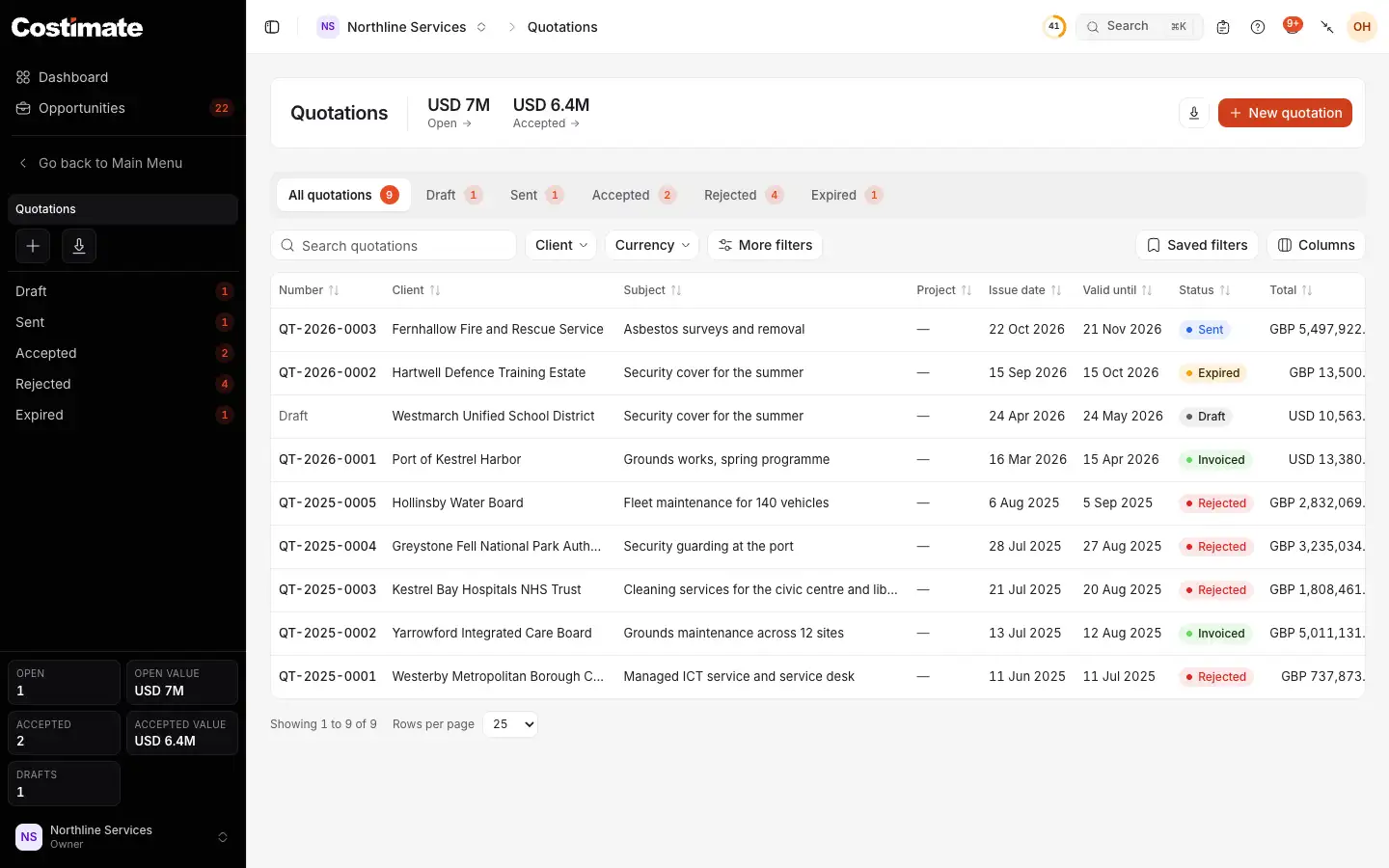
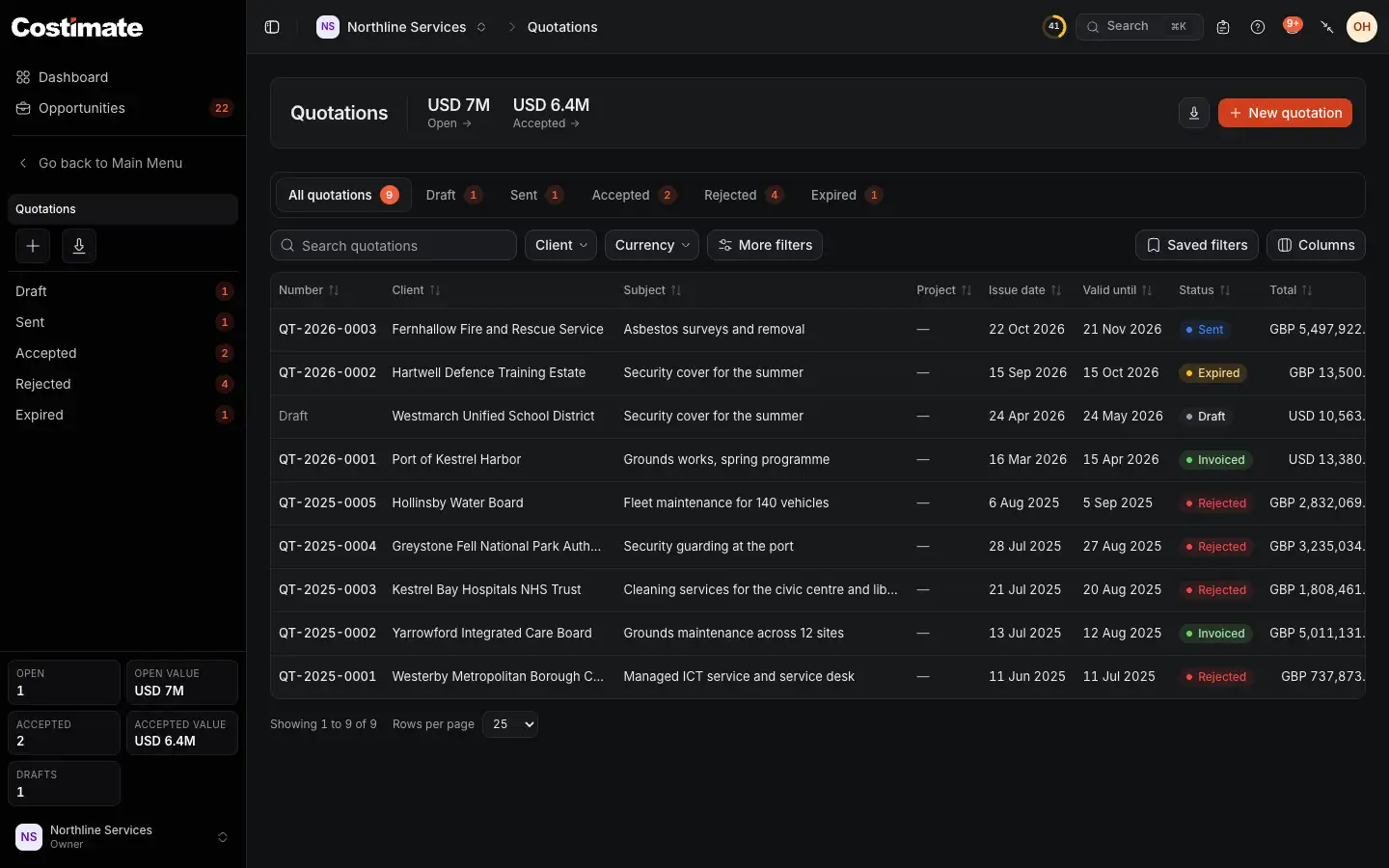
- Open: what is sent and not yet expired. Accepted is beside it. Both are in US dollars, across your currencies.
- The views by status: Draft, Sent, Accepted, Rejected and Expired.
- New quotation.
- Expired: sent, and its valid-until day has passed.
- Invoiced: accepted, with an invoice made from it.
Send it
A draft has no number yet. It gets one when it is sent, in the order of the issue dates.
- Send by email sends it from Costimate to up to five addresses, the client's proposed, with the PDF attached. On a draft, sending the email also gives the quotation its number.
- Mark as sent is for a quotation you handed over another way, a PDF you downloaded or a client's portal.
Once sent, a quotation cannot change. Back to draft opens it again: it keeps its number, and you send it again when it is ready.
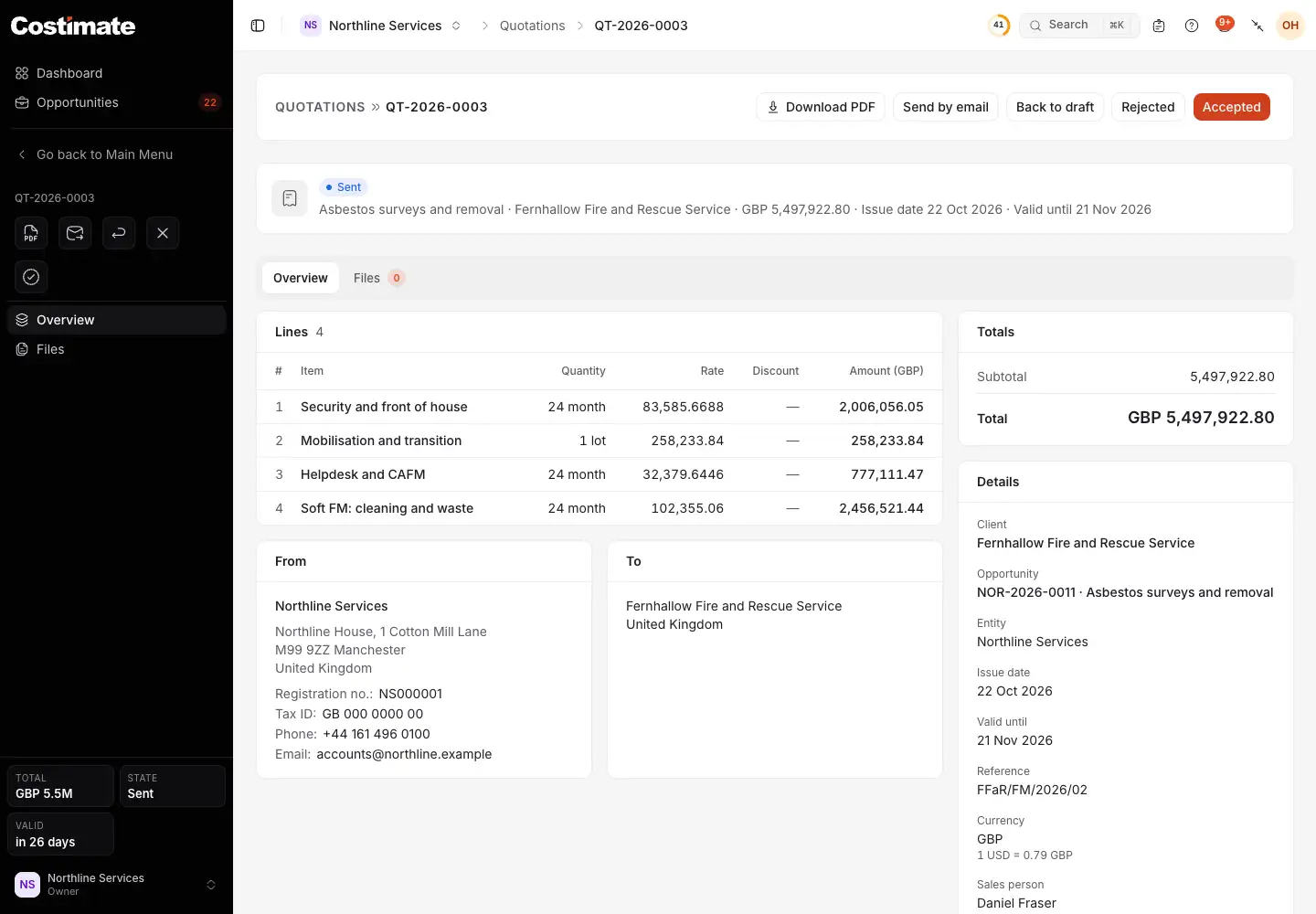
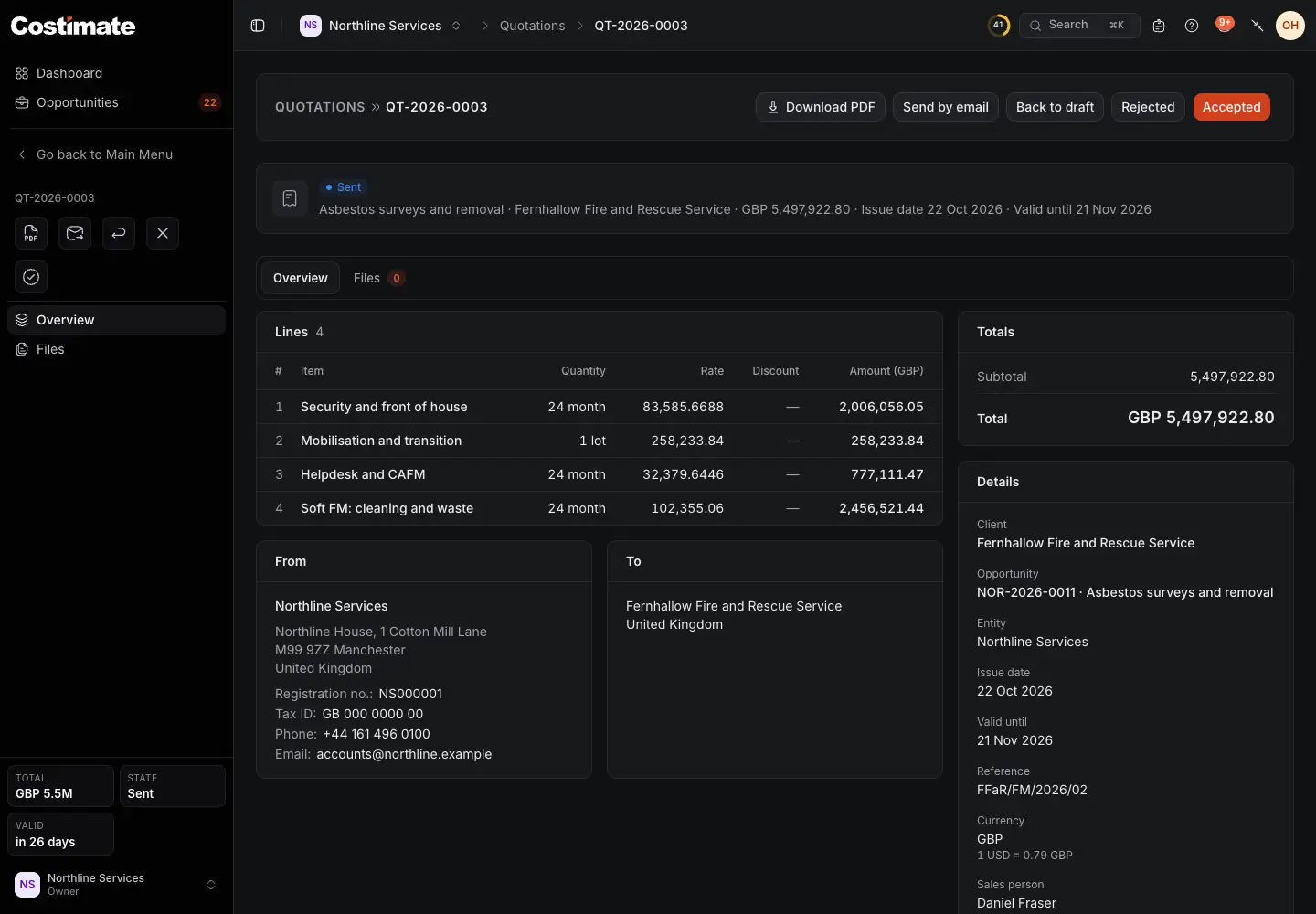
- Its status: sent.
- Send by email sends it, or sends it again.
- Rejected records that the client said no.
- Accepted records that the client said yes.
- Its lines, at their selling prices.
- The bid it was made from.
Record the answer
- Choose Accepted or Rejected when the client answers. A rejected quotation can go back to draft.
- On an accepted quotation, Create invoice makes a draft invoice with its client, project, lines and percentages. A quotation can have several invoices, an advance and a balance for example. Back to sent undoes the acceptance while no invoice was made from it.
Good to know
- Totals are always worked out by Costimate. Nothing you type can set a total or a status.
- A draft can be deleted. A quotation with a number is never deleted.
- Every email of a quotation is listed on its page, under Emails: when, to whom, by whom and from which address.
- Who a quotation's email is from is set on the company profile's Sending addresses. Without your own address, it leaves from Costimate's under your entity's name, and replies go to whoever sent it.
- The quotations of a bid are seen by the people who can see that bid's prices, which includes the people named on it.