

Invoices and payments
Make an invoice for a project or from a quotation, issue and send it, record what the client pays, confirm its payment reminders, and correct it once it was sent.
An invoice says what a client owes you. Costimate numbers it, works out its totals, follows what is paid and what is due, and can remind the client before and after the due date. Invoices state prices, so they are only for people who can see prices: for everyone else the list and its figures are not there.
Before you start
- To make invoices and record payments you need to be able to create and change in Finance. The owner, admins and the Finance manager can.
- On the company profile, set your legal entities and their bank accounts under Legal entities, and how invoices are numbered and reminded under Invoicing. See Company profile.
Make an invoice
- For a project: in Invoices, choose New invoice and pick the project. Its client, currency and bid come with it. Choose Add invoice, then add the lines on its page.
- From a quotation: on an accepted quotation, choose Create invoice. Its lines and percentages are copied.
- From the proposal: on a draft whose bid has a finalised proposal, Add from proposal offers its lines at their selling prices, for the quantity you bill.
- From Excel: Import adds invoices as drafts, one row per line.
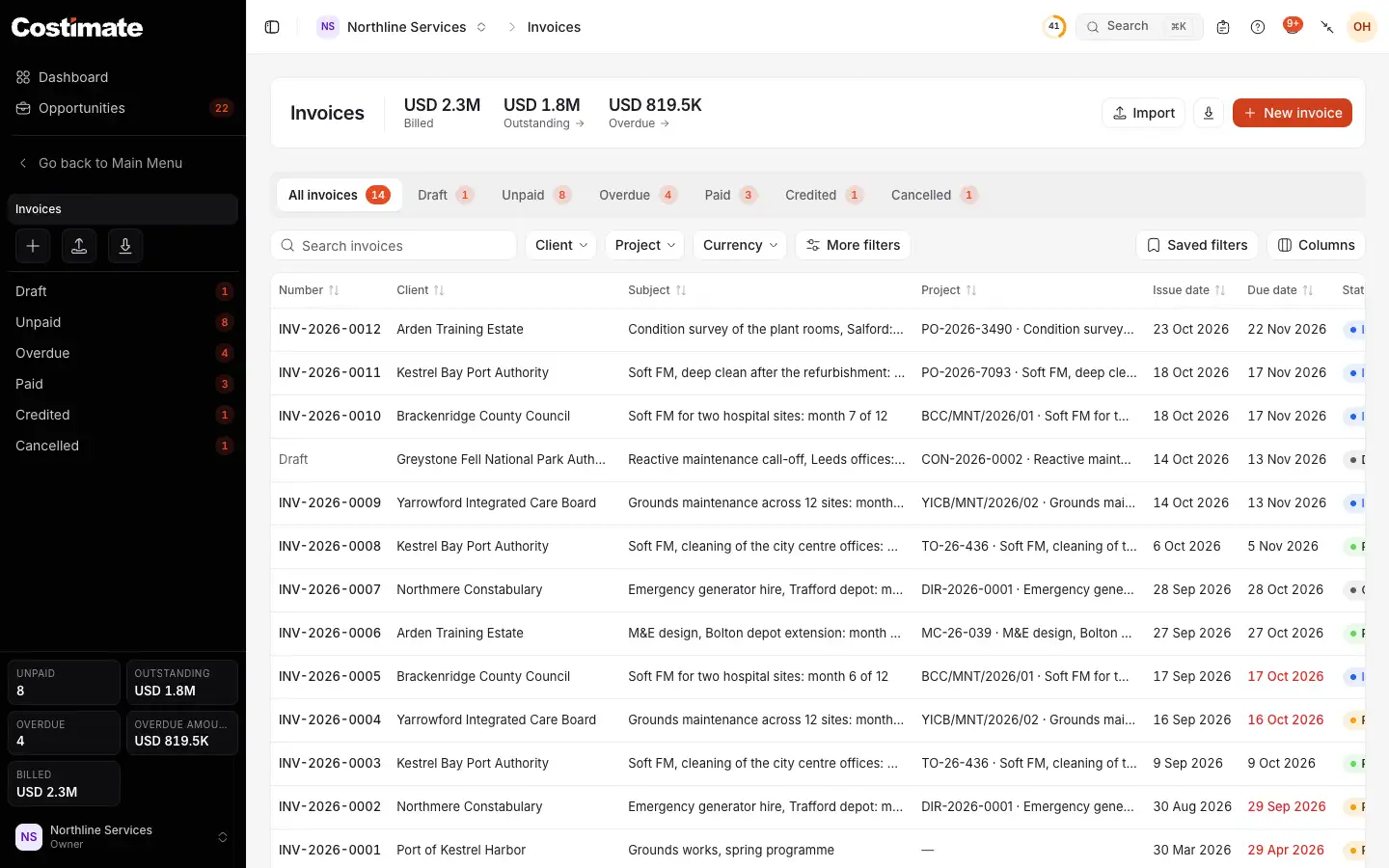
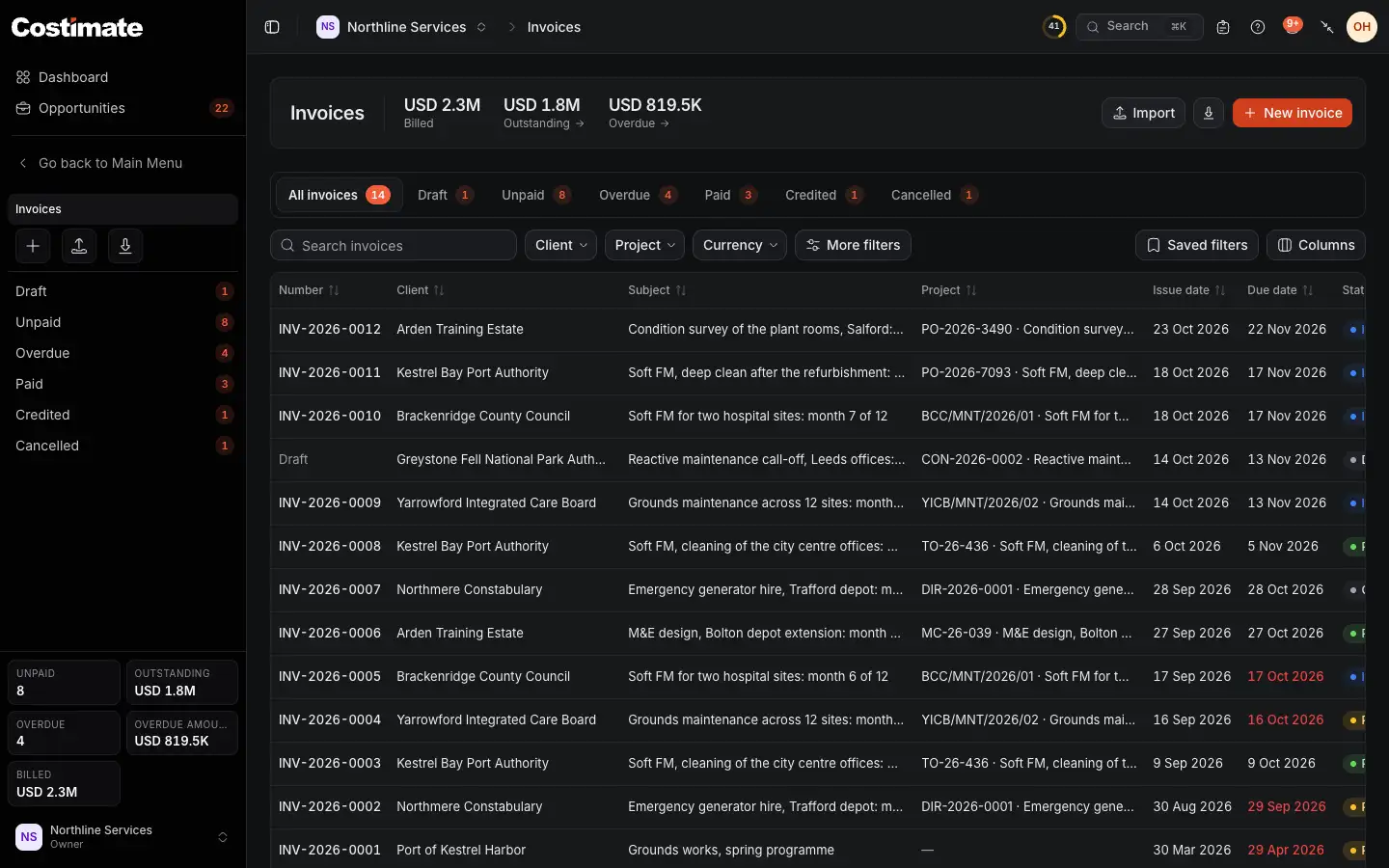
- What is outstanding, beside what was billed and what is overdue. These figures are in US dollars across your currencies.
- The views by status: Draft, Unpaid, Overdue, Paid, Credited and Cancelled.
- New invoice starts a draft.
- A draft has no number yet: it gets one when it is issued.
Issue and send it
- On the draft, choose Issue invoice. It gets its number, in the order of the issue dates, and what it prints of your entity, its bank account and the client is fixed as it is that day.
- Choose Send by email to send it from Costimate with its PDF, or open More and choose Mark as sent if it reached the client another way.
Issued is not sent. Until the invoice has reached the client and nothing is paid on it, you can still correct it: More, Back to draft (it keeps its number), change it, and issue it again. Once it was sent, correct it with a Credit note instead. Cancel invoice is in the same menu while it has not reached the client: a cancelled invoice keeps its number and counts nowhere.
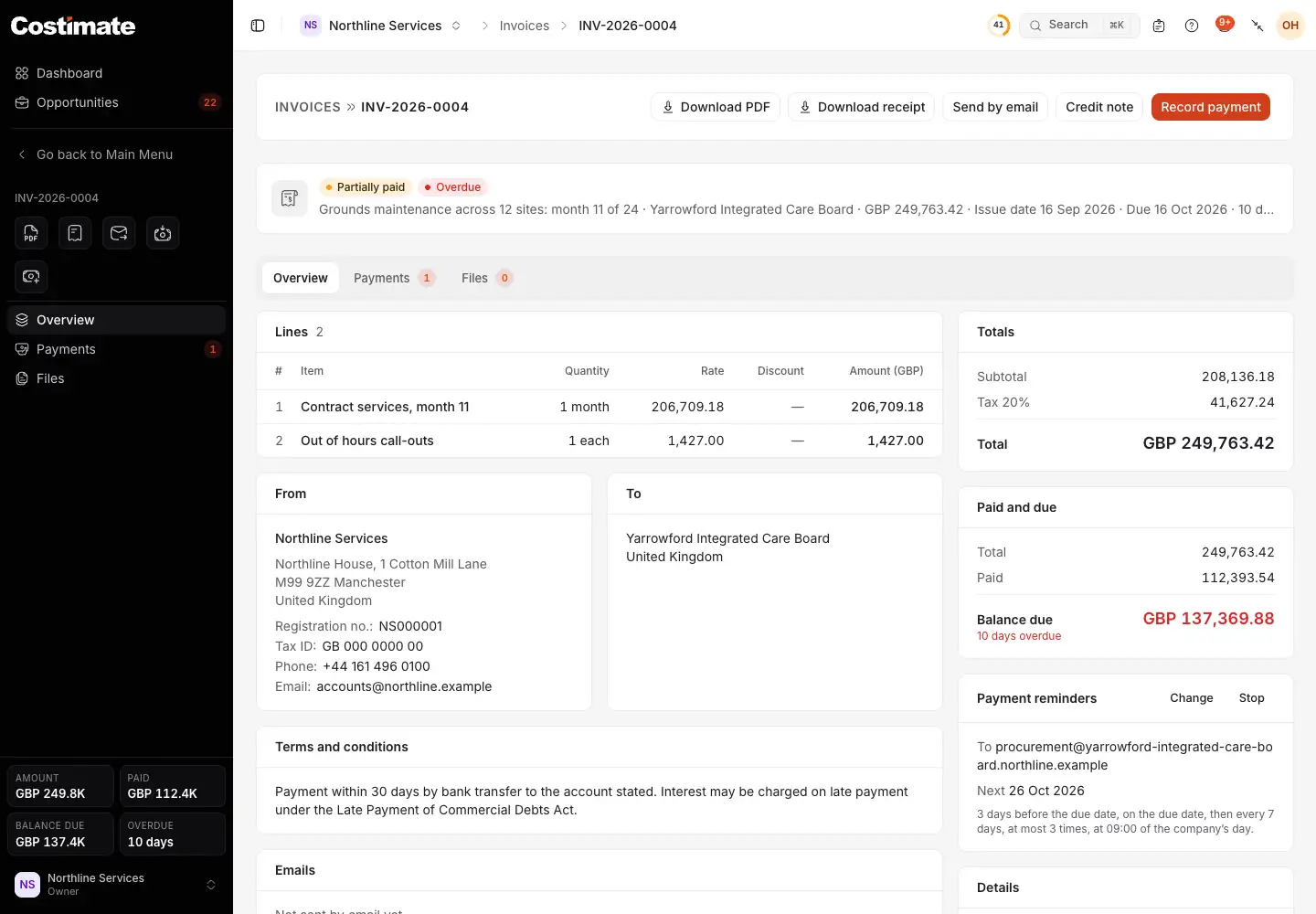
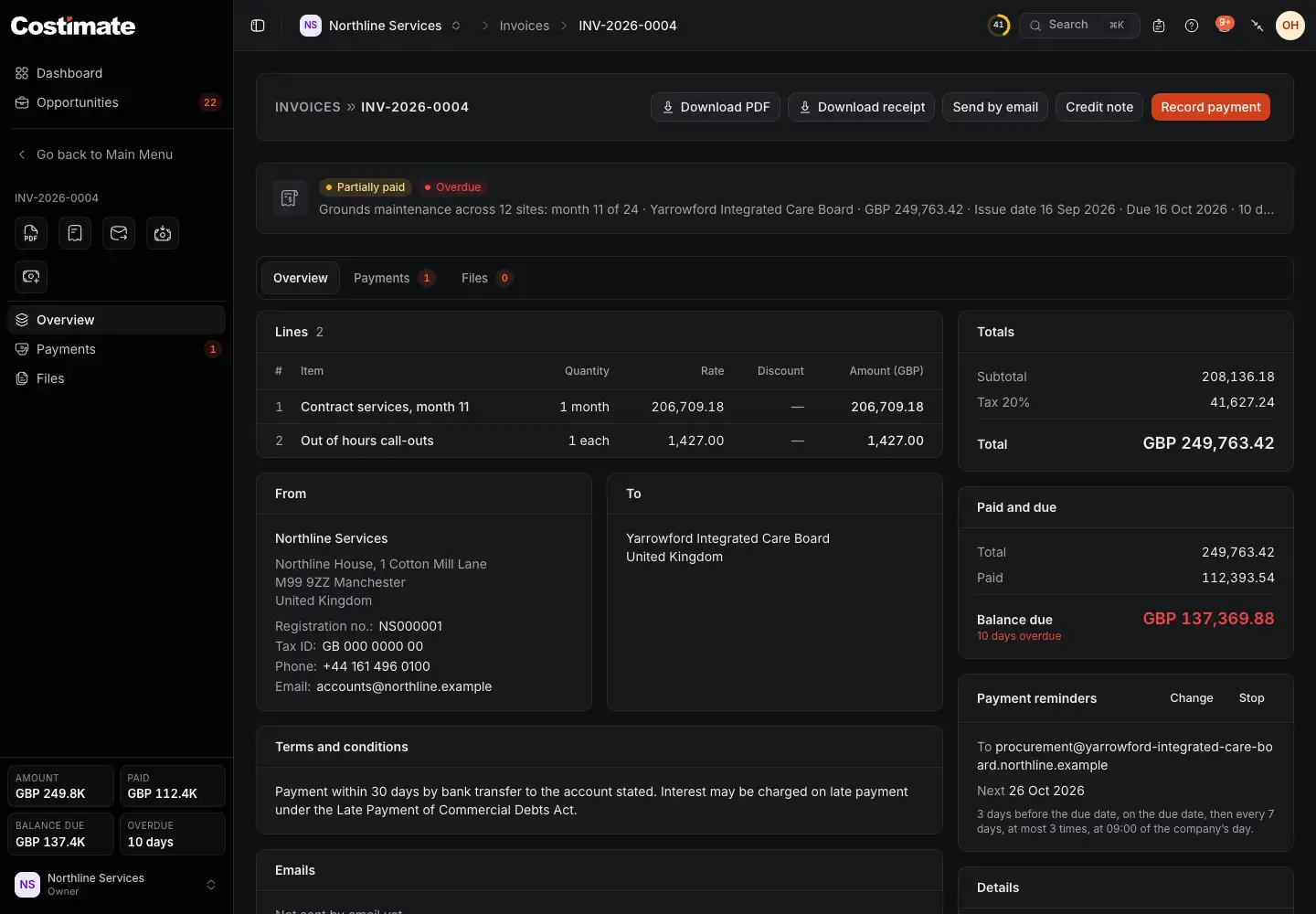
- Its status: partly paid, and overdue.
- Record payment records what the client paid.
- Send by email sends it, from the address your company chose.
- Credit note takes back part or all of an invoice that was issued.
- What is paid and what is still due, and how many days it is overdue.
- Its payment reminders: where they go, the next day one goes, Change and Stop.
Record a payment
- Choose Record payment.
- Type the amount, at most what is due, the day it was paid and how.
- Add the reference, who paid, what the bank kept, and a file that proves it if you have one.
- Tick Email a receipt to send the client a receipt.
- Choose Record payment.
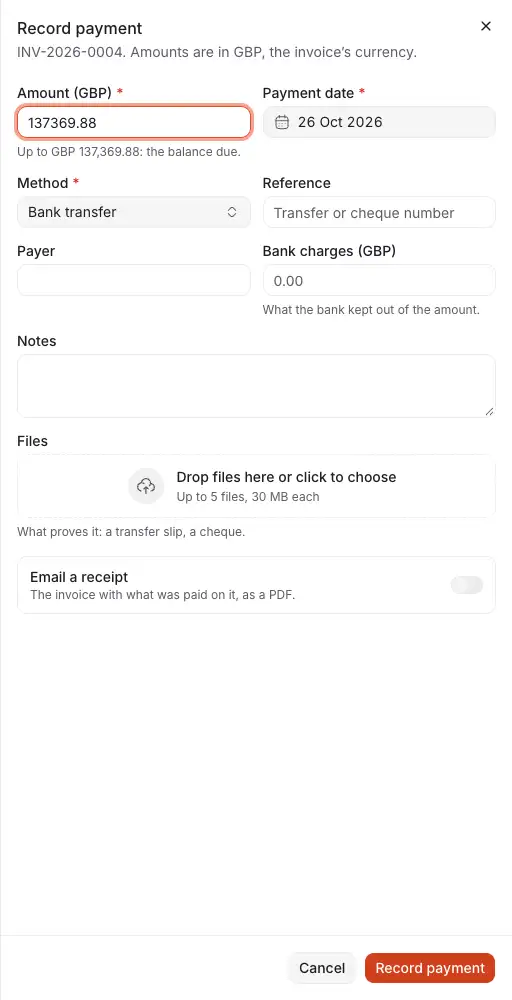
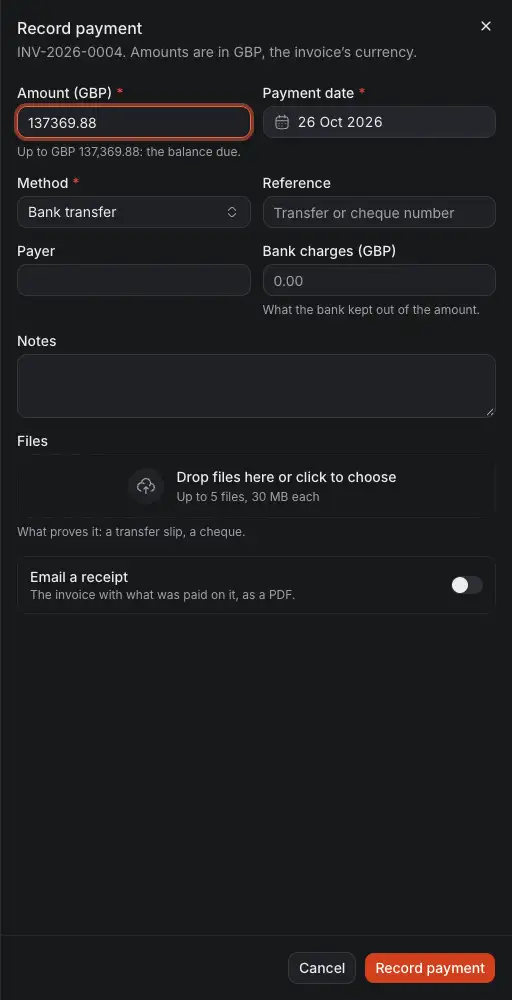
- The amount, at most the balance due.
- The day the client paid.
- How they paid: bank transfer, card, cheque, cash or other.
- What the bank kept out of the amount. The invoice is credited with the whole amount.
- A receipt to the client, as a PDF.
- Record payment saves it.
The status follows by itself: Issued, then Partially paid, then Paid, and Overdue once its due date has passed. On the Payments tab you can change a payment, or cancel one that should not count. When a credit note takes back part of what was paid, the invoice says what is To give back to the client, with Record refund.
Payment reminders
When reminders go out is set for the whole company on the profile's Invoicing: how many days before the due date, on the day, and how often after. But no reminder goes for an invoice until someone confirms where it goes.
- On the invoice, under Payment reminders, choose Confirm reminders.
- Check the addresses, the client's to start with, and the days.
- Choose Confirm reminders.
It is also offered right after you issue the invoice, and as a tick in Send by email. Each reminder attaches the invoice, and none goes once it is paid, cancelled or credited in full. The member assigned to the invoice gets a copy.
To stop them, choose Stop on the invoice. To stop them for one client, switch off Send payment reminders in that client's form.
Good to know
- Totals, what is paid and what is due are worked out by Costimate, never typed.
- A draft with no number can be deleted. An invoice with a number is cancelled, never deleted.
- Each invoice keeps its own currency and the exchange rate of its day. The Finance overview adds everything up in US dollars, and counts apart what has no exchange rate.