

Plans, seats and billing
What Free includes, how the paid plans follow your seats, how to add seats or change how you pay, what happens when a subscription ends, and where Stripe's invoices are.
Costimate has three plans, and the number of seats decides which one you are on. The owner and admins manage the plan on Subscription, in the company menu at the foot of the left menu. They can also give that permission to another member.
The plans
| Plan | Seats | What it includes |
|---|---|---|
| Free | 1 | 5 opportunities, and every module except working with experts and connecting AI apps such as ChatGPT. No card, no time limit. |
| Pro | 2 to 9 | Everything, with no limit on opportunities. |
| Enterprise | 10 to 30 | The same as Pro, for a larger team. |
You never choose between Pro and Enterprise: you choose a number of seats, and the plan follows. For more than 30 seats, write to us. Prices are on the Pricing page, in USD, paid monthly or yearly.
On Free, your opportunities include the archived ones. The list of opportunities says how many you have left.
Move to a paid plan
- Open Subscription from the company menu.
- Choose how many seats you need, and Monthly or Yearly.
- Choose Continue to payment, and pay on Stripe's checkout page.
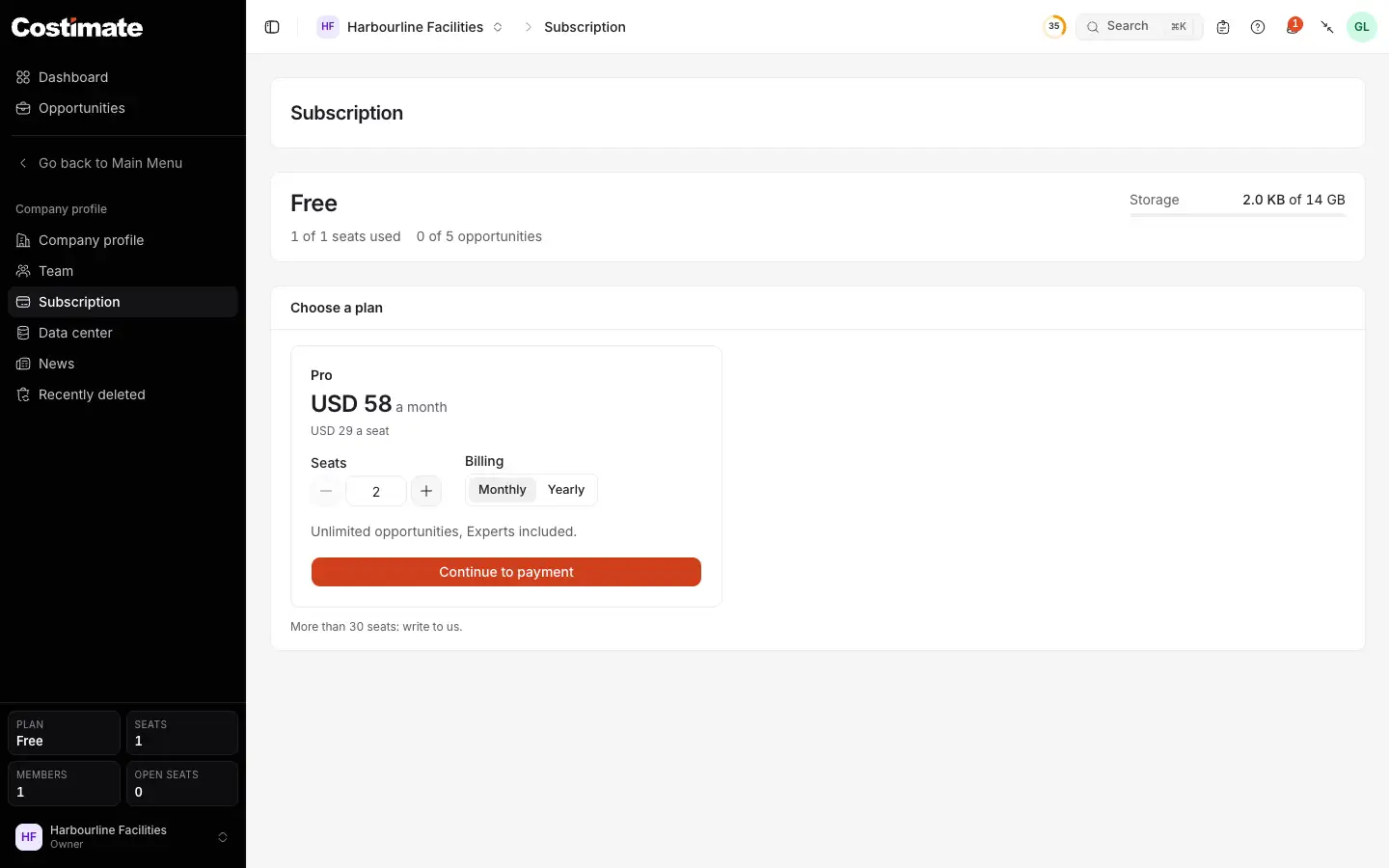
- Your plan now, with the seats and opportunities used.
- Seats: how many people will work in Costimate.
- Billing: monthly or yearly.
- Continue to payment opens Stripe's checkout page. Costimate never sees your card.
- For a larger team, write to us.
What a seat is
- Each member of your company takes one seat, the owner included.
- An invitation that is waiting holds a seat, so the person can always join when they open the link.
- A suspended member frees their seat.
- An expert you work with never takes a seat.
- Someone who belongs to two companies takes a seat in each.
Change your seats or how you pay
On Subscription, change the number of seats or switch between Monthly and Yearly, then choose Save changes. The page shows what the change costs, or what it credits, before you save.
- More seats are charged at once, for the rest of the period, and you have them as soon as the payment goes through.
- Fewer seats take effect at once, and the unused part is credited on your next invoice. You cannot go below your members and invitations: remove a member or withdraw an invitation first.
- Cancel subscription stops it at the end of the period you have paid for. Until then, Resume subscription takes it back.
Stripe's invoices
Under Payment and invoices, the Subscription page lists your invoices with View and PDF, your card, and the next invoice. Payment method and billing details opens Stripe's own page, where you change the card and the billing email.
Stripe's invoices are made out to your company's default legal entity, with its name, address and tax number from the company profile. To change them, change the legal entity in Costimate: the next invoices follow.
When a payment fails, or a subscription ends
- If a payment does not go through, Stripe tries again. Everything keeps working meanwhile, and a banner asks the owner and admins to update the payment method.
- When a subscription ends, your company is on Free again. If it then has more members than seats, it becomes read-only: everyone can still read and export everything, but nothing can be added or changed. Choosing a plan again, or removing members, ends it at once.
- Nothing is ever deleted because a subscription ended.
Good to know
- Only the owner, admins and members given the permission see the Subscription page and its amounts. The Team page shows everyone how many seats are used.
- Some companies have seats arranged with Costimate. Their Subscription page says Arranged with Costimate, and changes go through us.