

Time and invoices
Log the time you work on a bid, submit each week for the company to approve, invoice your approved time, set your billing details, and follow what is paid.
When you work on a bid, you log your time in Costimate, submit each week to the company, and once it is approved you invoice it in one click. The invoice reaches the company's Finance directly, and your Invoices page says whether it is paid. Costimate takes no commission, and no money passes through it: the company pays you.
Before you start
- Accept the company's invitation to the bid. Its terms are your engagement: your role, the days expected, and your rate per hour or per day. See My business.
- Set your billing details once, before your first invoice.
Log your time
- Open Time. Each bid you are on has a card with your role and rate.
- On the bid's card, choose Log time.
- Pick the day. Type the hours, in quarters of an hour, for a rate per hour; or choose A whole day or Half a day for a rate per day.
- Say what you did, and choose Log.
You can log any day from the day you joined the bid up to today, on the company's calendar. A day you logged can be removed while its week is open.
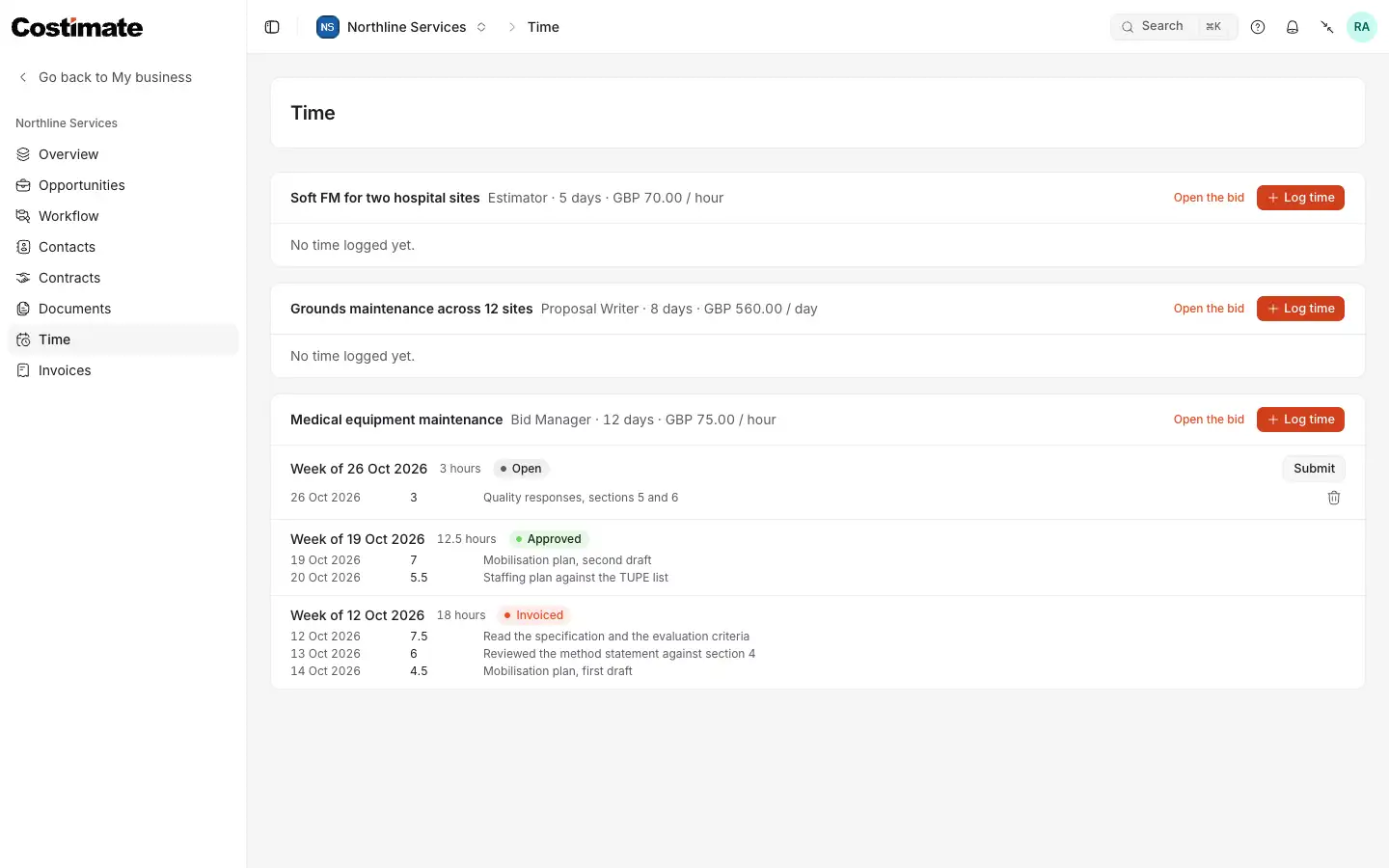
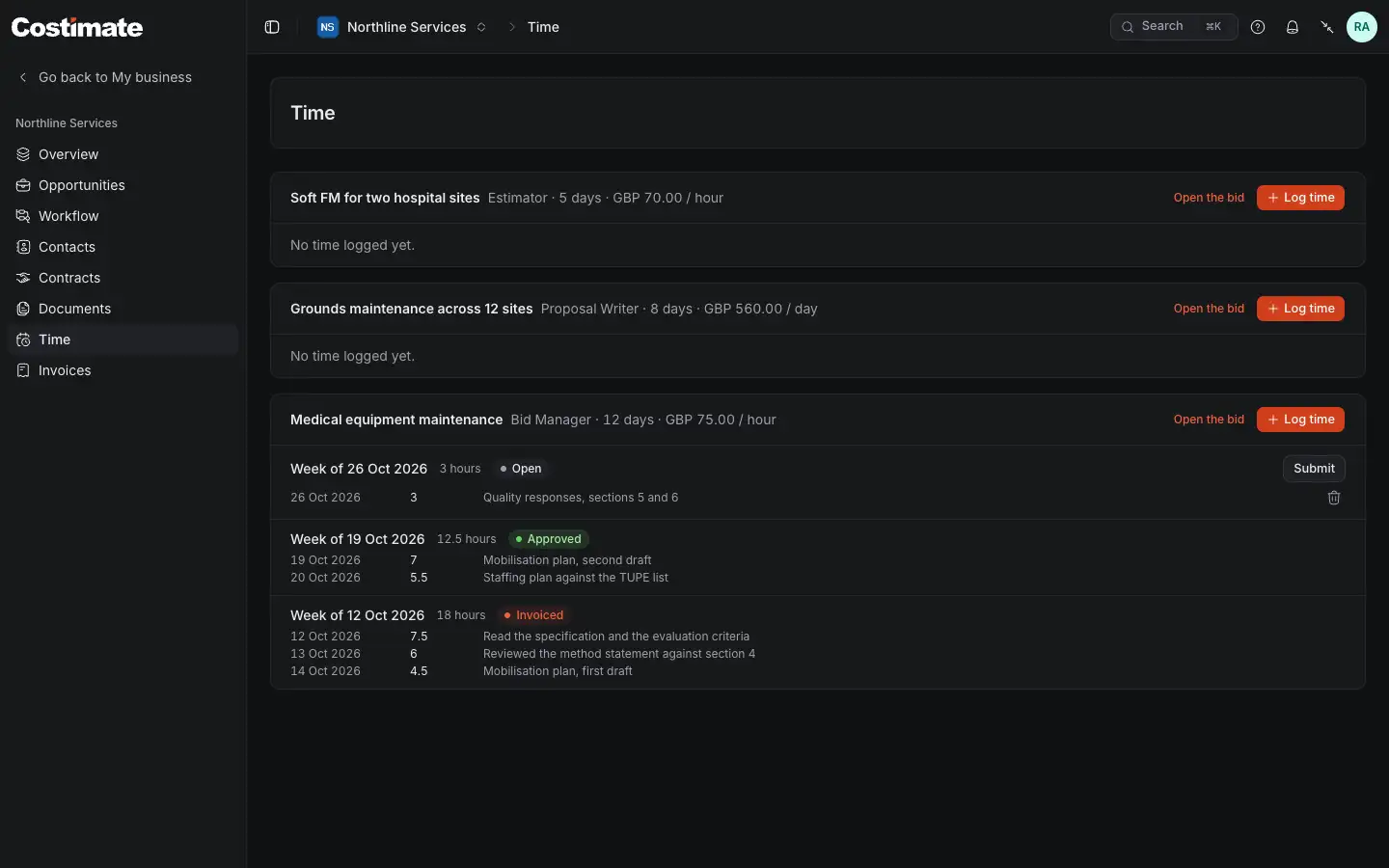
- A bid you are on, with its company, your role, the days expected and your rate.
- Log time on that bid.
- Submit sends this week to the company.
- A week the company approved, waiting for your invoice.
- A week already invoiced.
Submit a week
When a week is done, choose Submit on it. The company decides it: someone who manages experts there approves it, or rejects it with a reason. A rejected week comes back to you to correct and submit again. Once a week is submitted or approved, its days no longer change.
Invoice your approved time
- Open Invoices.
- Under To invoice, choose Invoice on the bid.
- Check the weeks and the amount, and choose Send the invoice.
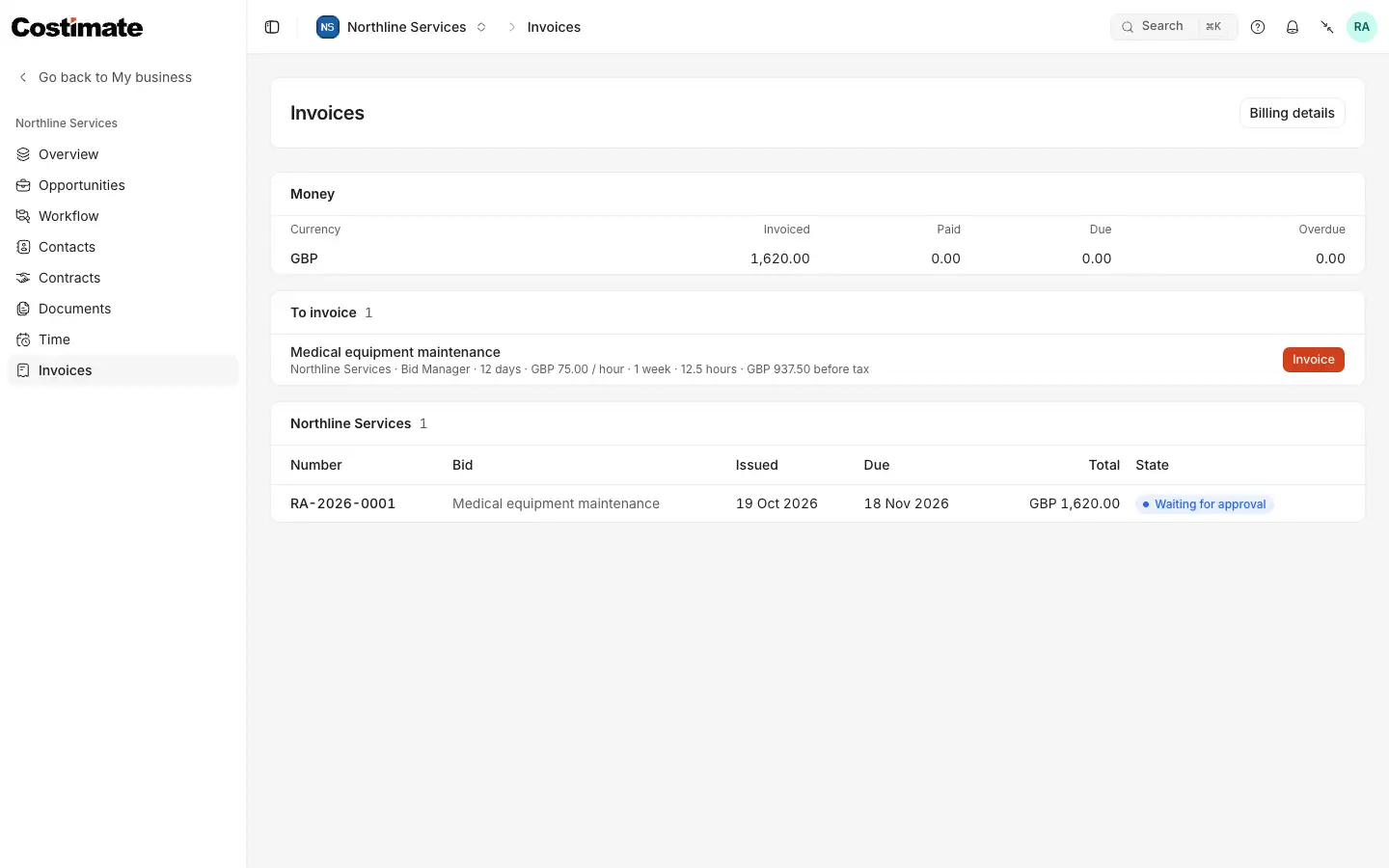
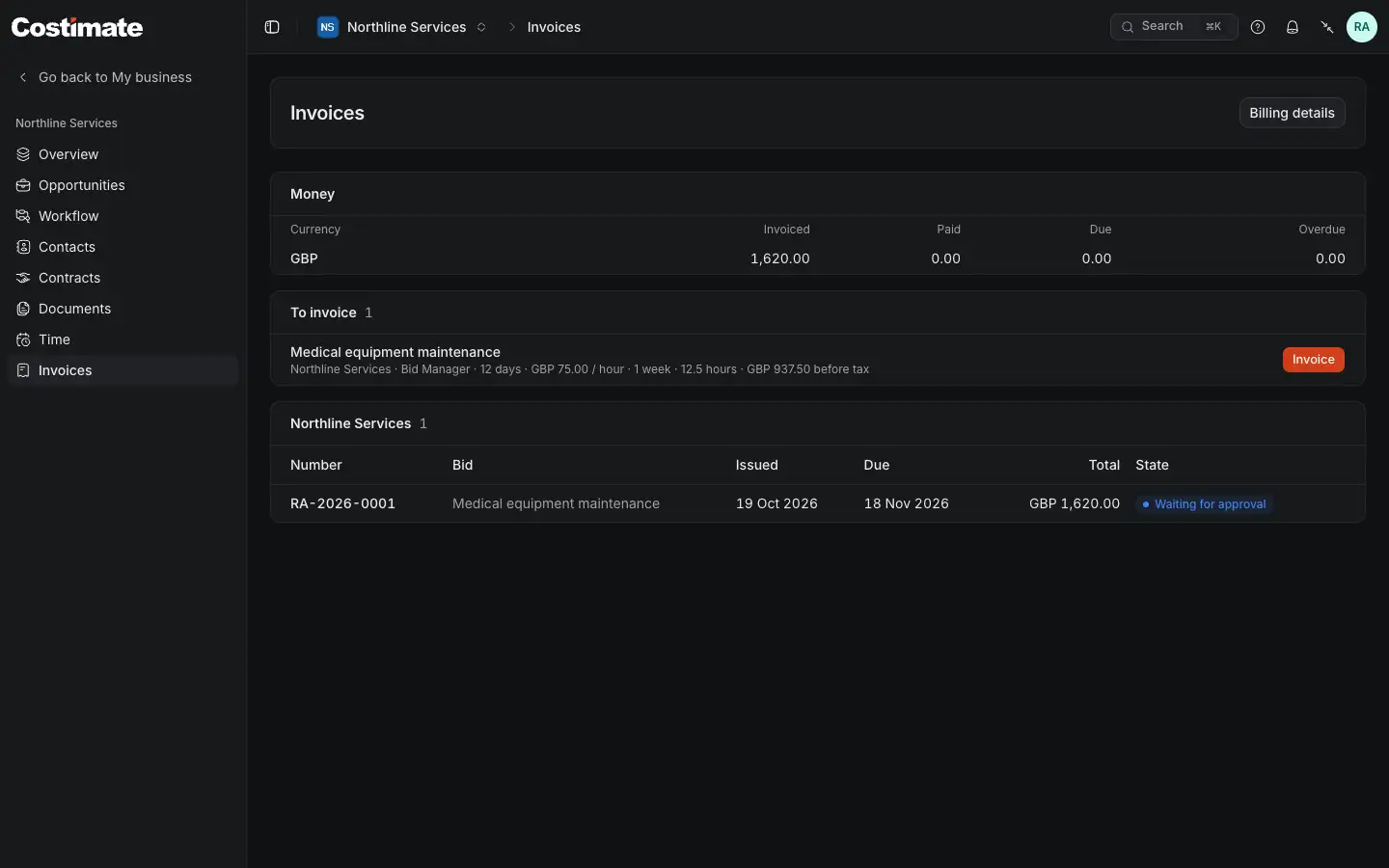
- Billing details: who you invoice as and where you are paid.
- Money: what you invoiced, what is paid, due and overdue, in each currency.
- To invoice: each bid with approved weeks no invoice has billed yet, with the hours and the amount before tax.
- Invoice makes the invoice.
- Where an invoice stands with the company: here, waiting for its approval.
Costimate makes the invoice from your approved weeks: one line for each week and rate, with what you did each day, your tax, and your own invoice number, which runs across every company. It is made out to the company's default legal entity. The PDF is yours to download, and it lands in the company's Finance as a supplier's bill waiting for approval.
Follow what is paid
An invoice's state is the company's bill's:
| State | What it means |
|---|---|
| Waiting for approval | The company has not approved it yet |
| Due | Approved, to be paid by its due date |
| Overdue | Past its due date, not paid |
| Partly paid | Some of it is paid |
| Paid | Paid in full |
| Rejected | The company rejected it, with its reason |
| Cancelled | The company cancelled it |
A rejected or cancelled invoice has Withdraw: its weeks are free again, and you invoice them anew under a new number.
Your billing details
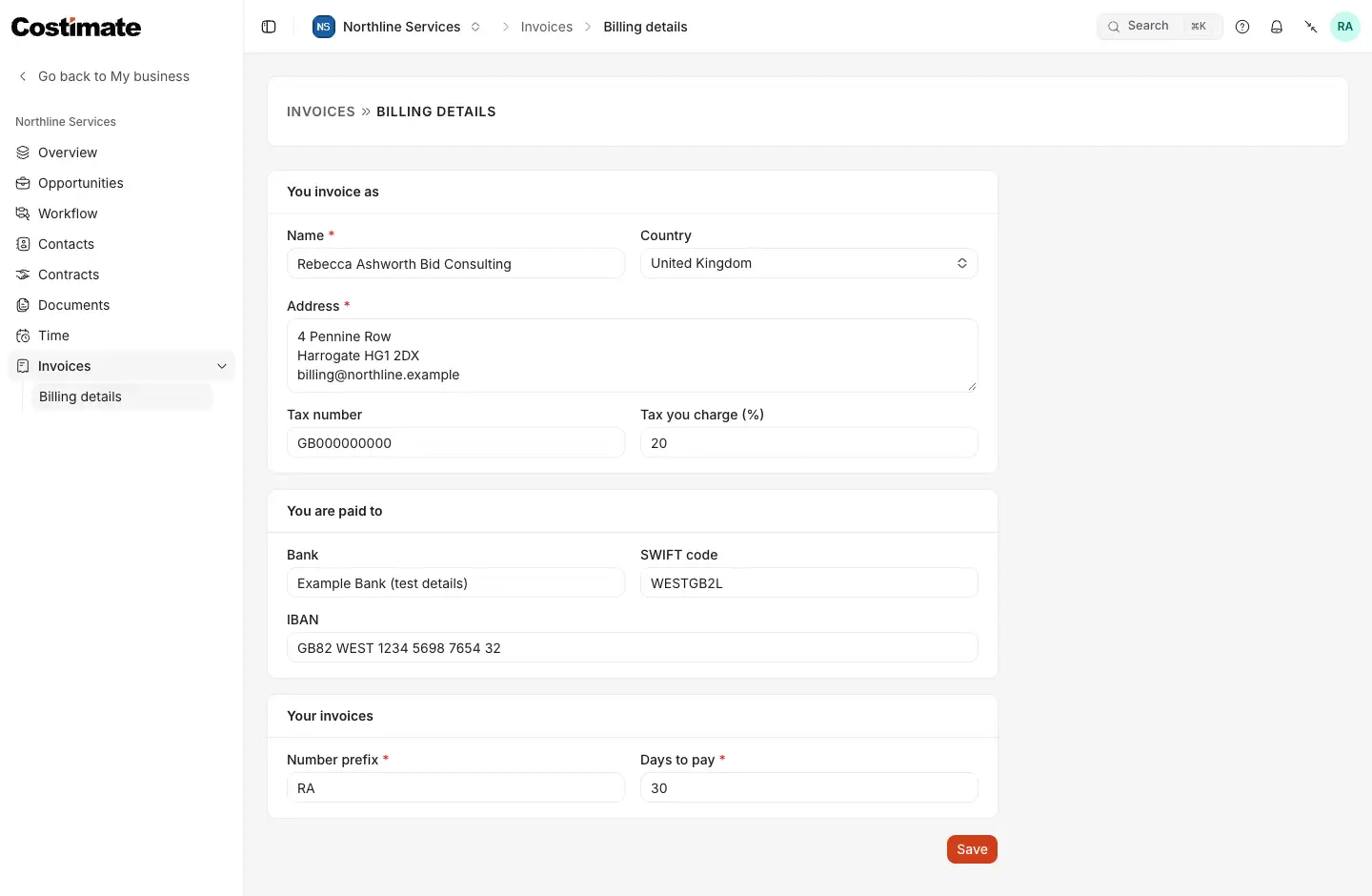
- You invoice as: the name and address on your invoices, your country, your tax number and the tax you charge.
- You are paid to: your bank, SWIFT code and IBAN. The IBAN is checked as you type it.
- Your invoices: the prefix of your invoice numbers, and the days a company has to pay.
- Save keeps them.
Your billing details are frozen into each invoice when it is made, so changing them later never changes an invoice already sent.
When your rate changes
A company may propose a new rate from a day. It waits in your Workflow and on the bid's card in Time, with Accept and Decline. Nothing changes until you accept. From its day, the time you log is at the new rate; the weeks before keep the old one, and an invoice has a line for each rate.
Good to know
- Who in the company sees your rate and your time: the people who manage or read its experts. It is never part of the bid's price.
- Your bank details and your ID, when a company asks for them, are seen there only by the people who manage its experts.
- Amounts are never converted: each invoice is in the currency of your engagement, and Money adds up each currency on its own.