

Fill the client's pricing form
Upload the client's own Excel pricing form, fill it by hand or from your proposal with AI, and download it back as their file with your prices in.
A tender often asks for prices in the buyer's own form: an Excel workbook with its own rows, headings and formulas, to be filled in and handed back as it is. Customer format holds that form, and writes your figures into the client's own file.
It shows selling prices, so it is only for people who can see this bid's prices. To change it you also need to be able to change the bid.
Before you start
The bid's commercial proposal must be started. See Price the bid. You can fill the form at any point of the proposal, and doing so changes nothing in it: the form takes the proposal's figures, never the other way round.
Open the form
- Open the bid's Commercial proposal.
- Choose Customer format, the grey button before Cost summary.
- Choose Upload Excel for the client's workbook (.xlsx, .xlsm, .xls or .csv), or Start blank for a form of your own.
An uploaded form opens at its first sheet. If the workbook has others, pick one beside the form's name. A form can have up to 2,000 rows and 60 columns.
Fill it from the proposal
- Choose Fill from the proposal. AI works out which cell takes which figure.
- Check each suggested cell, marked ✦. Select one to see which line of the proposal its figure came from.
- Choose Keep all, or Keep on one cell at a time, or press Enter. Type my own puts your own figure there instead. Discard throws them all away.
Nothing is saved until you keep it.
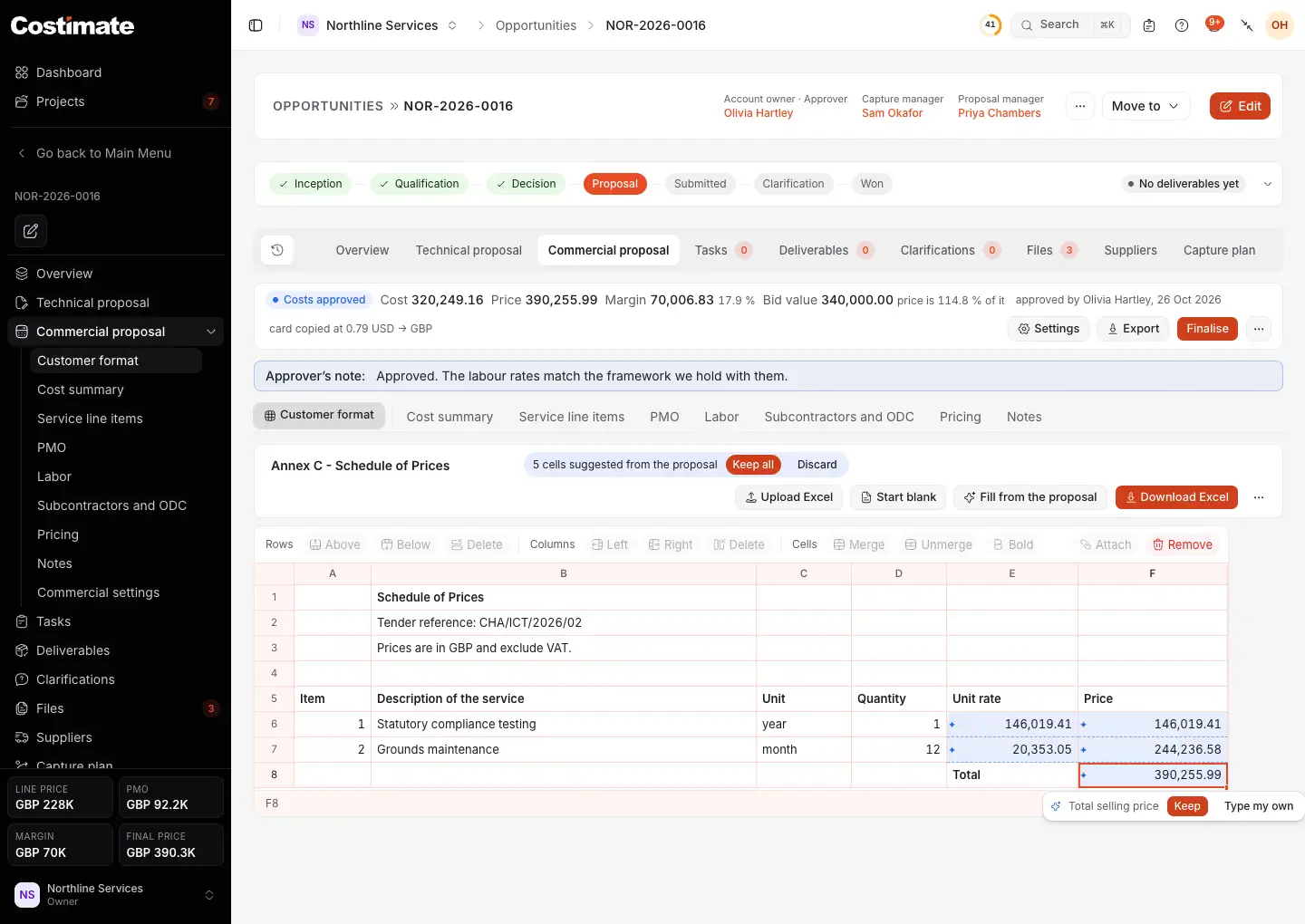
- Customer format, the grey button.
- Upload Excel reads the client's workbook.
- Start blank makes a form of your own.
- Fill from the proposal asks AI which cell takes which figure.
- Download Excel gives you the file to hand back.
- How many cells wait for you to check them.
- Keep all keeps them. Discard is beside it.
- A suggested cell.
- The selected cell says where its figure comes from. Keep keeps it.
- Type my own lets you type your own figure.
AI only says where a figure goes. Costimate writes the figure itself, from what your proposal says, so the model can never invent a price. It offers only what the client may see: the quantity, unit and selling prices of each line and sub-line, the total, the VAT rate and the VAT. A cost, a mark-up or a PMO figure is never offered. It leaves alone any cell that holds a label or a formula.
Fill it by hand
The form works like a small spreadsheet:
- Click a cell to select it, and drag or Shift-click to select several. The line under the form says their sum and their count.
- Type to replace a cell, or press Enter to edit it. Escape cancels.
- Delete clears what is selected.
- ⌘C and ⌘V copy and paste, to and from Excel, and ⌘Z undoes your last edit. On Windows, use Ctrl.
Your changes are saved as you go. A form you uploaded keeps the client's layout: you can change what is in its cells and how wide its columns are, but not move, add or remove its rows or columns. A form you started blank is yours, with its rows and columns to drag, add, remove and merge.
Hand it back
- Choose Download Excel.
- Open it and check it, then send it to the client your usual way.
An uploaded form comes back named as the client's, as an .xlsx file whatever format you uploaded, with only the cells you changed written in. A workbook with macros stays .xlsm and keeps them. Your figures go in as numbers or text, never as formulas. Its other cells, formulas, formatting and other sheets stay, and its totals follow your figures. Charts do not come through, so if the client's workbook has any, check the file before you send it.
Once the bid is Submitted, Attach as the submitted pricing file keeps this workbook as the pricing file of what you submitted. It is behind the same rule as the form: only people who can see prices read it.
Good to know
- Picking another sheet from the list replaces what was typed into the form with that sheet as the workbook holds it. Costimate asks first, with Read the sheet.
- Remove form deletes the form and its workbook. The proposal is not changed.
- A change to the proposal does not change the form. Fill it again, or type the new figure.