

Contacts
Keep the people at your clients, suppliers, competitors and event organizers, who looks after each of them, and what you learnt about them.
A contact is a person at a client, a supplier, a competitor or an event organizer. Contacts, under CRM in the left menu, lists them all, and each has a page with their details, your notes, the meetings and events they were at, and their files.
By default, everyone in your company can read contacts. The owner, admins, proposal managers and capture managers add and change them. The owner and admins delete them.
Add a contact
- Choose New contact.
- Fill in the Name and Position.
- Pick the Organisation: a client, supplier, competitor or organizer you already have.
- Fill in the Country, City and Region.
- Choose Add contact.
The rest of the drawer:
- Previous organisation: where they worked before. It may be a client that is no longer active.
- Email, Website, Office phone, Mobile phone, Address and a Photo.
- Key account: the member of your company who looks after this contact. It starts as you.
- First note: saved to the contact's notes, with your name and the date.
A contact has no type of their own: what they are follows their organisation.
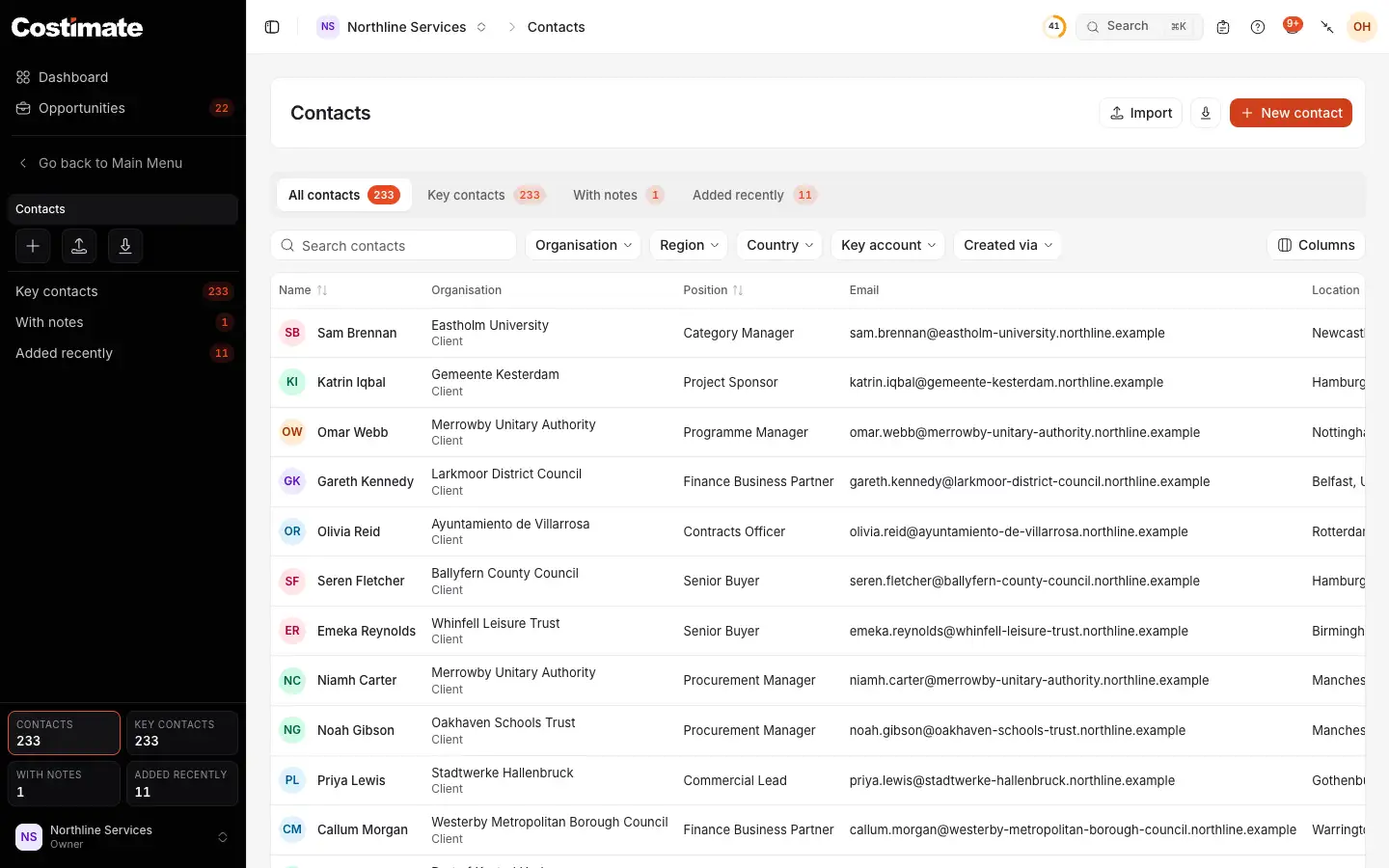
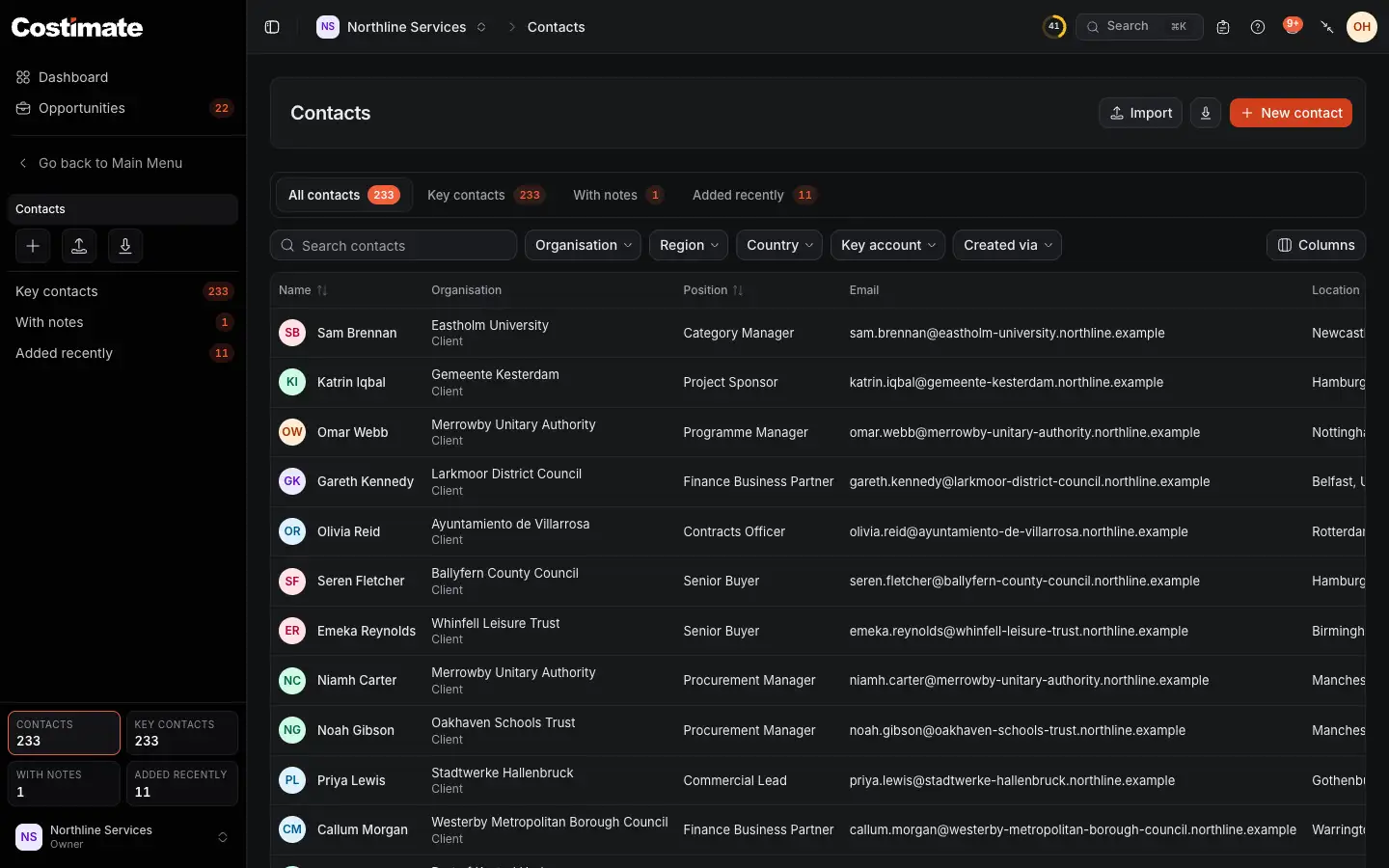
- New contact. Import is beside it. See Import and export with Excel.
- The views: all, Key contacts (those with a key account), With notes, and Added recently (the last 30 days).
- The filters, by kind of organisation, region, country and key account, and Created via for what an AI app added.
- Each contact's position. Further right are their email, place, key account, how many notes and when they were added.
A contact's page
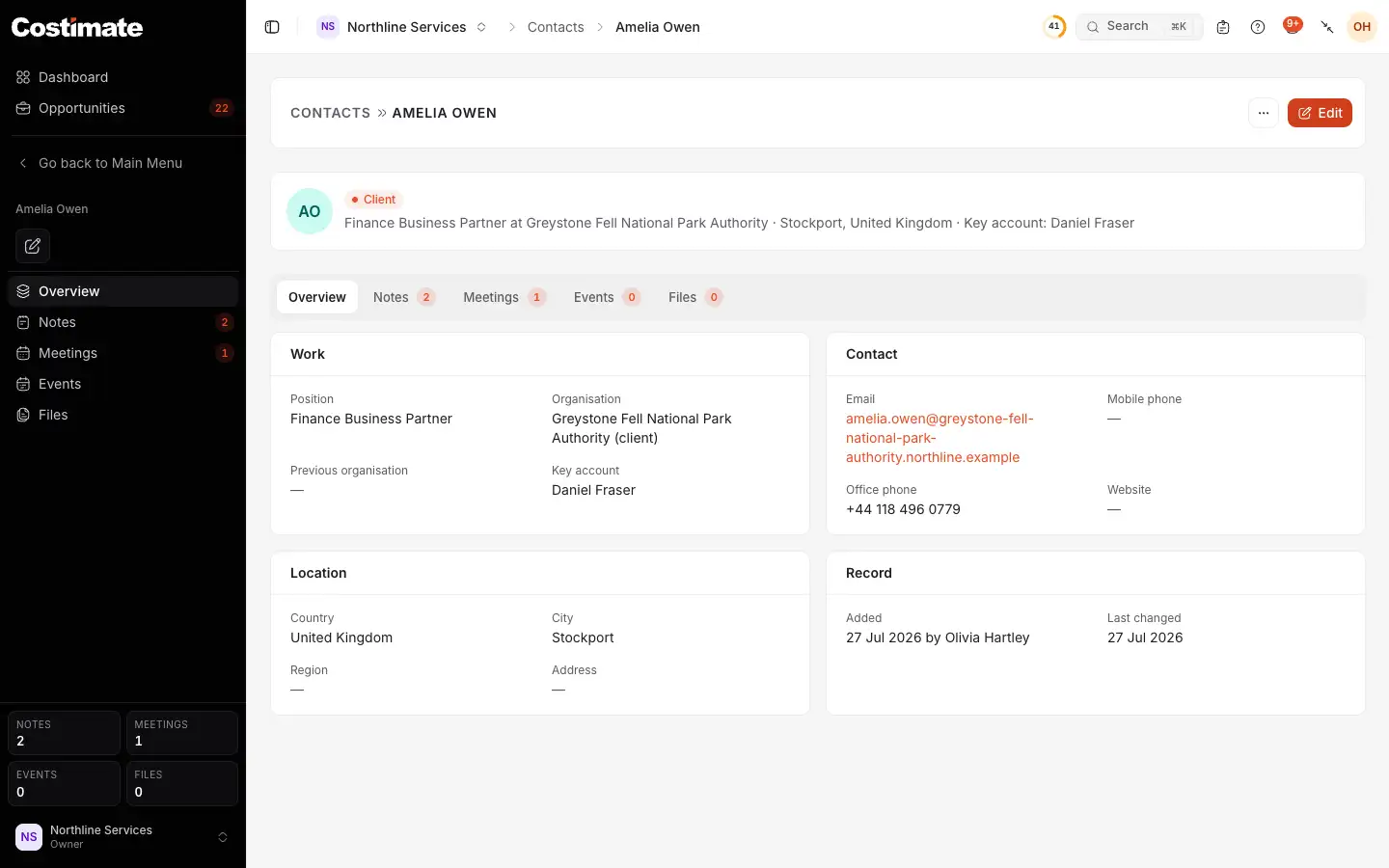
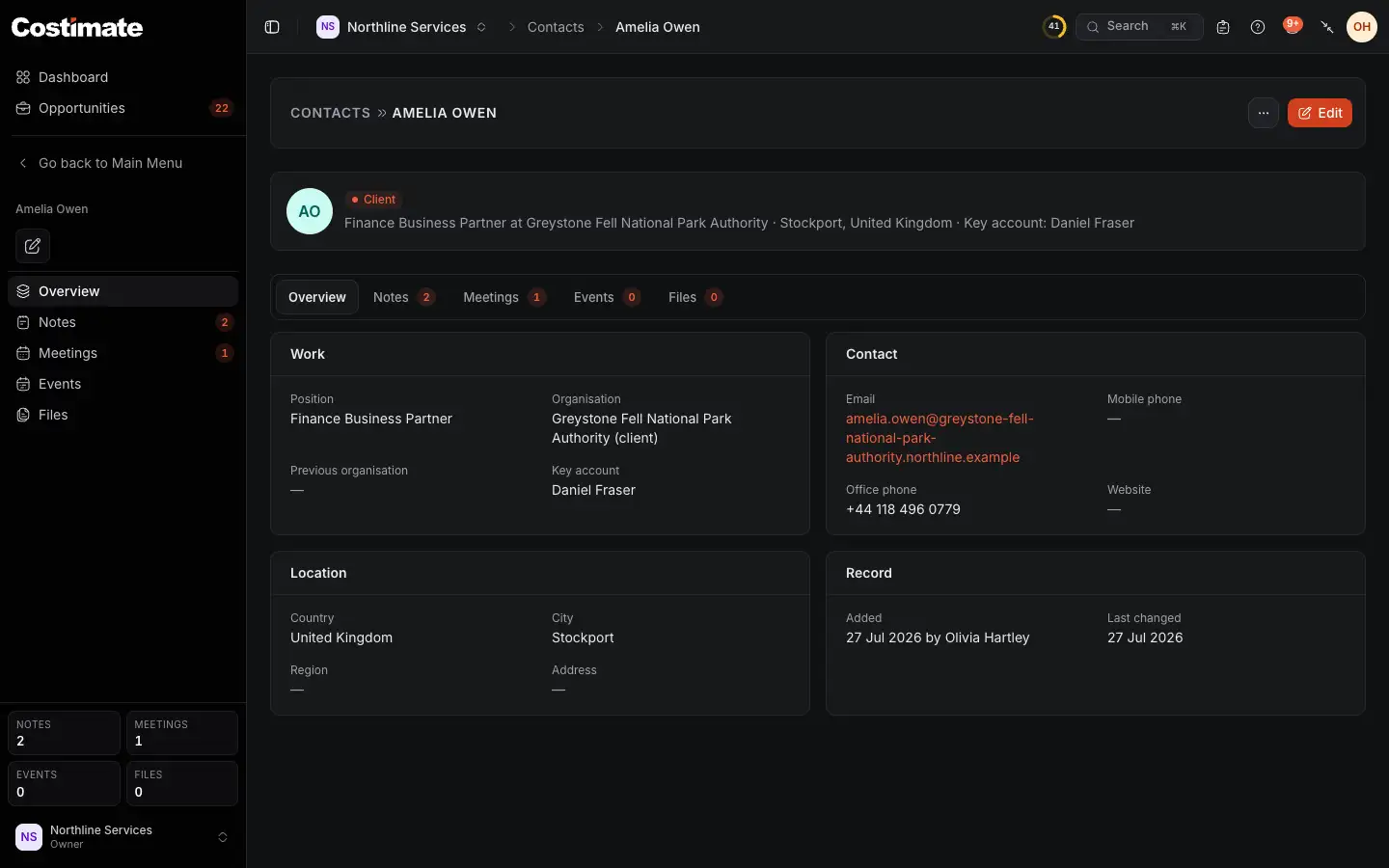
- Edit. Its menu holds Delete.
- The tabs: Overview, Notes, Meetings, Events and Files.
- Where they work now, and what kind of organisation it is.
- Where they worked before.
- Who looks after them.
Meetings lists the meeting minutes they were at, and Events the events they attended. You add them from the meeting or the event, not from here.
Keep what you learn
Notes keep what you learn about a person in one place, so whoever calls them next can read it.
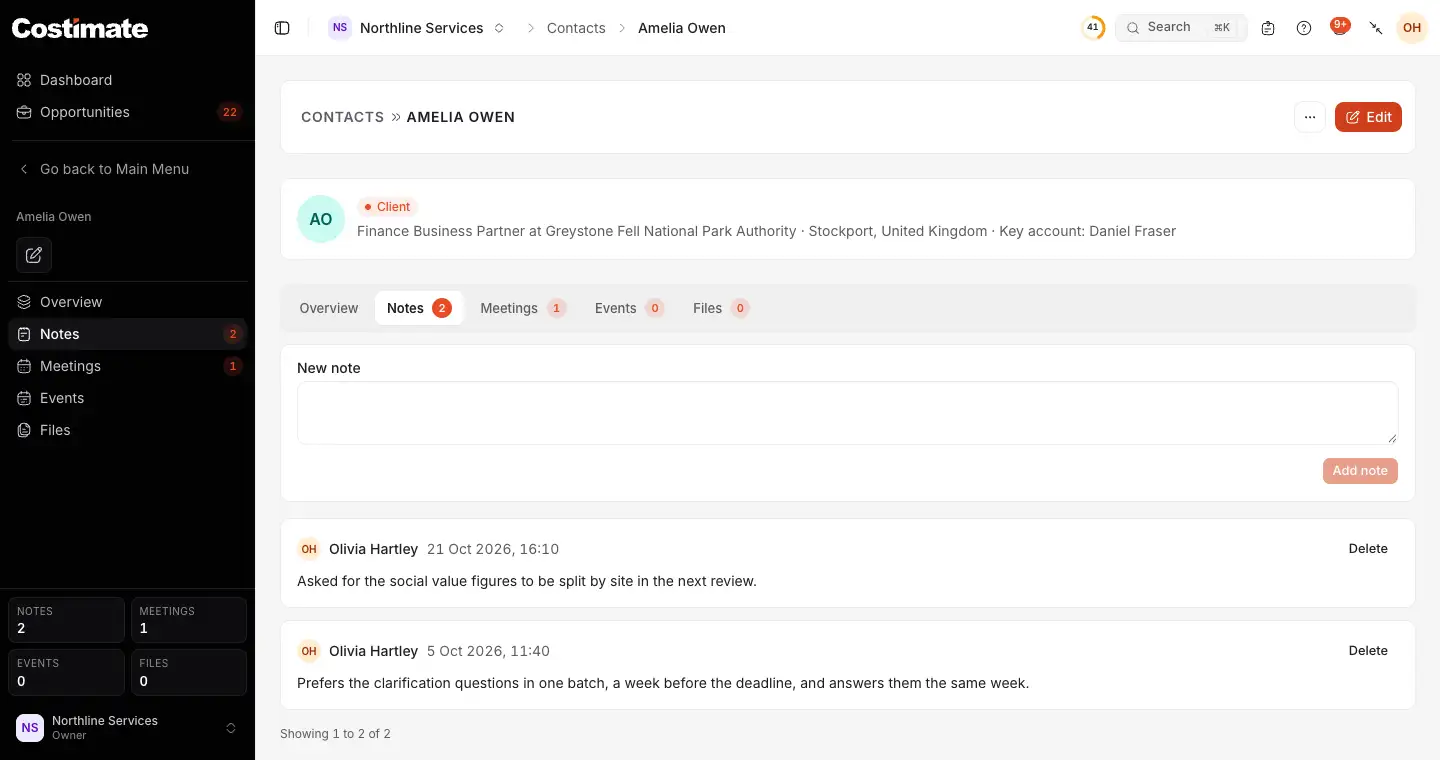
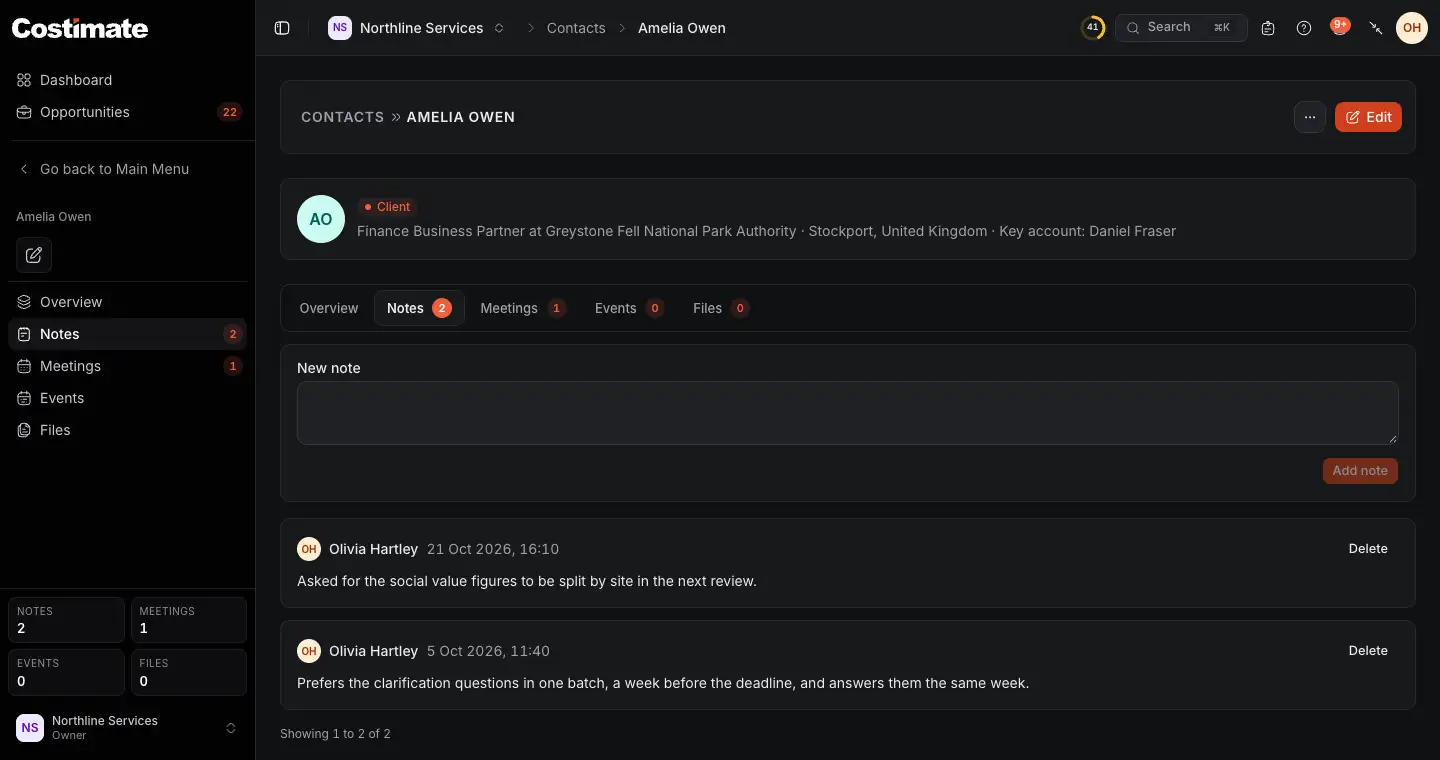
- The note. Plain text.
- Add note saves it, with your name and the time.
- The notes, the latest first. Delete removes one, for who may change the contact.
A note is not sent anywhere, and the contact never sees it.
The key contact of a client
A client can name one of its contacts as its Key contact, in the client's Edit. It is shown on the client's page, and is how you say who to call first. A competitor has one too.
Good to know
- Deleting. A deleted contact is kept for 30 days in Recently deleted, then removed for good with their files. While deleted they drop out of meetings and events, and a restore puts them back.
- Whose record it is. A contact is your company's record. The person does not sign in to Costimate. Who answers for what you keep about them is said in Privacy and data processing.
- From an AI app. On a paid plan, a connected app can add a contact when you ask it to. What it adds carries a purple mark, and a person of the same name at the same place waits for you to confirm. See Connect ChatGPT.
- An outside expert is not a contact. See Experts you work with.