

Payment reminders
Set when your company reminds clients of what they owe, confirm each invoice's reminders once, and stop them for an invoice, a client or everyone.
Costimate can remind a client before and after an invoice is due, with the invoice attached. You set the days once for the whole company. Then each invoice's reminders go only once someone has confirmed where they go, so nothing reaches a client by surprise.
Before you start
- The company's schedule is set by the owner and admins, on the company profile. It is off until someone turns it on.
- Confirming an invoice's reminders is for people who can change that invoice: the owner, admins and the Finance manager.
Set the company's schedule
- Open the company profile, then Invoicing.
- Under Payment reminders, turn on Send payment reminders.
- Set the days, the hour and, if you like, a message.
- Choose Save.
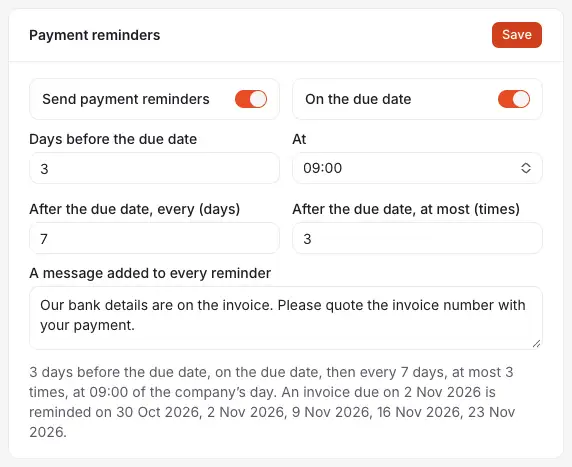
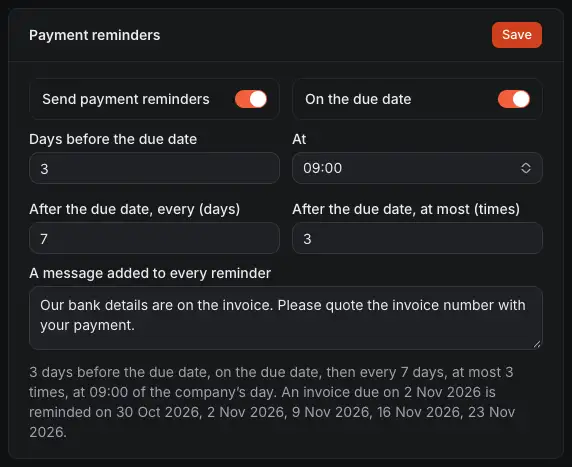
- Send payment reminders: the company's switch. Off, none goes at all.
- Days before the due date. 0 is none.
- On the due date: one on the day itself.
- How often after the due date.
- How many times at most after it.
- A message of your own, added to every reminder. Plain text, up to 2,000 characters.
- What these settings give an invoice, worked out with real days as you change them.
At beside them is the hour they go, on your company's clock.
Confirm an invoice's reminders
Costimate offers this right after you issue an invoice or mark it as sent. Send by email offers it too, as a tick that is already on: Send payment reminders to these addresses. Untick it if you do not want them. You can also confirm them on the invoice's page:
- On the invoice, under Payment reminders, choose Confirm reminders.
- Check the addresses. It proposes those confirmed before, else those it was last emailed to, else the client's.
- Choose Confirm reminders.
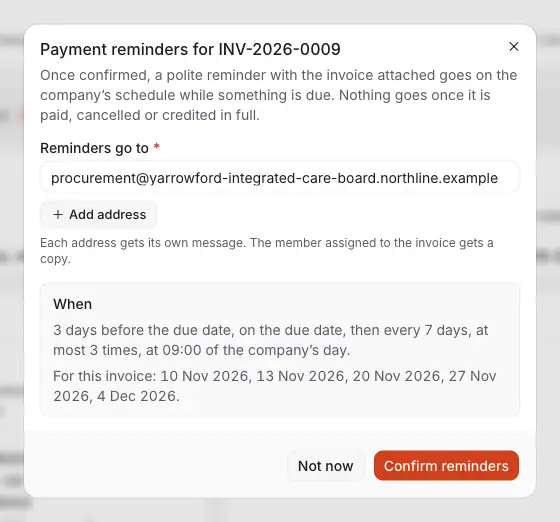
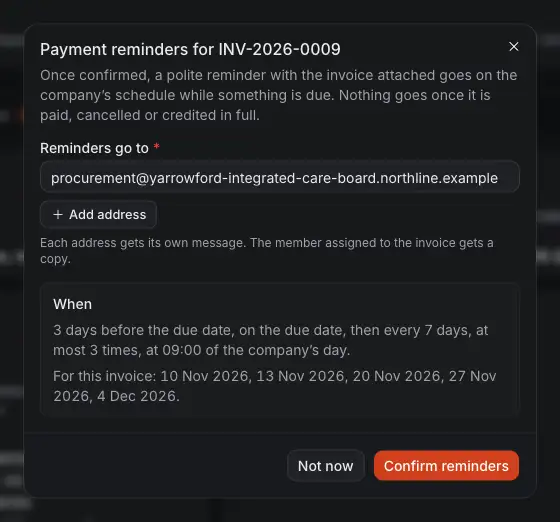
- Up to five addresses. Each gets its own message.
- The member assigned to the invoice gets a copy, as a message of their own.
- The company's schedule, in words.
- The days that schedule gives this invoice.
- Confirm reminders. Not now leaves them off for this invoice.
You confirm once for each invoice. From then on they go without asking again.
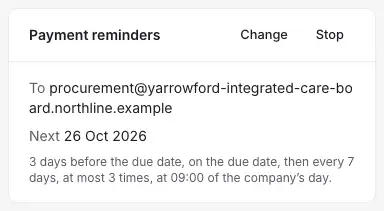
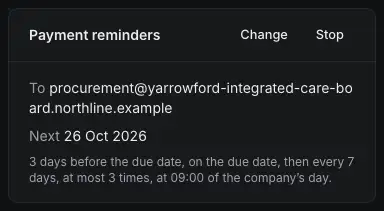
- Change the addresses.
- Stop: no more for this invoice. The addresses are kept, and proposed if you confirm again.
- Where they go.
- The next day one goes.
If none can go, the card says why instead: the invoice is paid or has no due date, or its client gets none. With the company's switch off, there is no card.
What a reminder says
A short, polite message with the invoice's number, total, what is paid, what is due and the due date, your own message, and "If you have already paid, please ignore this message". The invoice's PDF is attached.
- It comes from the address your company chose for payment reminders, or Costimate's. Replies go to that address. With Costimate's, they go to the member assigned to the invoice, or else to your entity's email. See Send documents from your own address.
- Each one is listed on the invoice, under Emails.
When they stop by themselves
Each reminder is checked again just before it goes. None goes for an invoice that is paid, cancelled or credited in full, or once nothing is due. A draft gets none.
Reminders never go twice in a day. If they could not go one day, the missed one goes the next day, except the one on the due date, which goes on that day only.
Stop them
| To stop them for | Do this |
|---|---|
| One invoice | Stop on its page |
| One client | Switch off Send payment reminders in that client's form, then none of its invoices is reminded, confirmed or not |
| Everyone | Switch off Send payment reminders on the company profile's Invoicing |
Good to know
- A company that has become read-only still sends its reminders, and can still stop them: on an invoice, or for everyone.
- The days and the hour are your company's own, whatever time zone the reader is in.