

Employees
Keep your people's records: their work, their contact details and files, who reads their personal details and pay, and how a person gets a login.
Employees, under Human Resources in the left menu, keeps a record of each person who works for your company: their job, manager, contact details, career and files. Bids, projects and the Leave Tracker read from it.
By default, everyone in your company can read employees, less the personal details below. The owner, admins and HR managers add and change them. The owner and admins delete them.
A member is an employee
Every member of your company has a record here, made or linked as they join: by their email if you already keep a record of it, otherwise a new one from their account. Not every employee has a login: someone on your crew may never sign in.
The record is HR's and the profile is the person's: neither copies the other.
Add an employee
- Choose New employee.
- Fill in the Full name, Department and Position.
- Choose Add employee.
The rest of the drawer:
- Manager: who they report to.
- Login: the member of your company this employee signs in as, if any.
- Joined and Left: a leave type set to pro rata gives its share in the year they join or leave, and leave after they left cannot be applied for.
- Active: someone who has left stays on the projects and bids that name them, marked inactive.
A new employee added here also gets a line on your rate card, at zero, for you to price.
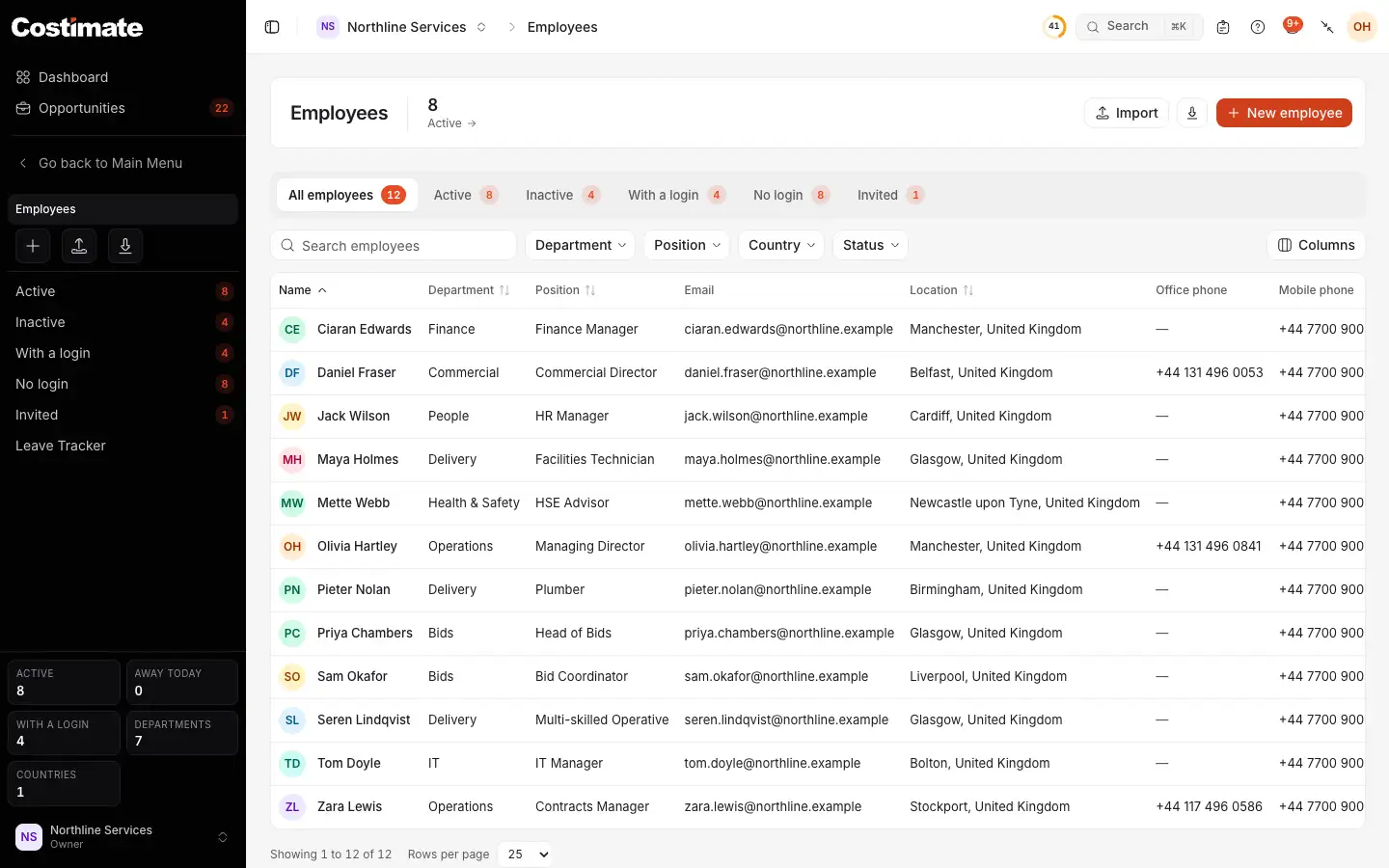
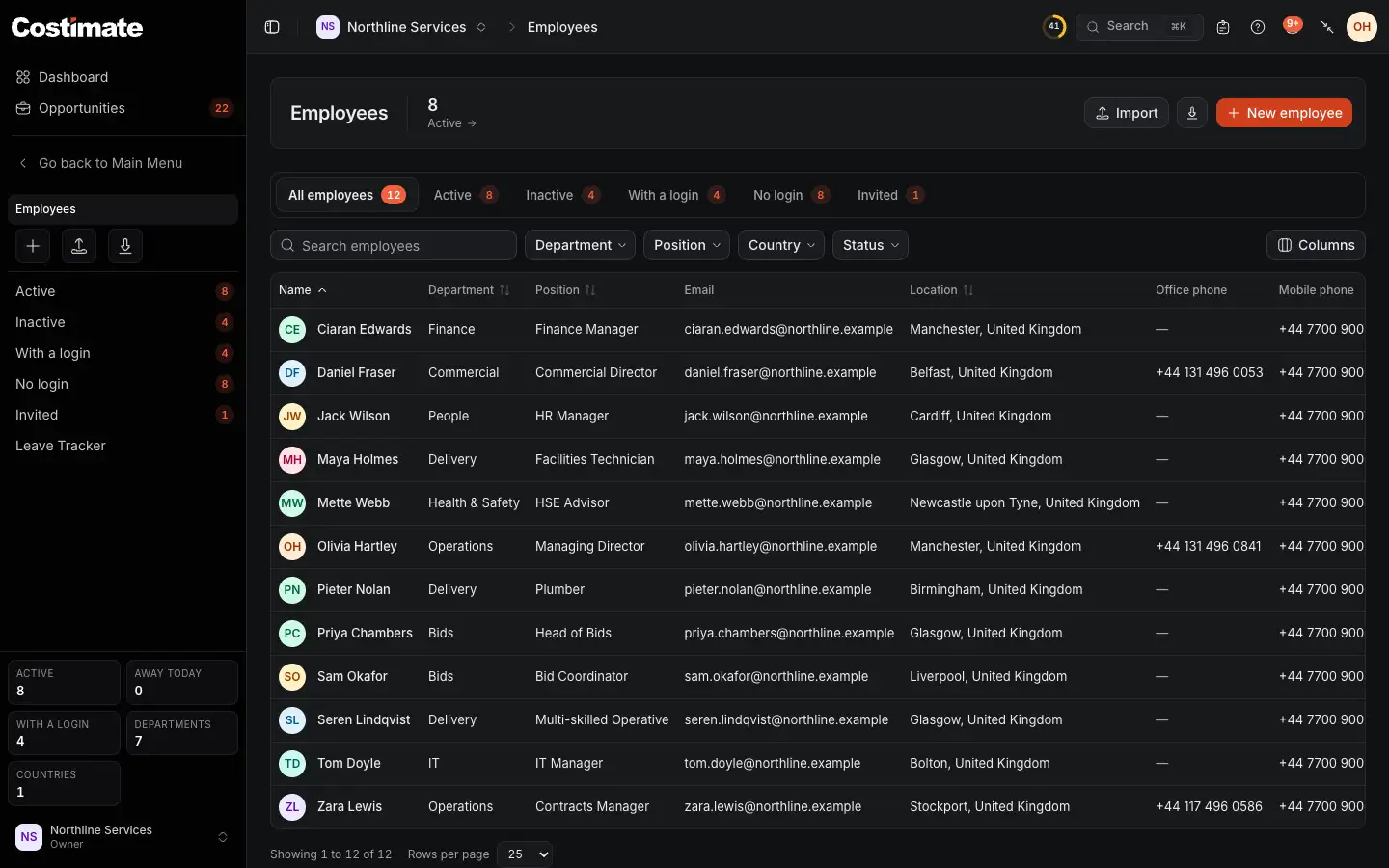
- New employee. Import and the export of the list are beside it. See Import and export with Excel.
- With a login: the people on your Team page, suspended members included.
- Invited: those waiting on an invitation. No login is beside With a login.
- The filters, by department, position, country and status.
- Their position. Further right are their email, place, phones and status.
An employee's page
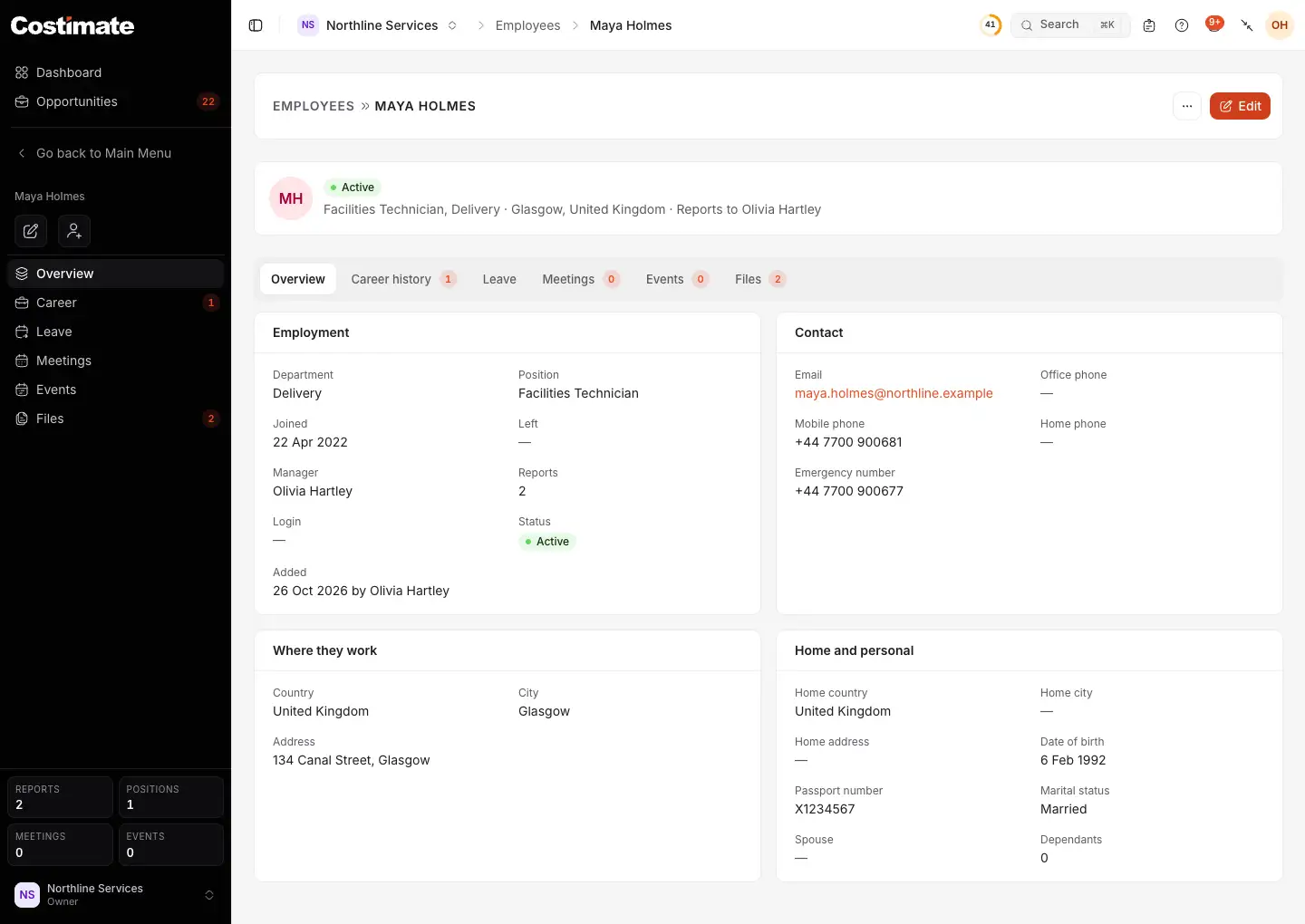
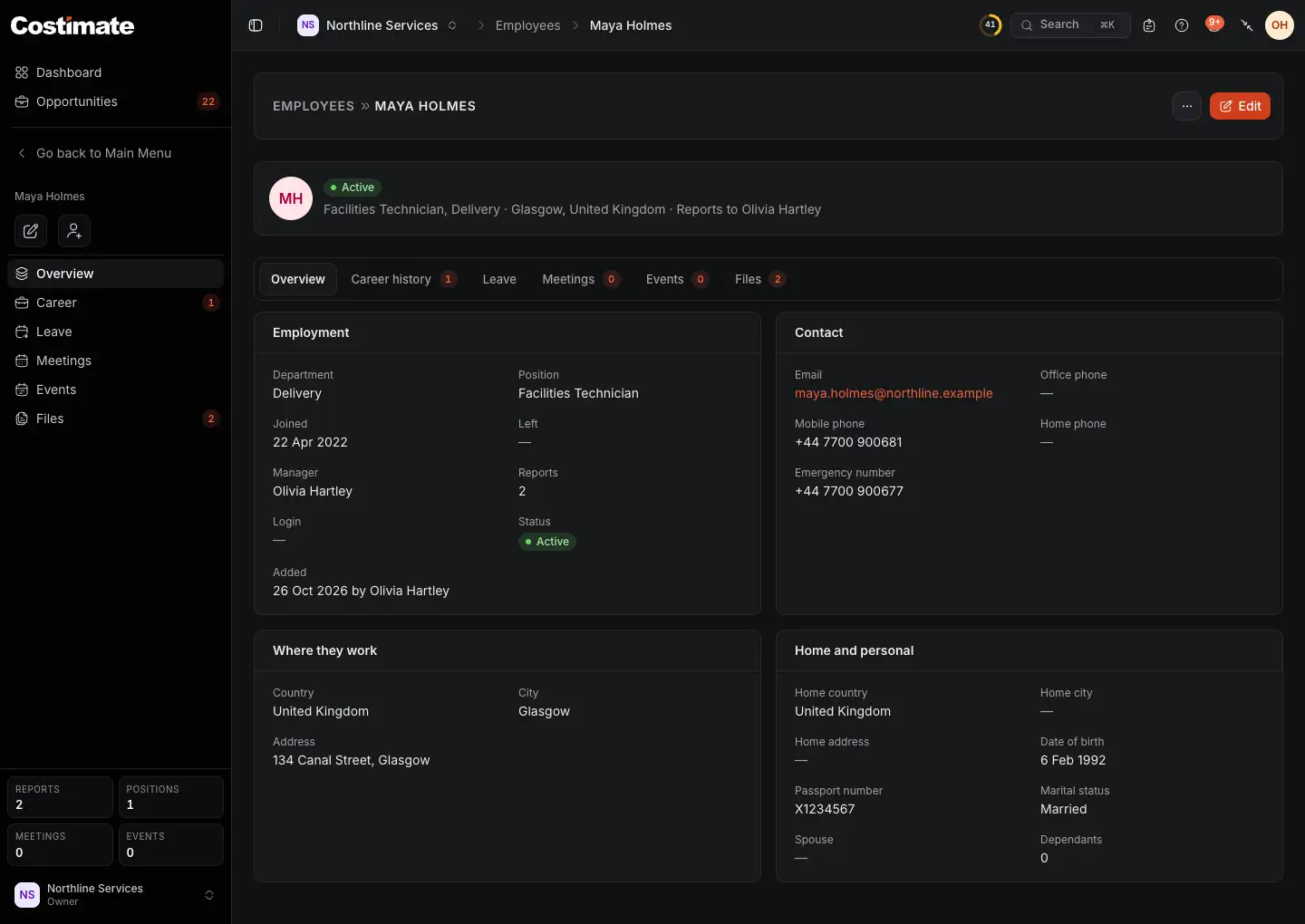
- Edit. Its menu holds Delete and, for someone with no login, Invite to Costimate.
- Career history: their positions, now and earlier, with who they reported to.
- Leave: their balance and applications. See Leave Tracker.
- Who they report to. Reports is how many report to them.
- Login: the member they sign in as, or the invitation waiting, with Resend and Cancel.
- Home and personal, for people allowed to see personal details.
Meetings and Events list what they were at.
Who reads personal details and pay
Personal details and pay are for the owner, admins and HR managers, and for anyone given "Sees personal details and pay" on the Team page. Anyone else does not see them at all, not even as empty fields:
- the Home and personal card: home address, date of birth, passport number, marital status, spouse and dependants;
- the home phone and the emergency number;
- the salary of each position in Career history;
- the files filed as Passport, ID Document or Contract.
They have no such fields in the drawer or columns in the Excel file, and cannot overwrite them. The same permission decides who types a crew member's pay on a project. See Crew and pay.
Files
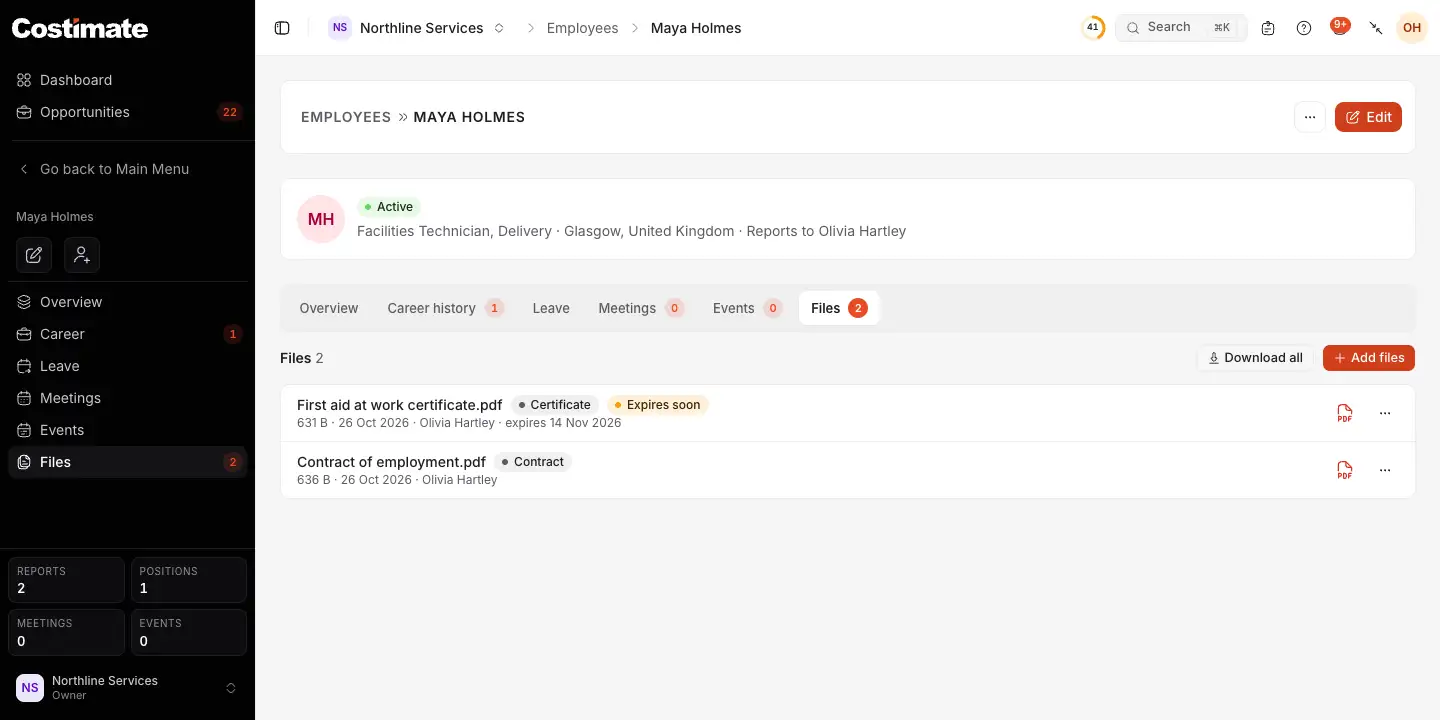
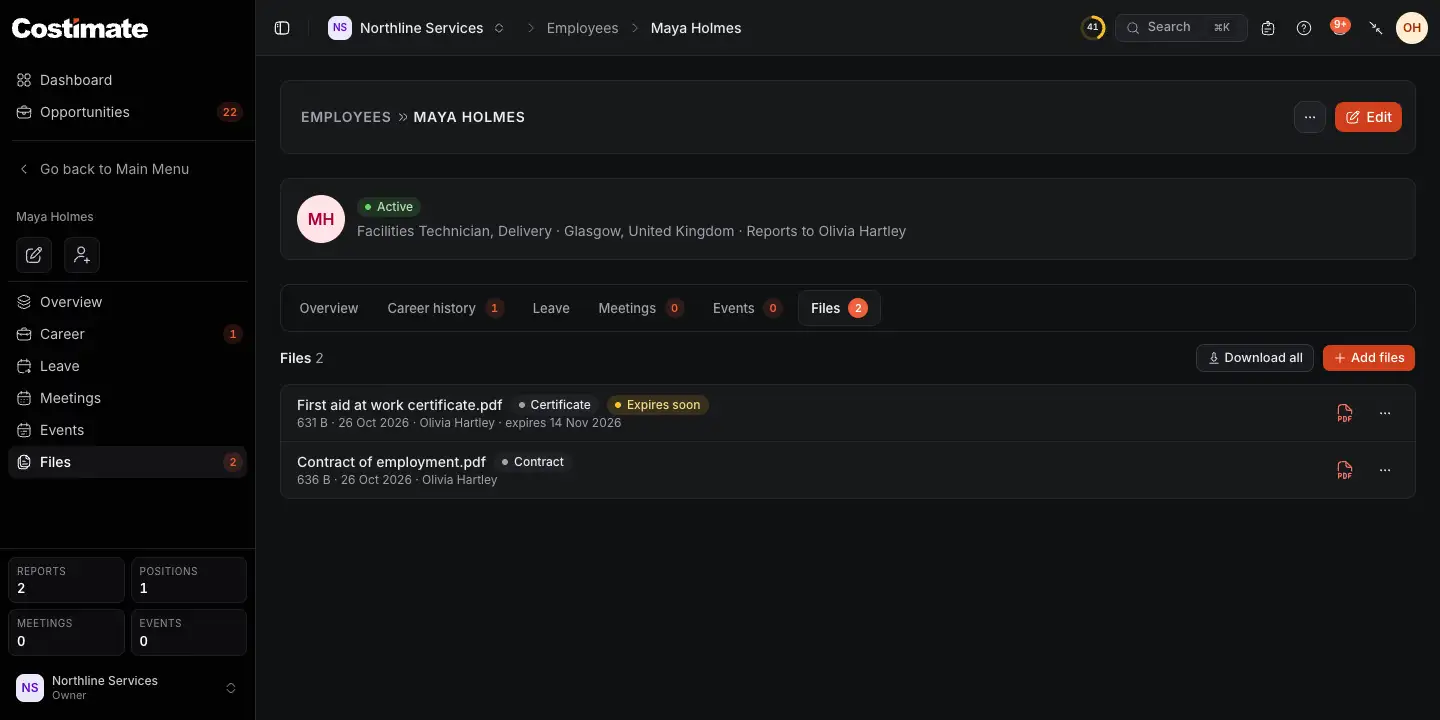
- Add files. Each file needs a category: Passport, Contract, Certificate, Resume, ID Document, License or Other.
- A file can have an expiry date. Costimate marks it Expires soon.
- A Contract is kept behind personal details. Certificate, Resume and License stay open to who reads employees, since bid staff attach them to proposals.
Download all gives you the files you may read, as one zip.
Give someone a login
An active employee with no login can be invited. In the ⋯ of their record, or of their row in the list, choose Invite to Costimate. The owner and admins can.
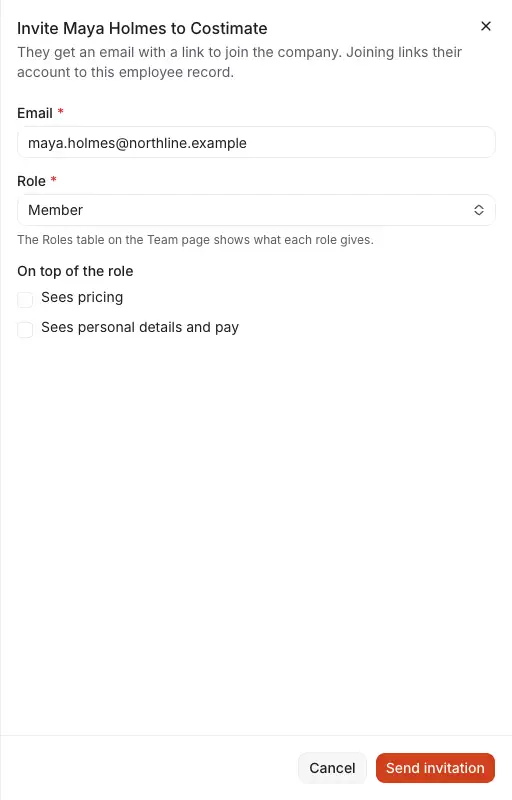
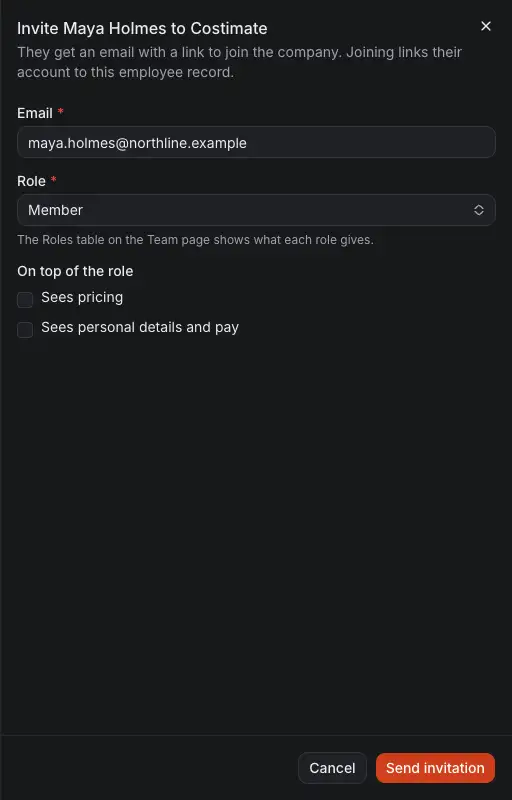
- Email. It starts as the record's.
- Role: what they may do.
- On top of the role: Sees pricing and Sees personal details and pay, if they should.
- Send invitation. A seat is counted as for any invitation.
Accepting links their new account to this record. See Invite your team and choose roles.
Good to know
- A member's record stays. While someone is a member of your team, even a suspended one, their record cannot be deleted and their login cannot be taken off it. Remove them from the team first, or mark the record inactive.
- Removing a member keeps their record and clears its login. If they come back with the same email, the same record is found while it is active. Otherwise a new one is made.
- Moving a login. A record with no login can take any member. Their login moves there from the record it was on: this is how a record made when someone joined gives way to the one HR kept, which you then delete.
- Deleting. An employee who manages a project, is on a project's crew or has a line on a bid's rate card cannot be deleted: Mark inactive is offered instead. One you do delete can be brought back. See Restore something deleted.