

Clients
Keep the buyers you bid for: what kind of buyer each one is, its details and people, its bids and what they come to, and its public tenders.
A client is a buyer: someone you bid for. Clients, under CRM in the left menu, lists them. Each has a page with its details, its bids, its people, your meetings with it and its files.
By default, everyone in your company can read clients. The owner, admins, proposal managers and capture managers add and change them. The owner and admins delete them.
What a client's type says
Type is the kind of buyer: Private company, Government, International organisation (IGO) or Non-profit (NGO). A new client starts as a private company. A client you add from Public buyers takes its kind from the register: an international organisation is one, and every other public body is Government.
A company you buy from, a subcontractor or a partner is not a client: add it under Suppliers. A rival goes under Competitors.
Add a client
- Choose New client.
- Type the Name. It is the only field you must fill, and no two of your clients share a name.
- Choose the Type.
- Choose Add client.
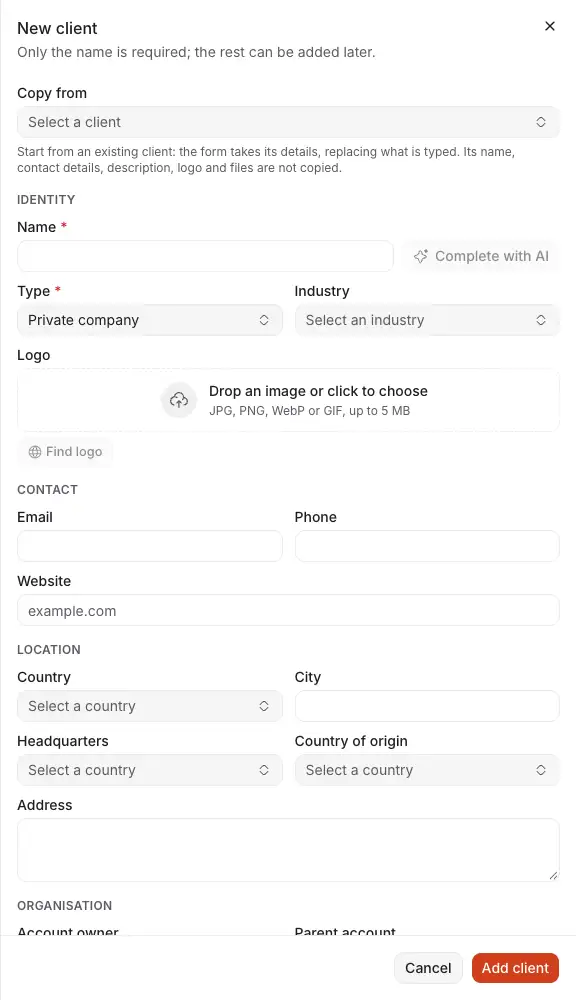
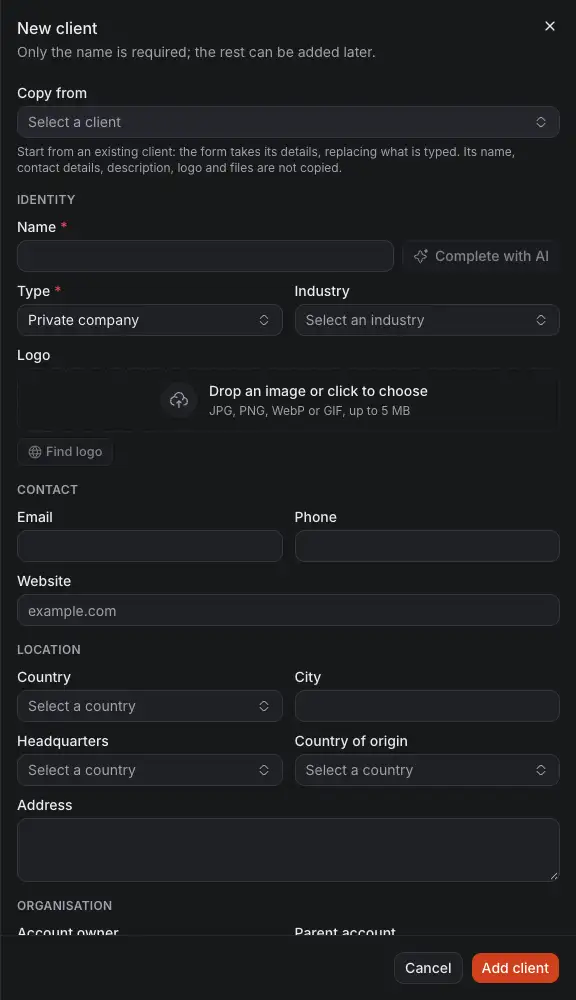
- Copy from starts from a client you have. Its name, contact details, description, logo and files are not copied.
- Complete with AI reads the website you typed, or searches for the name, and fills the fields that are still empty. Each one stays marked until you confirm or change it, and nothing is saved until you add the client.
- Type, the kind of buyer.
- Find logo, once you typed a website, offers the pictures of that site.
Further down the drawer:
- Account owner: the member who looks after the client.
- Parent account: the client this one belongs to, for a group or a ministry and its agencies.
- Relationship, Priority, Company size, Coverage, Currency and Service types: your own notes on the client. The list filters by relationship, priority and company size, and the client's page shows its figures in its currency.
- Active: an inactive client stays in the list, marked as such, and is no longer offered for new records.
- Send payment reminders: off, its invoices get no payment reminder, whatever was confirmed on them.
Other ways in: Add as a client on Public buyers, or a whole sheet with Import and export with Excel.
The list
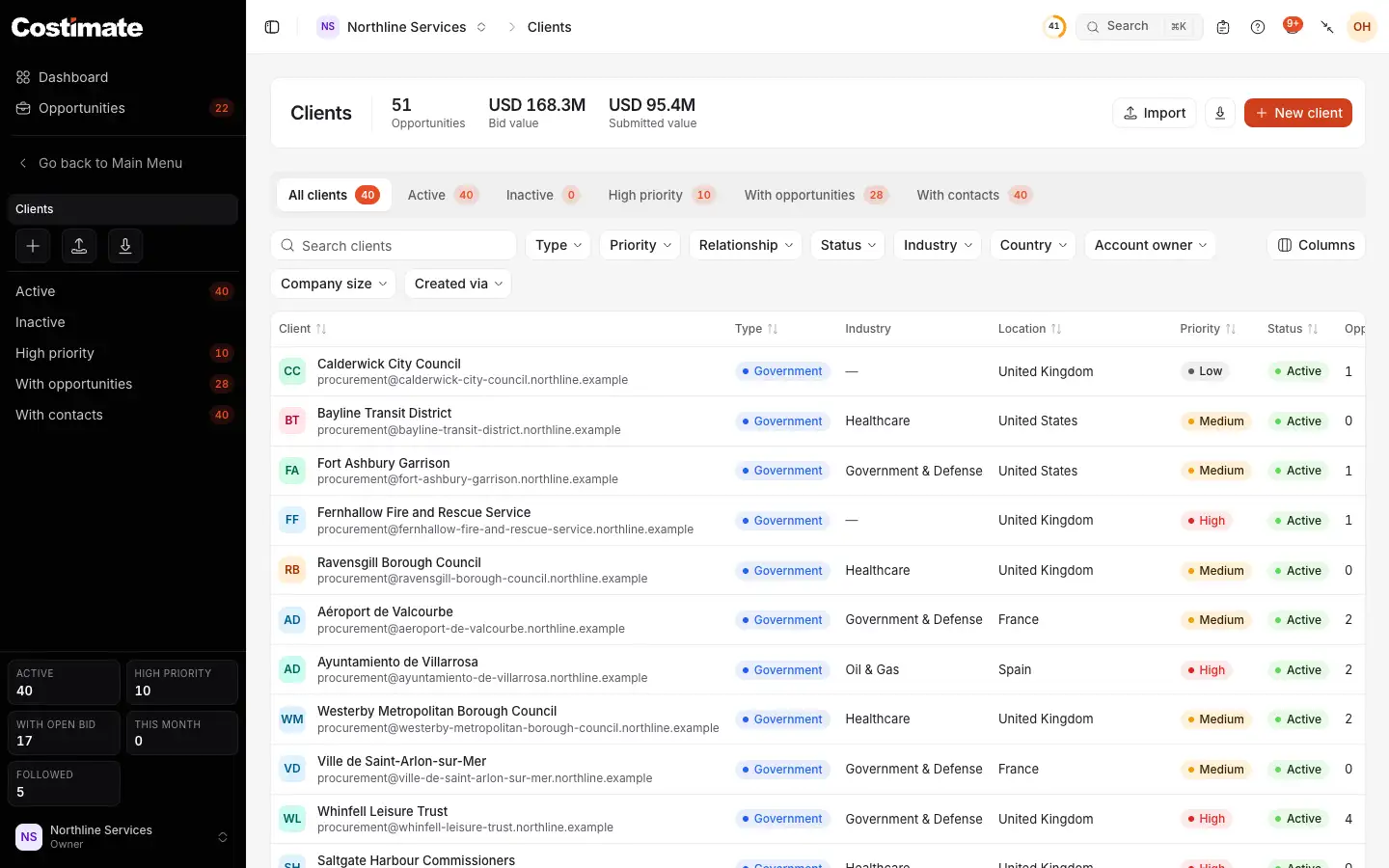
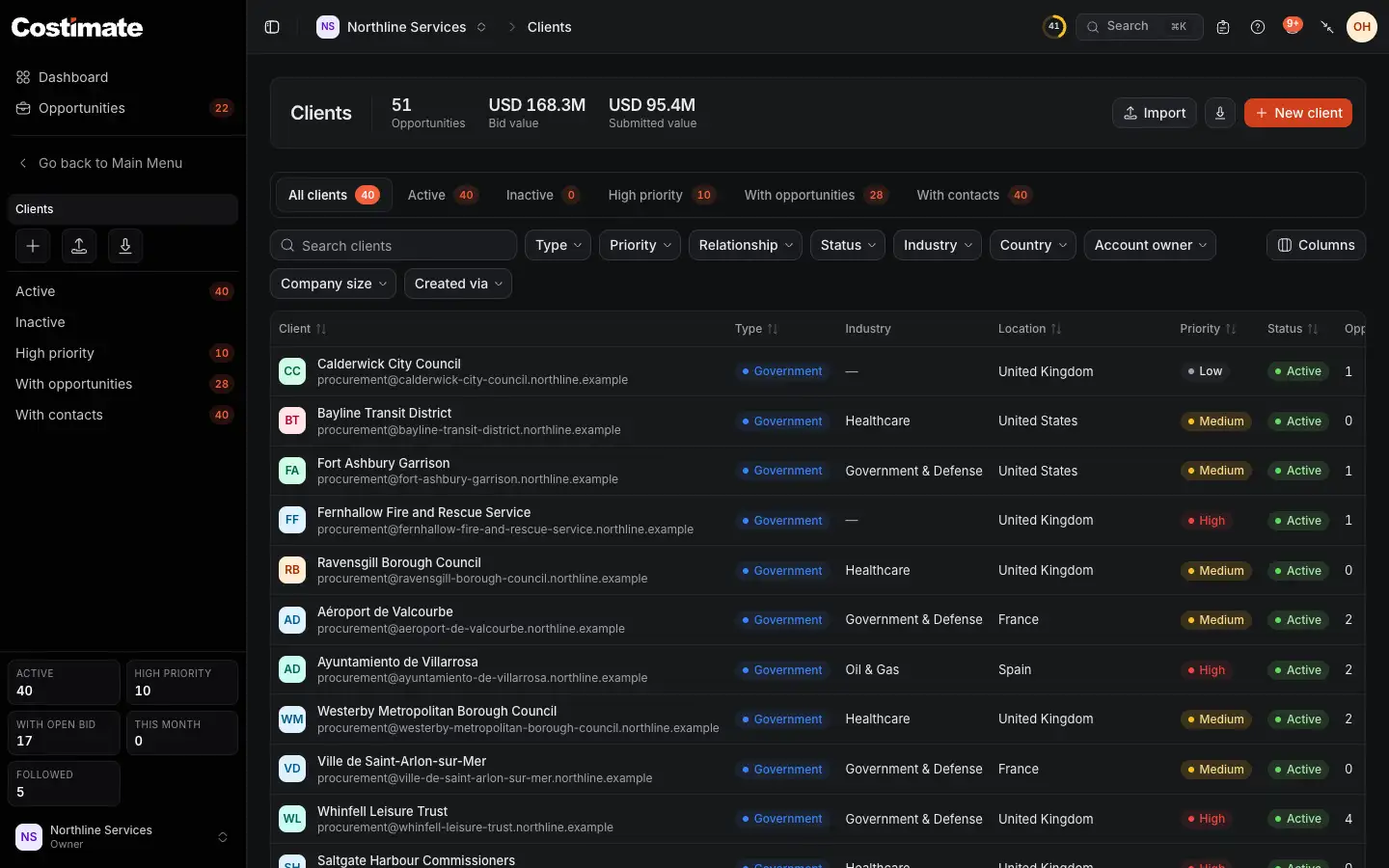
- Across your clients: how many opportunities they have, what they come to and what was submitted, in US dollars.
- New client. Import and the export of the list are beside it.
- The views: all, active, inactive, high priority, those with opportunities and those with contacts.
- The filters. Created via finds what an AI app added, which carries a purple mark.
- Each client's type.
- Columns chooses what the table shows. Further right are its opportunities, bid value, submitted value, contacts and account owner.
A client's page
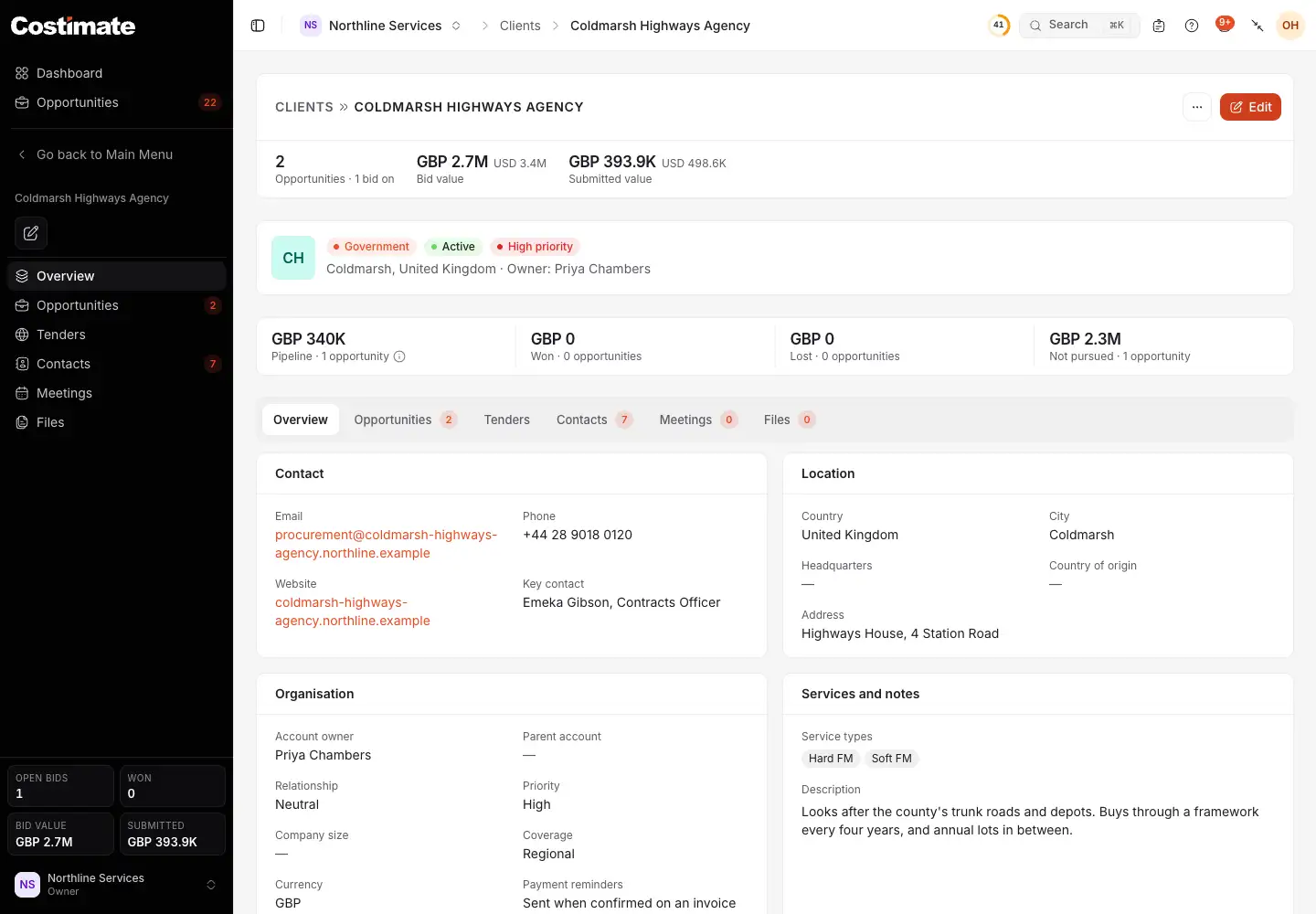
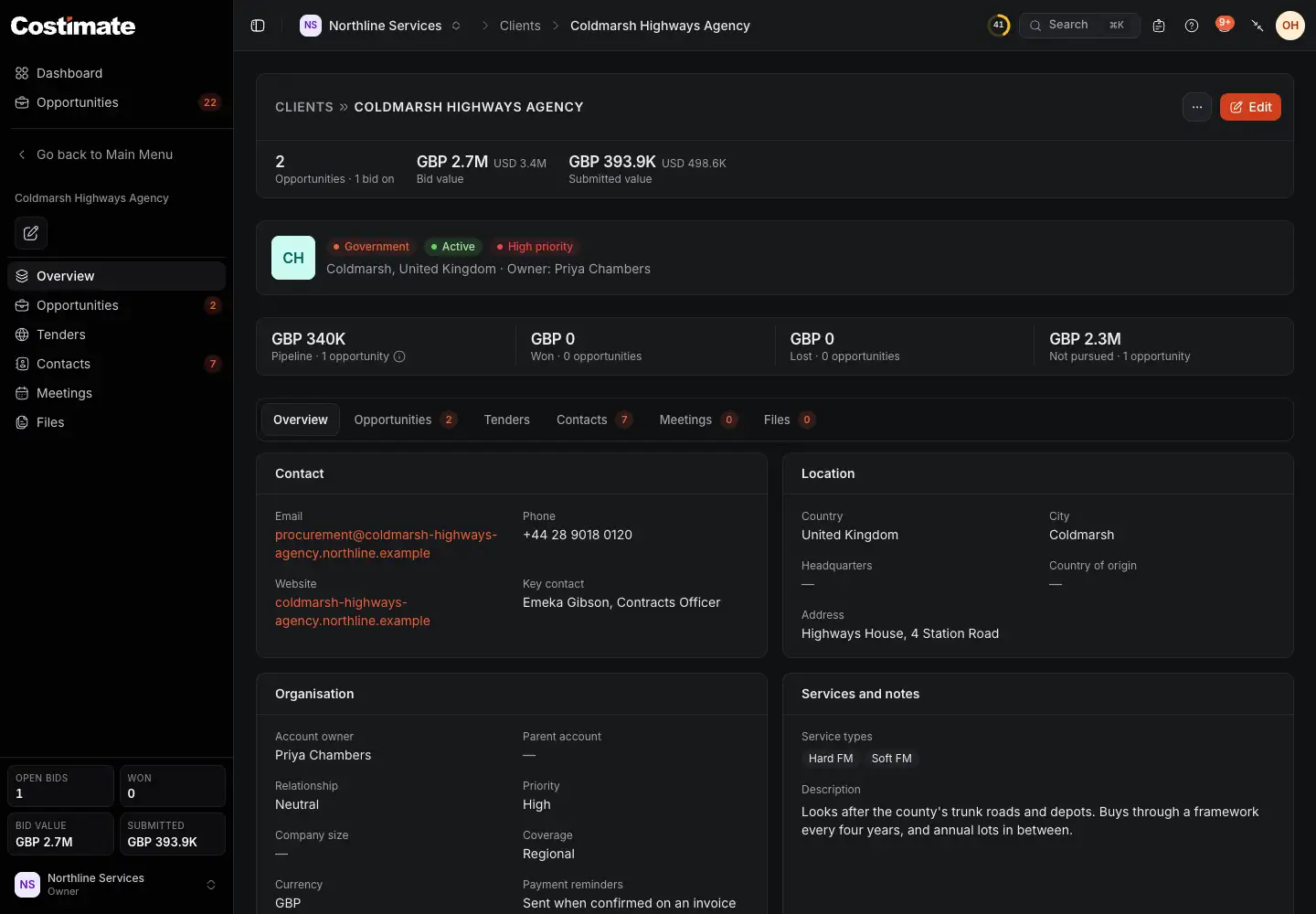
- How many opportunities it has and how many you bid on, their bid value, and what was submitted.
- Edit. Its menu holds Delete.
- Its type, status and priority.
- The bid value by status: Pipeline, Won, Lost and Not pursued, with Appointed, Qualified or accepted and Not qualified when it has some. They add up to the bid value at the top.
- The tabs: Overview, Opportunities, Tenders, Contacts, Meetings and Files.
- The details you keep on it. Once it has contacts, Edit also lets you pick its Key contact.
If the client has a running framework or long-term agreement with you, its page offers New call-off. See Call-offs and purchase orders.
Its public tenders
A client you added from Public buyers stands for that public buyer, and its Tenders tab shows the buyer's public record beside what you kept of it. Any other client's says it is Not linked to a public buyer.
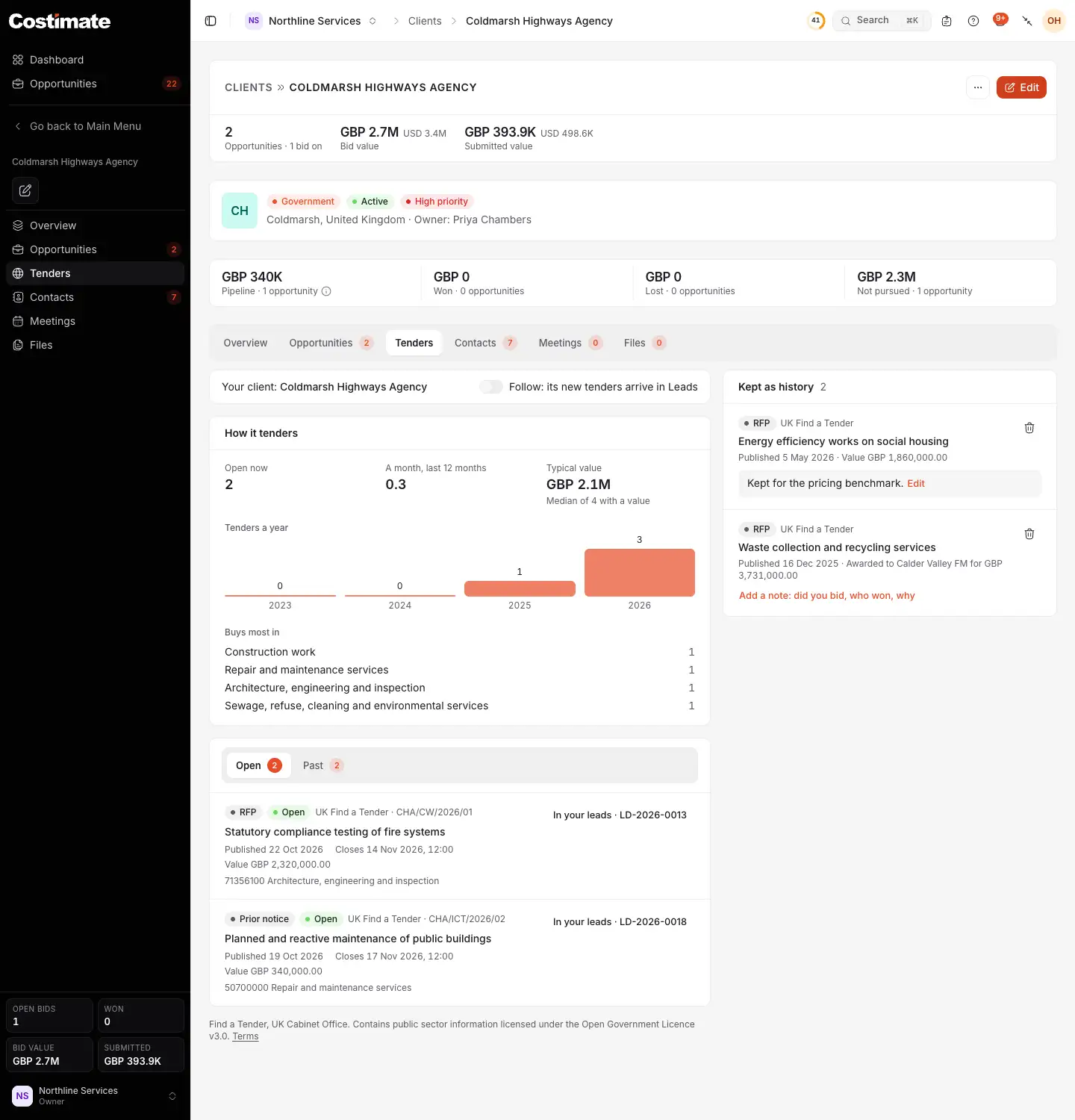
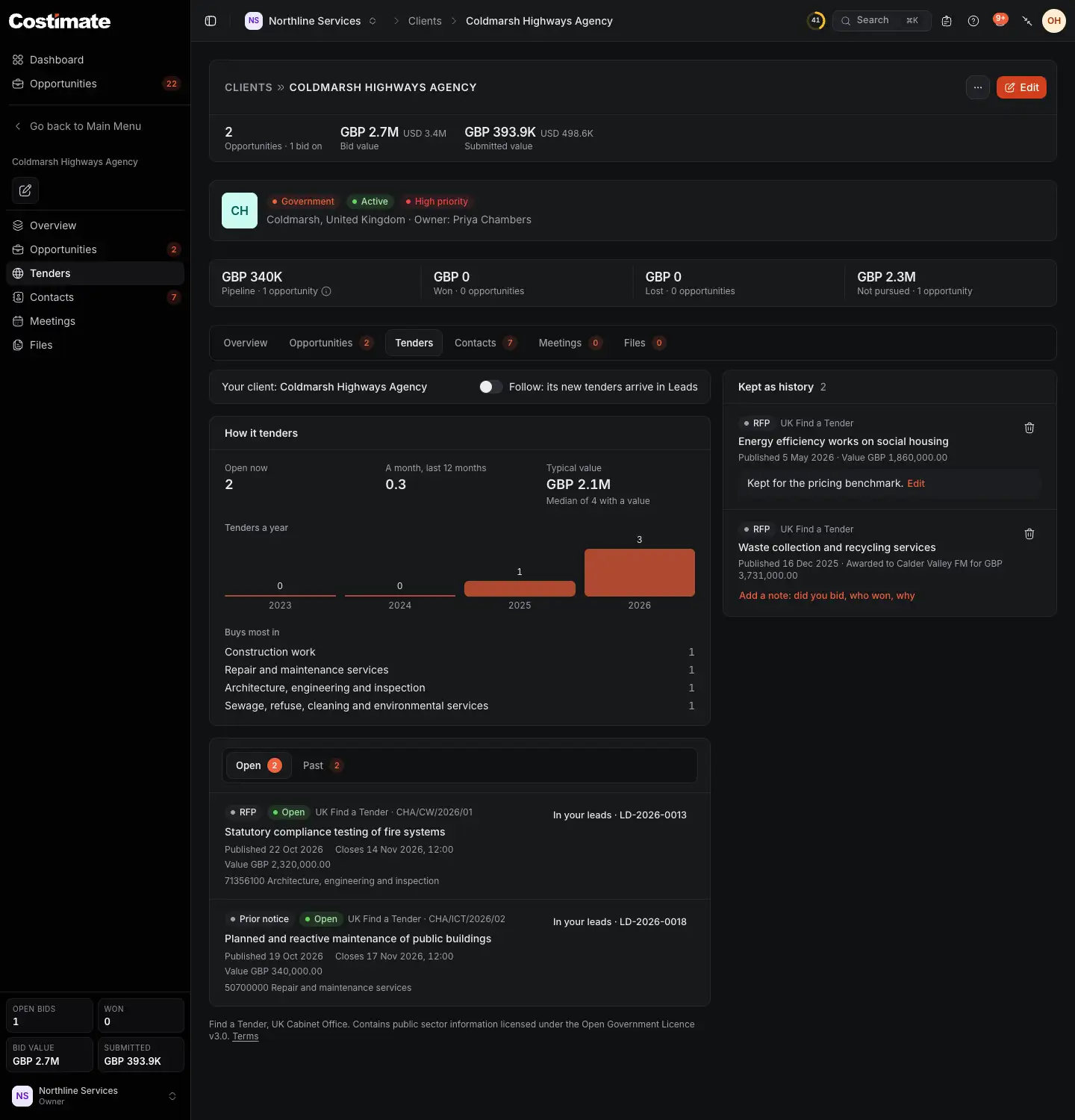
- Follow: the buyer's new open tenders arrive in your Leads.
- How it tenders: how often, what it typically spends and what it buys most.
- An open tender that is already one of your leads. Any other has Add as lead and Bid for it.
- Kept as history: past tenders you kept on the client with Keep as history, each with a note of yours: did you bid, who won, why. A kept tender is never a lead, a bid or a figure of your pipeline.
Good to know
- Who sees the figures. Without the right to read opportunities, nobody sees how many a client has or what they come to. The bid value is the announced or planned value, and is open to who reads opportunities. A submitted value is a price: it is shown and added up only over the bids whose prices you can see.
- Deleting. A client with opportunities, projects, quotations or invoices cannot be deleted: Mark inactive is offered instead. A client you do delete can be brought back. See Restore something deleted.
- Other companies. A client is your company's alone. No other company sees it, even one with a client for the same public buyer.