

Certificates, marketing documents and the technical library
Keep once the papers every tender asks for: certificates and insurances, brochures and case studies, policies and method statements, and how AI finds or drafts them.
Tenders ask for the same papers again and again. Three tabs of the Company profile keep them in one place, by section: Certifications, Marketing documents and Technical library.
By default, everyone in your company can read them. The owner and admins add, change and delete them.
What is expected
Each tab starts with the papers a bidding company usually holds, in a row. Nothing blocks a save or a bid, but your profile's completeness counts them.
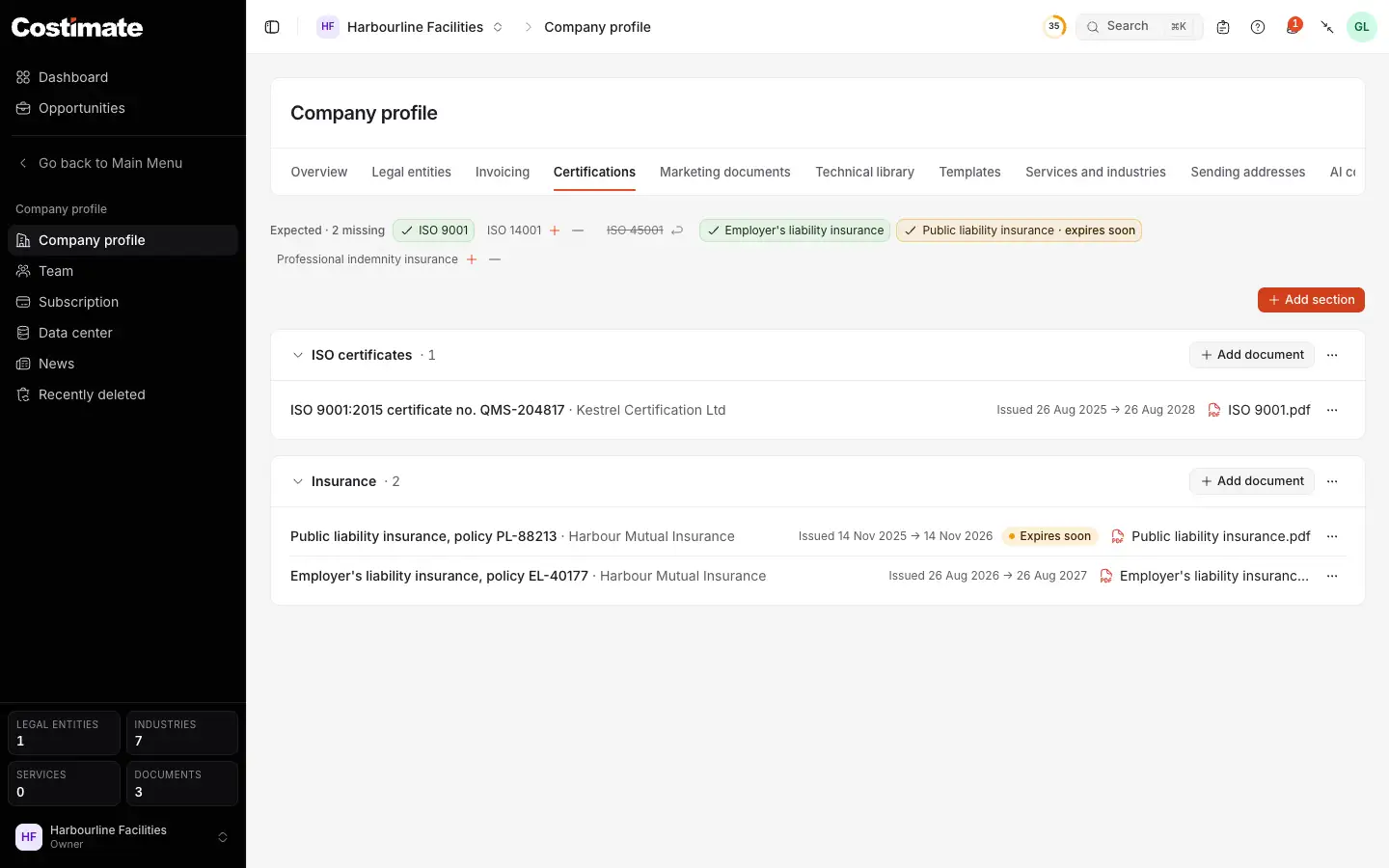
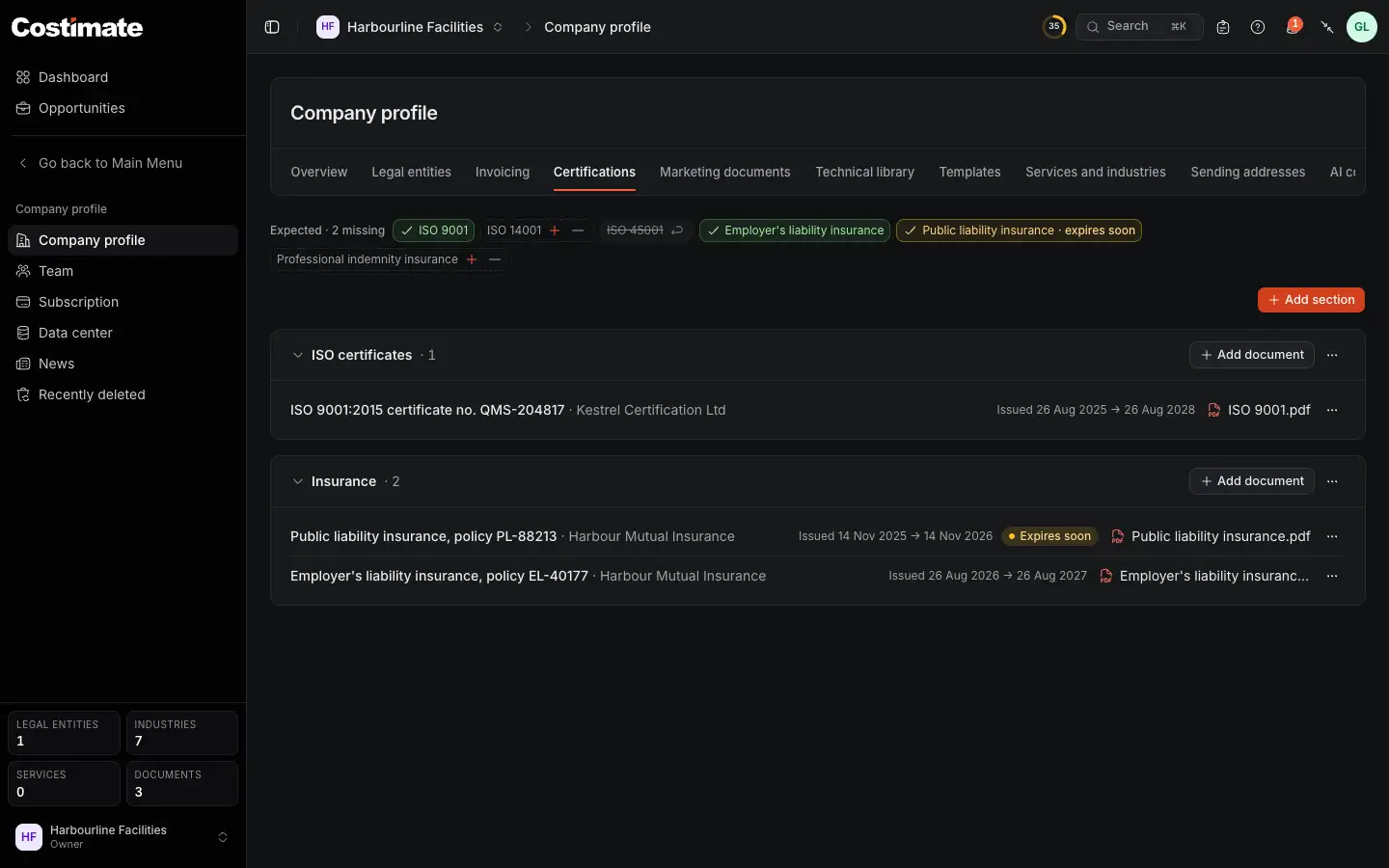
- Expected: how many are missing.
- + adds a document for that paper, with its title, category and section already filled.
- – says it does not apply to you.
- A paper you said does not apply, struck through. Its arrow brings it back.
- A paper you hold, ticked. Here, one that expires soon, within 30 days.
- Add section: a heading of your own for a group of documents.
- The same mark on the document. The Overview's Needs attention lists it too.
A paper counts as held when a document has its Category. One filed under Other fills none.
Add a document
- Choose + on a paper, or Add document in a section.
- Drop its files.
- Choose Read with AI if you like: it reads the file you dropped and fills what is empty.
- Fill in the rest, and choose Add document.
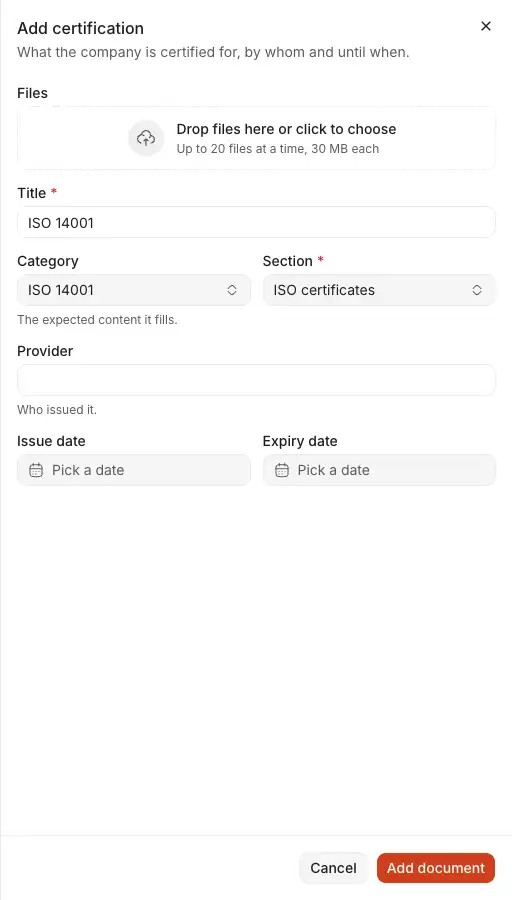
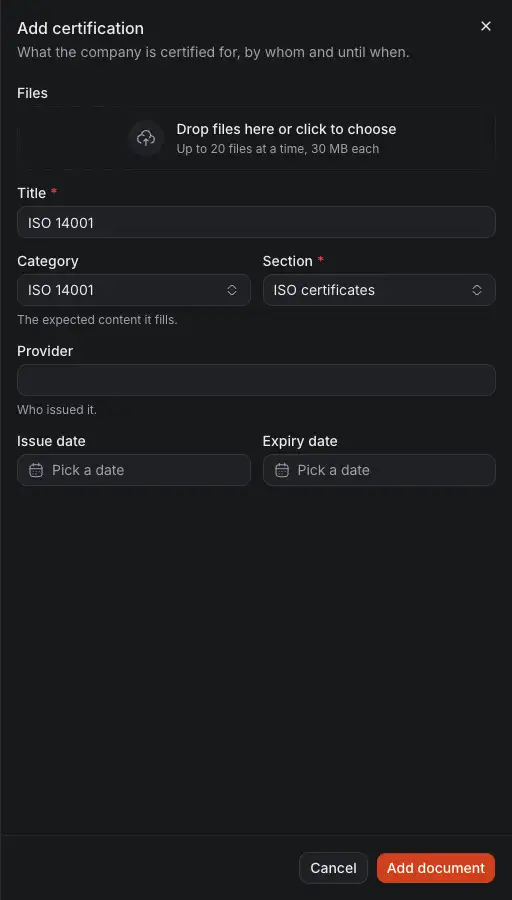
- The files, up to 20 at a time.
- Title. From a paper of the row it starts as that paper's name.
- Category: which paper it is.
- Section: where it is filed. If the tab has no section for it, the paper's own is added.
- Provider: who issued it. Certifications only.
- Expiry date: what the warnings read.
Read with AI fills the title (with the number the paper prints), the category, the provider and the dates. It keeps a value only when it can show where the file says it, under an ⓘ. Each stays marked until you confirm or change it, and the run saves nothing. A date is read as written, never worked out.
Marketing documents
Above the sections is Brand. See Your brand and document templates.


- Research with AI finds on your own website your case studies, the clients you name, and a brochure or a capability statement you publish.
- Write with AI drafts your capability statement from your company's facts.
- Add section.
- A document. Its ⋯ changes it.
On an empty tab these are Find on our website and Write the missing ones with AI. A references list needs a contact for each client before you use it: Costimate never invents one.
The technical library
The library holds the papers a technical proposal draws on: a text, a PDF, or both. A file here must be a PDF, since a proposal merges nothing else.
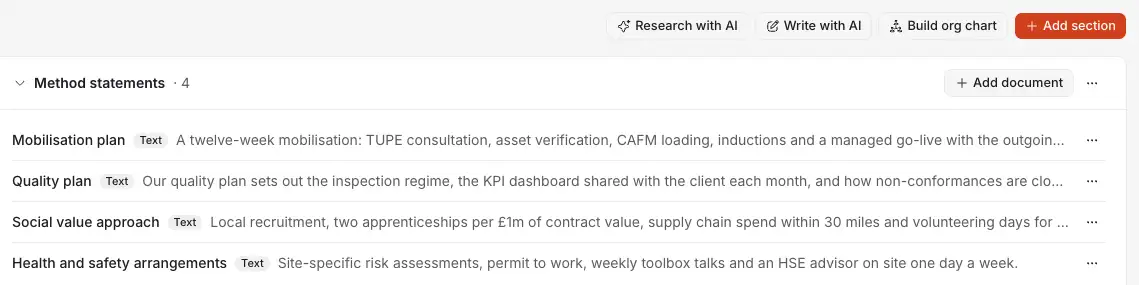
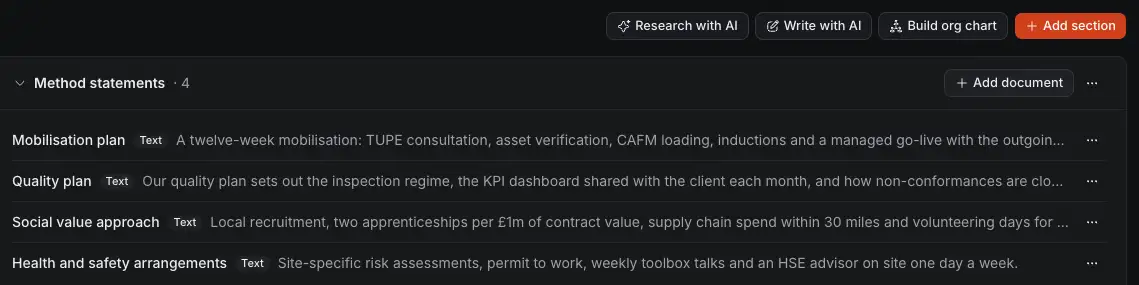
- Research with AI finds your policies, statements, method statements, organisation chart, CVs and certificates on your own website.
- Write with AI drafts the missing policies, statements and method statement.
- Build org chart. See below.
- Add document to a section. The ⋯ of a section or a document has Move up and Move down.
- A document kept as text. Click it to read it in a pane.
In a proposal, Add from library lists every document here. A document with a category also carries For technical proposals, and a tender's matches offer it for the sections it answers.
What AI does here
- Research reads your website and nothing else. Never a search or another site. It needs the website on your Overview. It keeps a finding only with the passage it read it in. You tick what to keep and choose Add selected.
- Drafts hold to your facts. A draft is written from your company's details and your own site. A number, a sign or a name they do not hold is written "[to confirm]" and listed.
- Nothing is kept without you. A document found or drafted says "check it" until someone who may change the company opens it. CVs and the chart are never drafted.
An organisation chart
Build org chart opens a builder. Save chart draws it as one PDF page in your template, and files it as your organisation chart.
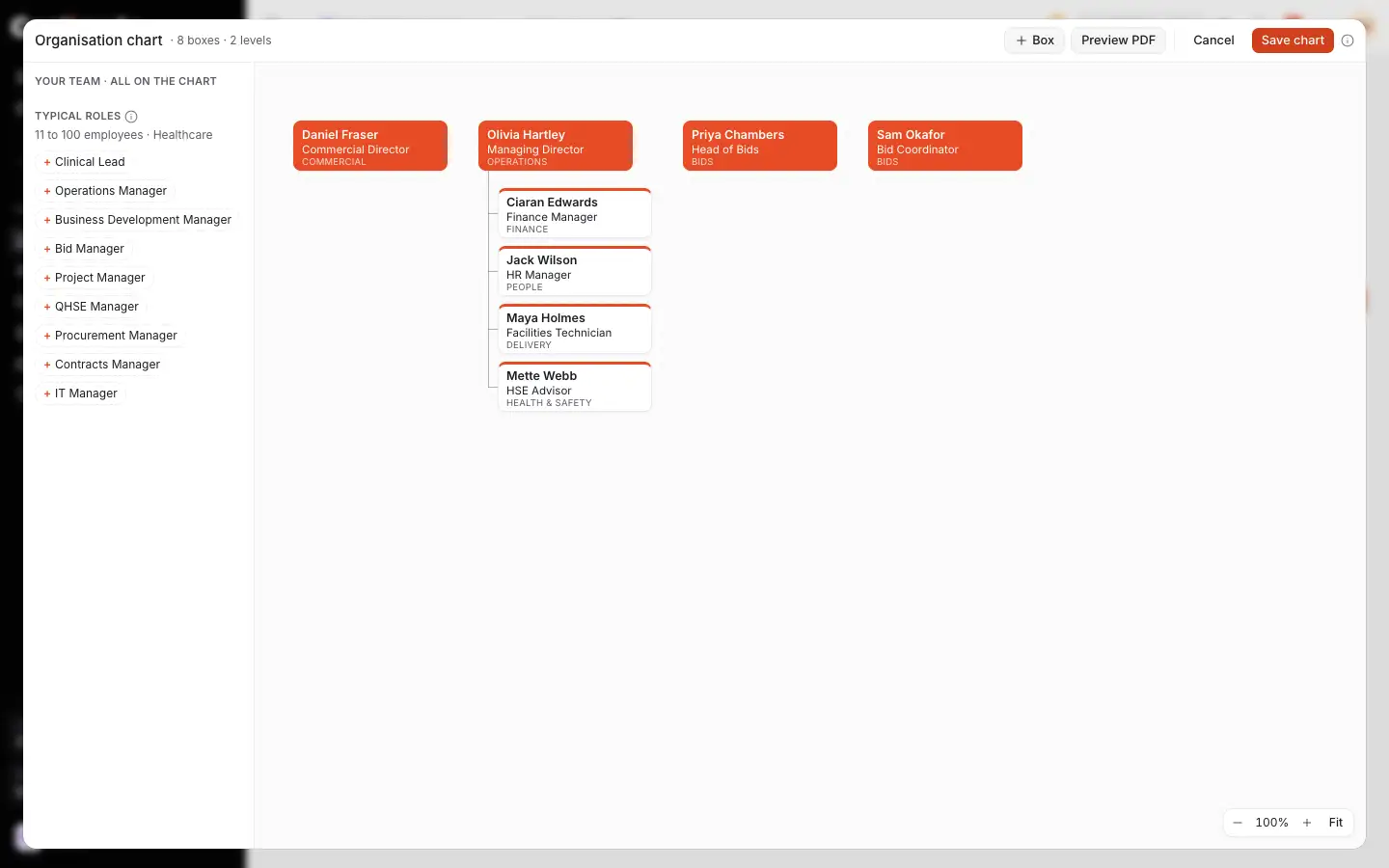
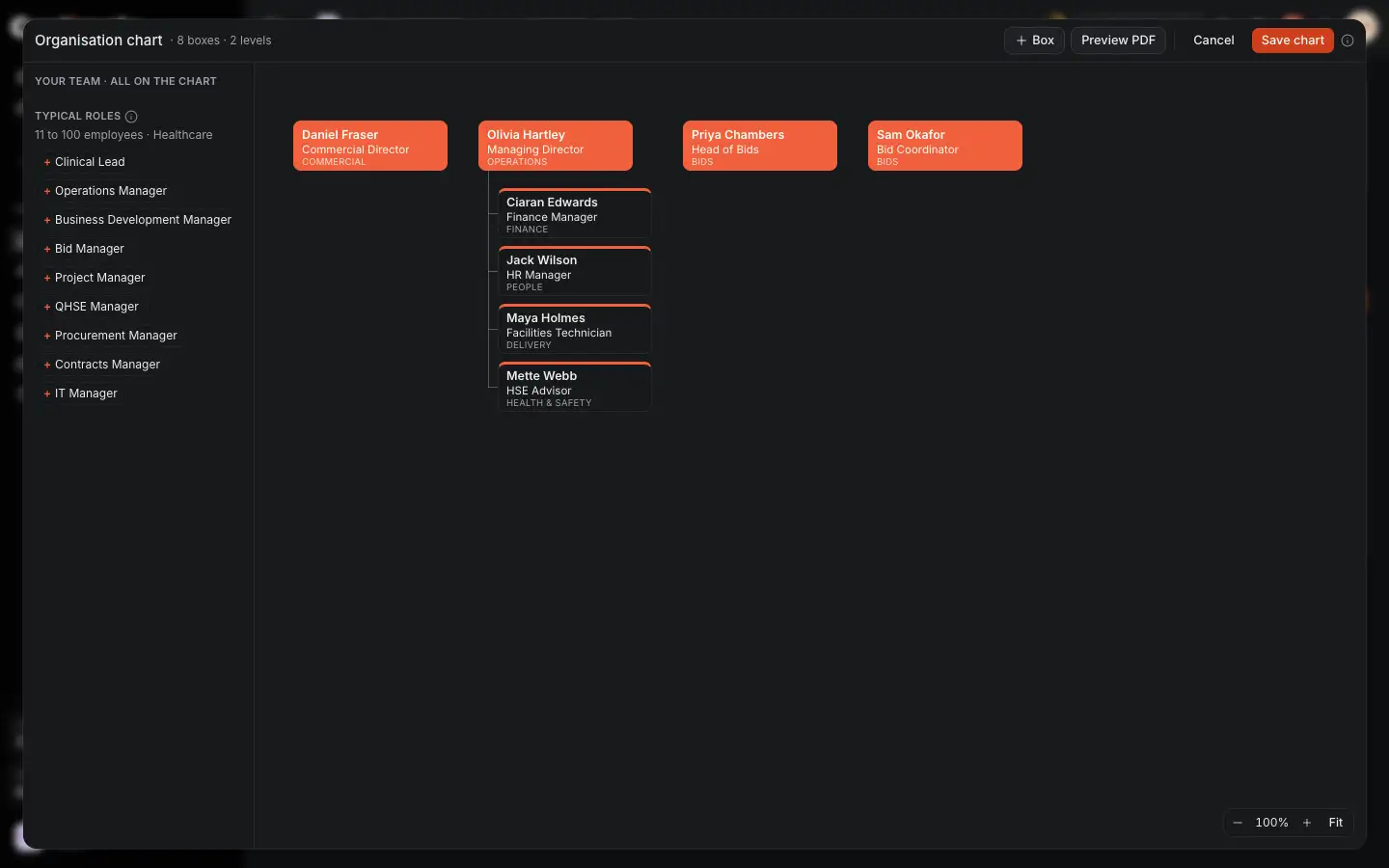
- Your team: your active employees not yet on the chart, here none. + adds one under their manager.
- Typical roles: positions common for your size and industries. + adds an open position.
- Preview PDF draws it as Save would and keeps nothing.
- Save chart. Each save draws the PDF again. Later, Edit org chart reopens it.
Start from your team on an empty chart adds them, up to the 200 a chart holds. Drag a box onto another to report to it, or click one to edit it. The chart holds what you type, and no pay, email or phone of an employee.
Good to know
- In use. A document of the library that a proposal uses cannot be deleted, and neither can its section, until that proposal stops using it.
- Deleting a section deletes its documents and their files, after asking.