

Your profile and sign-in
Your own profile, your password, two-factor authentication and passkeys. What each one does, and who reads what is on your profile.
Your profile and how you sign in are your own: nobody else changes them. Both are in your account menu at the top right, under Profile and Security. For how Costimate keeps each company's data apart, see Security and your data.
Signing in
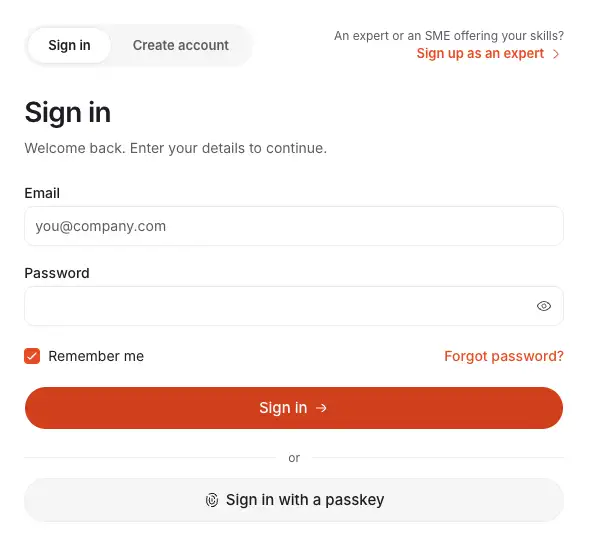
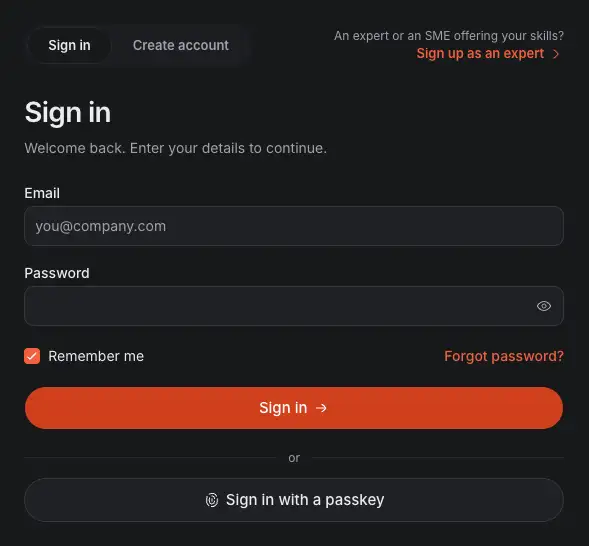
- Forgot password? emails you a link to choose a new one. The link works for 60 minutes.
- Sign in with a passkey, once you have added one. Your browser may also offer it when you click the email field.
Your profile
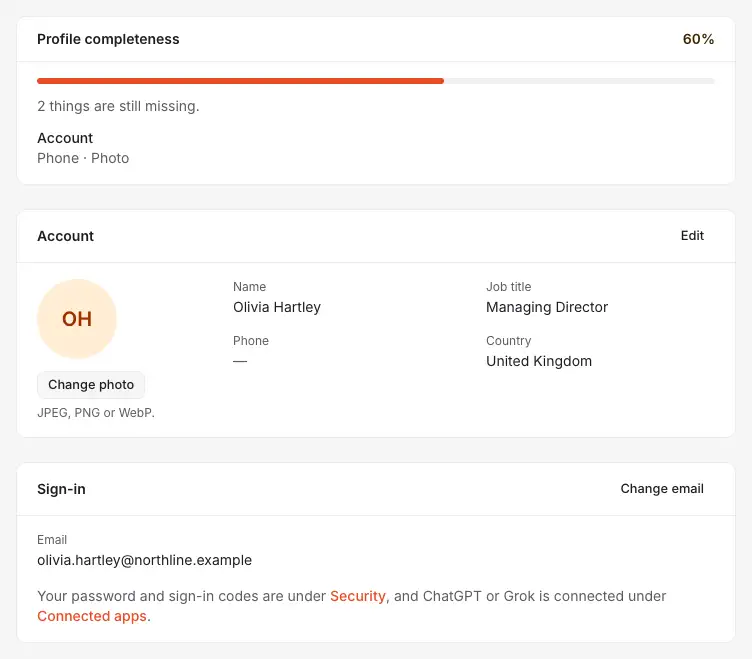
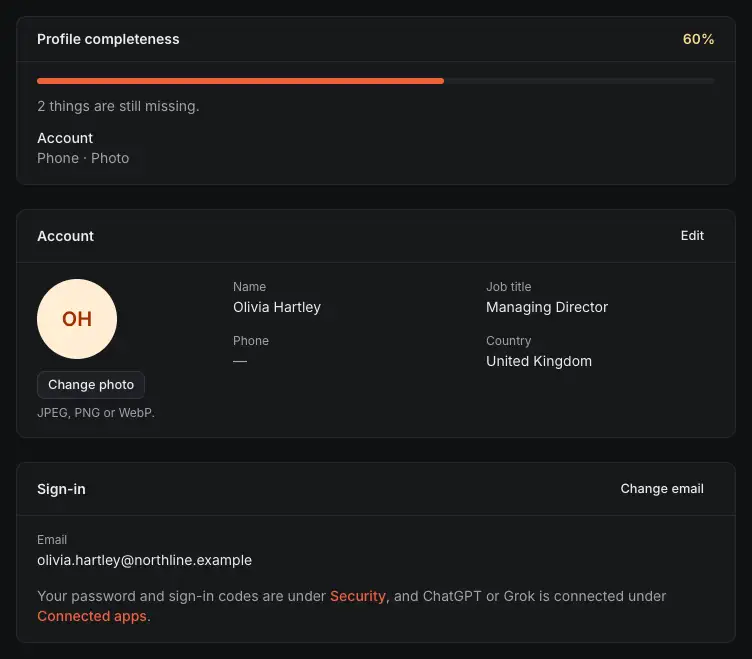
- What your profile still misses. It is a reminder: nothing stops you saving without it.
- Edit changes your name, job title, phone and country.
- Change photo takes a picture of at most 5 MB.
- Change email changes the address you sign in with.
- Security holds your password, your sign-in codes and your passkeys.
Further down:
- About: a short bio and the languages you speak, each with its level.
- Positions, Education and References: the roles you have held, where you studied, and the tenders or projects you contributed to.
- Companies: each company you belong to, and your role in it.
- Privacy: Usage analytics is on until you switch it off. Learn more says what is measured and what never is.
In a company you share, members who can open Team read your job title, email, phone, country, about, positions, education and references, and when you last signed in. An expert's profile has its own parts, and companies read it in the experts directory without the address and the phone. Join the Costimate Expert Network says more.
Changing your email
- Choose Change email, then type the New email and your Current password.
- Costimate sends a link to the new address, and a notice to the old one.
- Open the link within 60 minutes. Until you do, you keep signing in with the old address, so a mistyped address locks nobody out. Cancel on the card stops the change.
Your password
Under Security, Change password asks for your Current password, a New password and Confirm new password. A new password needs at least 12 characters, with upper and lower case letters, a number and a symbol, and one known from a data leak is refused.
You stay signed in on this device, and your other devices are signed out. You cannot remove your password, even with passkeys: it is how you get back in if you lose your devices.
Two-factor authentication
With this on, every sign-in with your password also asks for a 6-digit code that Costimate emails you.
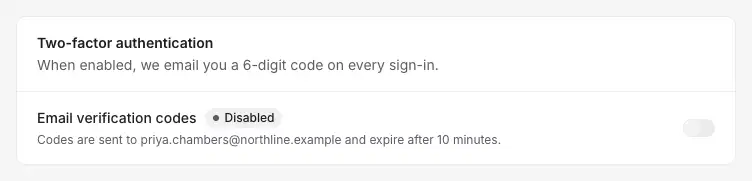
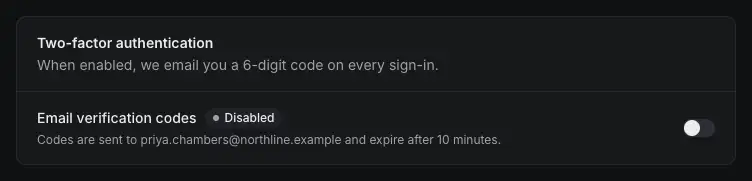
- Email verification codes, and whether they are on. The codes go to the address you sign in with, and expire after 10 minutes.
- The switch turns them on or off. It asks for your password first.
At sign-in, type the code under Verification code. Send a new code sends another, and Use a passkey instead replaces the code if you have a passkey.
Passkeys
A passkey signs you in with your fingerprint, your face, your screen lock or a security key instead of your password. It counts as both steps, so no code is asked. Nothing of your fingerprint or face reaches Costimate.
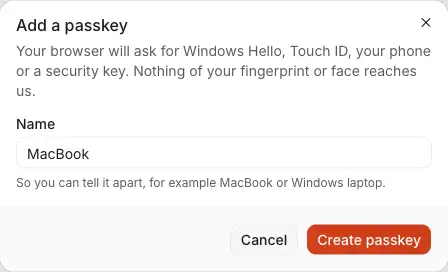
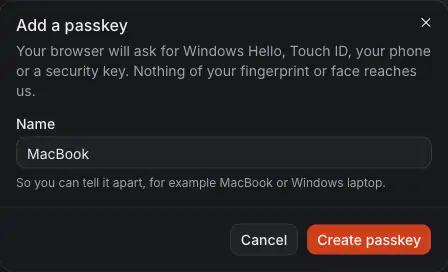
- A name, so that you can tell it apart. Costimate starts it from your device.
- Create passkey hands over to your browser, which asks for Windows Hello, Touch ID, your phone or a security key.
Adding a passkey asks for your password, unless you typed it or used a passkey in the last ten minutes. With two-factor authentication on, if this sign-in passed no code, Email me a code comes first, so that a passkey is never a way round the code.
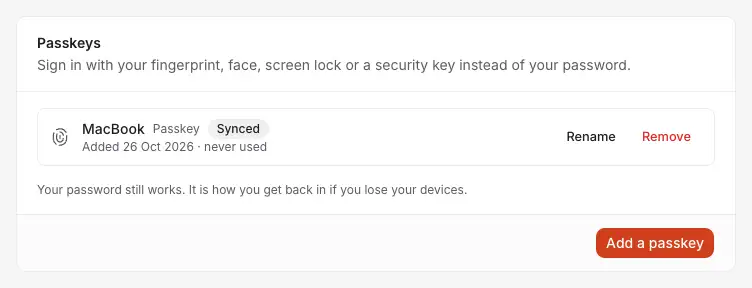
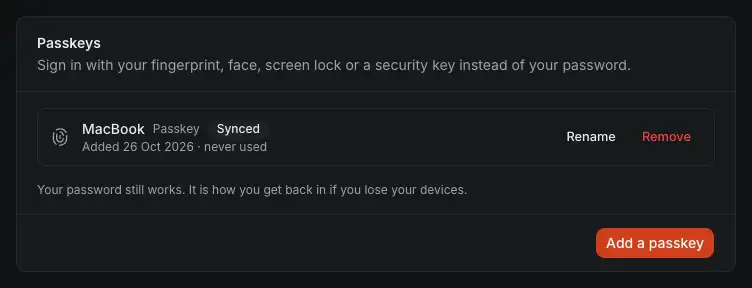
- Synced means the service that keeps the passkey copies it to your other devices.
- Rename changes the name you gave it.
- Remove stops it signing you in. The copy on your device stays until you delete it there.
- Add a passkey adds another, for a second device.
Costimate emails you each time a passkey is added or removed. If that was not you, reset your password.
After you sign in with a password, a small card may offer a passkey: Sign in faster next time with a passkey. It appears on a device that can make one, while you have none. Not now hides it for good. Ignored, it comes back after your next password sign-in.