

Equipment, materials and Company Assets
Keep your vehicles and machines in one register, put them on projects, record their maintenance, see what they are worth today, and take products from stock for a project.
Company Assets is your company's one register of vehicles and machines. Each asset is on a project or on none, and moves between projects without losing its history. Materials are different: they are products taken from your stock for one project, recorded on an expense.
Everyone who can open projects can read all of this, because it states costs. To add or change anything you need to be able to change projects: the owner, admins and the Operations manager can.
Add an asset
- In the left menu, open Projects, then Company Assets, and choose New asset.
- Pick the Kind: a Moving asset, such as a vehicle, or a Non-moving asset, such as a generator. The kind cannot be changed later.
- Fill in the Type, Model, Currency, Purchase price and Value now.
- Choose Add asset.
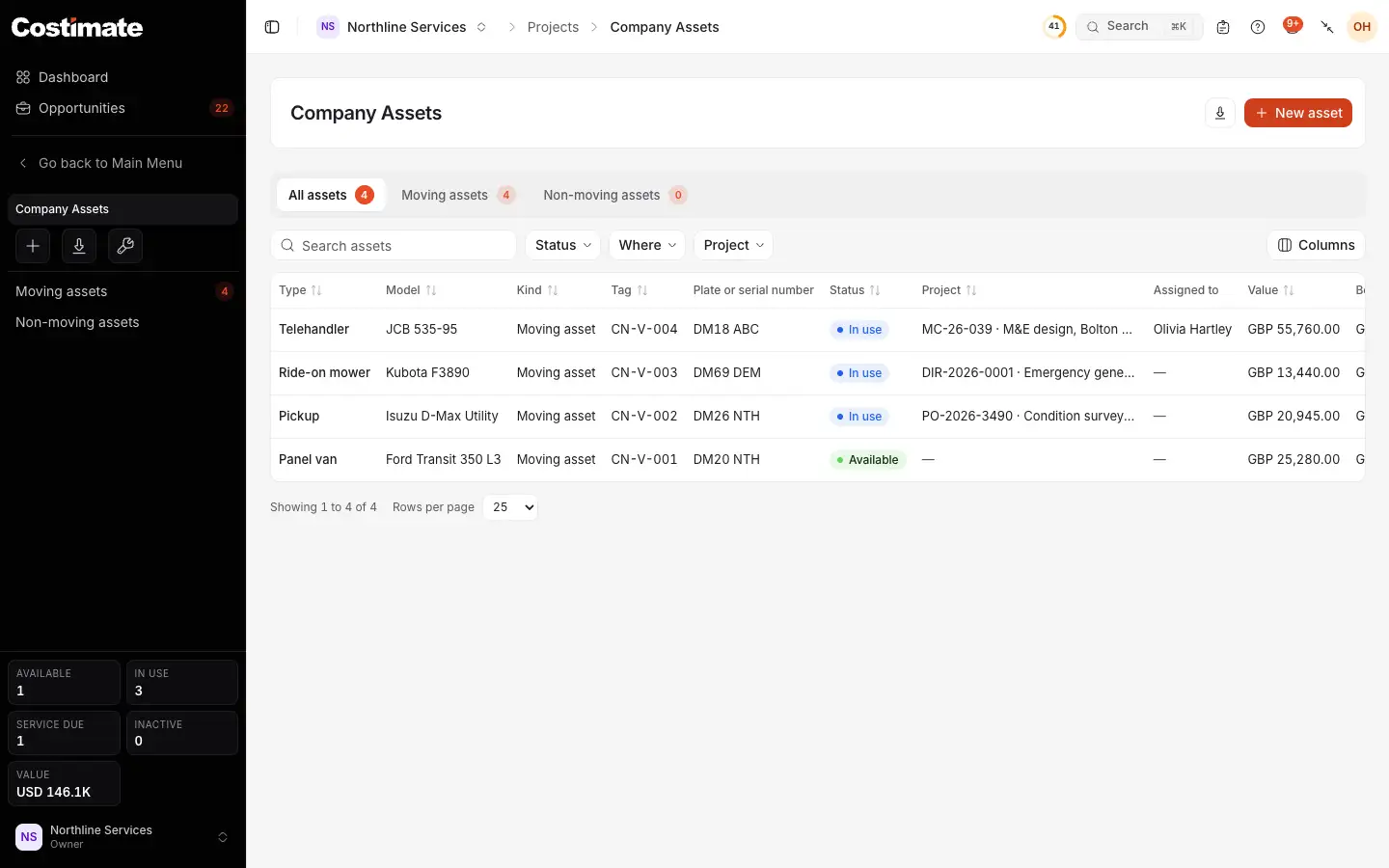
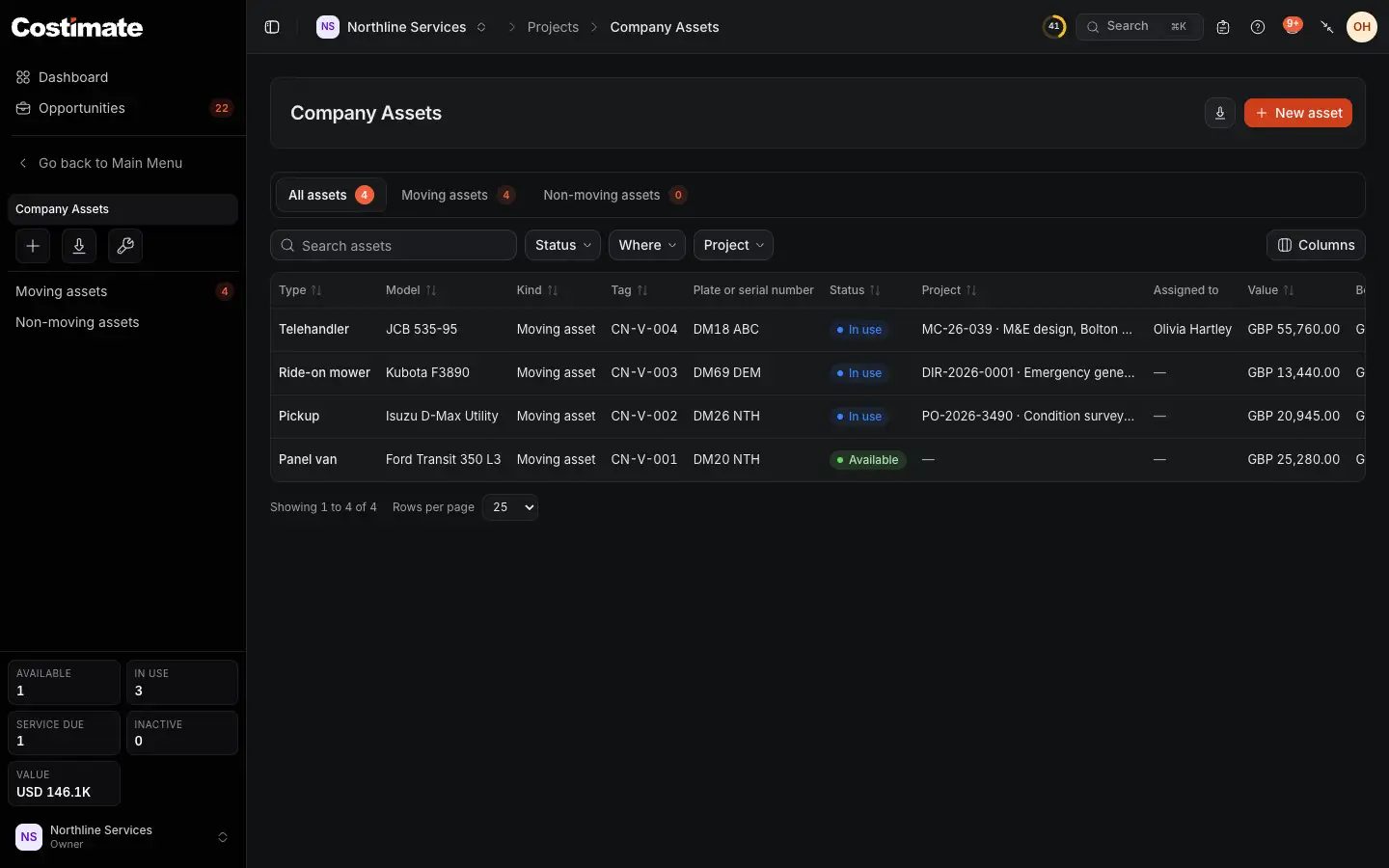
- New asset.
- The views: all assets, moving and non-moving.
- Where narrows to what is on a project or not. Beside it are the status and the project.
- Its status: Available, In use or Inactive. Putting an asset on a project makes it In use, and releasing it makes it Available. An Inactive asset goes on no project.
- The project it is on now.
- Value: what you typed it is worth now.
- Columns chooses what the table shows. Further right are its Book value, which is what it is worth today after depreciation, its maintenance cost and its next maintenance.
Move it between projects
- On the asset's page: Put on a project or, once it is on one, Move to a project or Release from the project.
- On a project's Company Assets tab: Assign an asset, or New asset to add one there.
Every move is kept, under Projects it has been on.
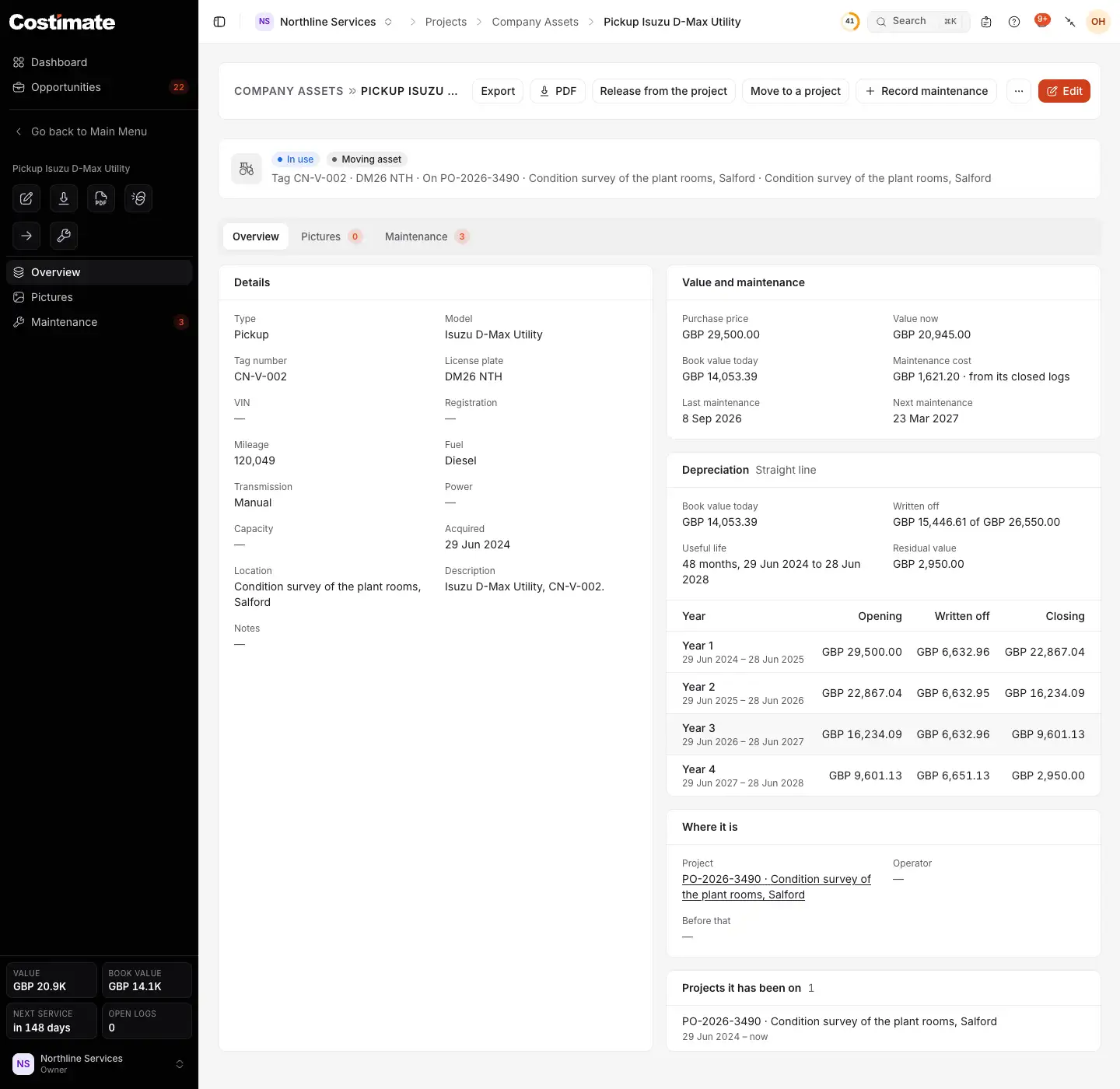
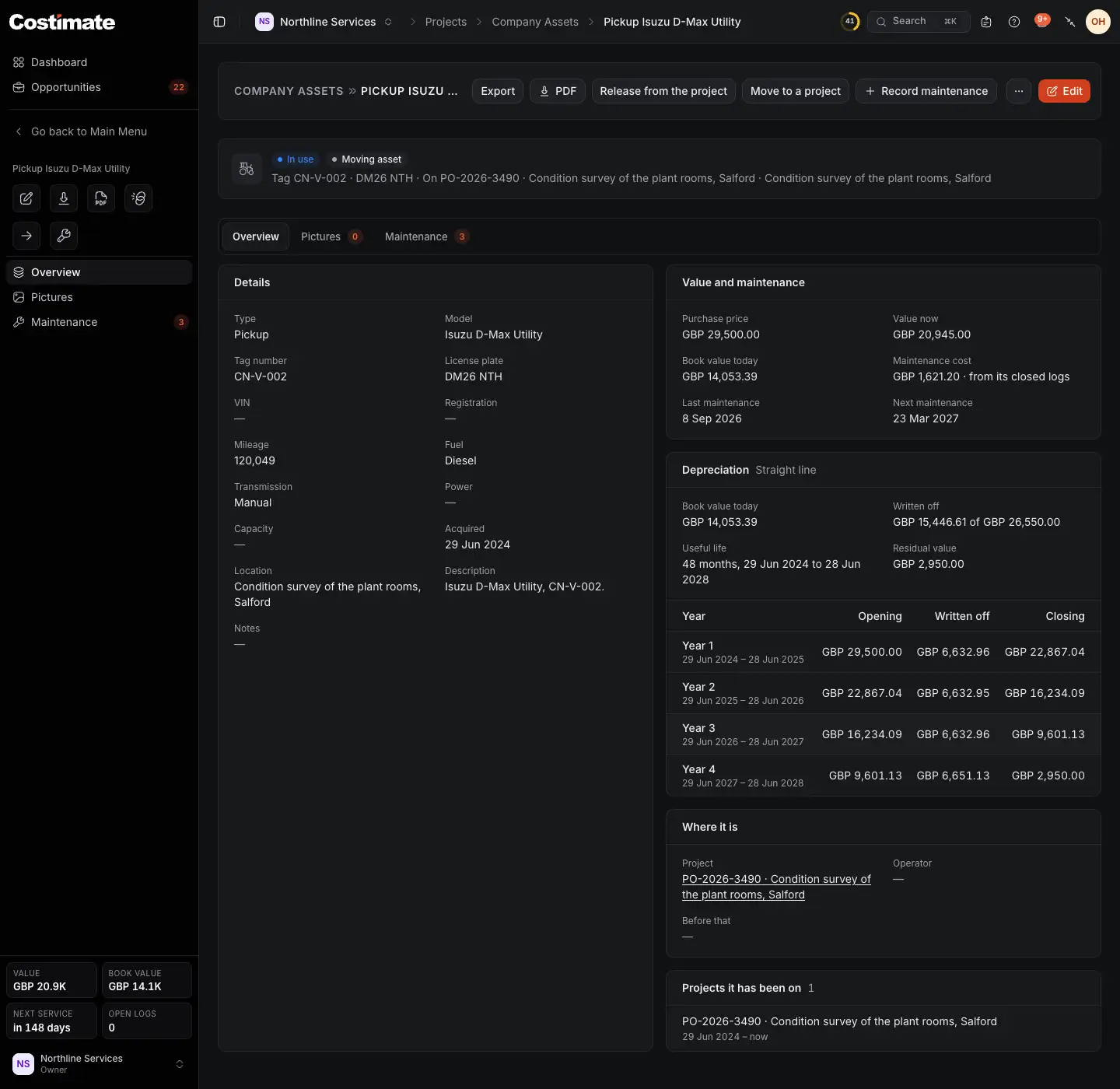
- Release from the project.
- Move to a project.
- Record maintenance.
- What it cost, what it is worth, what its maintenance has cost, and its last and next maintenance.
- Its depreciation: the book value today, what is written off, and each year of its life, the current one marked.
- Where it is now, and who has it.
- Maintenance: its logs, each with Export and PDF. The same two at the top of the page give the whole asset in one file.
Record maintenance
- On the asset's page, choose Record maintenance.
- Pick the Date and fill in the Type, Service provider and Invoice number.
- Add the labor, the parts and work, and any discount and tax. Costimate works out the total.
- Save it. The log is Open.
- When the work is done and billed, choose Close on the log.
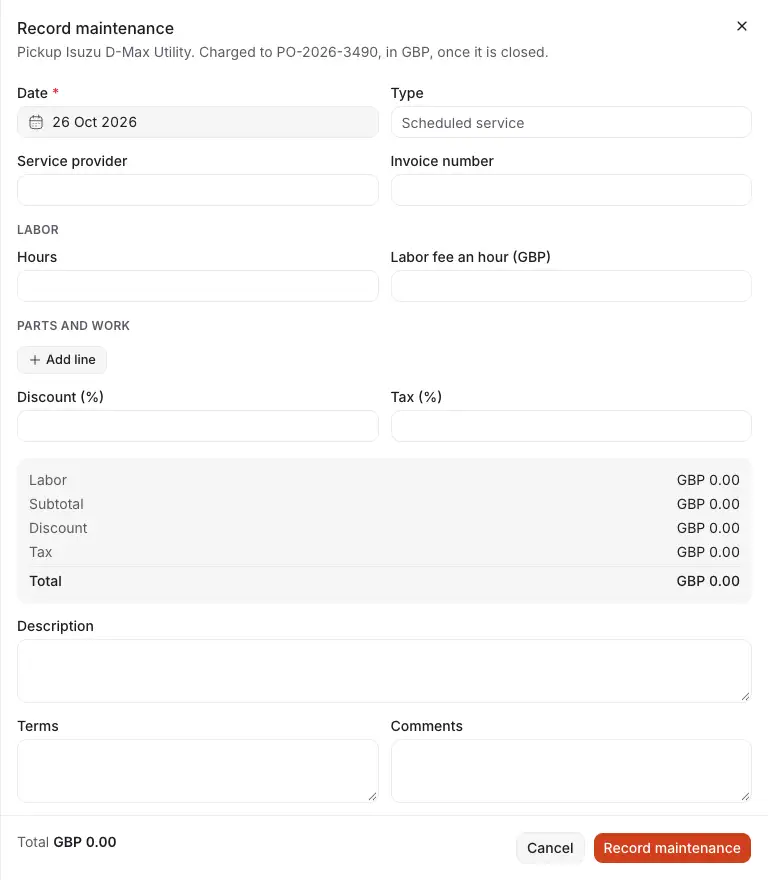
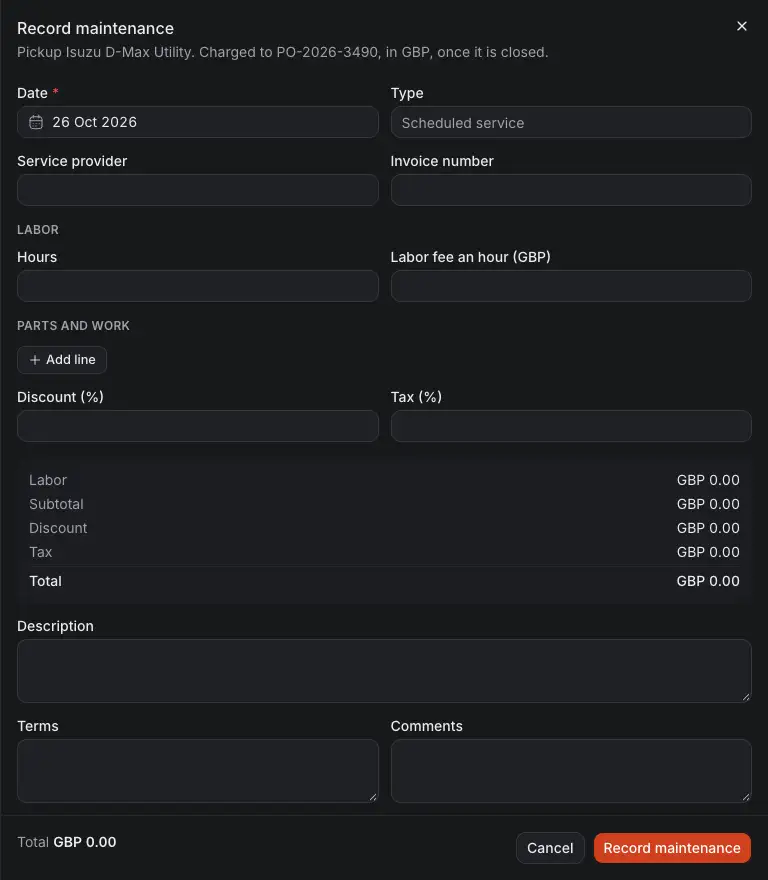
- The day of the work.
- The labor: hours and the fee an hour.
- The parts and work, one line each. A log needs labor or a line.
- The discount and the tax.
A log counts in the actual cost only once it is closed. A closed log is added to the project's actual cost and the asset's maintenance cost, and it is locked. Reopen undoes both. An open log is only in the project's forecast at completion. A log is charged to the project the asset is on when it is recorded, and stays charged there when the asset moves on.
See a project's assets
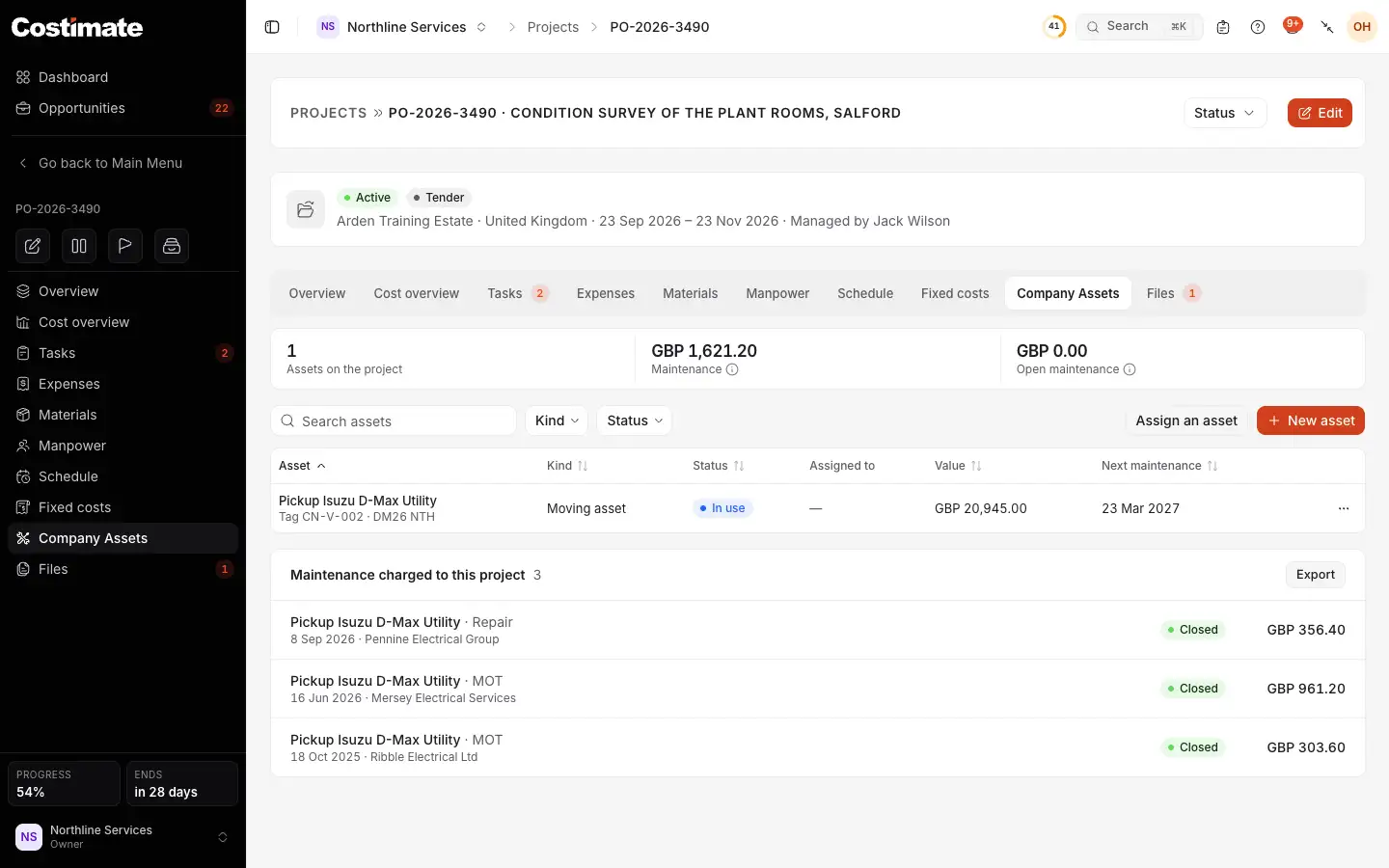
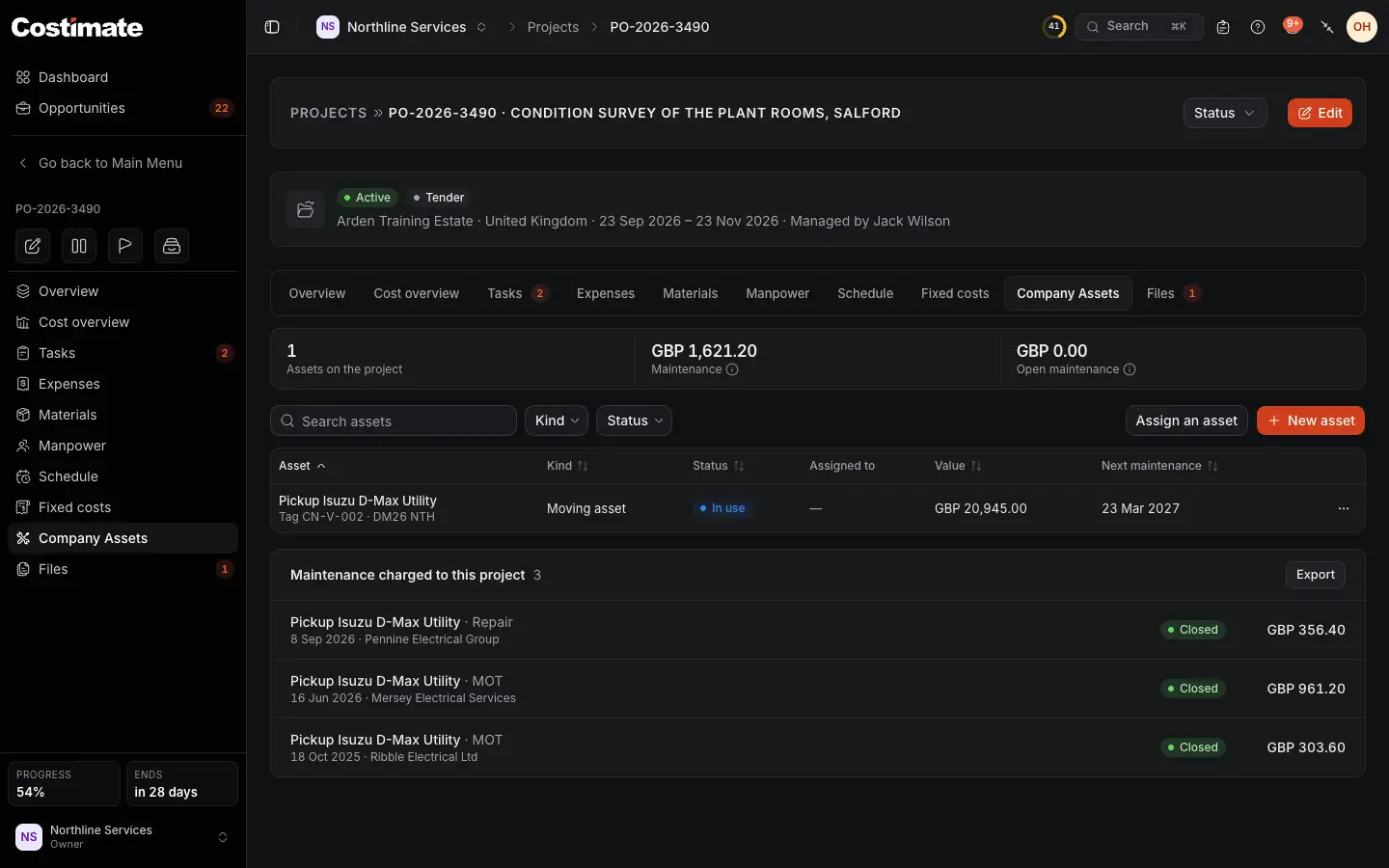
- How many assets are on the project, what their maintenance has cost it, and what is still open.
- Assign an asset takes one from the register.
- New asset adds one, already on this project.
- Each asset's menu: Open, Edit and Release from the project.
- The maintenance charged to this project.
How depreciation is worked out
On the asset's form, choose a Method: straight line, or declining balance with a Rate (% a year). Add the Useful life (months) and any Residual value. It starts on the Acquisition date of a moving asset, or the Purchase date of a non-moving one.
Depreciation is never a cost of a project. An asset bought for a project is already there as an expense, and it would count twice.
Take materials from stock
A material is a line of an expense, so it is approved with it.
- On the project's Materials tab, choose Request materials. The drawer opens with a line ready.
- Pick a product in stock and type the quantity. Its unit price is filled in when the stock has one. Otherwise, type it.
- Add a title and choose Record expense.
Adding the line reserves that quantity. When the expense is approved, the quantity is issued and leaves the stock. Rejecting or deleting the expense gives it back. Reopening an approved expense makes it reserved again.
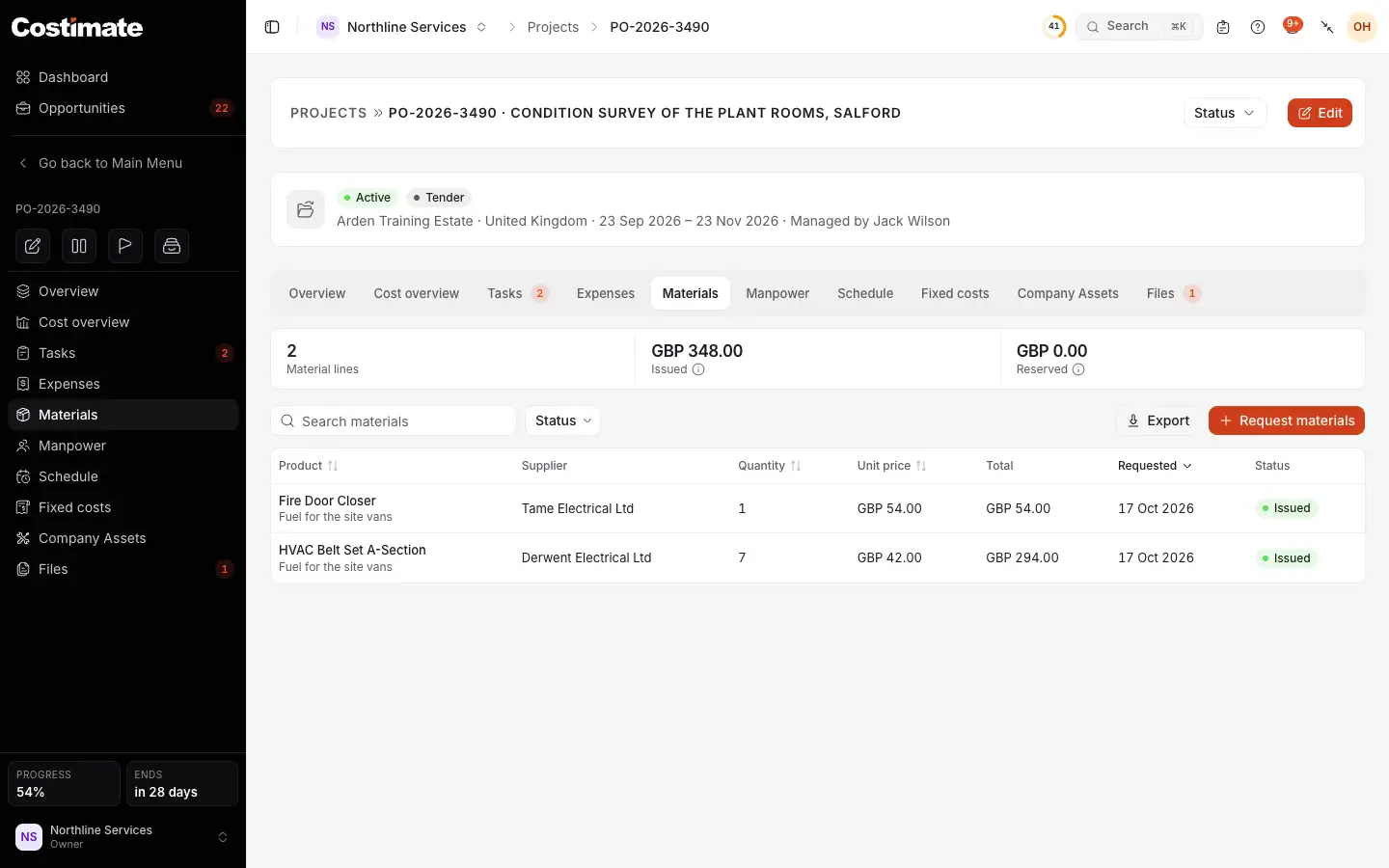
- How many lines there are, what is issued and what is reserved.
- Request materials.
- How much was taken.
- The price when the line was added. A later change of the product's price does not touch it.
- Issued: the expense was approved. Reserved: it still waits.
Products in the categories Assets & Equipment and Services are not offered.
Good to know
- To delete an asset, open More actions on its page. This is for the owner and admins. An asset with a closed log is not deleted, because that cost is in a project's figures: it is marked Inactive instead.
- Export on Company Assets offers Export this list and Export maintenance logs.