

Expenses and fixed costs
Record what a project spends and have it approved, add the costs that run every month, and change an amount from a day without touching the months that have passed.
An expense is one thing a project paid for: a skip, a hire, a receipt. A fixed cost is one that keeps running by itself, such as rent or insurance. Both are part of the project's actual cost, and everyone who can open projects can read them. To record them you need to be able to change projects: the owner, admins and the Operations manager can. Approving an expense is for the owner, admins and the Approver role.
Record an expense
- Open the project, then Expenses, and choose Record expense.
- Type the Title, and pick the Category and the Date.
- Type the Amount. Leave it empty if the expense is only materials.
- Add the Supplier, and a receipt or invoice under Attachment, if you have them.
- Choose Record expense. It waits as Pending.
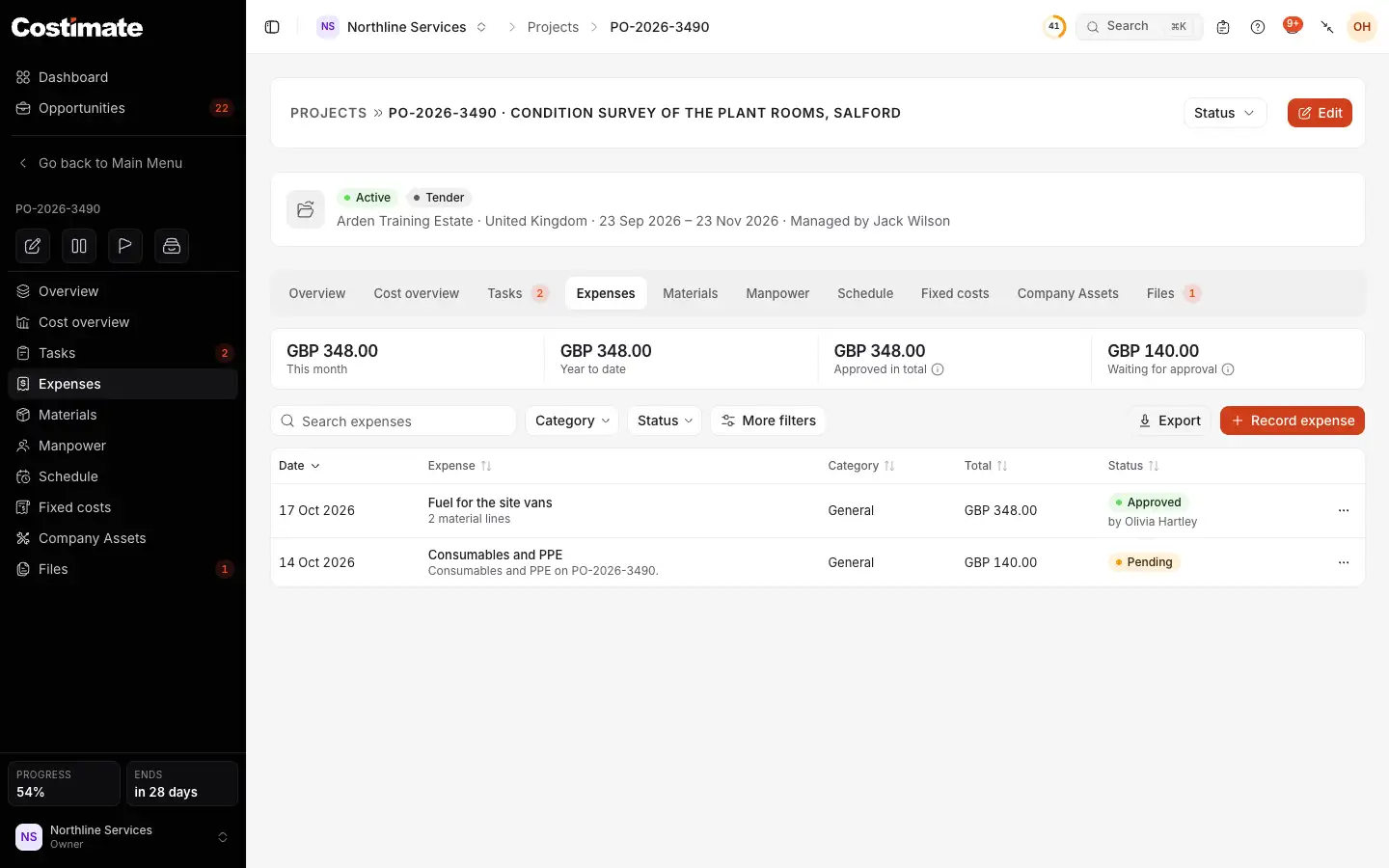
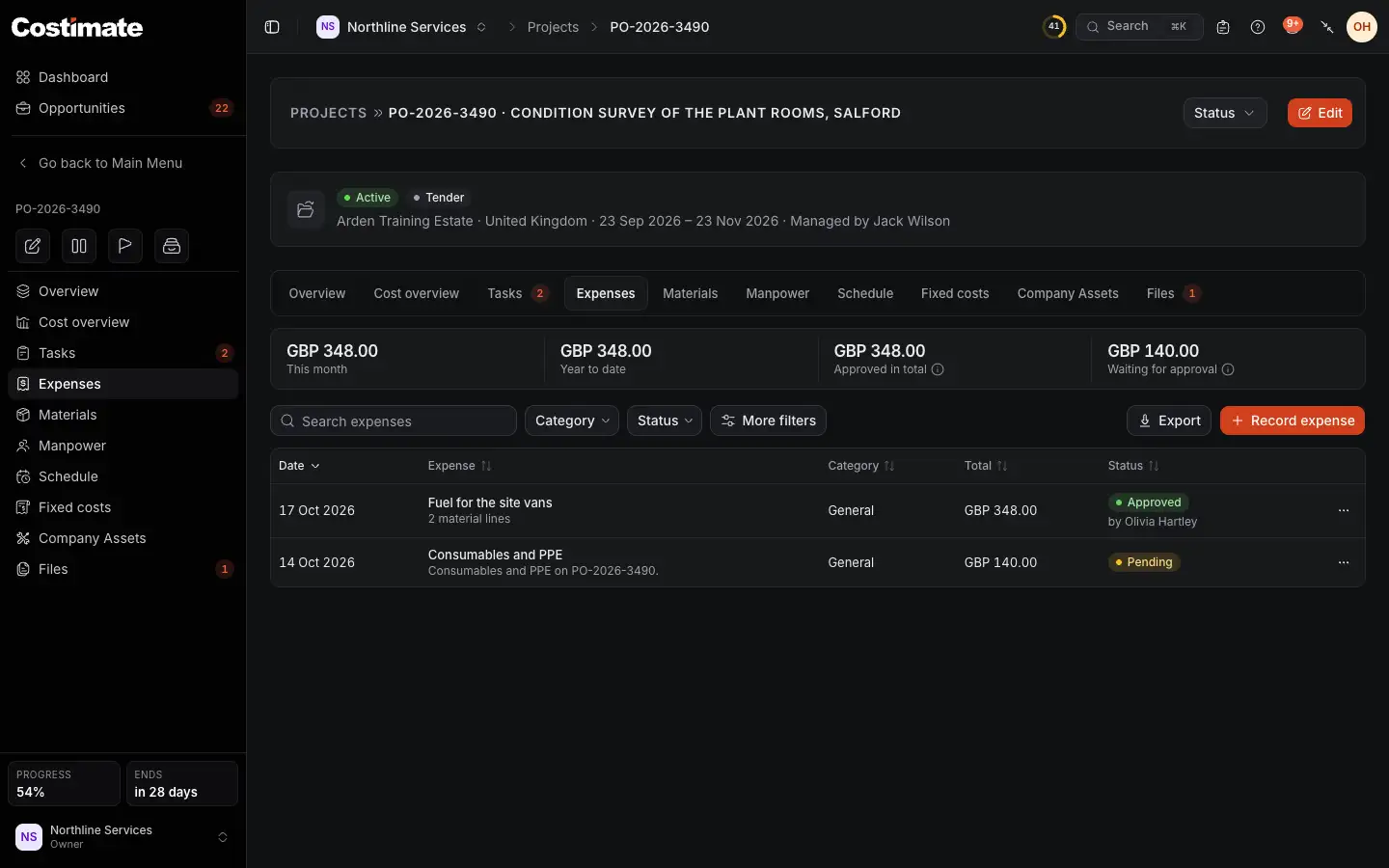
- What was approved this month, this year and in total, and what is still waiting. The figures are in the project's currency.
- Record expense.
- An expense can hold materials taken from stock.
- An approved expense says who approved it.
- Pending: it waits for approval. It is in no actual cost yet, though the forecast at completion includes it.
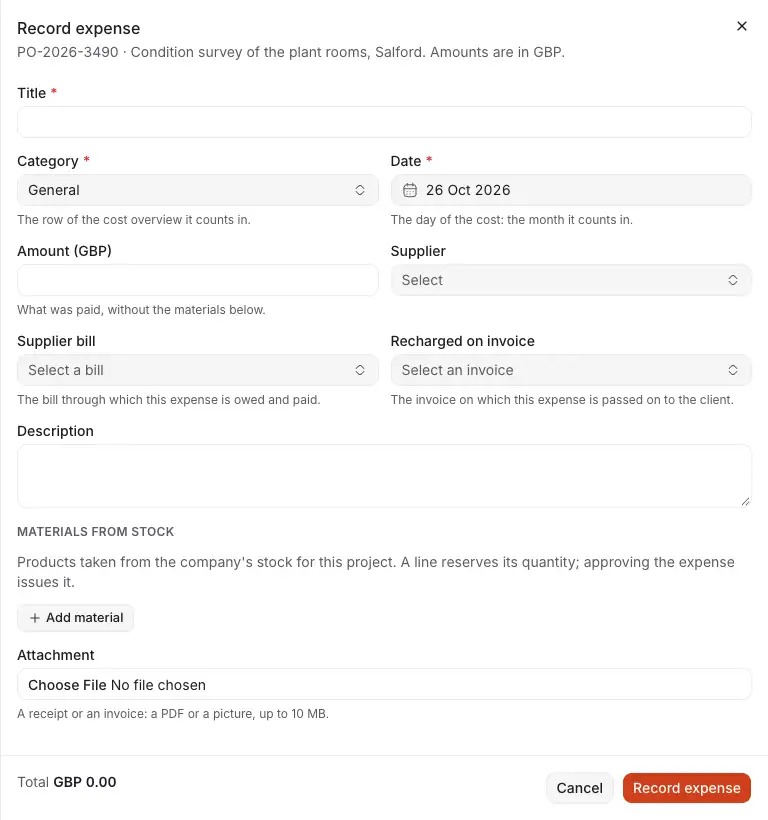
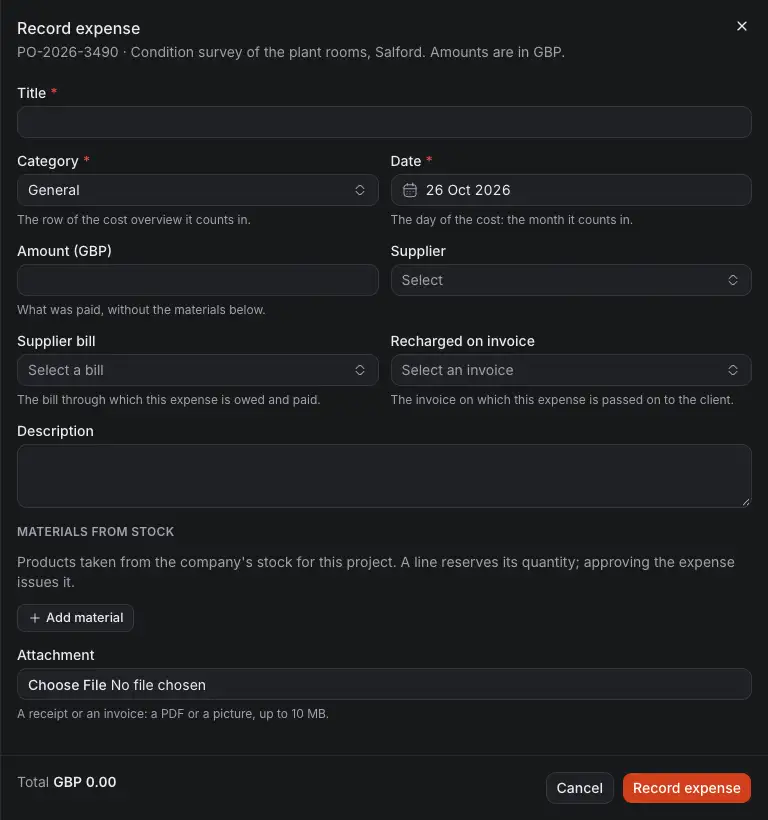
- The Category decides the row of the cost overview it counts in: Manpower under labor, Equipment under equipment, General under other.
- What was paid, without the materials below.
- Supplier bill: the bill this expense is owed and paid through.
- Recharged on invoice: the invoice that passes it on to the client.
- Materials from stock: Add material takes a product for this project.
- A receipt or an invoice, as a PDF or a picture, up to 10 MB.
The total is the amount plus the materials. Costimate works it out.
Approve or reject it
In the expense's menu, or on Workflow if you decide expenses:
- Approve counts it in the project's actual cost, in the month of its date. An approved expense is locked. Reopen sends it back to Pending.
- Reject asks for a reason. A rejected expense counts in no cost and no total, and its materials go back to stock. Whoever recorded it is told. Changing it sends it back to Pending.
Delete is for the owner and admins, on an expense that is not approved. Its materials go back to the stock they were reserved from.
From a supplier's bill
A bill is how a cost is owed and paid. It is not a cost of a project by itself: the expense is. On a bill with a project, choose Record as expense: the drawer opens with its subject, supplier, date and amount filled in. See Supplier bills.
Add a fixed cost
- Open the project, then Fixed costs, and choose Add fixed cost.
- Pick the Category: Rent, Insurance, Utilities, Subscriptions or Other. Add a Description if you like.
- Type the amount, and pick the Frequency: Daily, Monthly or Yearly.
- Pick From, and Until if you know the end. Leave Until empty while it runs on.
- Choose Add fixed cost.
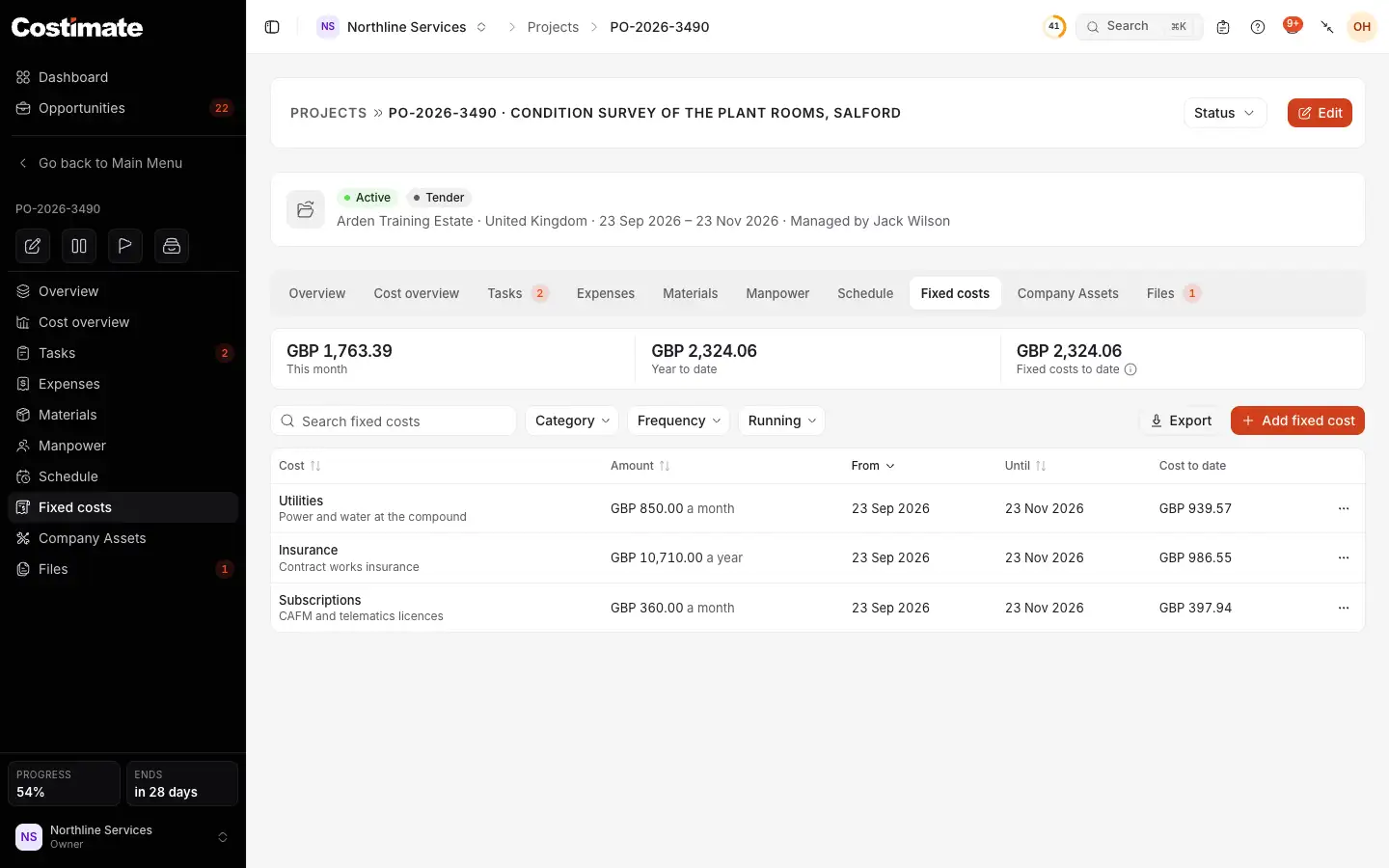
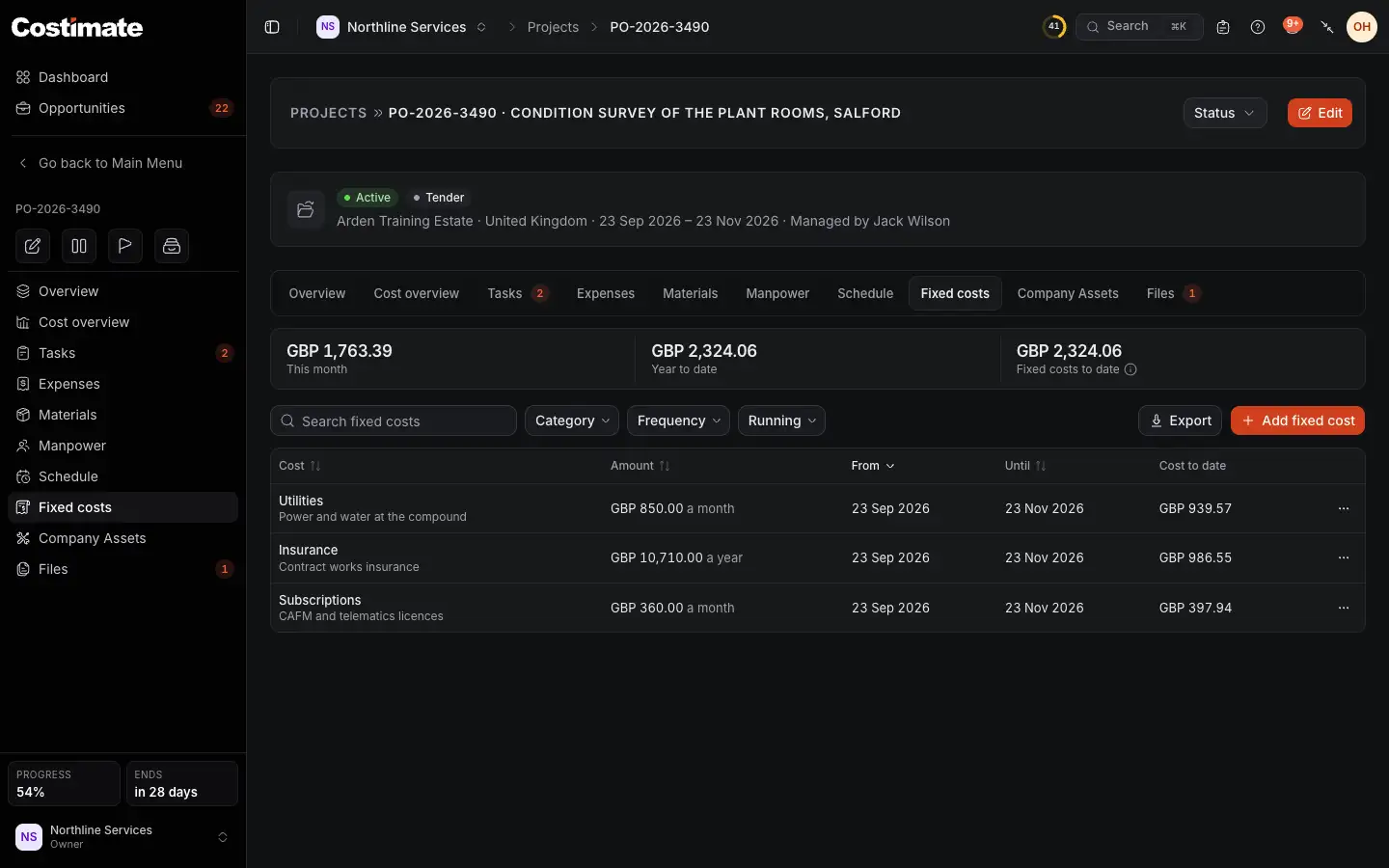
- What the fixed costs have cost this month, this year and to date.
- Add fixed cost.
- The amount, and how often.
- Cost to date: what this one has cost the project so far.
A fixed cost is counted by the day. A monthly rent of 3,000 costs a third of that for ten days of a thirty-day month. A cost that starts next month adds nothing yet.
When the amount changes
Never type over the amount when the rent goes up: the months that have passed would change with it.
- In the cost's menu, choose Change amount from a date.
- Pick the day the new amount starts, and type it.
- Choose Change amount.
The cost ends the day before, and a new one starts with the new amount. The months before keep what they cost.
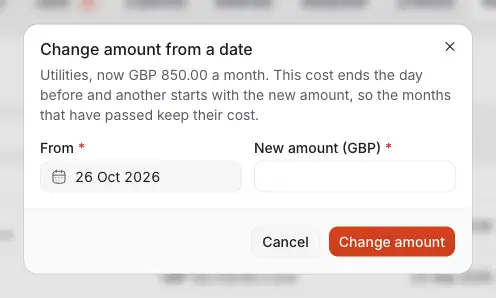
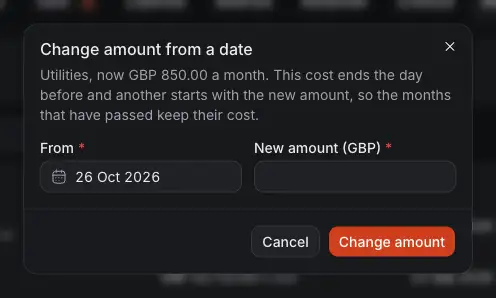
- The first day of the new amount.
- The new amount, in the project's currency.
Correct in the same menu is for a cost that was typed wrong. It does change what the past months cost, and it says so.
Good to know
- Each tab has its own Export, from the same list you are looking at.
- A completed project ends the fixed costs still running on that day, so nothing more is added.
- People who cannot see prices read expenses and fixed costs too, since they are costs. They never see the project's contract value or its profit.