

Dashboards
The dashboard you open on: Minimal and Advanced, your default, the filters by industry, owner and period, and a dashboard of your own you arrange yourself.
The Dashboard, first in the left menu, is what you open on. It comes as presets: Minimal and Advanced, which are built in, and any you make yourself. You choose which to look at and which to open on. Nothing here changes a record.
Everyone in your company has a dashboard. Each block shows only what its reader may see: one you may not see is not there, and no block shows a contract value or a profit. A submitted value appears only in the wording of Recent activity, for who sees that bid's prices.
Advanced
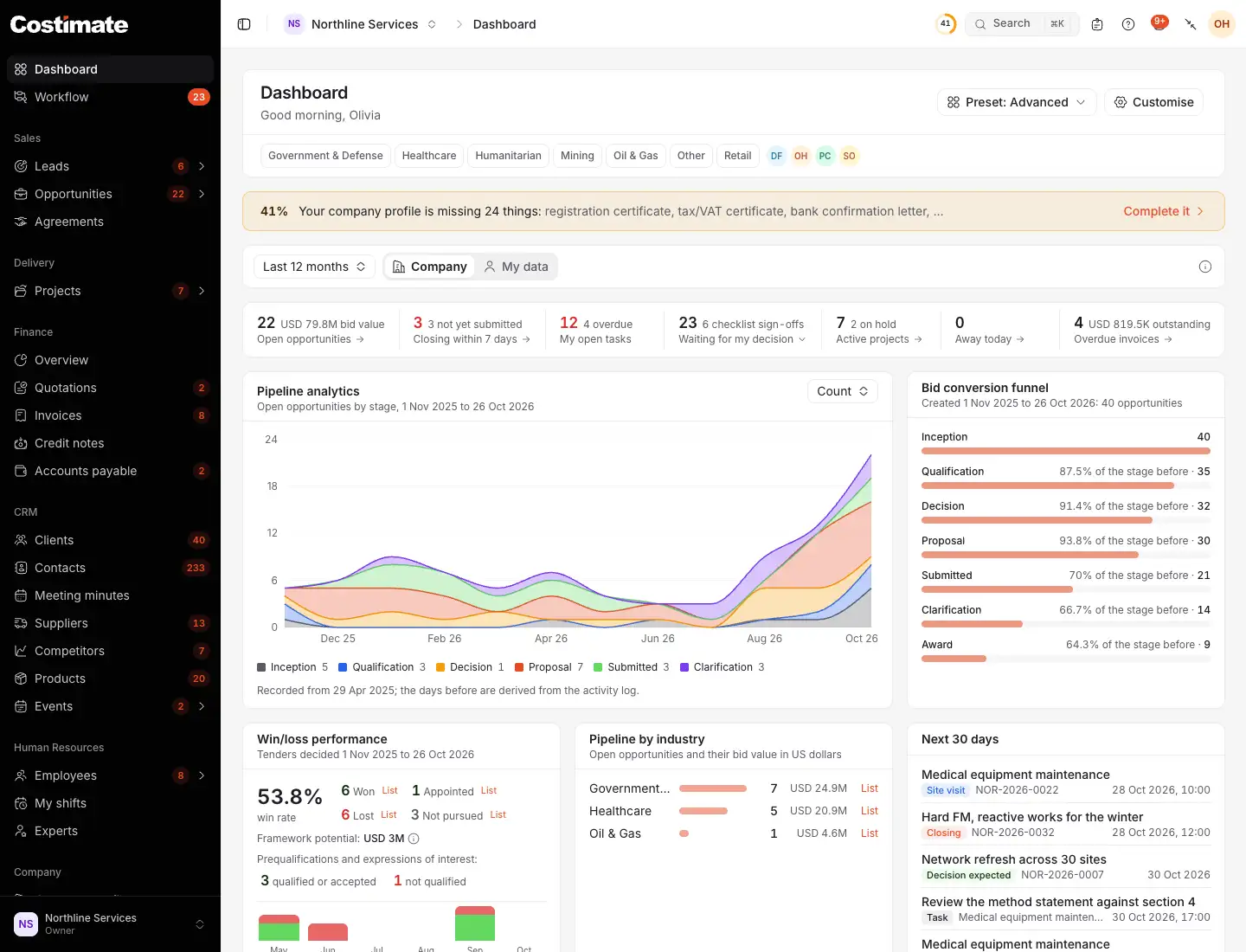
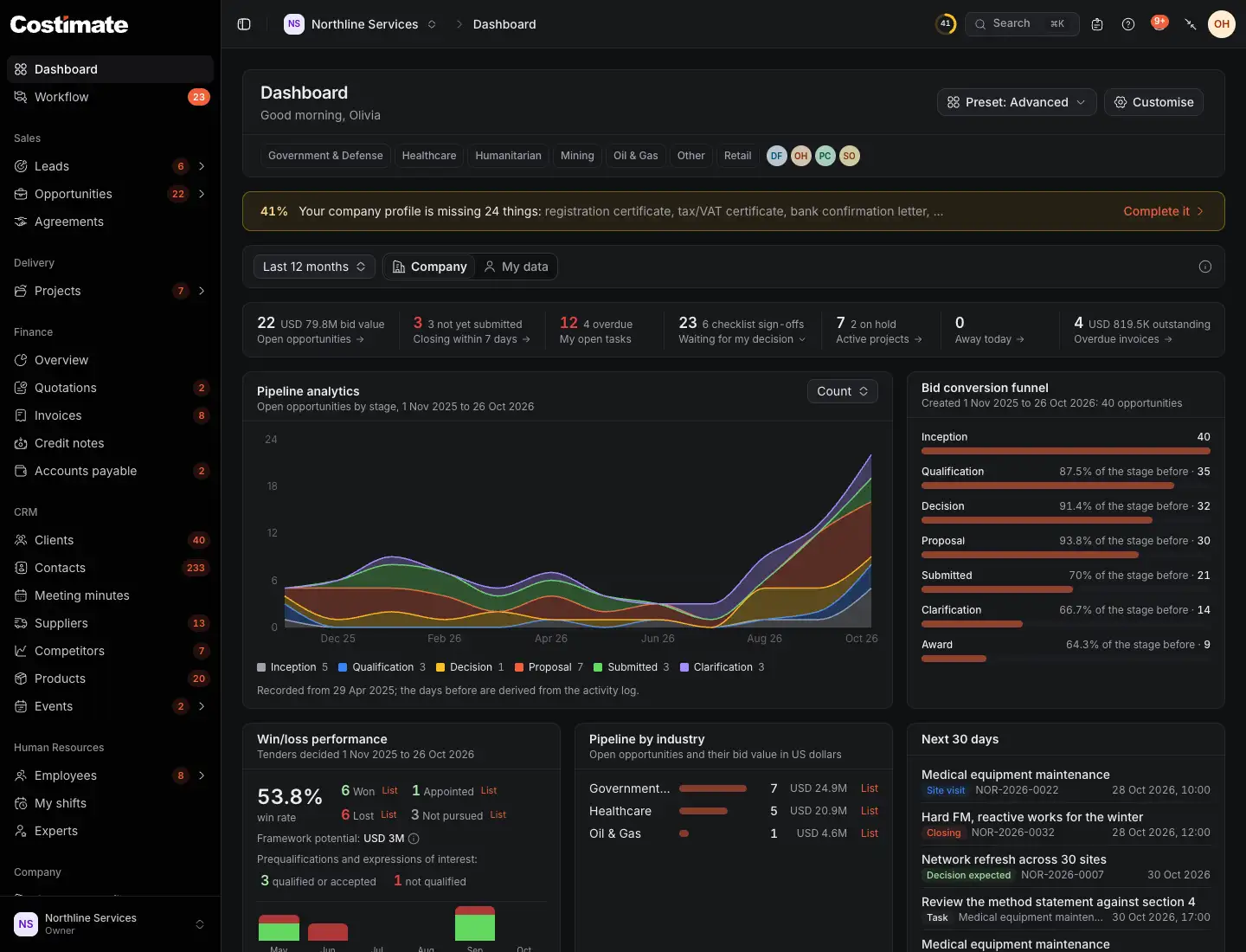
- Preset: which dashboard this is.
- Customise: see below.
- Industry and owner: pick one to narrow the blocks about opportunities.
- The period. Last 12 months unless you choose another.
- Company or My data: the whole company, or the bids you own or manage.
- The figures of the day: open opportunities, closing within 7 days, your tasks, what waits for your decision, active projects, who is away today, overdue invoices. Each opens its list, except your tasks, which is a count.
- Pipeline analytics: your open opportunities by stage over time, as a count or a bid value.
Below them are the Bid conversion funnel, Win/loss performance, Pipeline by industry, the next 30 days, Key opportunities and Recent activity.
- A click on a stage of the funnel, on an outcome or month of win/loss, or on an industry narrows the blocks about opportunities to it. Clear takes it off.
- The filters are in the address, so you can send someone the dashboard as you see it. They read it with what they may see.
- List on a block opens the same opportunities in their list.
- Money is in US dollars. What has no exchange rate is left out and counted.
- The figures about tasks, decisions, projects and invoices stay whole whatever the filters say. Archived opportunities are in no block.
Minimal
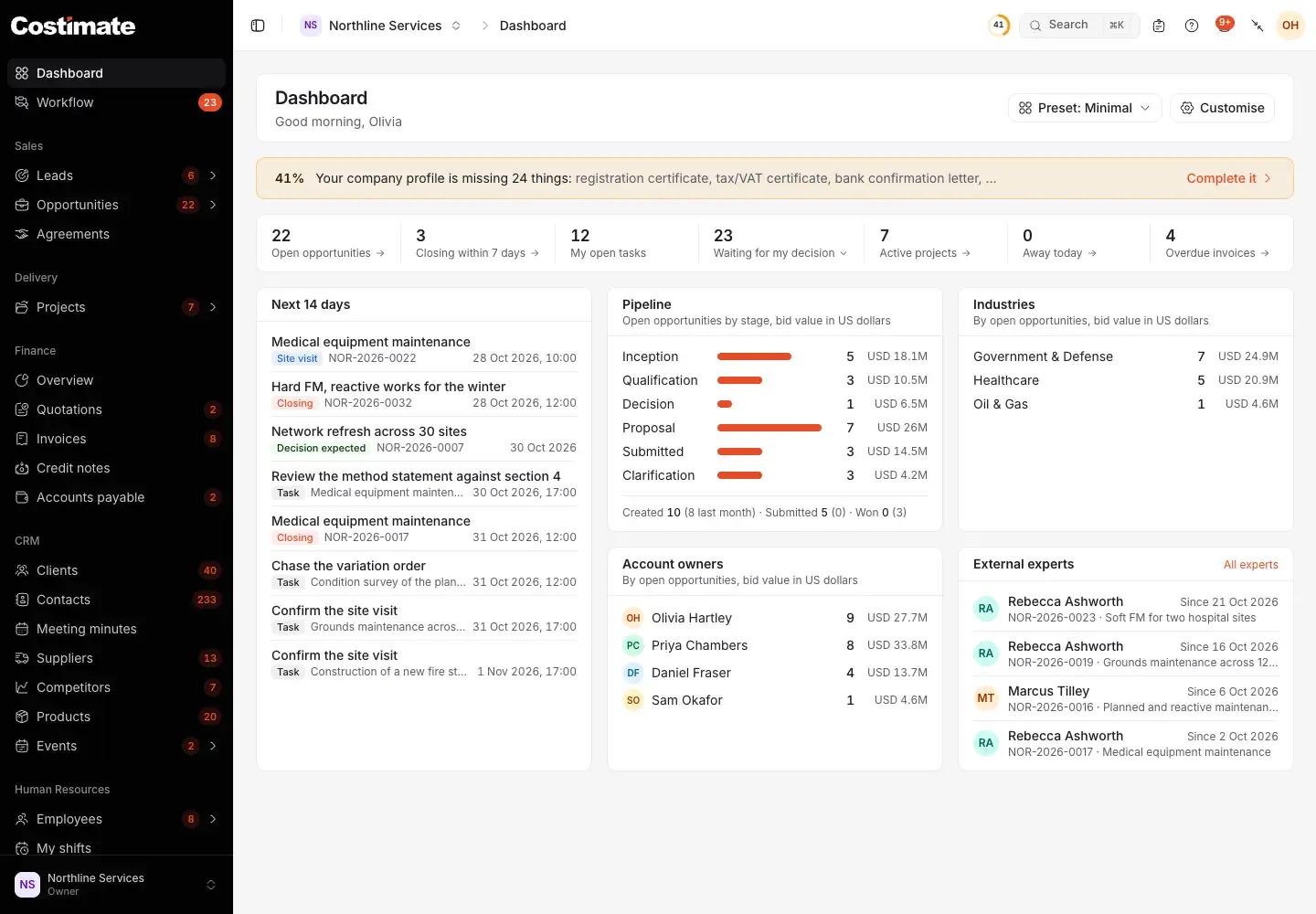
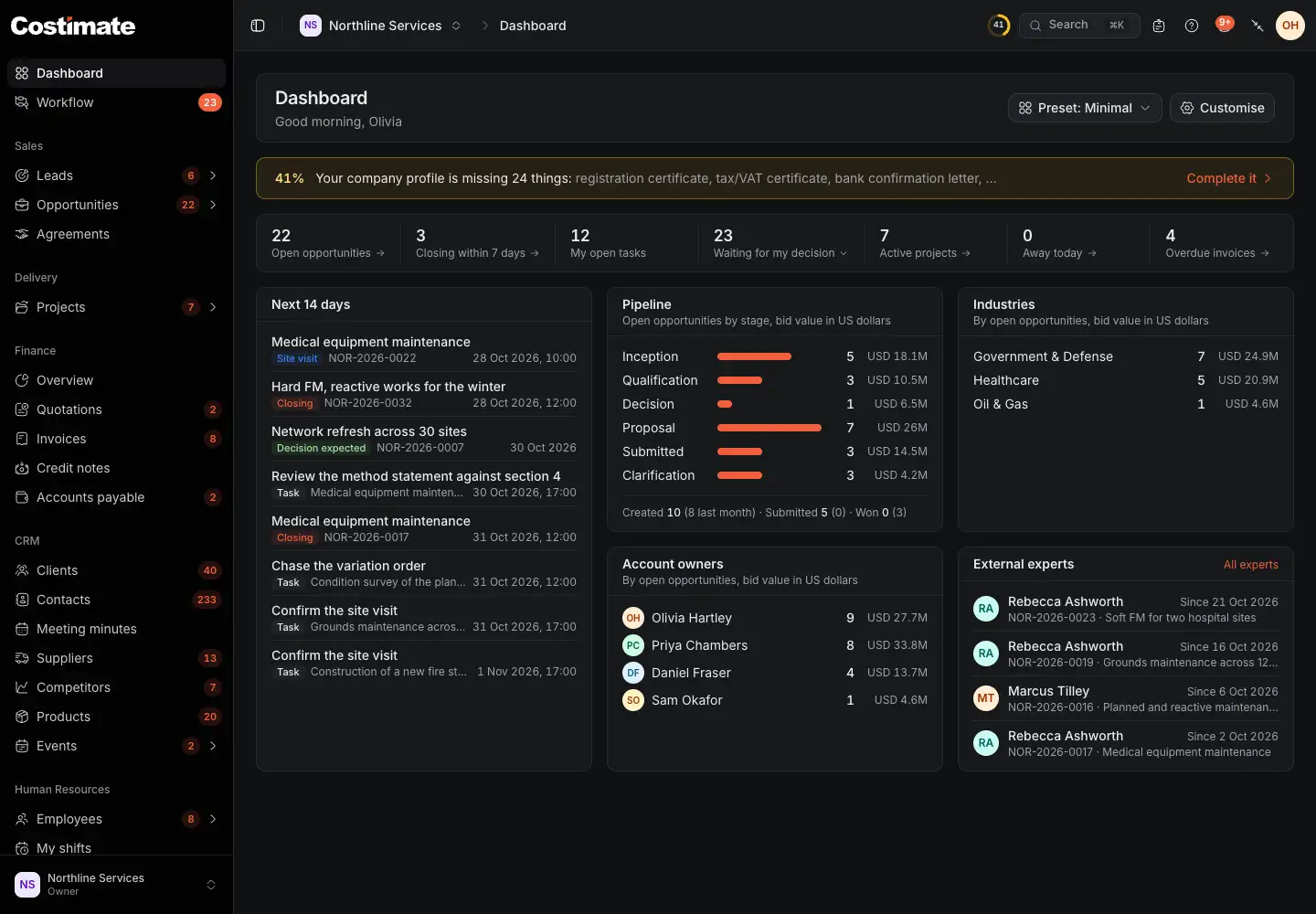
- The figures, each opening its list, except your open tasks, which is a count.
- The schedule: closing times, site visits, decisions expected and your tasks.
- Pipeline: open opportunities by stage, and this month against last.
- Industries: where most of your open opportunities are.
- External experts assigned now, for who reads the directory. Account owners is beside it.
Choose one
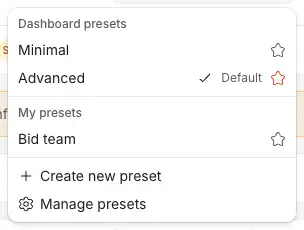
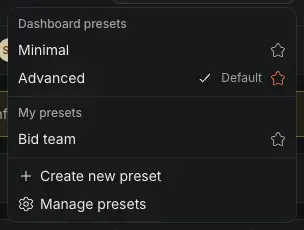
- The built-in presets. Choosing one saves nothing: you are only looking at it.
- The tick is the one you see. The star is your default, what the dashboard opens on: press it on another to change it, or on a default you chose to leave the choice to Costimate. On one Costimate chose, it keeps it as yours.
- My presets: your own.
- Create new preset: a copy of the one you are looking at, under a name of your own.
- Manage presets: rename, duplicate or delete yours.
While you have chosen no default, Costimate chooses: Minimal for a new company, and Advanced once it has at least 5 opportunities, at two or more stages, one of them submitted or beyond. It moves once and never back, and it never moves a default you chose.
Make your own
- Choose Customise.
- Drag a widget by its handle, pull its corner to resize it, or use its menu. Its menu also holds its settings.
- Choose Add widget to add one from the library.
- Choose Save as new preset, and name it.
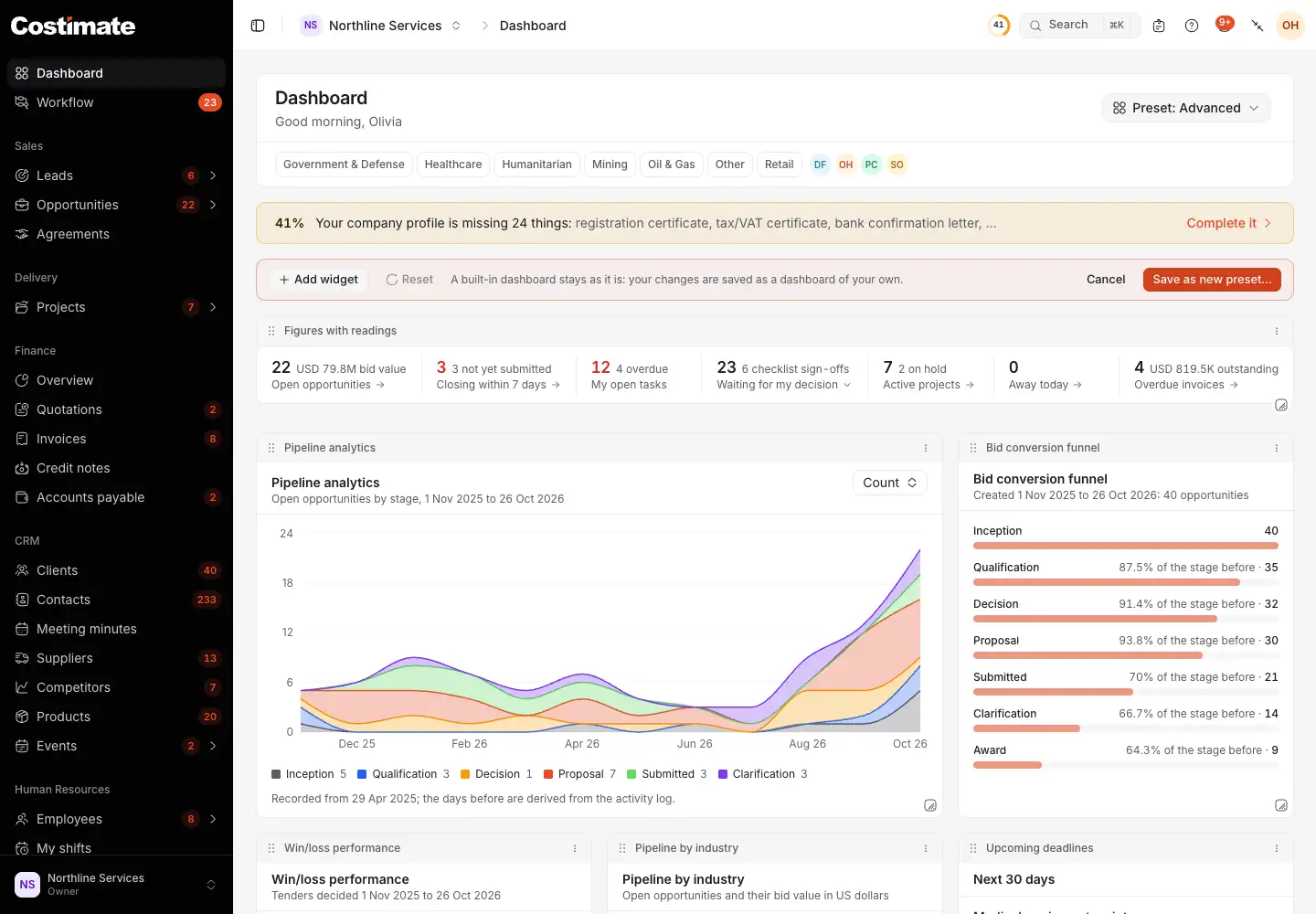
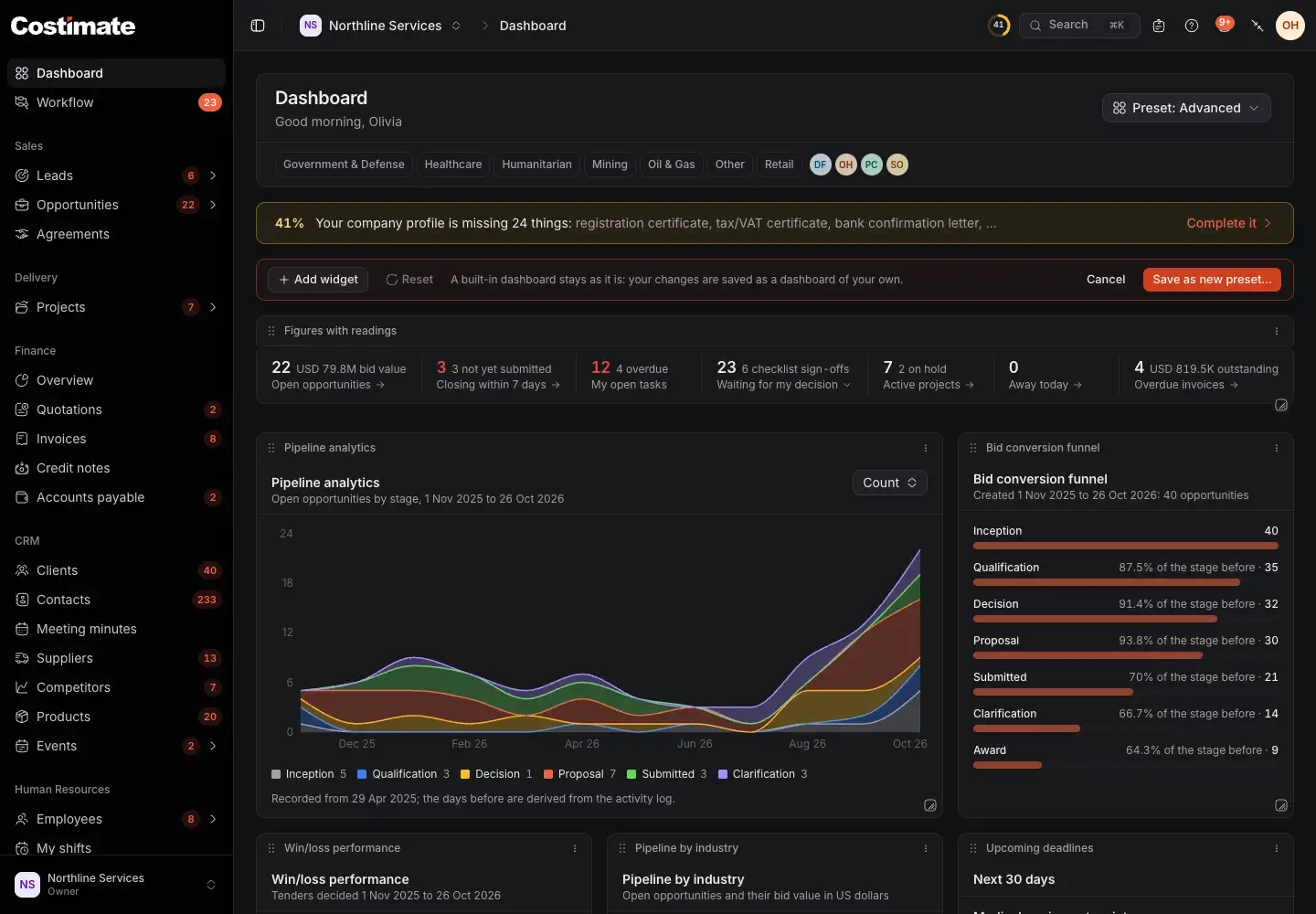
- Add widget: the library, by category. A widget can be added more than once, each with its own settings.
- Reset puts back the layout as it was last saved.
- Save as new preset. A built-in dashboard stays as it is, so your changes become a dashboard of your own. Yours has Save instead.
- A widget in its frame. Depending on the widget, its settings choose its title, period, what it counts, how many rows, and its own industry, owner or scope, which then replace the filters at the top for that block.
Cancel asks before it throws changes away, and so does leaving the page.
Good to know
- Yours alone. A dashboard you make is yours in that company. Nobody else sees it, and you have up to 20, each with its own name. In another company you start again.
- Deleting your default. You go back to the automatic one.
- On a phone, the grid is one column, with Move up and Move down in each widget's menu.
- In a read-only company, nothing here can be saved, and you can still look.