

Your brand and document templates
Keep your logos, colours and fonts in one place, choose how your proposals and invoices look, and make new templates from a description or a document you already have.
Every document a client receives is drawn from two things: your brand, which is your logos, colours and fonts, and a template, which is the layout that uses them. You set the brand once. Your company starts with a template called Costimate default, and you can add more.
Everyone in your company can read these. Changing them is for people who can change the company: the owner and admins.
Set up your brand
- Open the company profile, then Marketing documents.
- Under Brand, choose Edit.
- Add a logo for light backgrounds and one for dark backgrounds, two colours, a heading font and a text font, cover images and a line of tone words.
- Choose Save brand, or Save changes once you have one. The cover beside it shows the result.
To save typing, the drawer offers Fill from the brand book when you have uploaded a brand book, and Fill from the website when your company has a website. Each fills only what is empty, and marks it "Suggested: check it". Nothing is kept until you save.
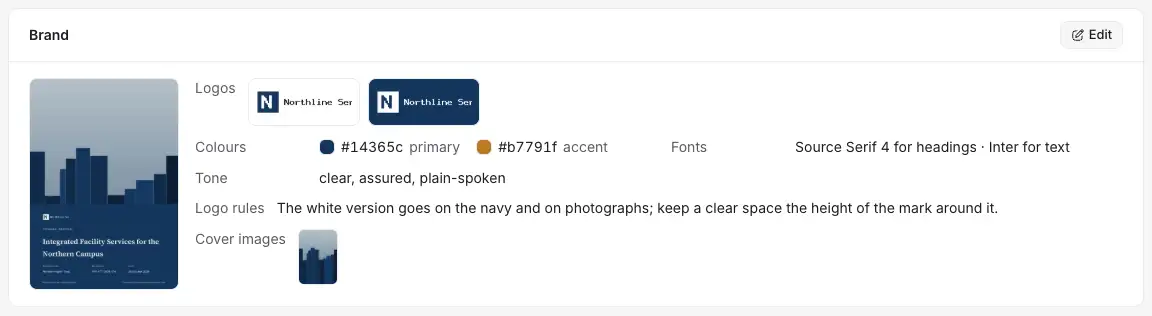
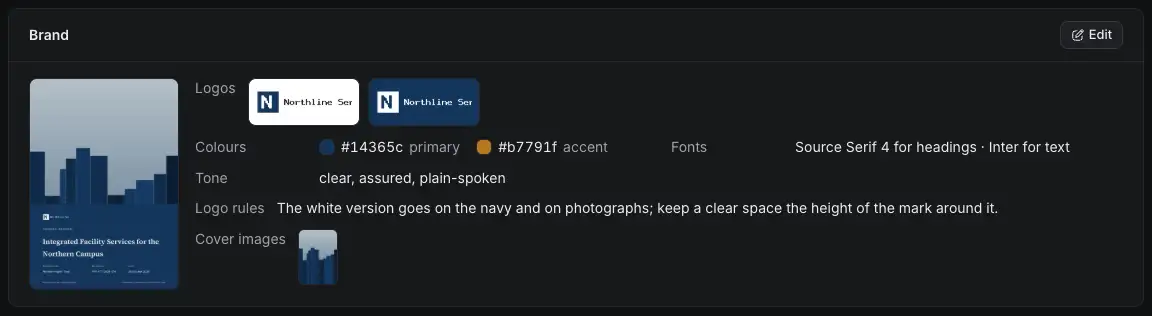
- The two logos.
- The primary colour and the accent colour.
- The fonts, chosen from a short list licensed for printing.
- Cover images, used as the background of a cover.
- The front cover of a technical proposal in this brand, drawn from the real PDF.
- Edit.
Without a brand, documents print in a plain default, ink blue with a copper accent, with your Overview logo.
Choose a template
Open the company profile, then Templates.
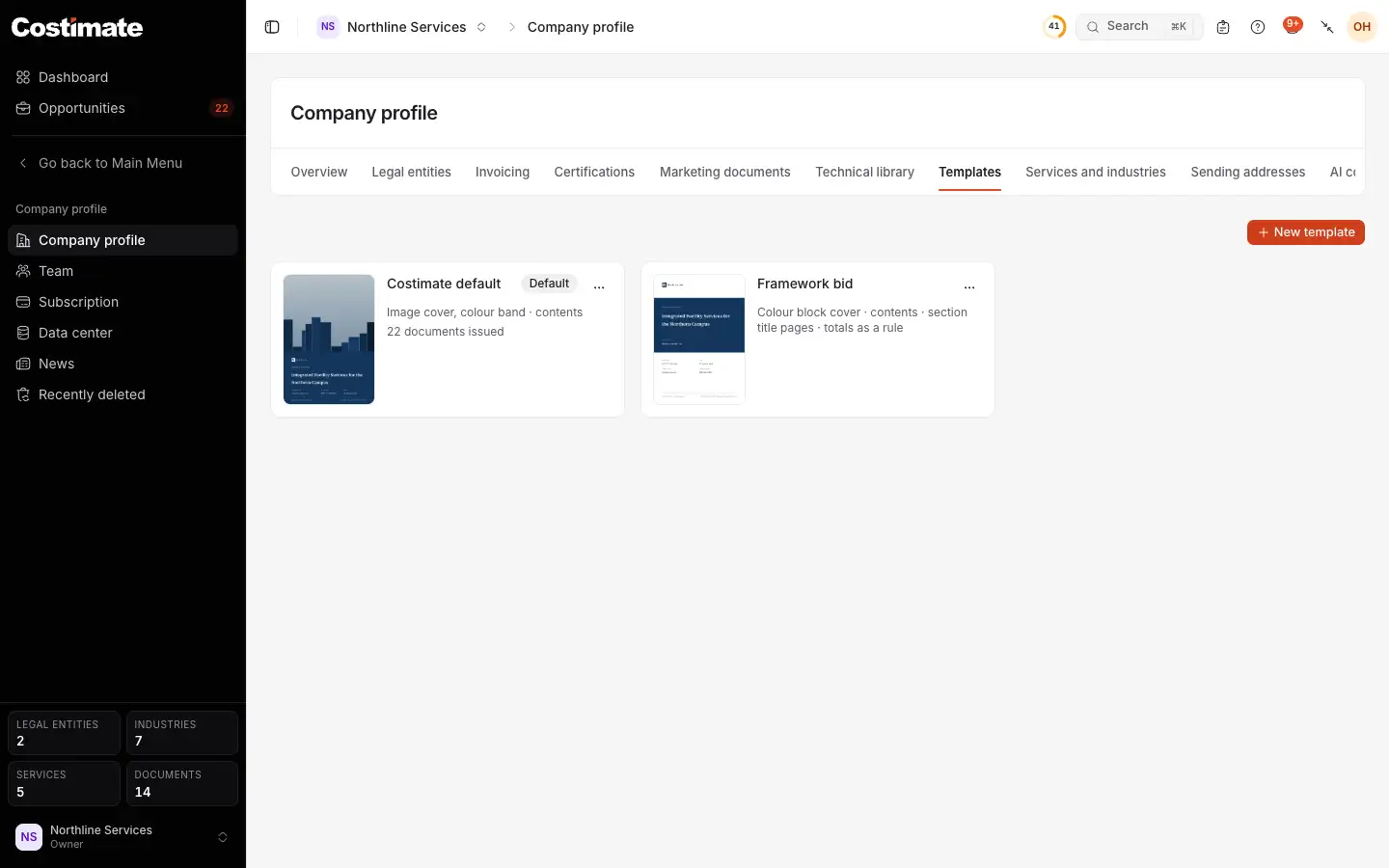
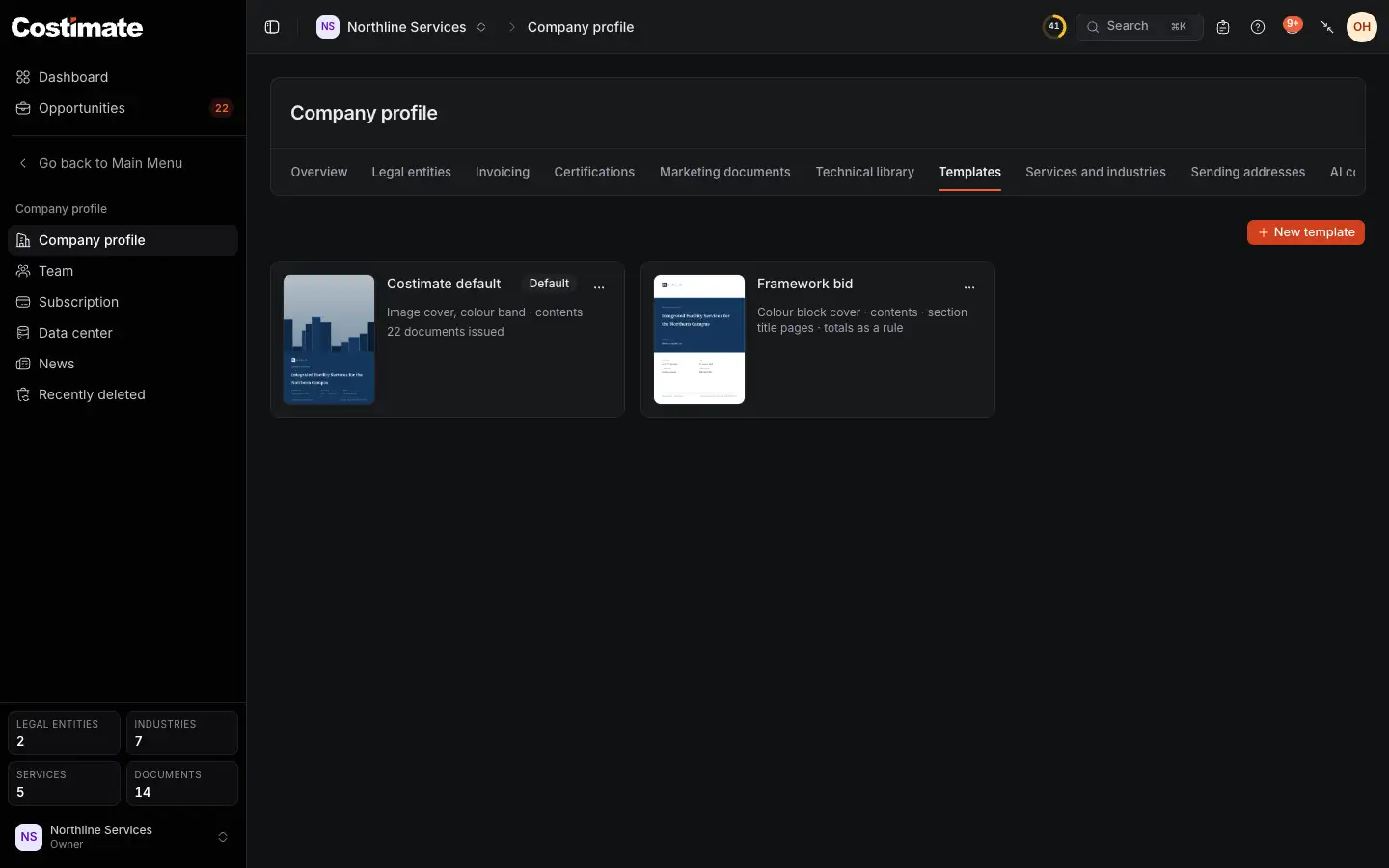
- New template.
- The cover this template draws, with your brand.
- Default: what every bid and document uses unless told otherwise.
- What uses it.
- Its menu: Edit, Duplicate, Set as default and Delete.
The default cannot be deleted, and neither can a template a document was issued with.
Make a new template
- Choose New template.
- Under Start from, describe it in words and choose Propose with AI, or upload a document you already use and choose Read with AI. The box says what it takes: a PDF, and usually a Word file or a presentation.
- Check what it proposes. Each choice it made says "Suggested: check it". You can also skip this and choose yourself.
- Give it a Name and choose Add template.
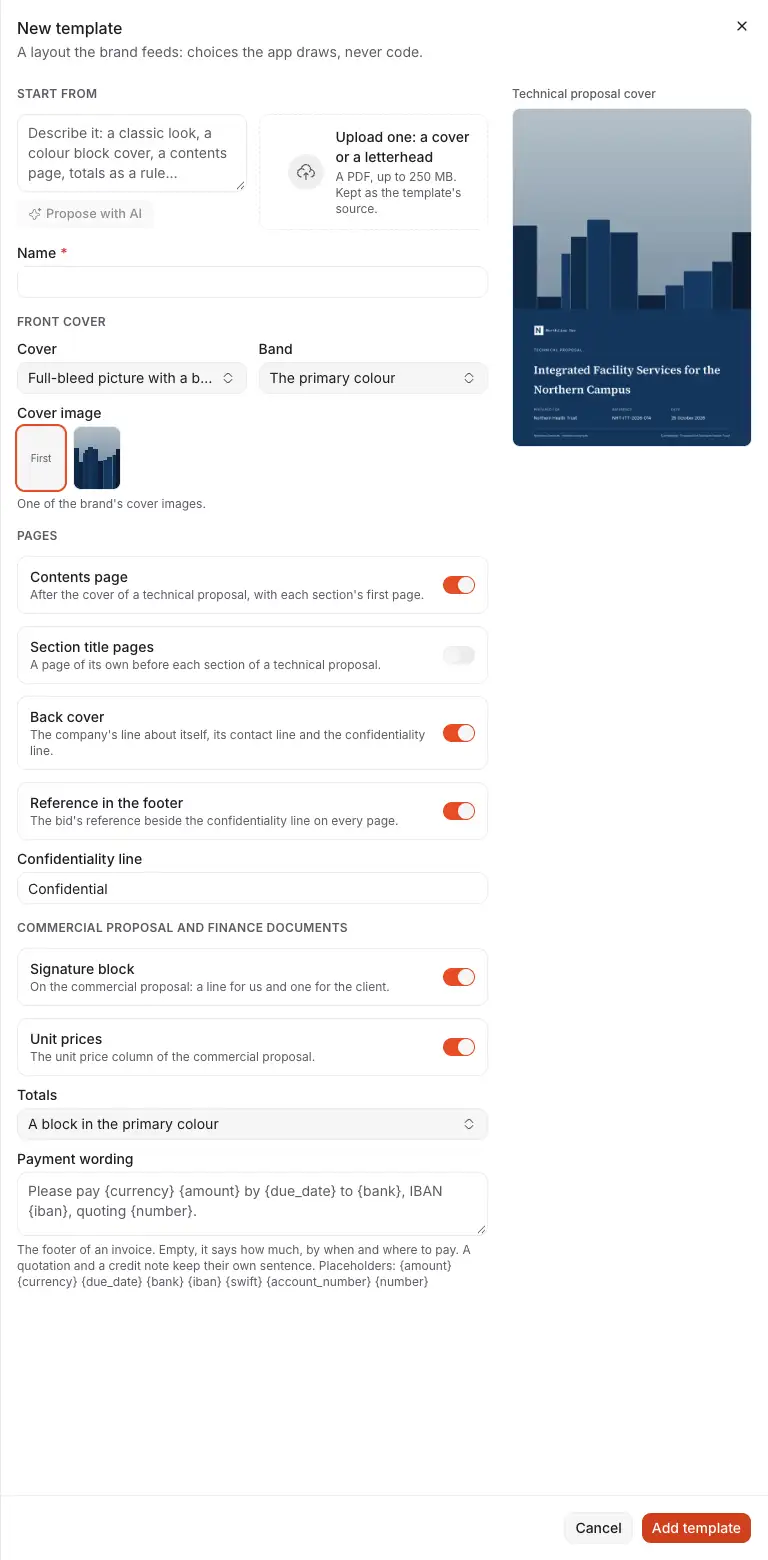
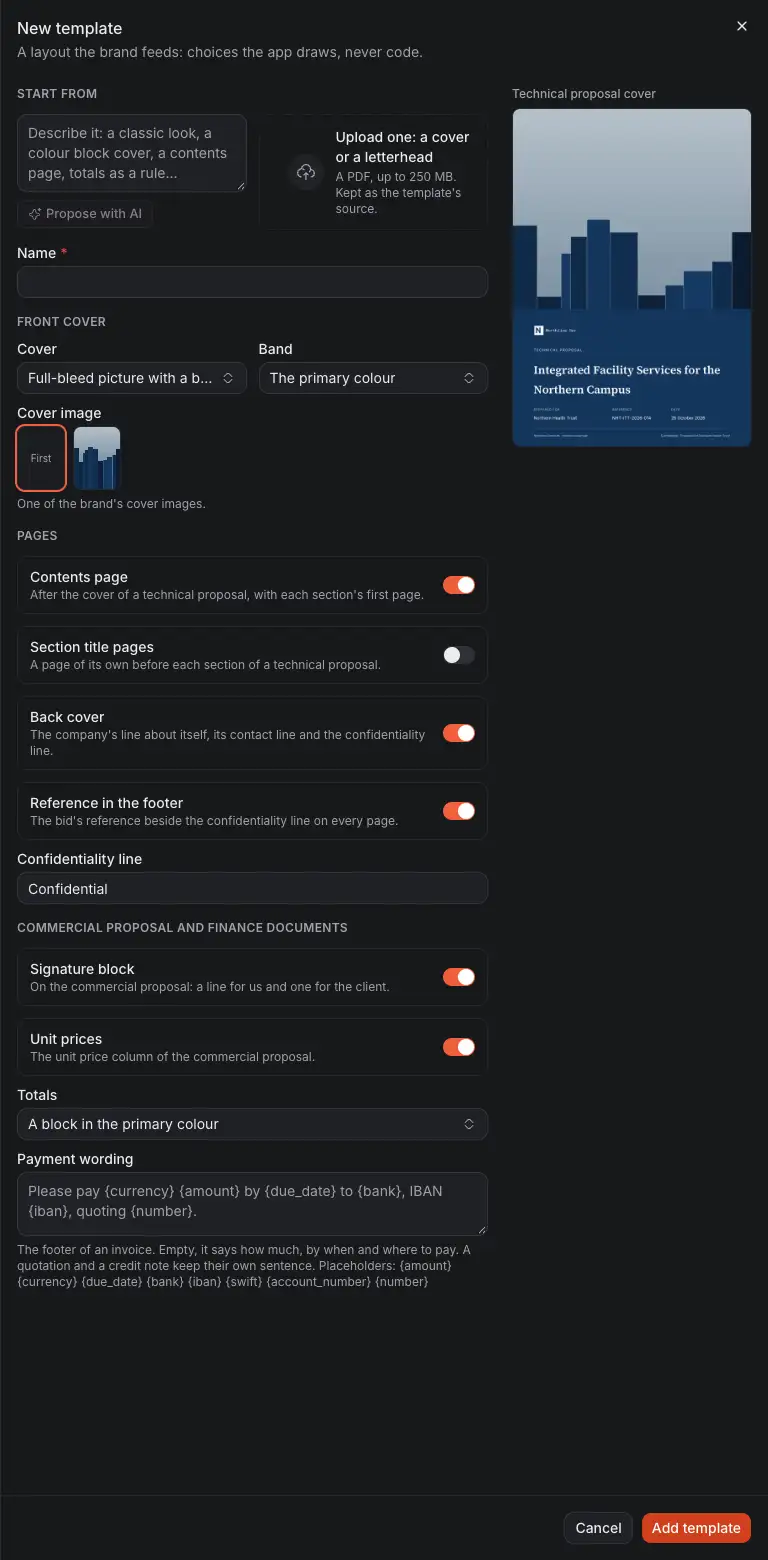
- Start from: a description or an upload.
- The name.
- Front cover: an image with a band, or a block of colour, and which of your cover images.
- Pages: a contents page, section title pages, a back cover, your reference in the footer, and the confidentiality line.
- Commercial proposal and finance documents: a signature block, unit prices, how totals look, and your payment wording, the footer of an invoice.
A bid can pick any template, and prints all its documents with the one it picks. Quotations, invoices and credit notes use the default. A template is a set of these choices. AI only proposes among them: it never writes the layout. An uploaded document is read and kept as the template's source; its pages are not copied into your documents. If the document you upload shows colours, fonts or a logo your brand does not have yet, they are offered too, and saved to your brand with the template.
Which template a document uses
| Document | Template |
|---|---|
| A bid's technical and commercial proposals, response packs and capture plan | The bid's Document template, in its Edit drawer. Empty, it is the company's default |
| One document of a technical proposal | Its own Prints with, in that document's menu, else the bid's |
| A quotation, an invoice or a credit note | The default when it is issued |
Issued documents do not change. A quotation, an invoice or a credit note keeps the template it was issued with, and its colours and fonts as they were, so it reprints the same after you change your brand or the template. A draft prints with the current default.
Good to know
- Internal documents, such as cost tables, rates, schedules and meeting minutes, keep a plain layout. The brand is for what a client receives.
- Changing the brand changes every document not yet issued, on its next print.
- Pictures are the exception: an old document prints with your current logo.