

The opportunities list
Narrow your bids by status, type, client, owner or date, lay them out as a table or a board, save the filters you use, act on several at once, and take the list to Excel.
Opportunities, under Sales, is every bid your company is working on or has finished. Everyone who can open opportunities sees the same list, except the submitted value, which each person sees only for the bids whose prices they can see.
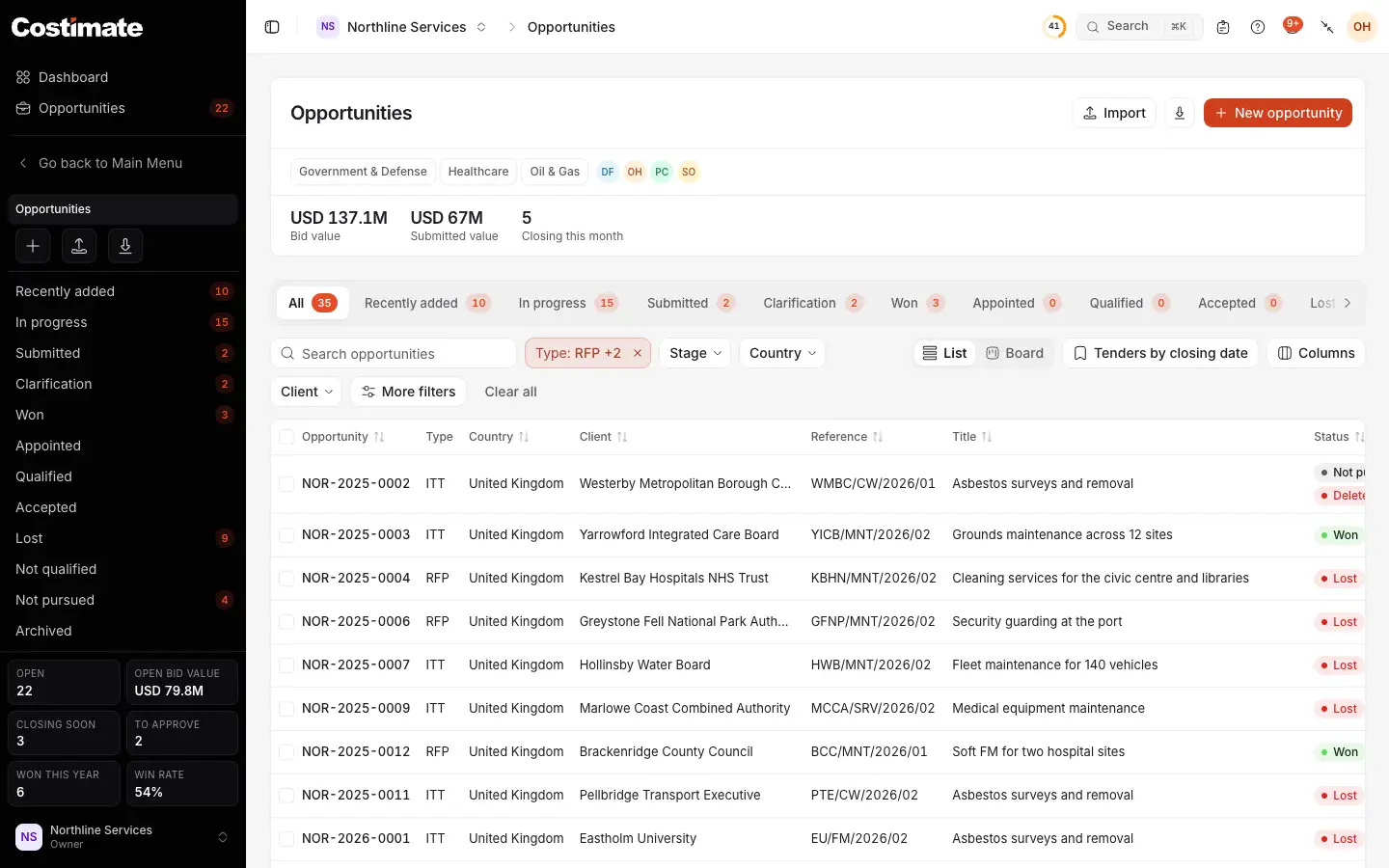
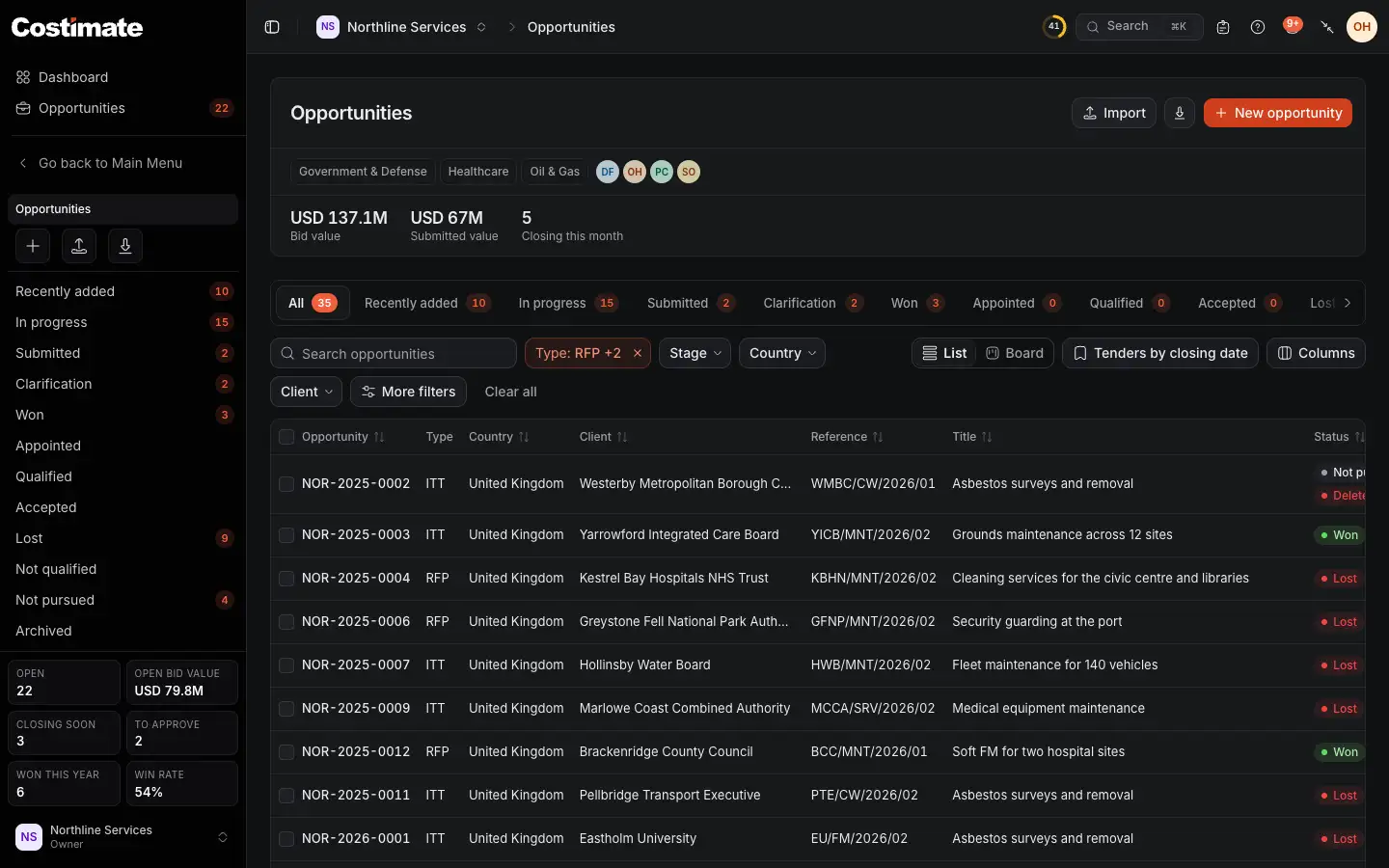
- Narrow to an industry or an account owner with one click. Below them are the list's figures: the bid value, the submitted value and what closes this month, in US dollars.
- The views by status: Recently added, the last 30 days, In progress, Submitted, Clarification, Won, Appointed, Qualified, Accepted, Lost, Not qualified and Not pursued. Each has its count.
- A filter in use. Clear all takes off every one.
- More filters: see below.
- List or Board: the same bids, with the same filters.
- Saved filters. It names the one in use, as here.
- Columns chooses what the table shows.
- Export gives the list as an Excel file.
- Tick a row, or all on the page, to act on several.
Narrow the list
- Search looks in the title, the number, the reference and the client's name.
- Type, Stage, Country and Client are always there. A type can be several at once.
- More filters holds Industry, Service type, Expert, Agreement, Account owner, Capture manager, Proposal manager, Approver and Created via, the bid value, and the days it was Released, Closing, Decision expected and Decided.
Choose a column's heading to sort by it. The address of the page holds all of this, so you can bookmark a list or send it to a colleague.
Table or board
Choose Board to see a column for each stage. Dragging a card asks for the same move as Move to. See Opportunities and stages.
In the table, Columns also pins the number, client or title so they stay as you scroll sideways. Your columns are remembered for you. Some start hidden, such as Agreement, Decision expected and Industry.
Save your filters
Open Saved filters, or the name of the one in use.
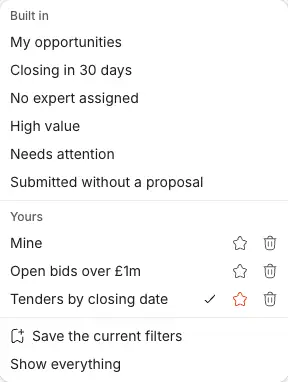
- Built in: filters everyone has, such as My opportunities, Closing in 30 days, Needs attention and Submitted without a proposal.
- Yours: only you see them.
- The star makes one the filter the list opens with. Choose it again to stop.
- Save the current filters names what the list shows now. A saved filter also remembers Board, so it opens as one.
- Show everything takes the filter off.
Needs attention is a bid still being prepared that closes within 14 days, or has passed its closing date. My opportunities are those where you are the account owner, capture manager or proposal manager.
Act on several at once
Tick the rows, and a bar appears over the table.


- How many are ticked.
- Move to the next stage.
- Close as lost or not qualified.
- Archive. Delete is beside it, for people who can delete.
Each row goes through the same rules as if you did it alone. One that cannot move is skipped, and the message says which. A move that needs approval waits for its approver. You can select up to 100 rows.
Each row's menu has the same actions, except closing, with Open, Edit and Copy details, which puts the bid in a few lines on your clipboard. Someone who can change a bid but not delete one has Request deletion instead, which goes to the people who decide on Workflow.
Archive a bid
Archive takes a bid out of the list without touching it. Archived, under Opportunities in the left menu, lists them, and Restore brings one back. A bid with a project cannot be deleted, so archive it instead.
Take it to Excel
- Export gives the rows the list shows, with its search and filters. People who cannot see prices get no submitted value, and someone who sees only some bids' prices gets them for those bids.
- Import adds bids from a file. Tick Update opportunities that already exist to update those it finds by their number too. On Free it is not available once you have used your 5 opportunities. See Import and export with Excel.
Good to know
- On Free, the figures show how many of your 5 opportunities you have used, and New opportunity says so when there is no room.
- In the left menu, the list's own figures are for today: what is open, what closes within 7 days, what waits for an approver, what was won this year, and the win rate. Appointed bids count as wins there, but never as won value.