

Tasks, files and the activity of a bid
Give out the work of a bid and talk about it on its task, keep its documents in folders, and read everything that happened in one log.
Three tabs of a bid hold the everyday work around it. Tasks says who does what by when. Files keeps its documents. Activity is its history. Everyone who can open the bid can read them. Adding to them takes the right to change the bid, with three exceptions: anyone who can open the bid can write in a task's conversation, whoever a task is given to or owned by can report its progress, and recording a meeting takes the right to add contacts.
Tasks
- Open the bid, then Tasks, and choose New task.
- Type the Title, and pick who it is Given to, when it is Due and its Owner, the person who answers for it.
- Set its Priority and Category, and add Instructions if they help.
- Tick Also a deliverable if the tender asks for this and it should be on the checklist.
- Choose Add task.
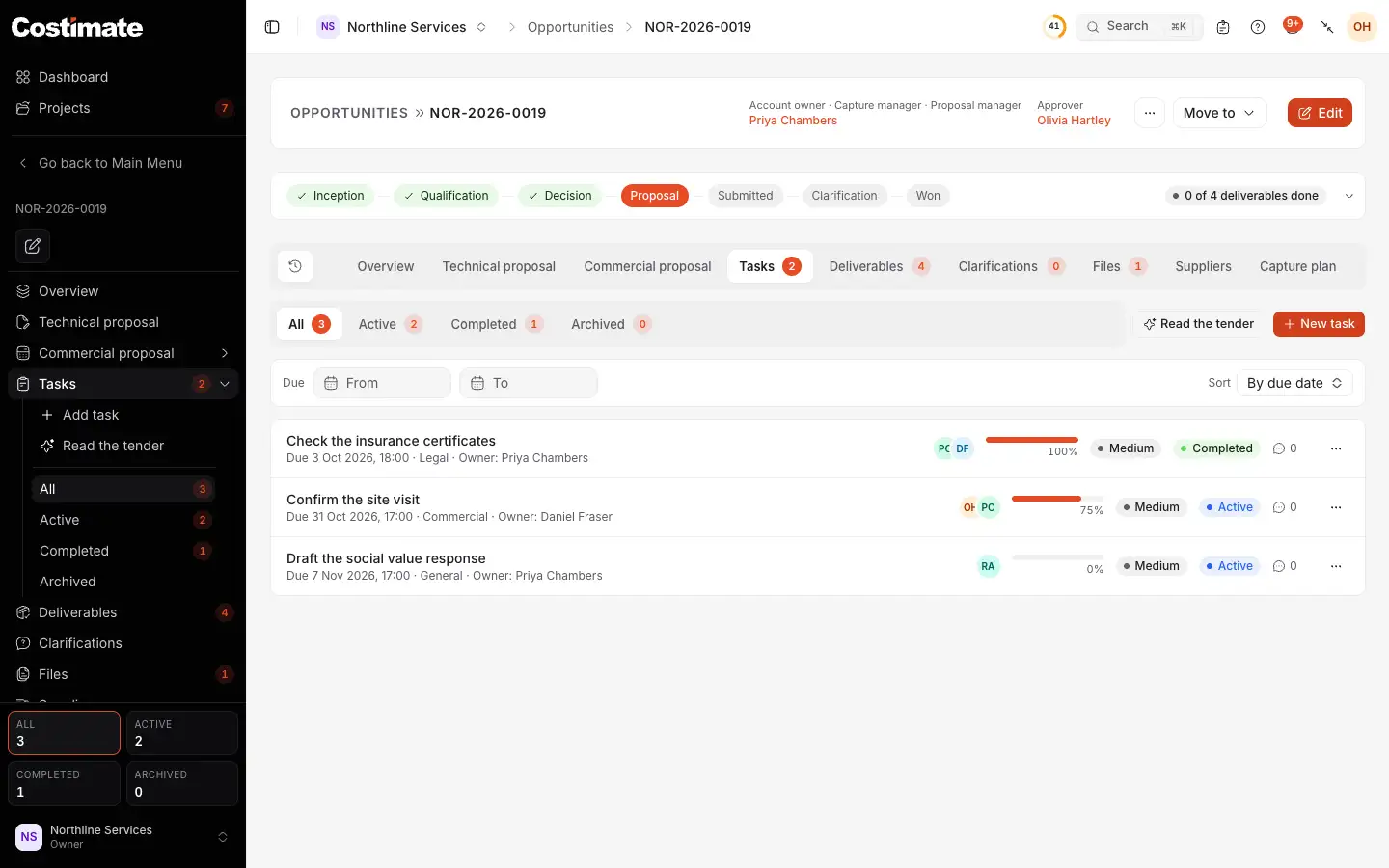
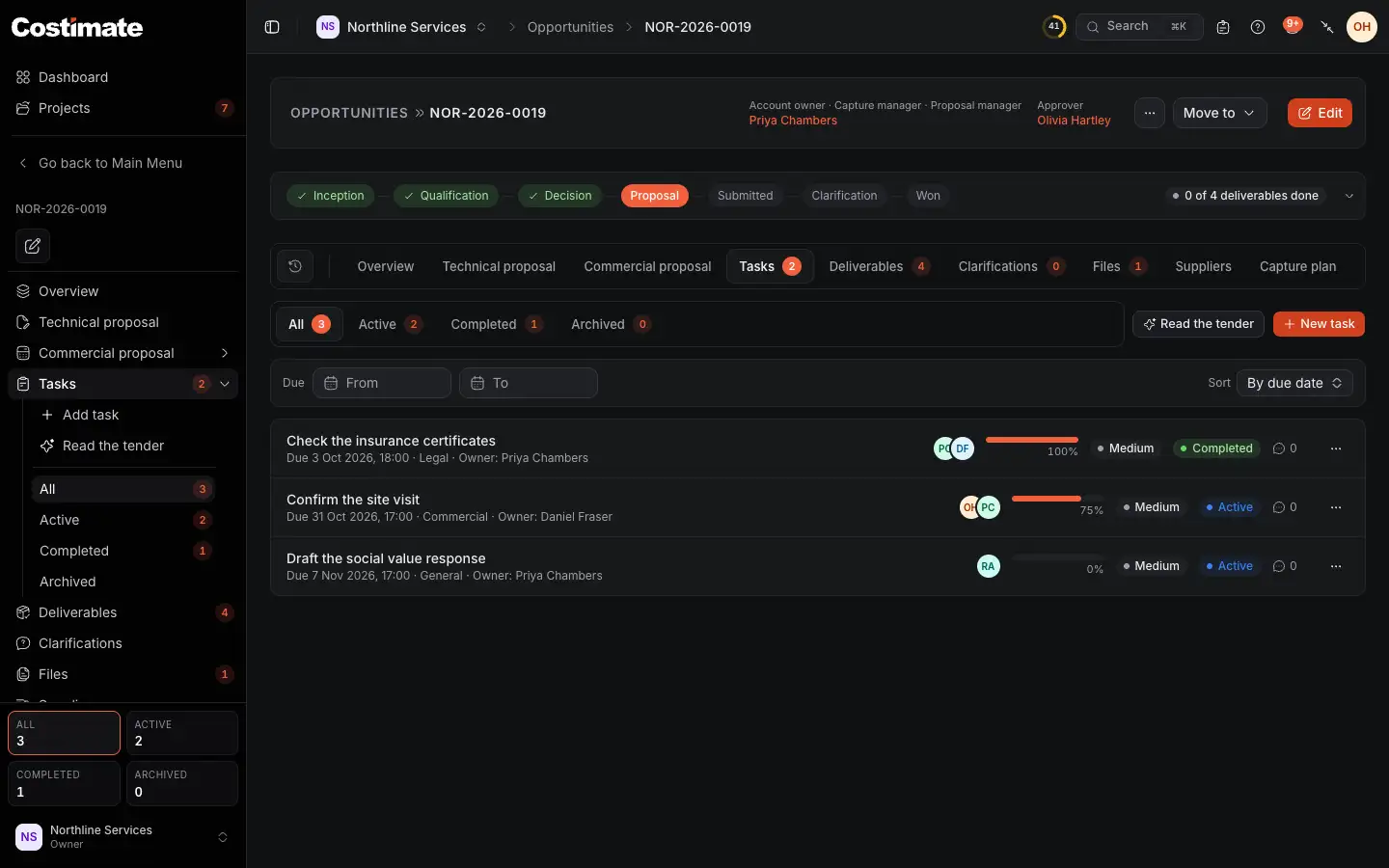
- The views: All, Active, Completed and Archived. Under them are a range of due days, and the sort.
- Read the tender can make a task for each deliverable. See Read the tender with AI.
- New task.
- A task, with when it is due, its category and who owns it.
- How far it has come, with who it is given to beside it.
Choose a task to open it.
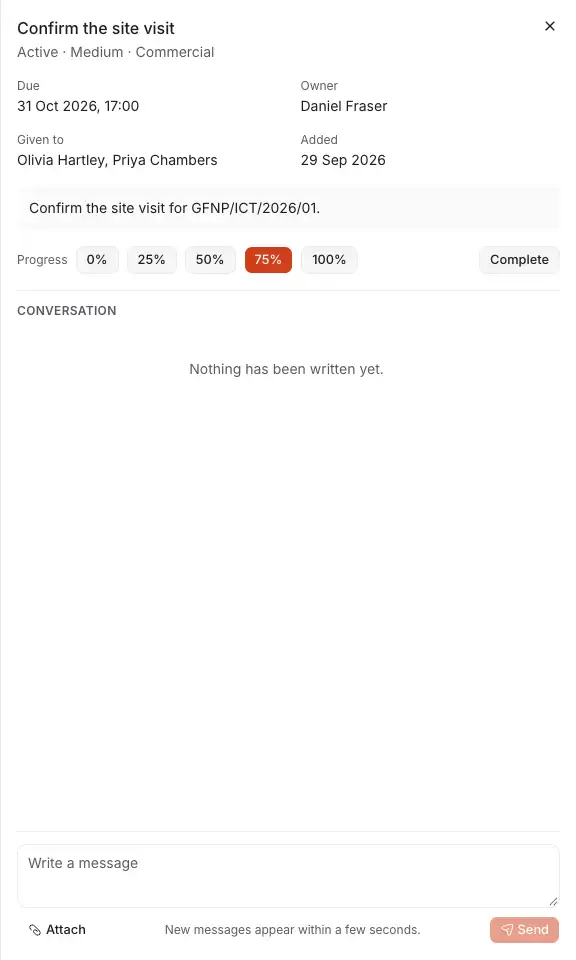
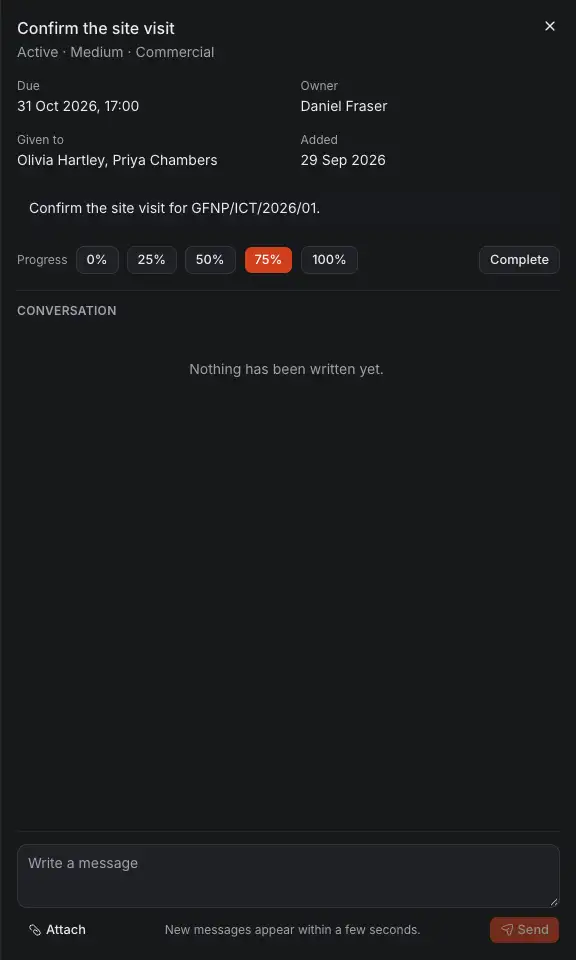
- Who owns it and who it is given to.
- Progress: choose how far it has come.
- Complete finishes it.
- Its conversation, for everyone who can open the bid.
- Write a message, and attach a file if you need to. New messages appear within a few seconds.
A task given to the bid's expert appears in their portal, where they can answer on it too. See My business.
Files
Open the bid, then Files. It works like a file explorer.
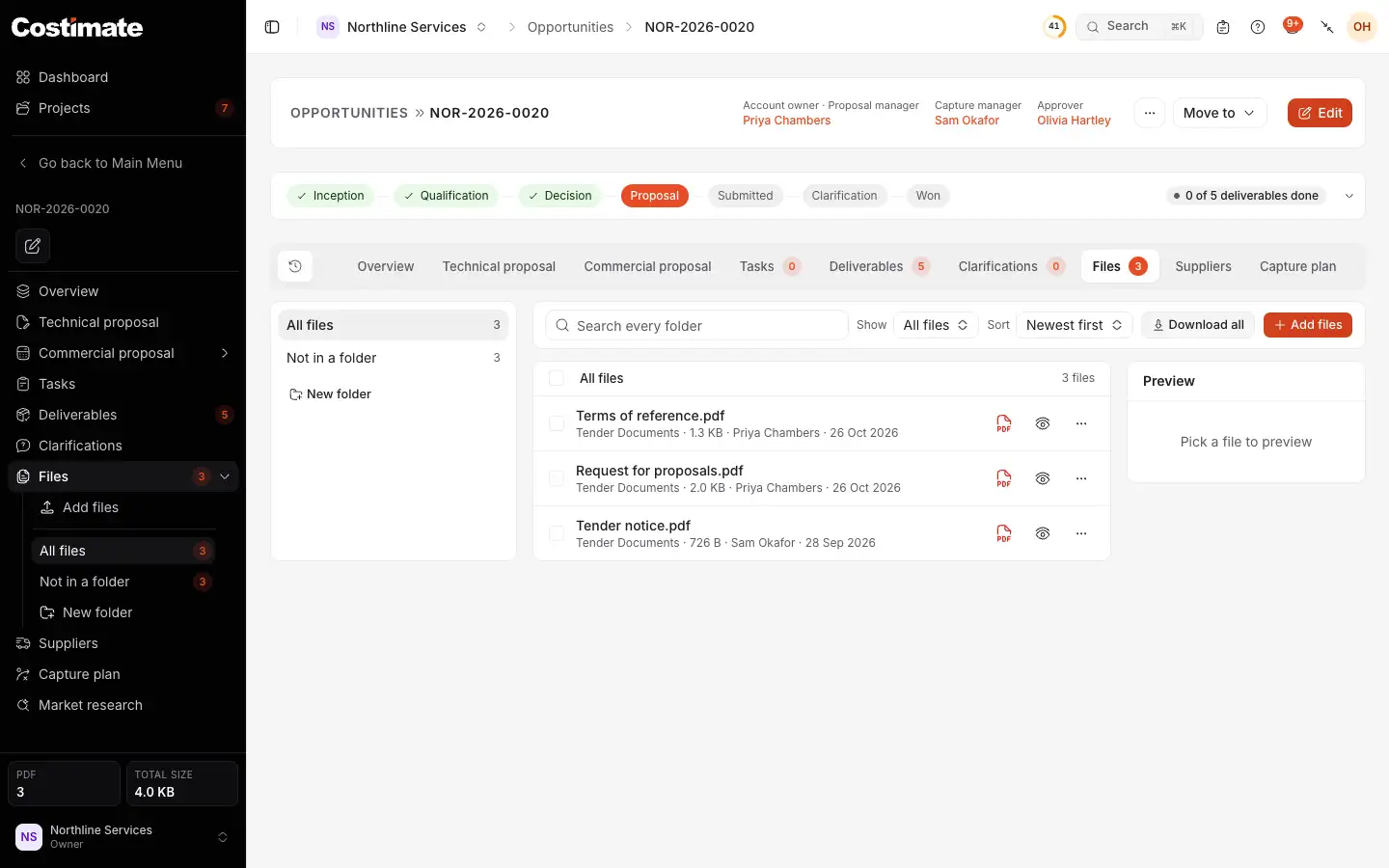
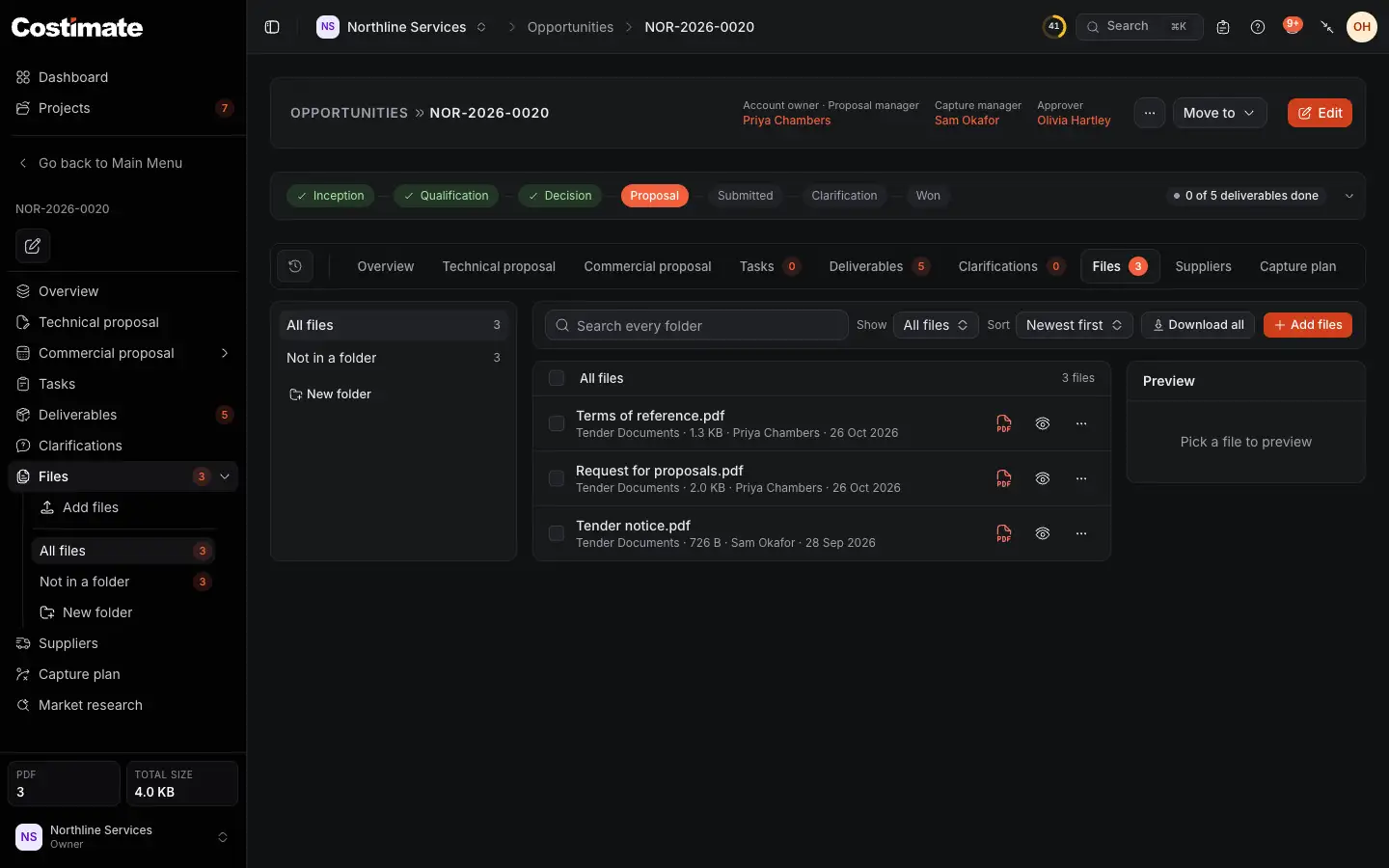
- The folders. All files is the top, and Not in a folder lists the files in none.
- New folder. Drag a file onto a folder to move it.
- Add files: up to 250 MB each. They are sent in parts, so a large file can take a moment.
- Download all gives you every file of this tab as a zip, but not the Files of deliverables. A folder's menu has Download as a zip.
- Each file, with its category, size, who added it and when. Its menu has Edit or move and Delete.
- Preview: choose a file to read it here.
Show and the search look across every folder. Tick files to move or download several at once. An expiry within 30 days, or one already past, is said on the row.
A file marked Shared with the expert can be read by the bid's expert in their portal. One marked On the client page is also listed on your client's record. The tender's files are what Read the tender reads.
Under the list, Files of deliverables holds the originals and the completed files of the checklist.
Activity
Open the bid, then Activity, the clock before its other tabs: one timeline, newest first.
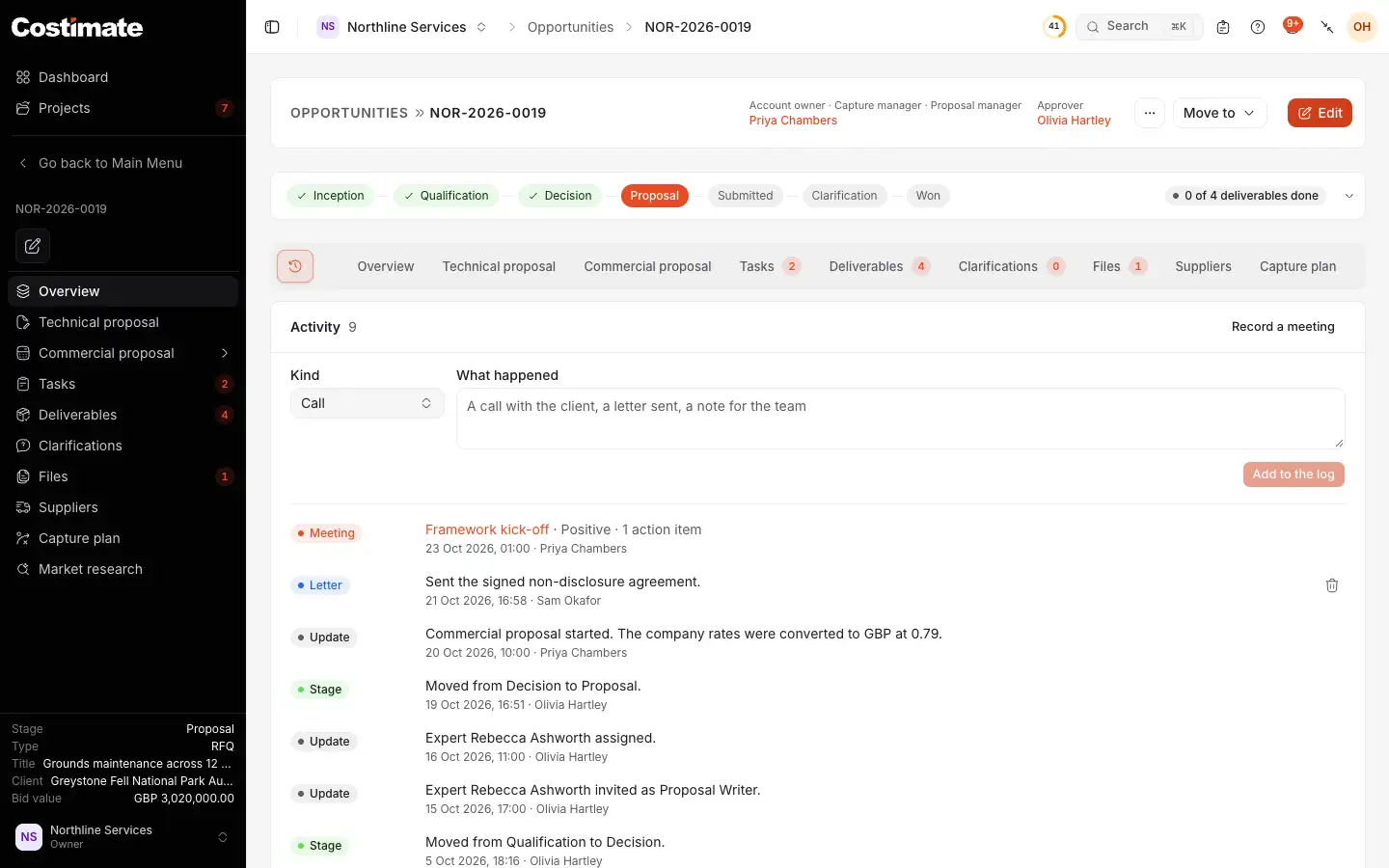
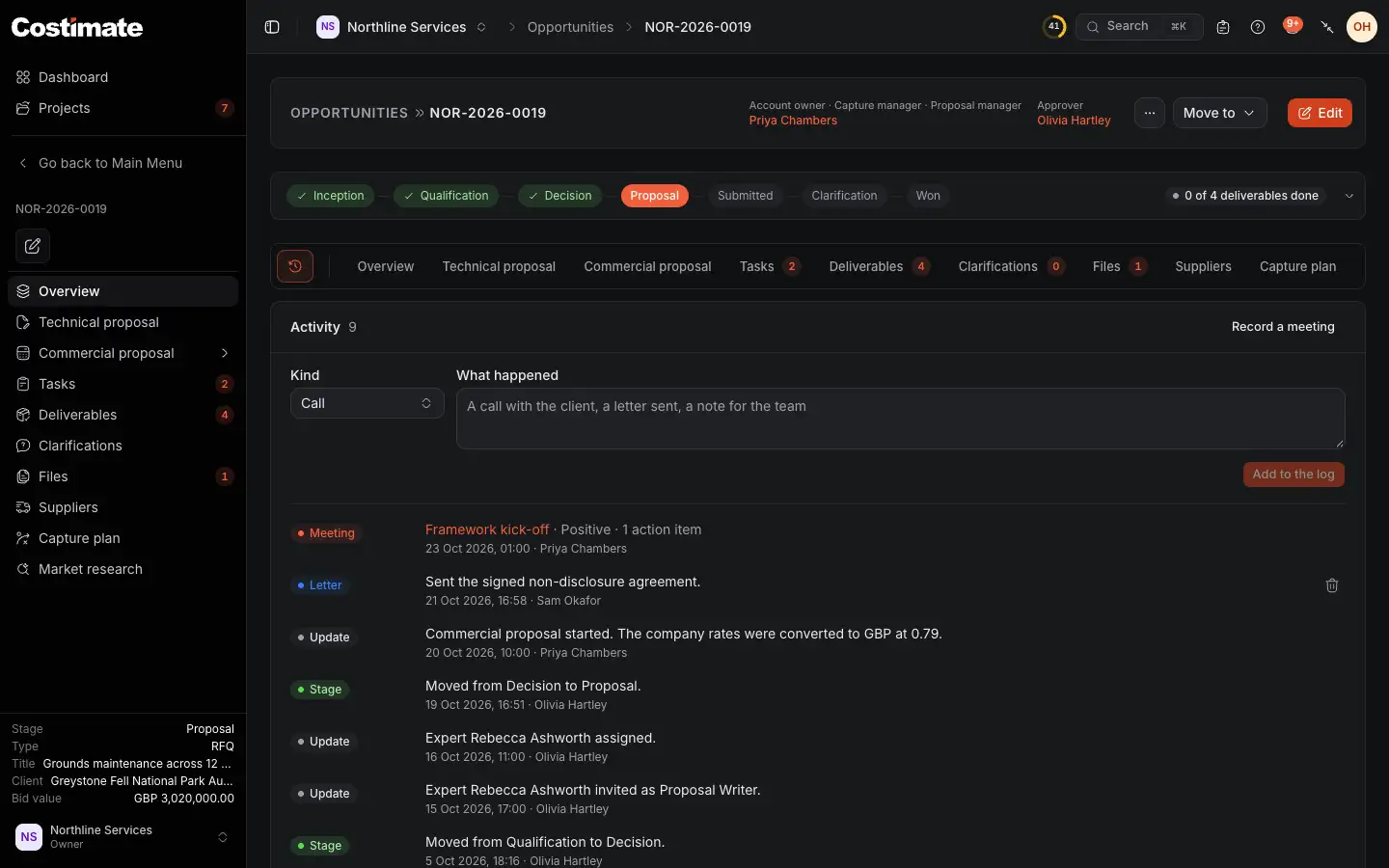
- Record a meeting opens the form for meeting minutes.
- Kind: a Call, an Email, a Letter or a Note.
- Add to the log.
- A meeting about the bid, from its minutes.
- What Costimate writes by itself: stage moves, changes of the submitted value, the expert, the archive and the agreement.
Someone who can change the bid can remove an entry they wrote, and one who can also approve its moves can remove anyone's. What Costimate wrote stays. Show more reads further back.
An email can be logged by hand: pick Email, say What happened without amounts, then the direction, the subject and the full text if you want to keep it. It states prices is on by default, so only people who can see prices read the full text. The subject and What happened are open to everyone who opens the bid. An AI app you connected can log one too, marked with its sparkle. Costimate itself never reads a mailbox.
Prices stay hidden. An entry that says a price says it only to people who can see this bid's prices, on this tab and on the Overview.
Good to know
- The left menu's section for the bid has Tasks and Files with their counts. Activity is only on the page.
- Everything that is deleted here is gone: a task, a file and a typed entry do not go to Recently deleted. The bid itself does.