

Suppliers and products
Keep who you buy from, with their bank accounts and what they quoted on your bids, and the catalogue of what you buy, with its stock and its prices.
Suppliers are who you buy from. Products are what you buy and keep: equipment, parts, materials and more. Both are under CRM in the left menu. Your bids, projects and bills pick from them.
By default, everyone in your company can read them. Suppliers are added and changed by the owner, admins, proposal managers and capture managers. Products are added and changed by the owner and admins. The owner and admins delete both.
Add a supplier
- Choose New supplier.
- Type the Name. It is the only field you must fill, and no two of your suppliers share a name.
- Choose the Type: Supplier, Subcontractor or Partner.
- Choose Add supplier.
Copy from starts from a supplier you have, and Complete with AI reads the supplier's website, or searches for its name, to fill the fields that are still empty. Each one stays marked until you confirm or change it. Service types says what it does. Relationship is your own view of it: Very good, Neutral, Poor or Blacklisted.
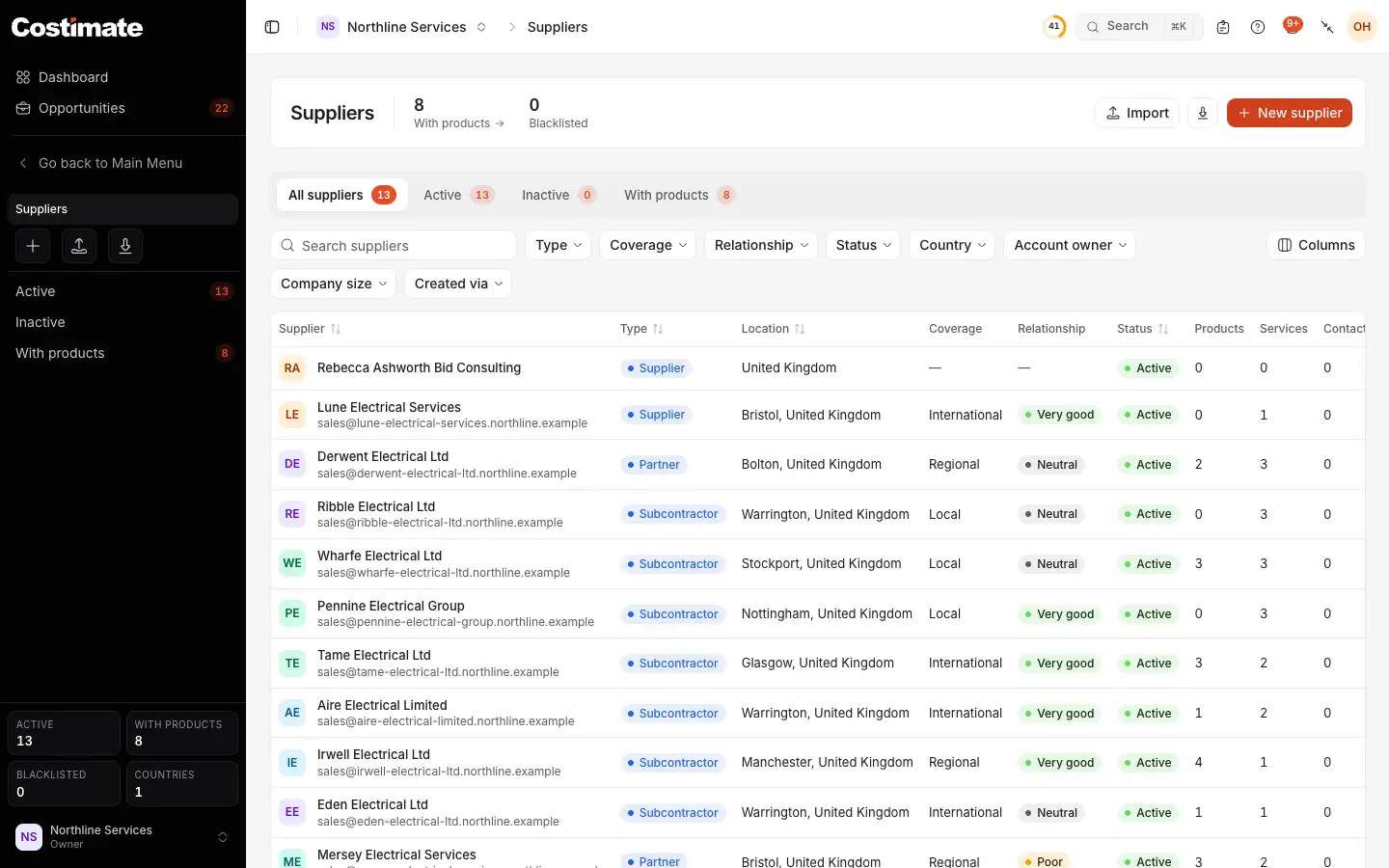
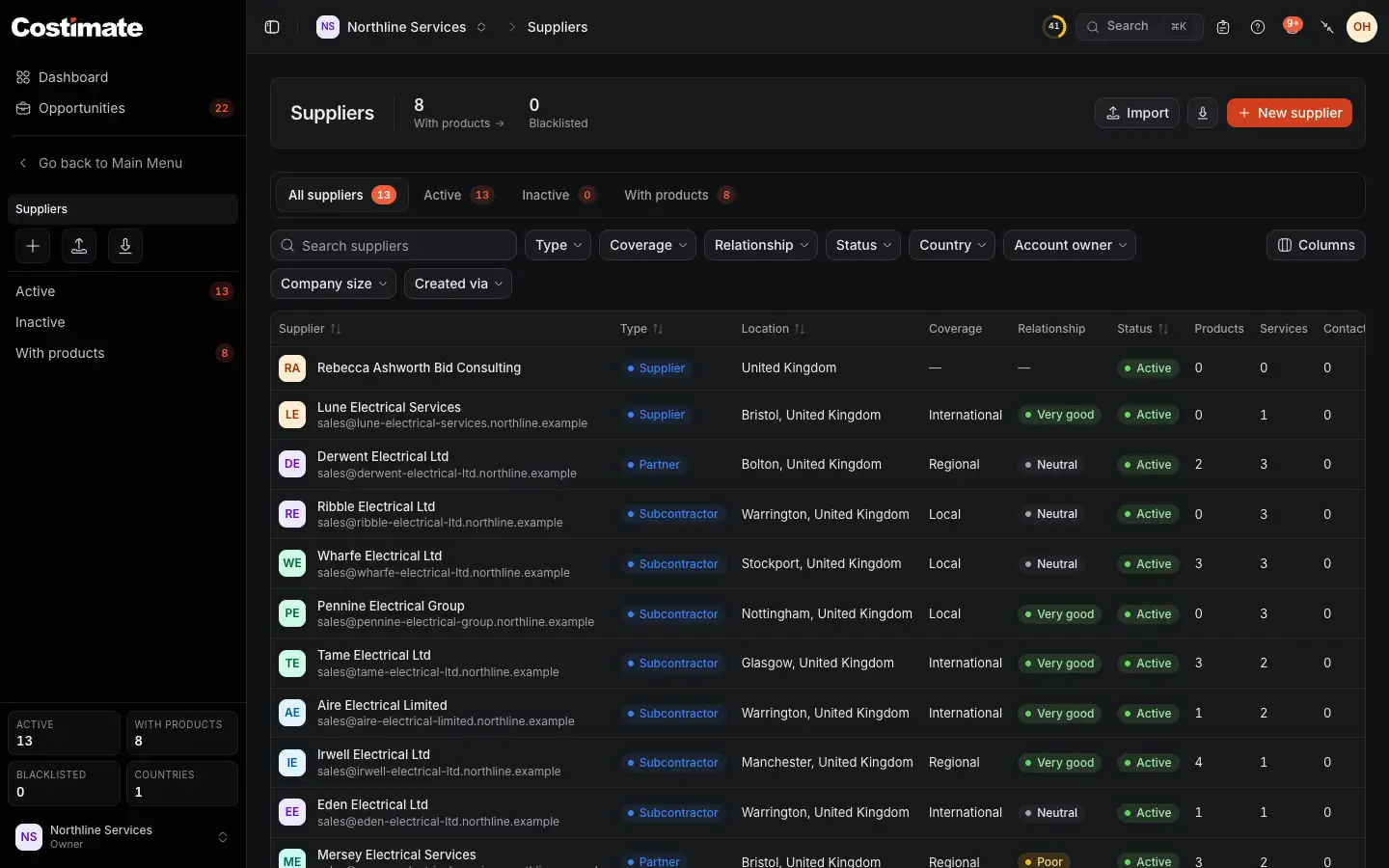
- How many have products, and how many you marked Blacklisted.
- New supplier. Import and the export of the list are beside it.
- The filters. Created via, at the end, finds what an AI app added.
- Its type.
- How many products you have prices for from it. Further right are its services, contacts and account owner.
A supplier's page
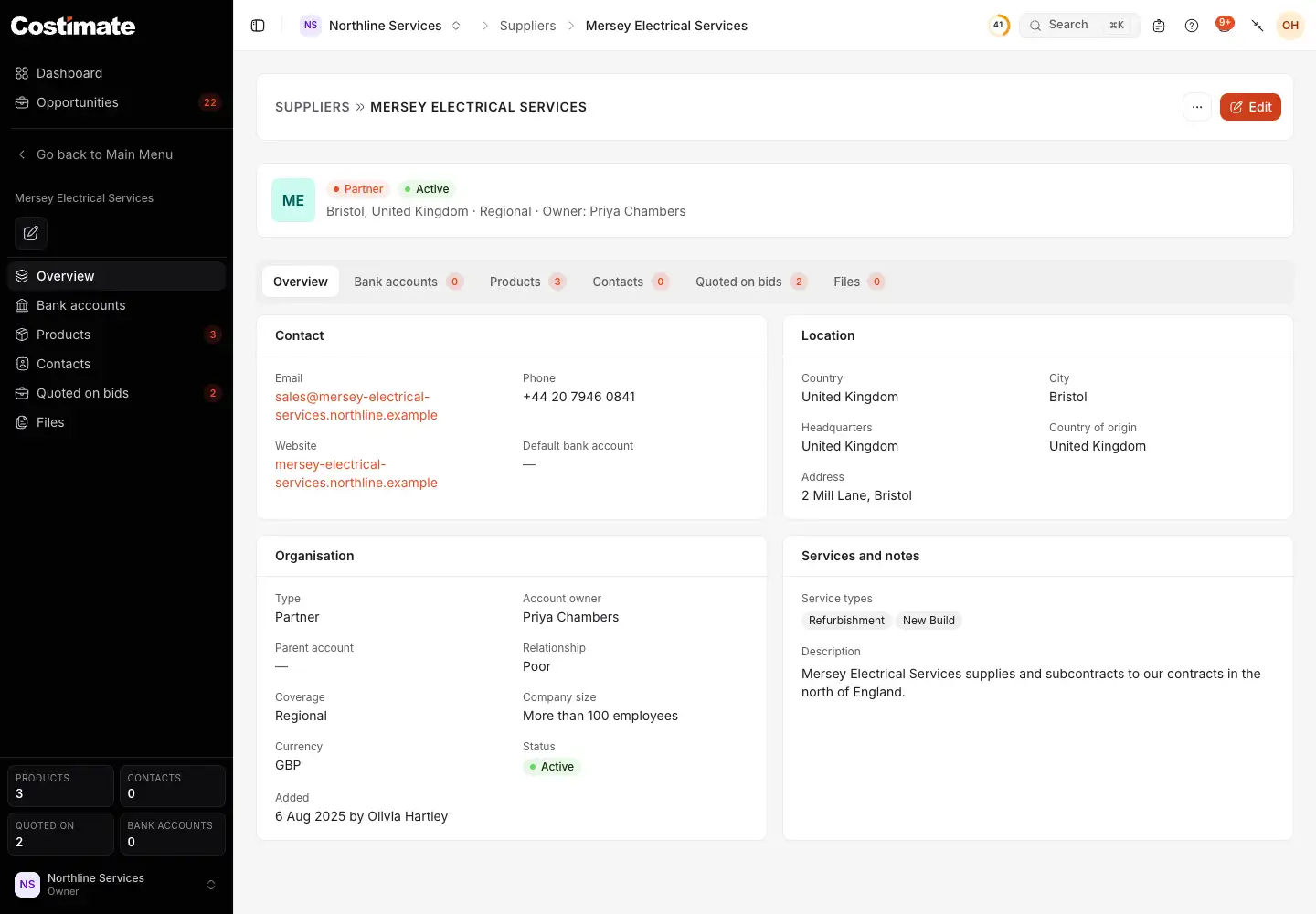
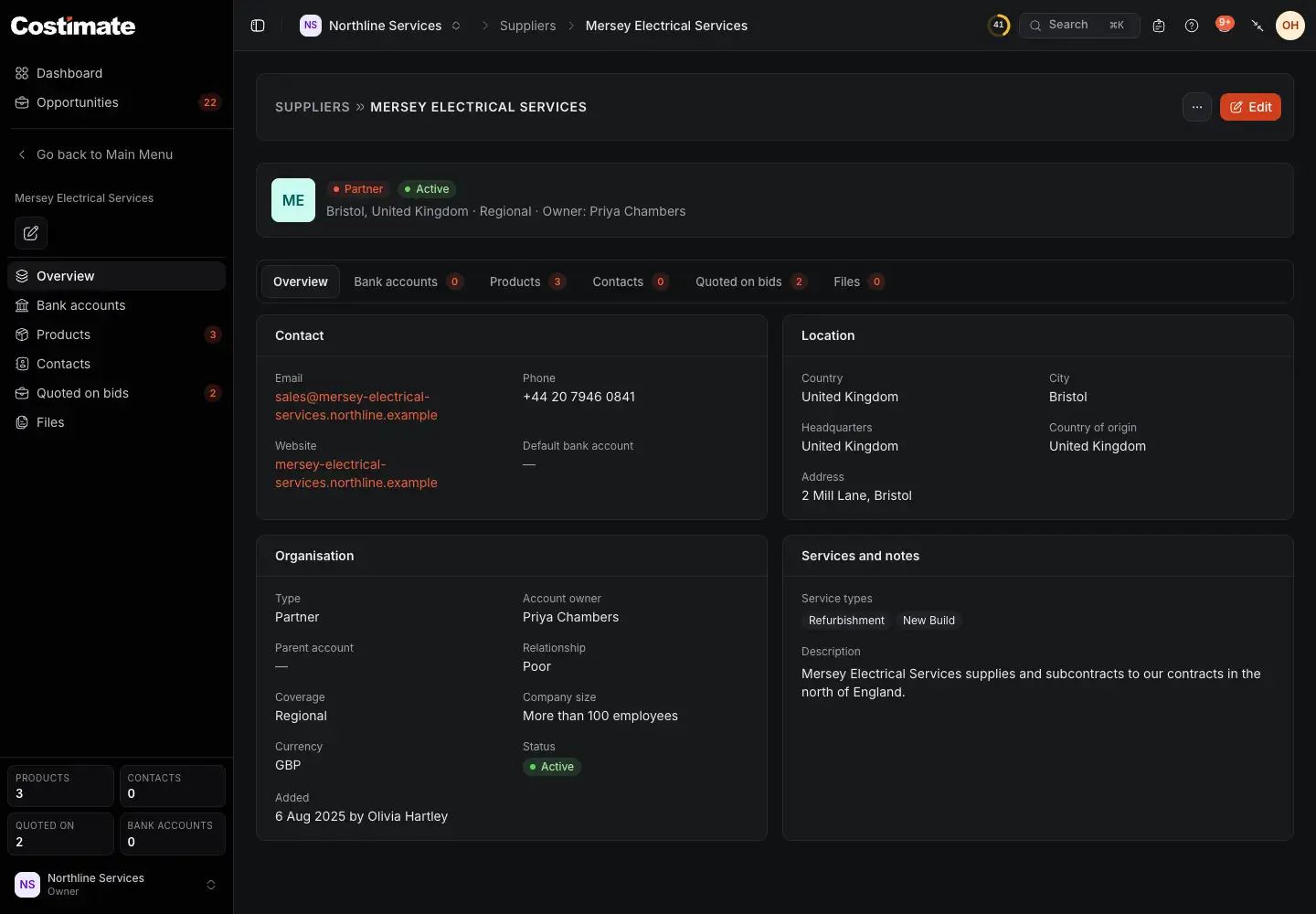
- Edit. Its menu holds Delete.
- Bank accounts: where you pay it, one of them the Default account. An IBAN must be whole to be kept, and the bank's name is suggested as you type.
- Products: every product it has a price for, with its part number, lead time and minimum order.
- Quoted on bids: what it quoted on your bids, with the quantity, price, status and whether it reached the proposal. A person adds these on the bid. See Suppliers and market research for a bid.
- What it does.
Contacts lists the people there, and Files your papers about it. A supplier that is one of the experts you work with is made for you the first time their invoice arrives.
Add a product
- Choose New product.
- Choose the Category. Each has its own fields, and a product keeps its category once it is added.
- Type the Name, and pick the Unit of measure.
- Choose Add product.
Leave SKU empty to have one generated. Suggest with AI, beside the name, fills what a product of that kind commonly has, from what the form already says of it and nothing looked up: these are guesses, prices among them, so each stays marked until you confirm or change it. It never fills a number that identifies one item: an SKU, a serial, or a part number. Identifiers keeps the codes others know the product by, such as a barcode or a manufacturer's part number.
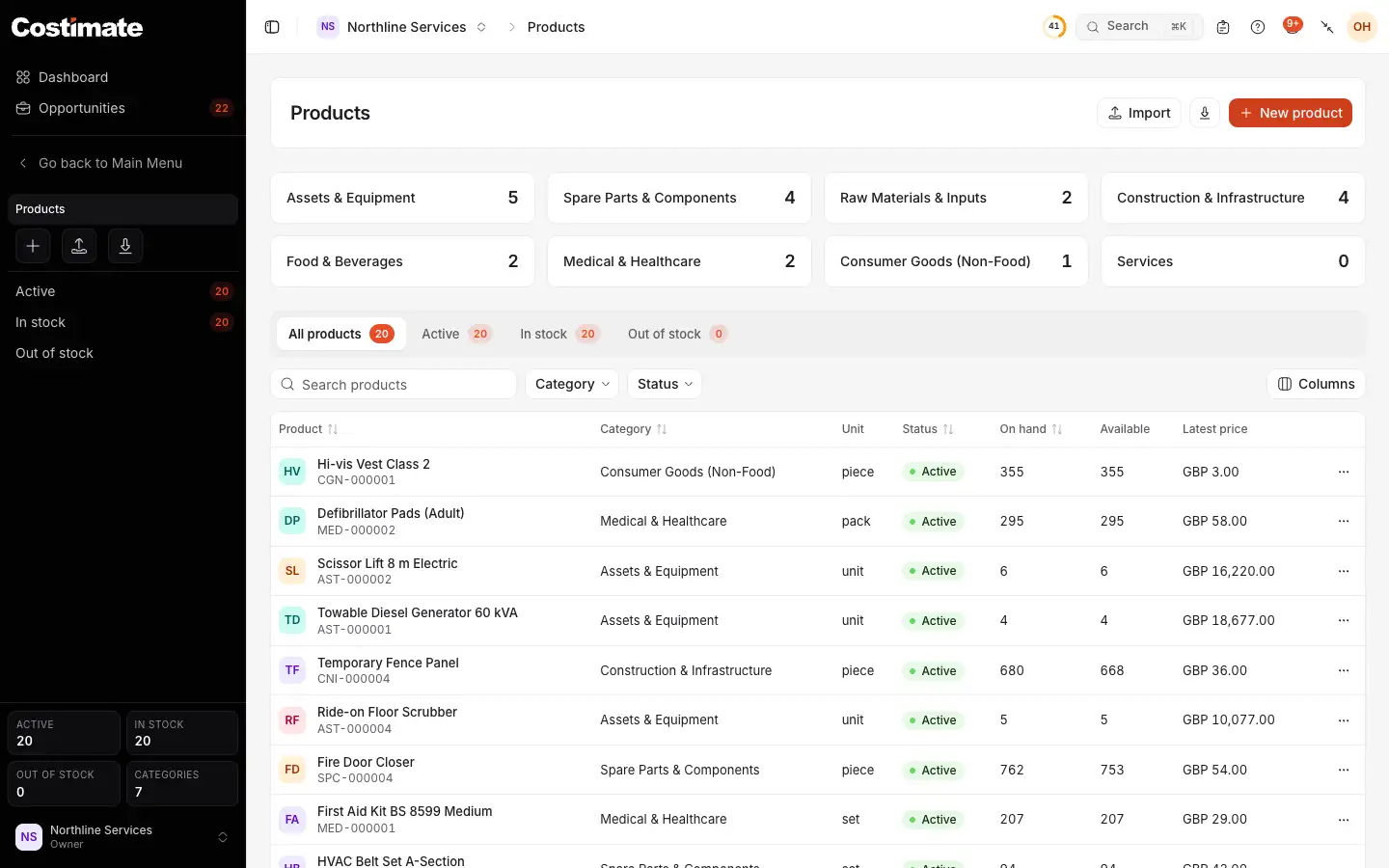
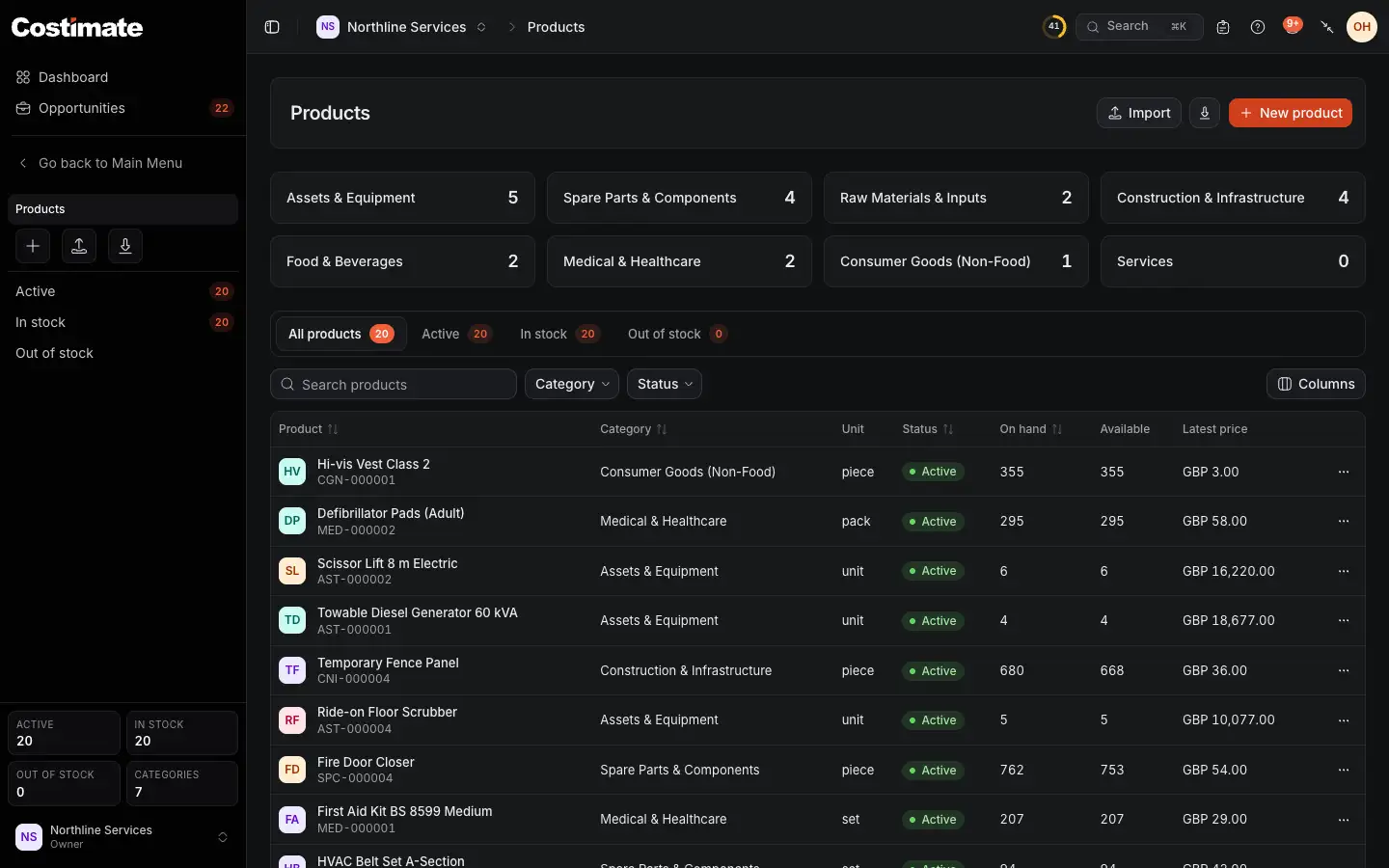
- How many you have in each category: Assets & Equipment, Spare Parts & Components, Raw Materials & Inputs, Construction & Infrastructure, Food & Beverages, Medical & Healthcare, Consumer Goods (Non-Food) and Services.
- New product. Import and the export of the list are beside it.
- The views, by status and whether it is in stock.
- What you have, in all your places.
- Its latest price from a supplier.
A product's page
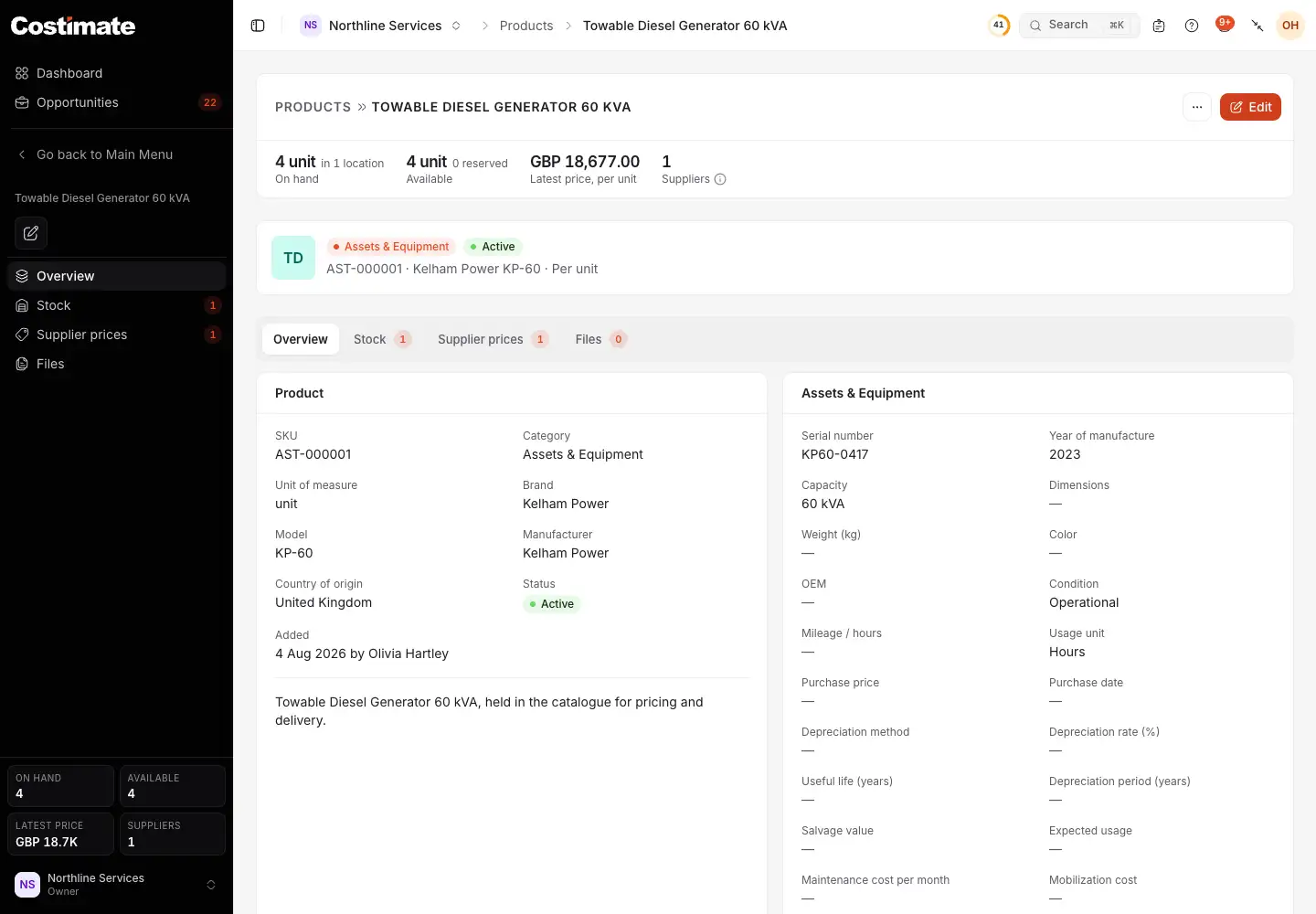
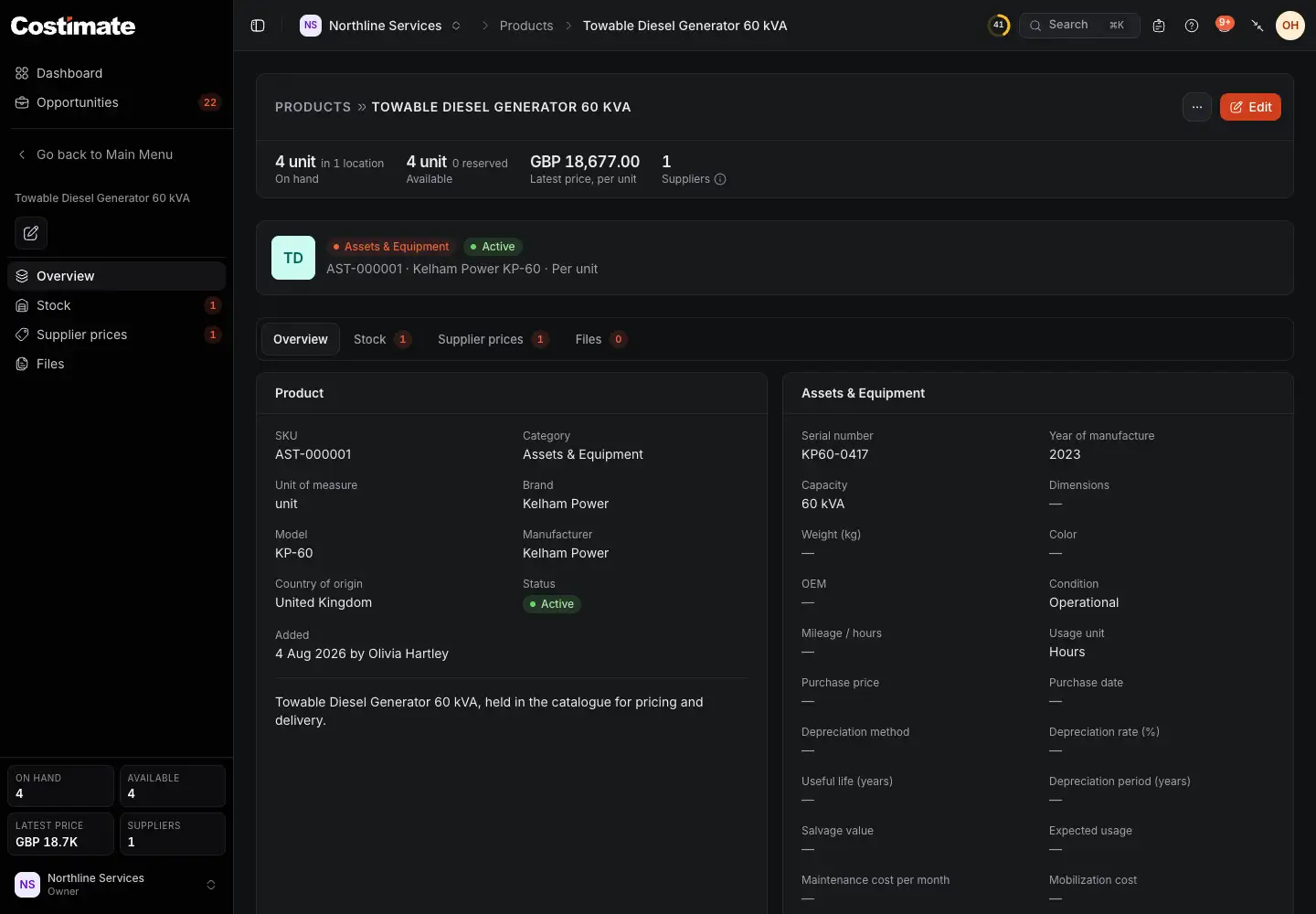
- What you have on hand, and what is available after what is reserved.
- The latest price per unit, and from how many suppliers.
- Stock: where you keep it.
- Supplier prices: each supplier's price per unit, from the day it is valid, with its part number, lead time, minimum order and Incoterm. A new price is a new row, so the old ones stay as a record.
- The fields of its category. An asset has its serial number, condition, purchase and depreciation.
A spare part names the assets it fits, and an asset lists its Spare parts.
Stock
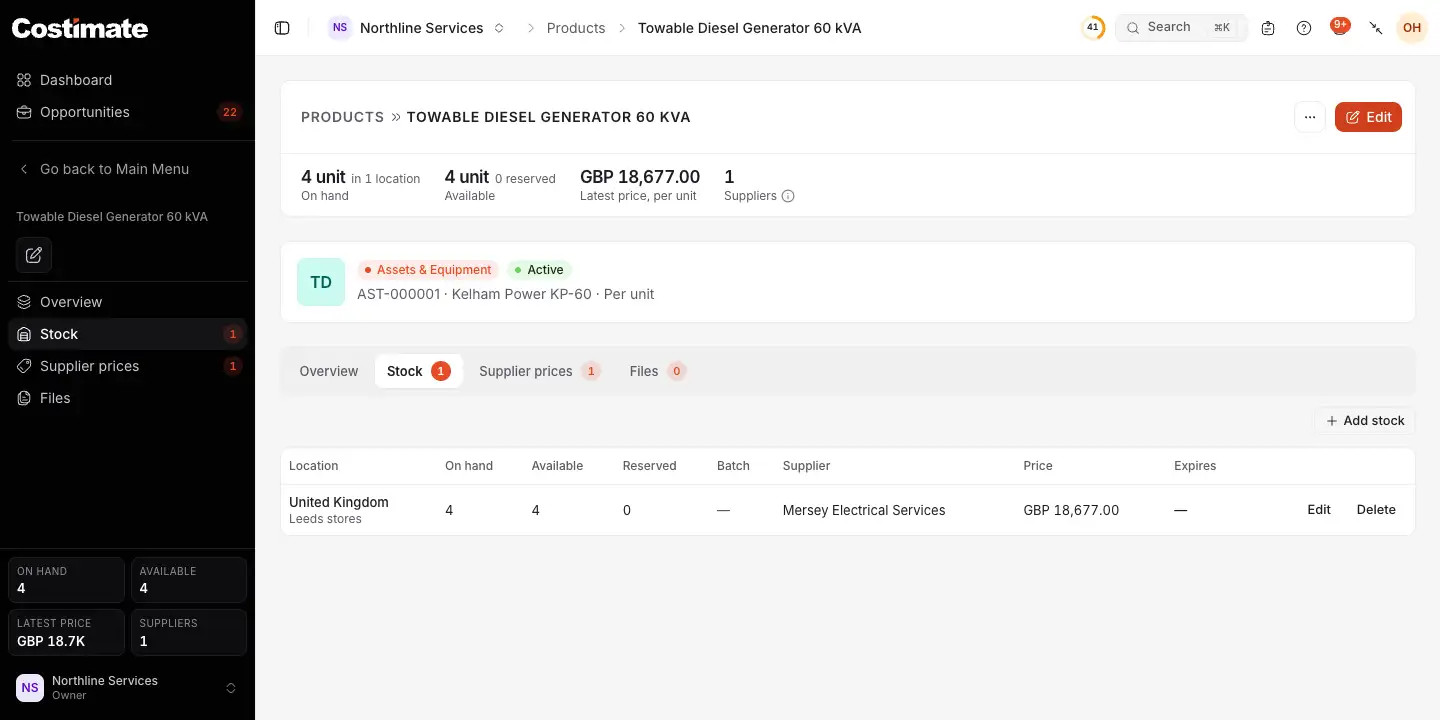
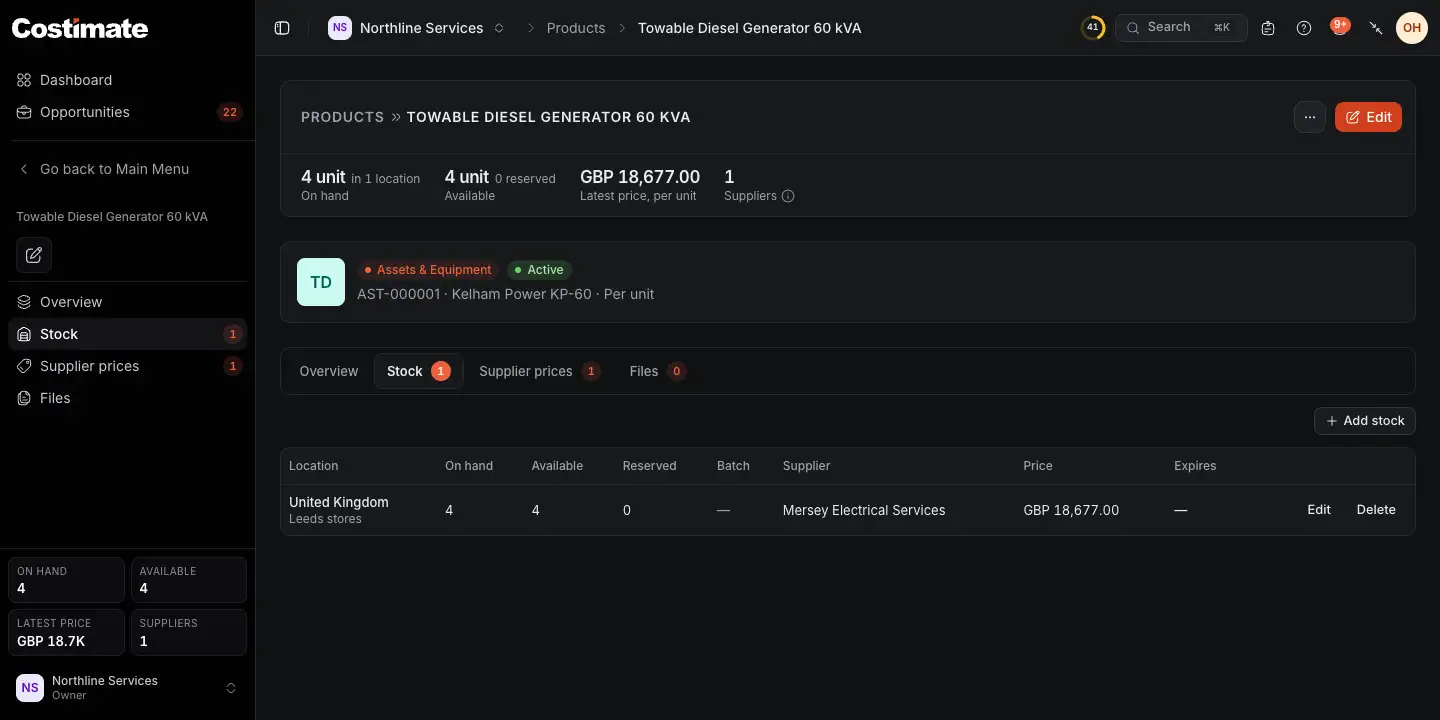
- Add stock: a country, a warehouse or site, the quantity, its batch, supplier, price and expiry.
- What is there.
- What is set aside. A project's material request reserves stock until its expense is approved, which takes it out, or until it is rejected, which gives it back. See Equipment, materials and Company Assets.
Good to know
- Nothing is ordered. Costimate keeps your prices and stock, and sends no order to anyone.
- Prices here are costs. They are open to who reads products and suppliers. What you sell for is on the bid, and only people who can see prices read it.
- Deleting. A supplier with bills, project expenses, material requests, product prices or a quote on a live bid cannot be deleted, and neither can a product used in a cost line, a finance document, a material request or a quote on a live bid: Mark inactive is offered instead. Others can be brought back. See Restore something deleted.
- A status. A product can be Active, Inactive or Discontinued. Only an active one is offered for new records.