

Credit notes
Take back part or all of an invoice with a document of its own, see what it does to what is due, give back what was overpaid, and cancel one made by mistake.
A credit note takes back part or all of an invoice that was issued. The invoice keeps its lines and total. Only the payment line at the foot of its PDF follows what is still due. The credit note is a document of its own, with its number, its lines and its PDF, and it names the invoice it credits. Credit notes are seen by the people who see their invoice, so they state prices and are only for people who can see prices.
Before you start
- To issue one you need to be able to change that invoice in Finance. The owner, admins and the Finance manager can.
- The invoice must be issued, partly paid or paid, and not yet credited in full.
- Credit note or Back to draft? An invoice that has not reached the client, with nothing paid on it, is still corrected on the invoice itself: More actions, then Back to draft. Once it was sent, or something is paid, a credit note is the way. See Invoices and payments.
Issue a credit note
- Open the invoice and choose Credit note.
- Under What is credited, choose one:
- The whole invoice, while nothing of it is credited yet. Every line, as it is.
- Some lines: type the quantity to credit on each line.
- An amount: one figure, tax included. Say what it is for, which is printed as its line.
- Check the Date: today, unless you change it. It cannot be before the invoice's issue date.
- Type the Reason. It is required, and printed on the credit note.
- Choose Issue credit note.
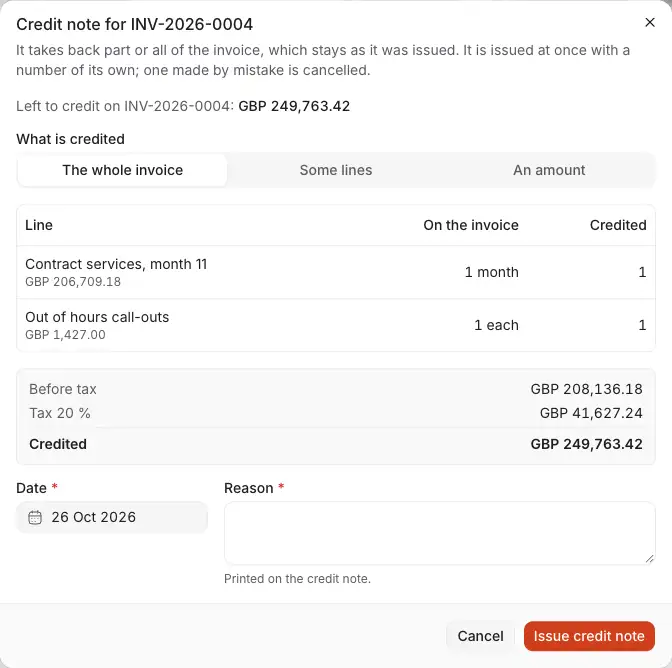
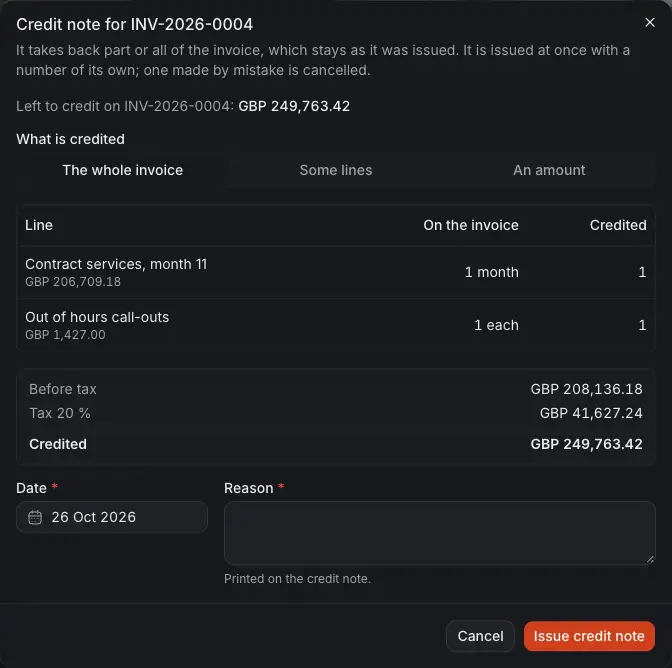
- What is left to credit on this invoice. A credit note can never be for more.
- The whole invoice, Some lines or An amount.
- The lines of the invoice, with what is credited of each.
- The totals of the credit note, worked out as you type.
- Date: numbers and dates run in the same order, so it cannot be earlier than the last credit note.
- Reason: it is printed.
- Issue credit note. There is no draft: it is issued at once, with a number such as CN-2026-0001.
What it does to the invoice
The invoice keeps its total. Under the total it now says what is credited, what is owed, and what is still due.
- Part of it unpaid: what is due goes down by the credit note's total. The invoice stays issued or partly paid, unless the credit note covers all that was unpaid: it then becomes Paid.
- The whole total credited: the invoice's status becomes Credited, and nothing is due.
- Already paid: the client paid more than they now owe. The invoice says what is To give back to the client, and Record refund proposes that amount.
Costimate does not hold money as a credit for the client's next invoice, so you refund it.
Once a credit note counts on an invoice, that invoice cannot go back to draft or be cancelled.
Find and read them
Credit notes are under Finance, in Credit notes. Each invoice also lists its own, in a card on its page.
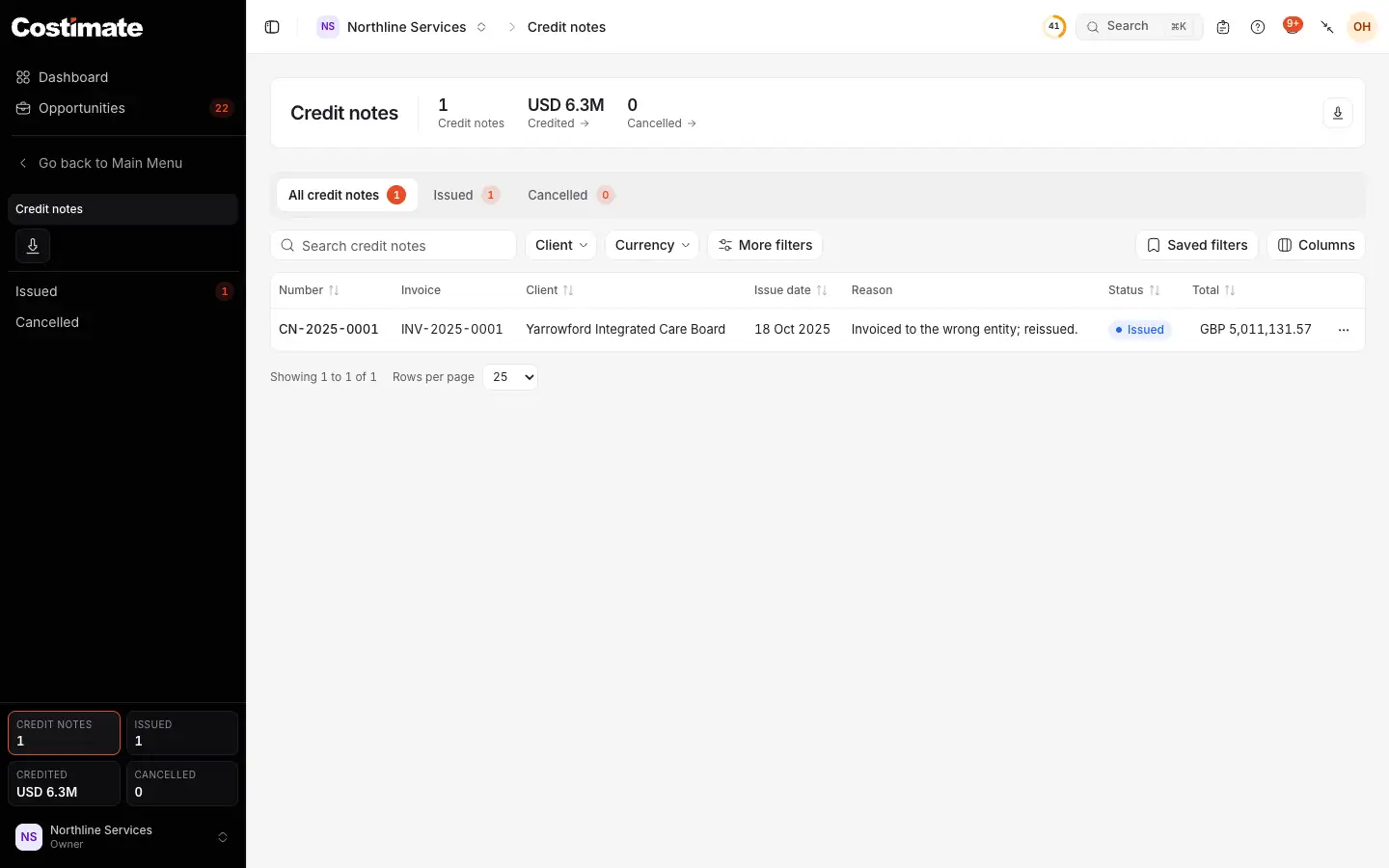
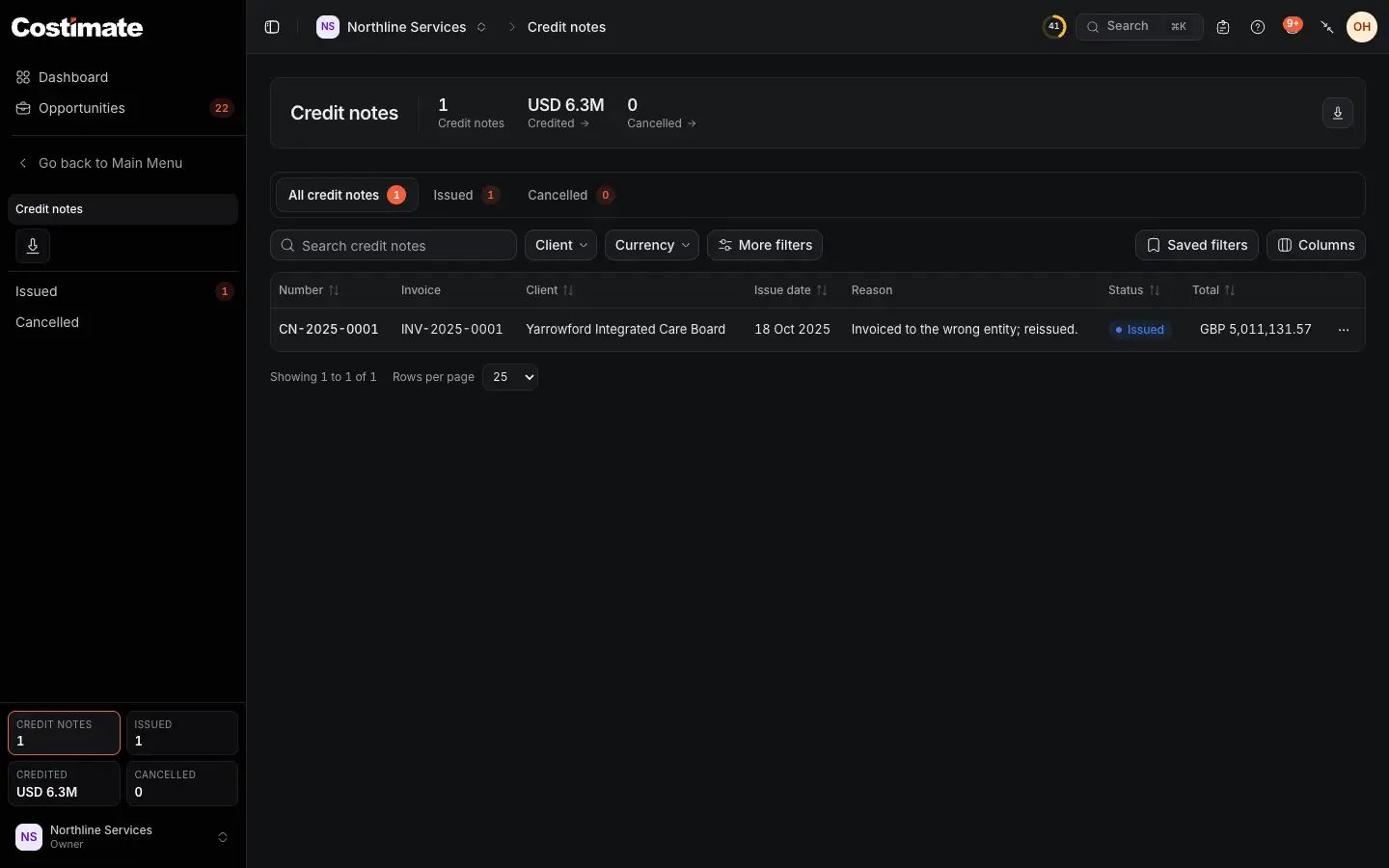
- How many there are, what was credited in US dollars, and how many are cancelled.
- The views by status: Issued and Cancelled.
- Filters: the client and the currency, and more under More filters, such as the entity, the issue date and the total.
- The invoice it credits.
- The reason, as printed.
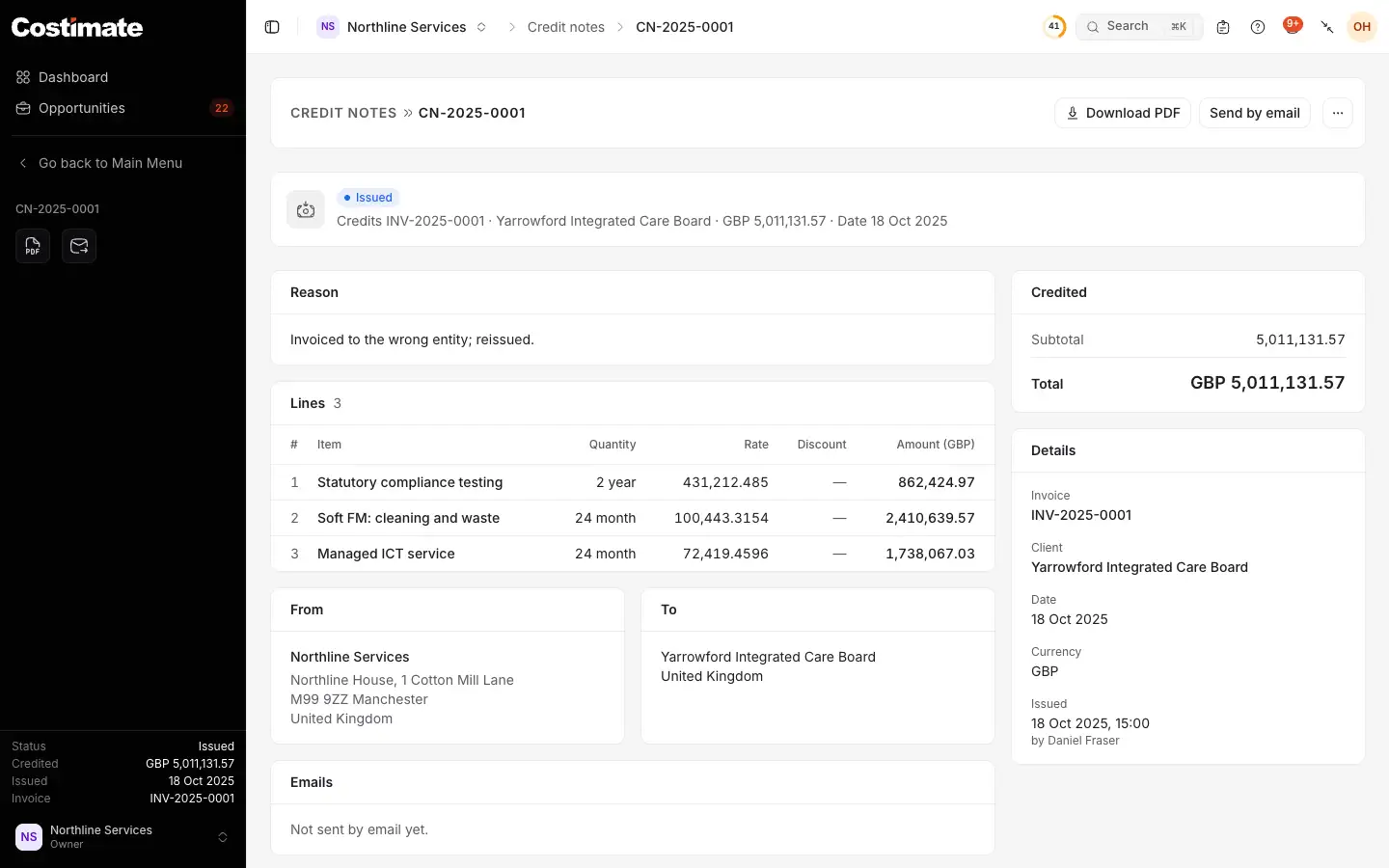
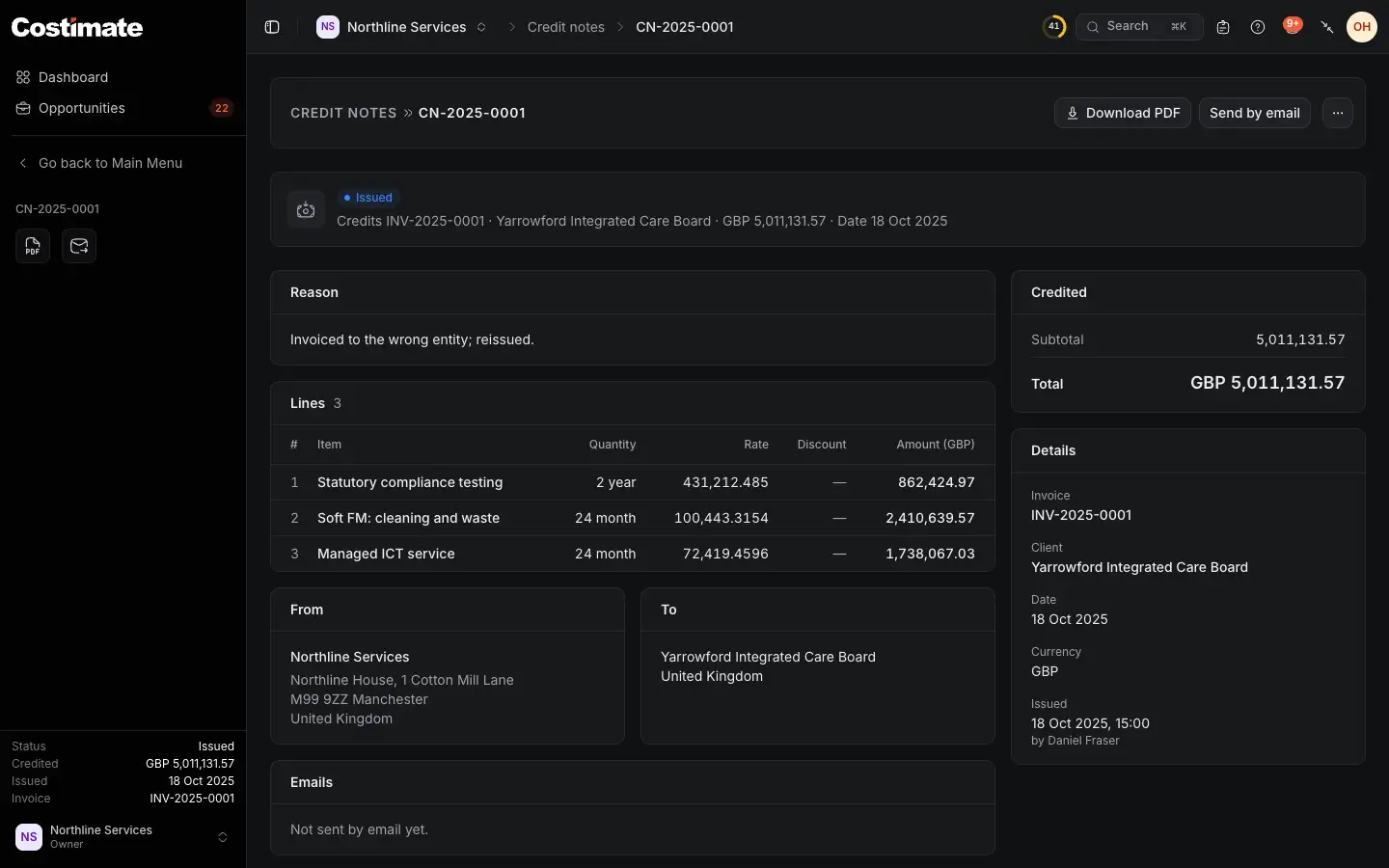
- The invoice it credits, the client, the total and the date.
- Download PDF: titled "Credit note", naming the invoice and the reason. It carries no payment details.
- Send by email, as an invoice is sent. It goes from the address your company chose for credit notes.
- The reason.
- Its lines, as they were on the invoice.
- Every email of it is listed here.
Cancel one made by mistake
- Open the credit note, and choose Cancel credit note in its menu.
- Confirm.
It keeps its number and counts for nothing, so what it took back is due on the invoice again. It cannot come back. A refund made because of it stays a refund.
A credit note is never deleted.
What else it changes
- The Finance overview: what was billed in a month is net of the credit notes issued that month, so a month can even fall below zero. What is outstanding and overdue already leaves out what was credited.
- Invoices: the list has a Credited view and column. A project's Invoiced figure counts what is left after credit notes.
- Payments: a payment of an invoice cannot be recorded "by credit note": a credit note is a document of its own, and it would count twice.