

Invitations and the bids you are on
Answer an invitation to a bid, read what the bid is, work through your checklist items and tasks, talk to the team, and open the files shared with you.
A company brings you onto a bid by inviting you. Once you accept, the bid has a page in your portal with what you need: what the bid is, the checklist items and tasks given to you, and the files shared with you.
Answer an invitation
Invitations are on My business, and in that company's space. You are told when one arrives.
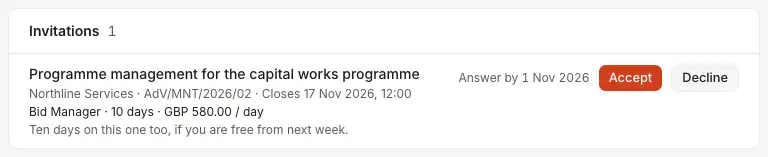
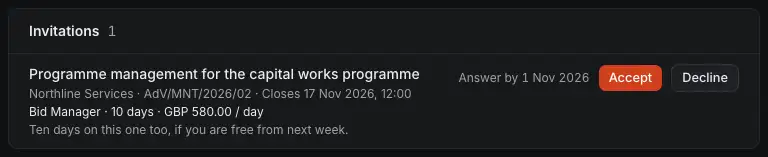
- Your role, the days the company expects, and your rate.
- The company's message.
- The day to answer by. After it the invitation expires, and you are both told.
- Accept: you are on the bid, and these terms are what you agreed.
- Decline: you can say why.
Until you accept, you read four facts of the bid: its title, the client's reference, the closing time and the company's name.
A company may invite several experts to one bid. The first to accept takes the place, and the others' invitations are withdrawn. It may also withdraw yours while it is open.
Your bids
Opportunities, in the left menu, lists them.
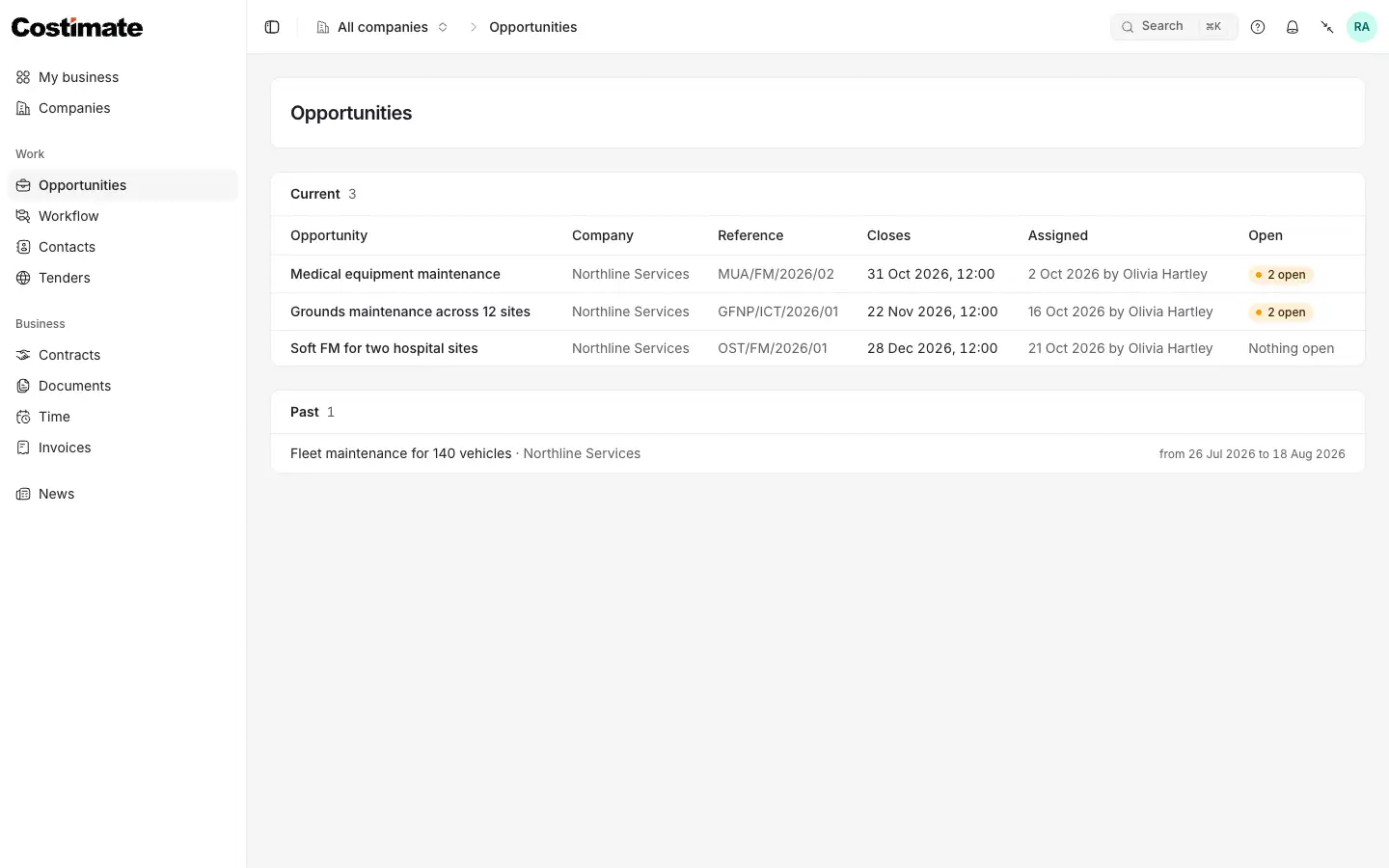
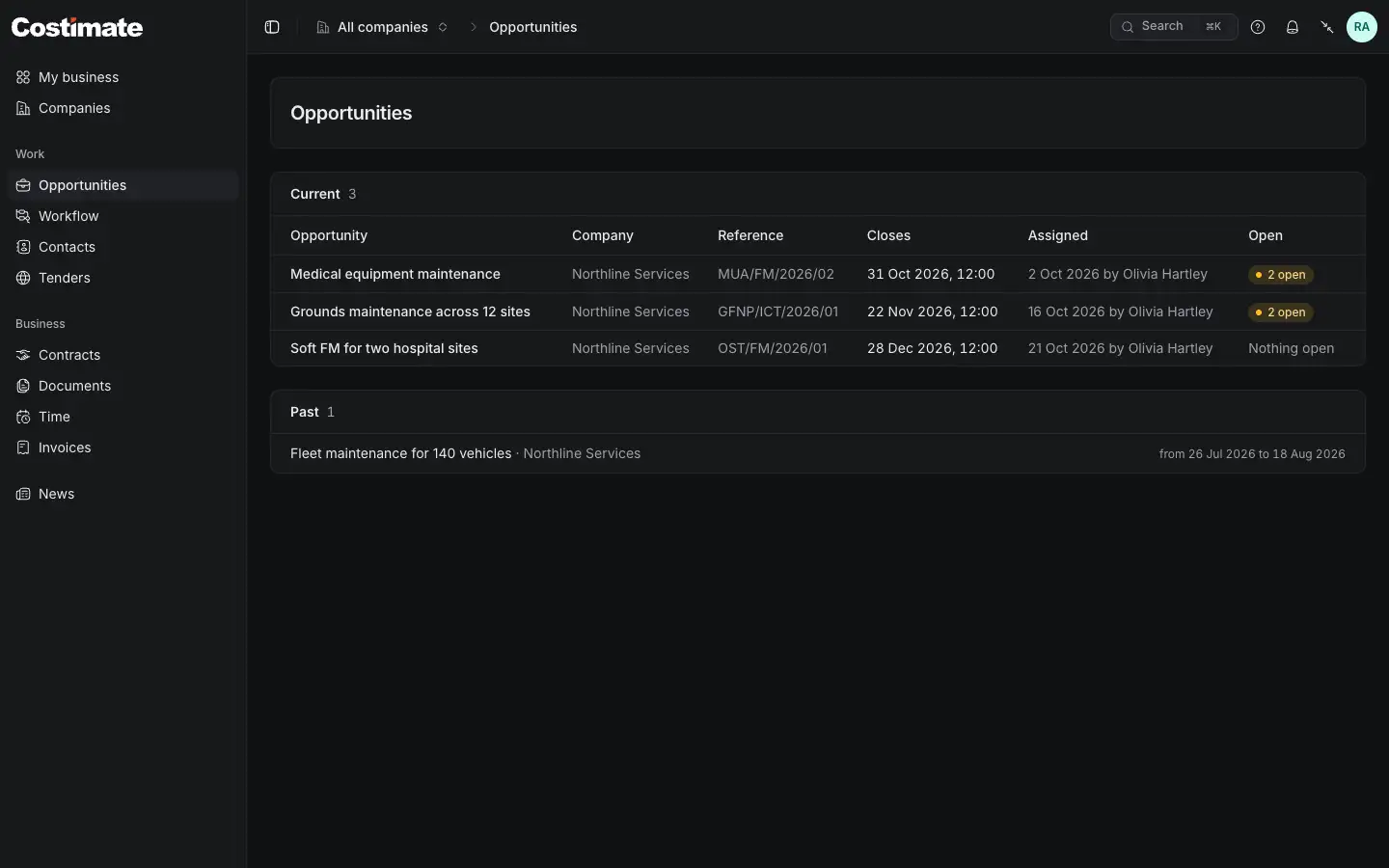
- Current: the bids you are on now. A bid's title opens its page.
- When each closes, in your own time zone.
- Open: how many of your items and tasks are still to do.
- Past: the bids you were on, from when to when, while that company is in your list. A past bid no longer opens.
A bid's page
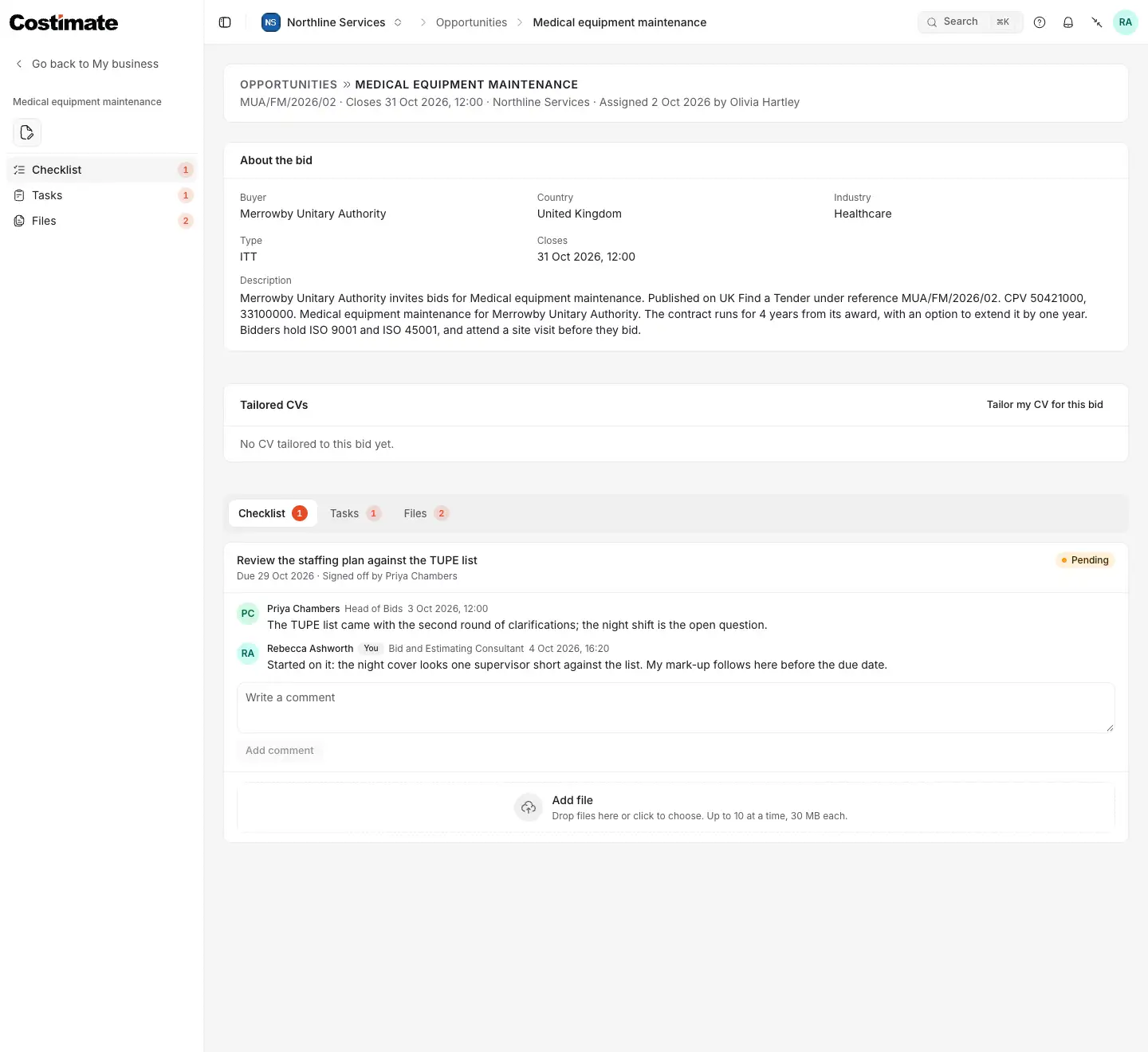
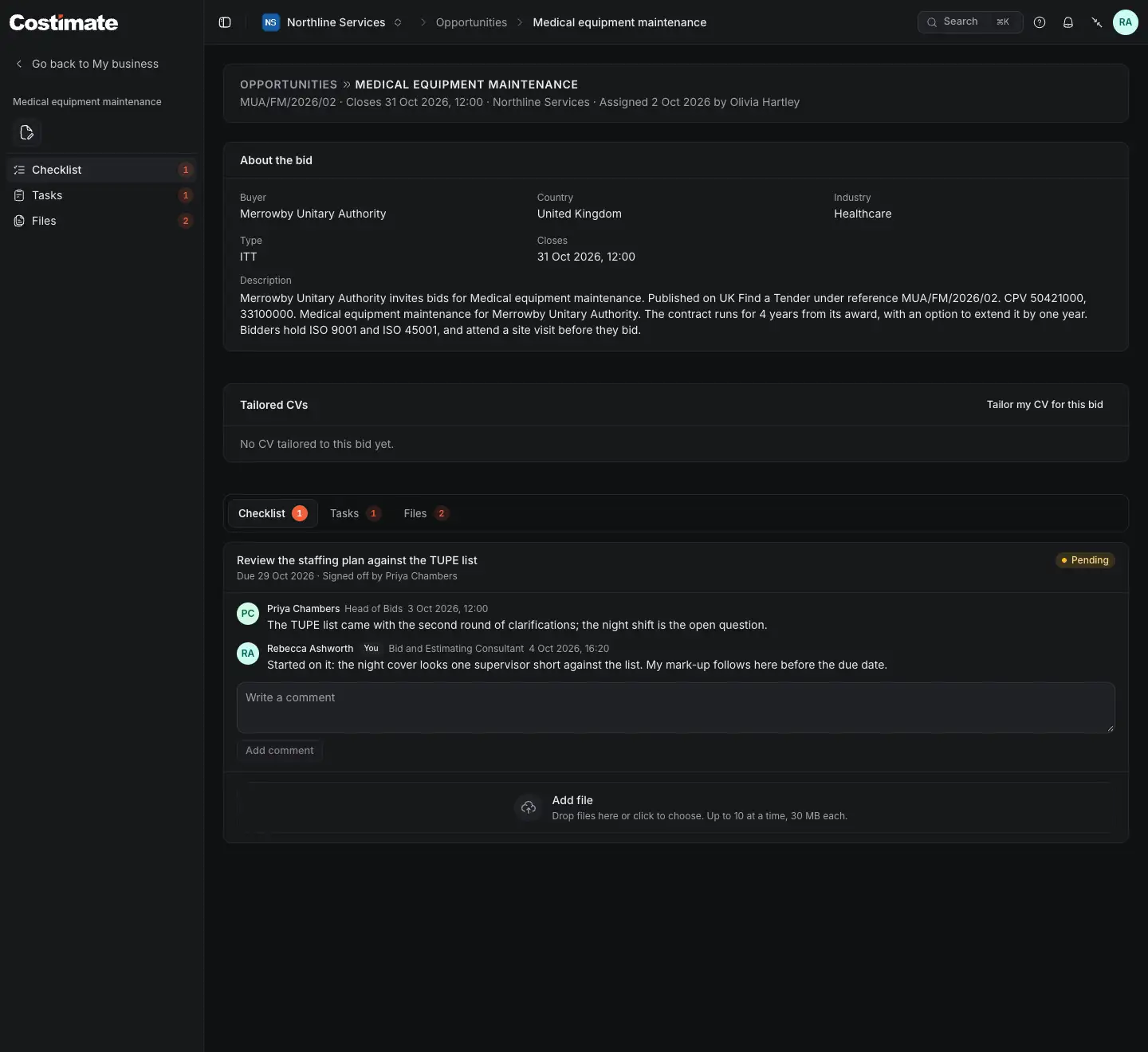
- About the bid: the buyer, country, industry, type, closing, site visit, description and scope, as the company recorded them.
- Tailor my CV for this bid. See Tenders for you, and a CV tailored to a bid.
- Checklist: the items that name you, to do or to be kept informed.
- Tasks: the tasks given to you.
- Files: what the company shared with you, to open or download.
- Add comment on an item. You can also add a file to it, up to 30 MB, and remove one you added.
You comment on a checklist item and add files to it. The company signs it off.
You never see the bid's value, its price or costs, its number, stage, competitors, notes or proposals, the rest of its files, or anything of another company.
A task
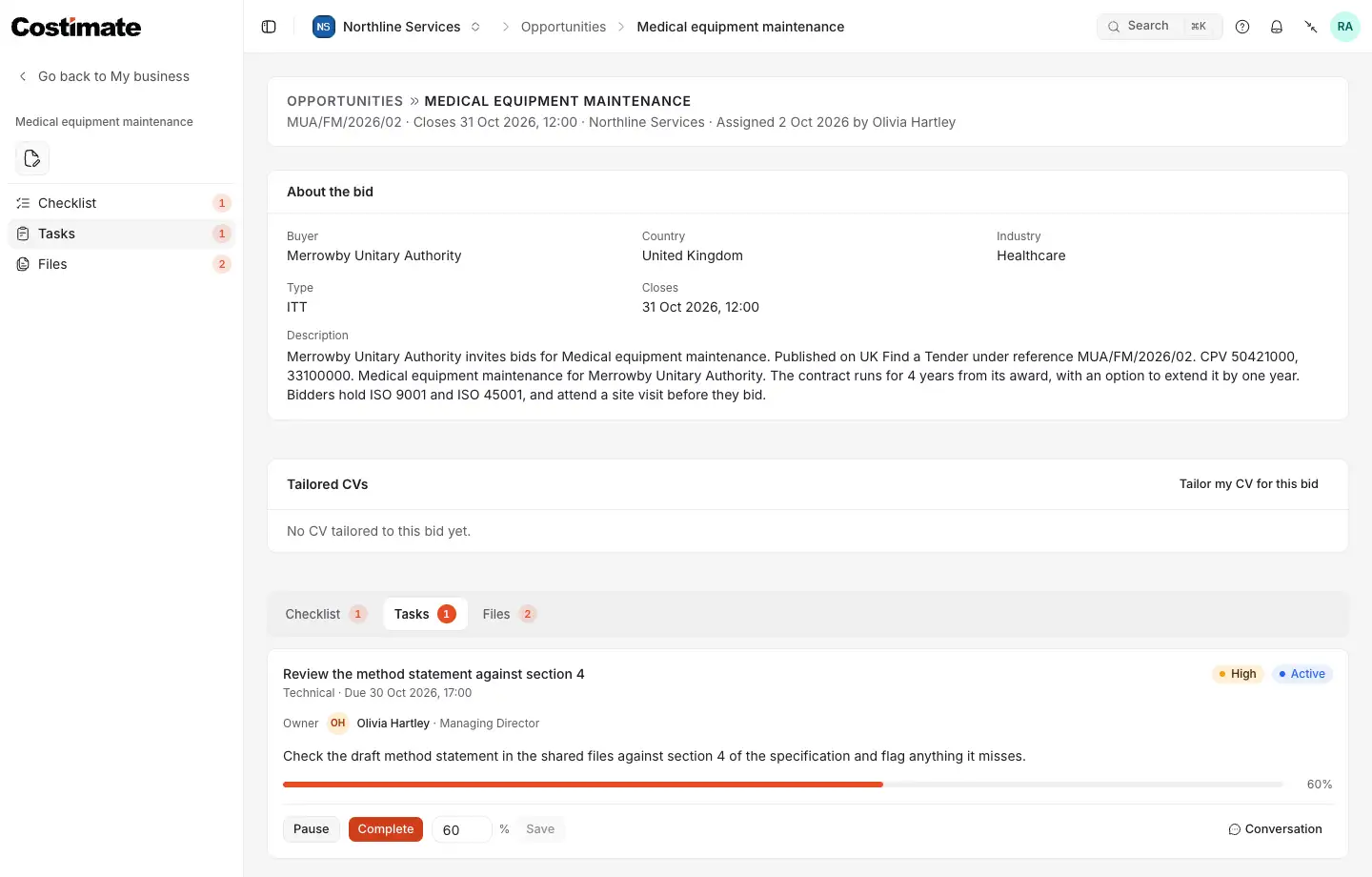
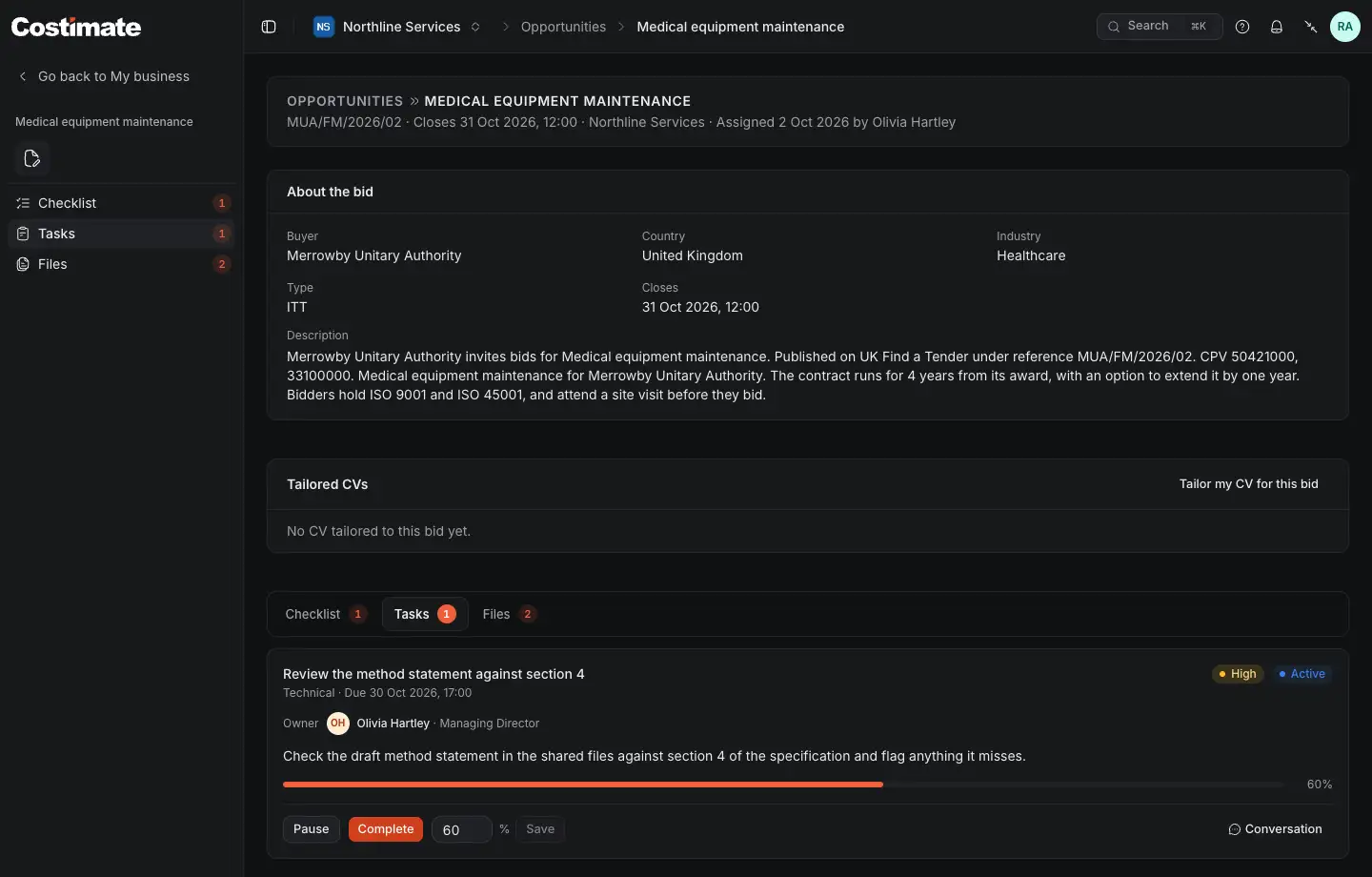
- Who owns the task.
- Pause or Resume it.
- Complete it.
- How far you have come, as a percentage, then Save.
- Conversation: talk to the team about this task. A message can carry one attachment, up to 10 MB, and you can take back your own.
What is on your plate
Workflow, in the left menu, gathers your open items and tasks across your bids, by due date.
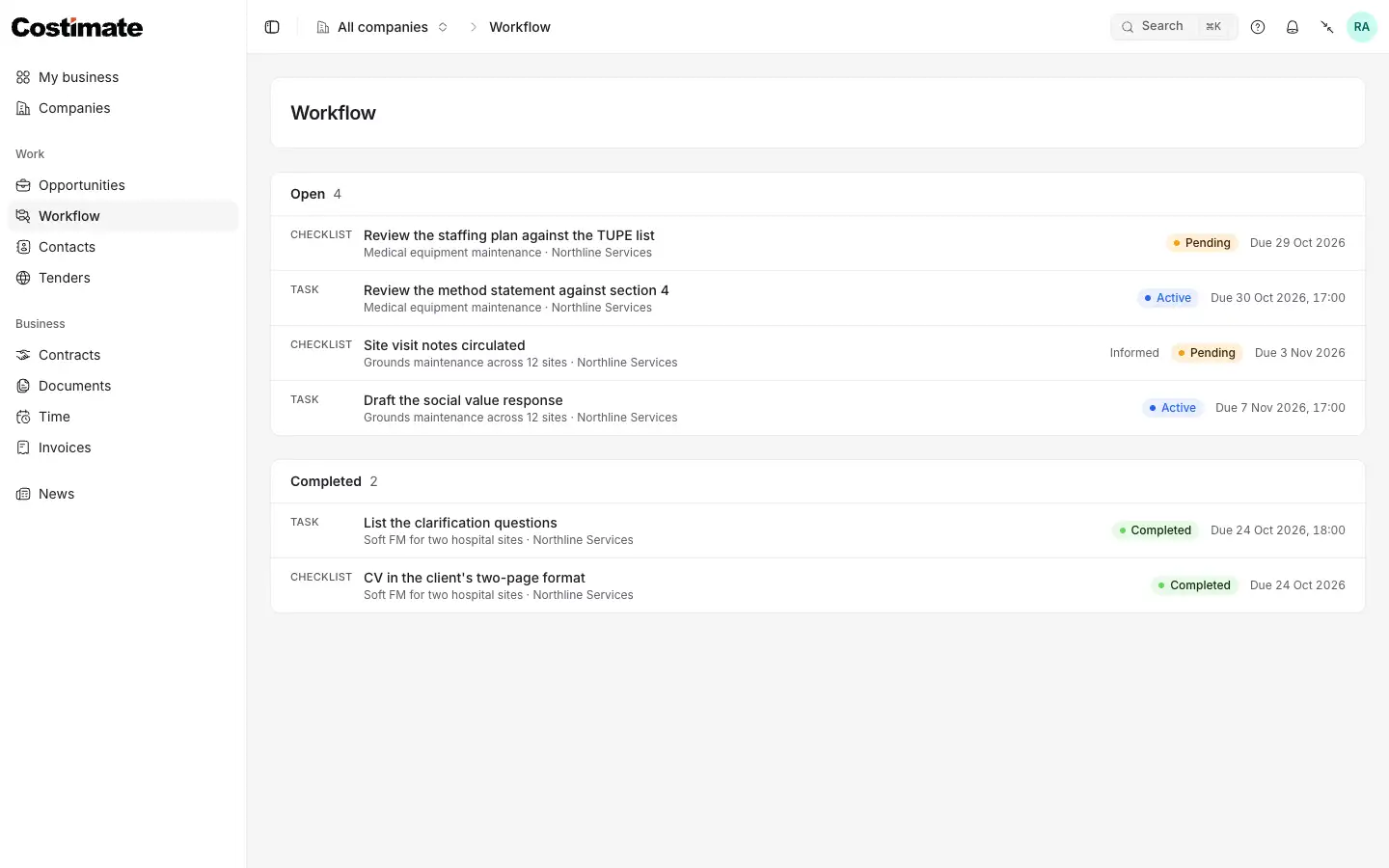
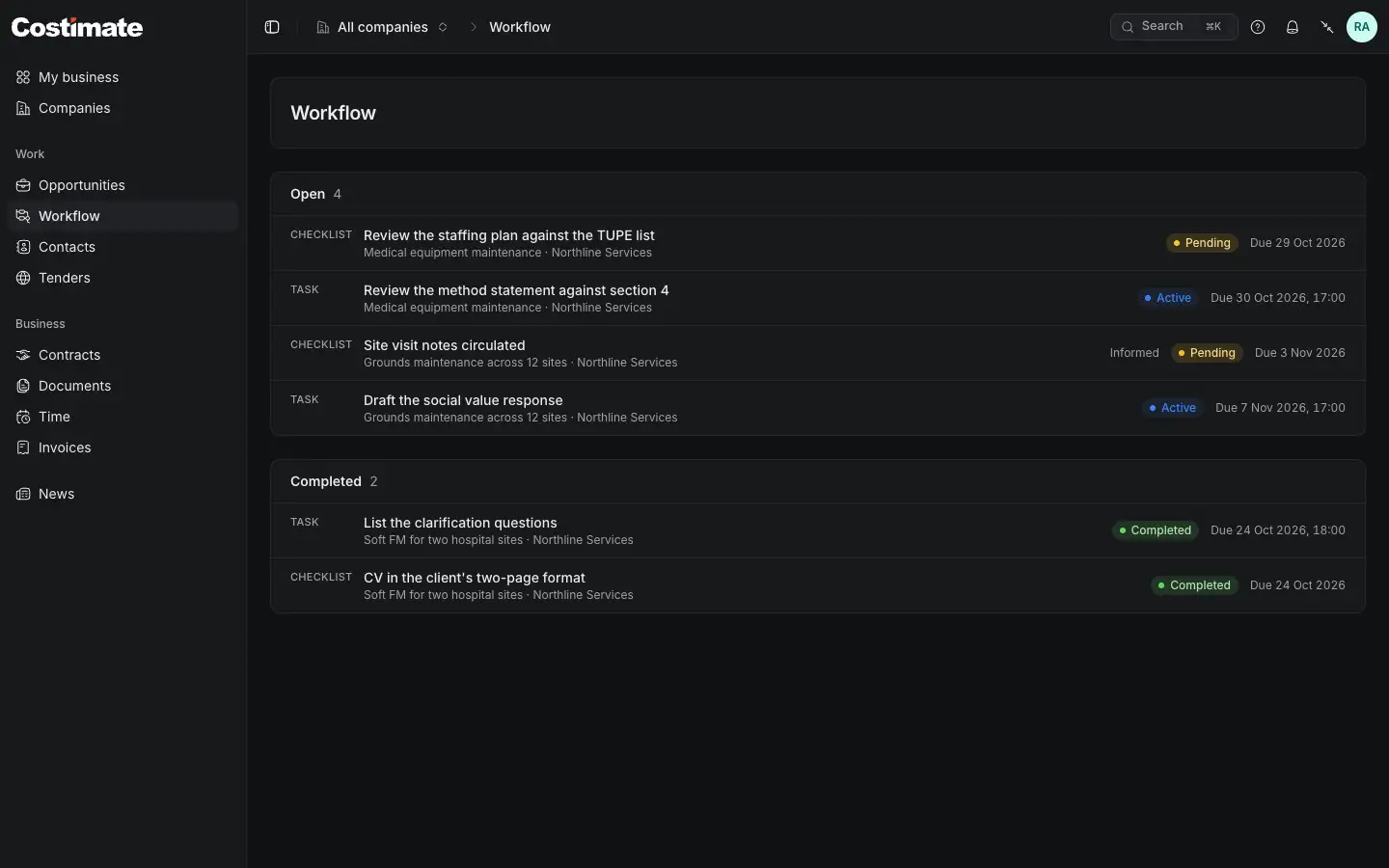
- Open: every item and task still to do. Each opens its bid.
- Informed: an item you are only kept informed of.
- Completed: what is done.
Choose a company in the switcher at the top to see that company's only.
Who you talk to
Contacts, in the left menu, lists the people at a company you work with: who assigned you, who owns your tasks, who signs off your items. You see each one's name and job title, and the address of the person who assigned you for as long as that lasts.
When it ends
- The company can take you off a bid. It then leaves your current bids, and you no longer open it, its items or its files. The weeks you submitted and your invoices stay. See Time and invoices.
- It can put you back on the terms you agreed.
- If the company wants to change your rate, it waits for your answer in Workflow. It changes only if you accept. See Time and invoices.
Good to know
- Assigned means on this bid only. You are never a member of the company, and you see nothing else of it.
- The company's day. Closing times and a task's due time show in your own time zone. Whether a day has passed, such as the day to answer an invitation by, goes by that company's clock.
- Searching. The search at the top finds your bids, items, tasks and the news.