

Meeting minutes
Record who met, what was said and agreed, who does what by when, and which bids it concerns, and print the minutes as a PDF.
Meeting minutes, under CRM in the left menu, keeps your meetings with clients: who was there, what was said, what was agreed and who does what next. A meeting belongs to a client, and you can link it to the bids it concerns.
Meeting minutes go with contacts. By default, everyone in your company can read them. The owner, admins, proposal managers and capture managers add and change them. The owner and admins delete them.
Record a meeting
- Choose New meeting.
- Fill in the Topic, Date, Country and Client, and choose the Outcome: Positive, Negative or Neutral.
- Pick the Internal lead and the External lead.
- Write the Discussion and the Conclusion.
- Add what was agreed with Add action item.
- Choose Add meeting.
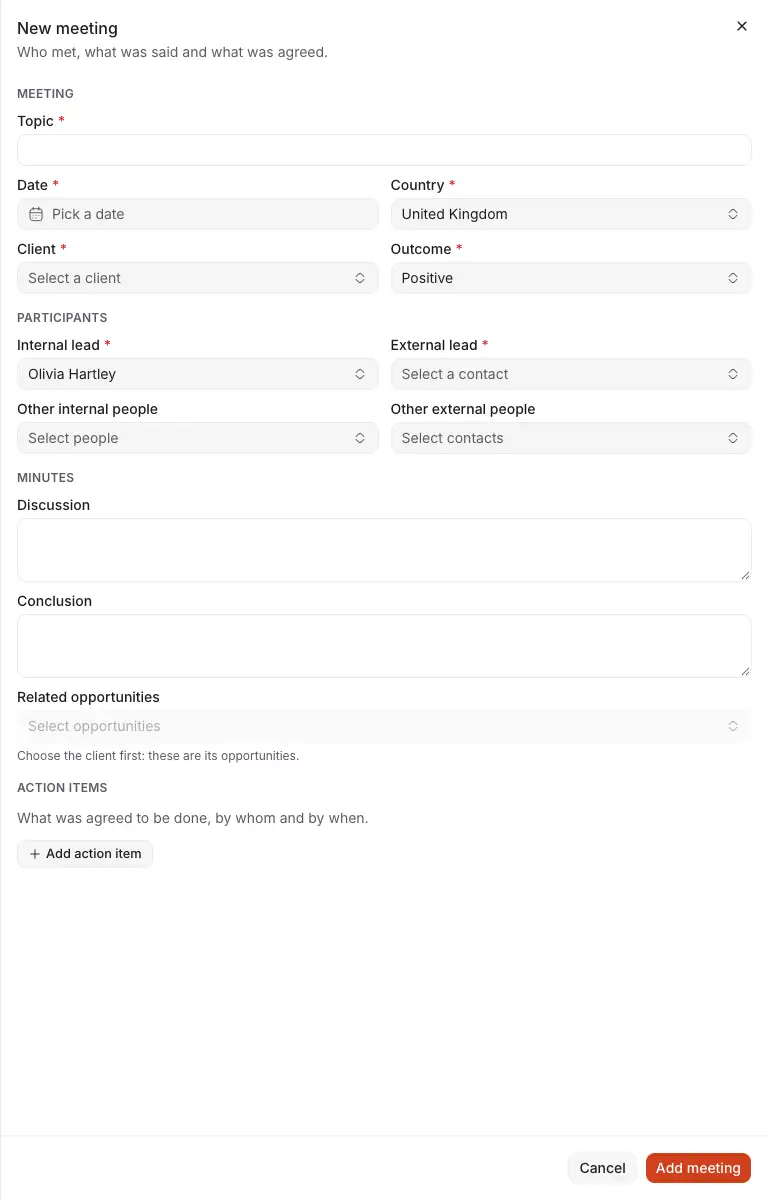
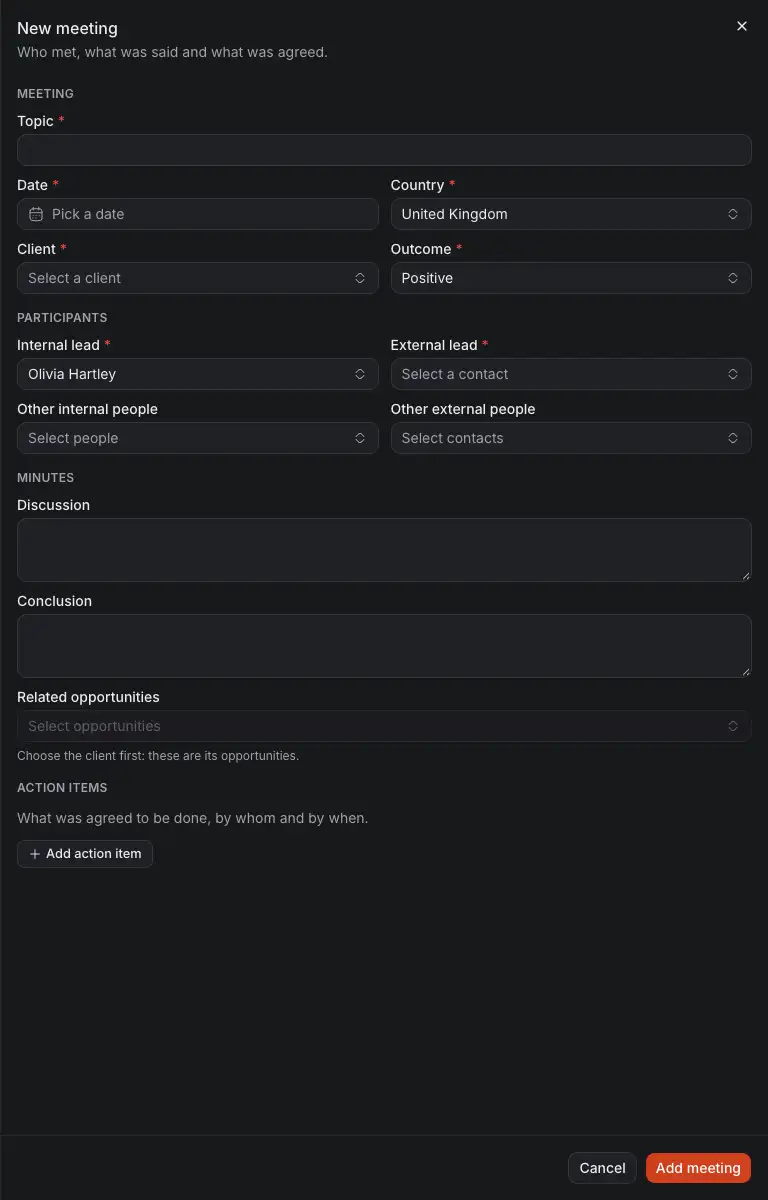
- Client. A meeting has one, and it decides which opportunities you can link.
- Outcome: how it went.
- External lead: one of your contacts. Other internal people and Other external people add who else was there.
- Related opportunities: the client's bids this meeting concerns. Choose the client first.
- Add action item: what was agreed, Who does it and when it is Due.
The list
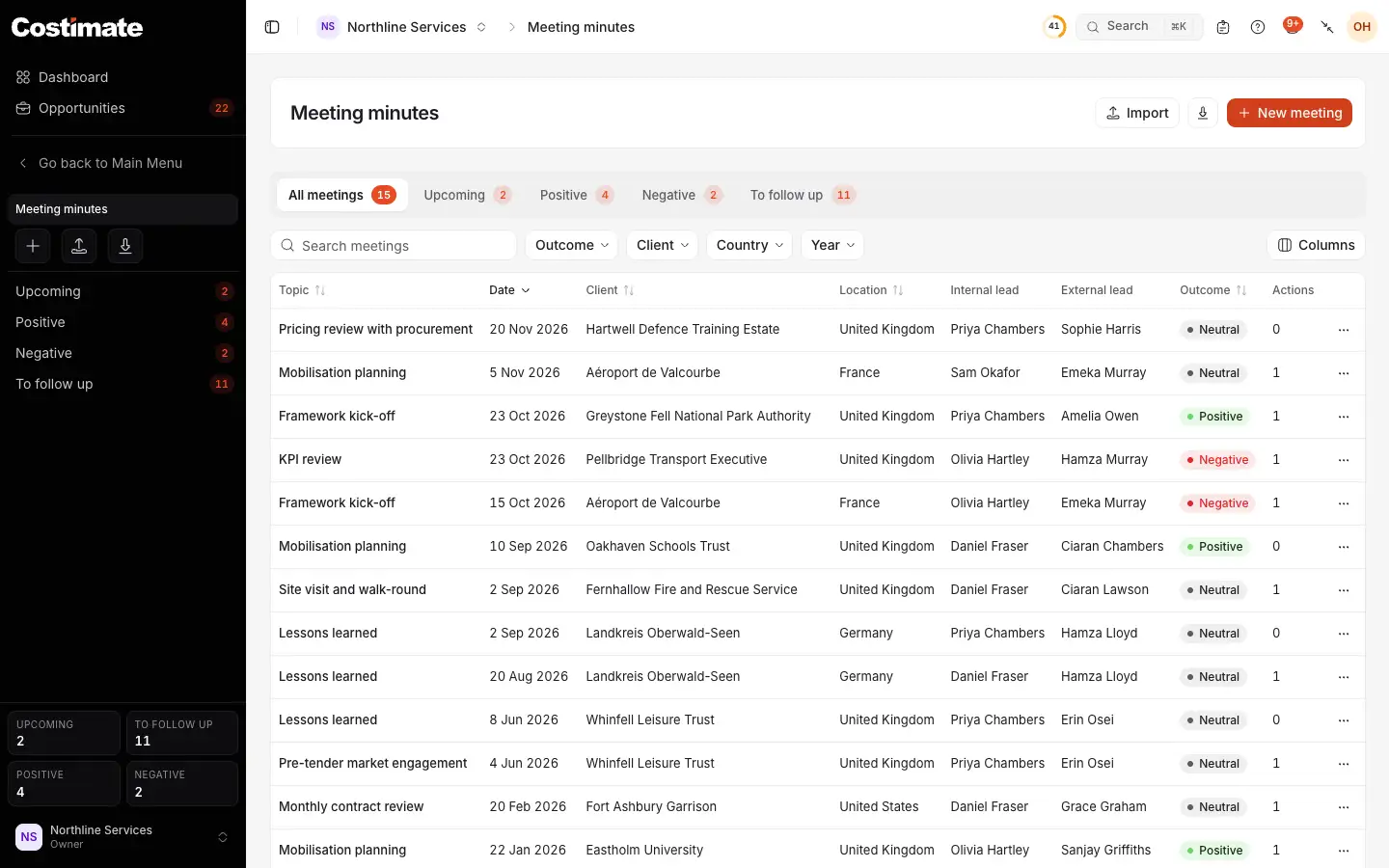
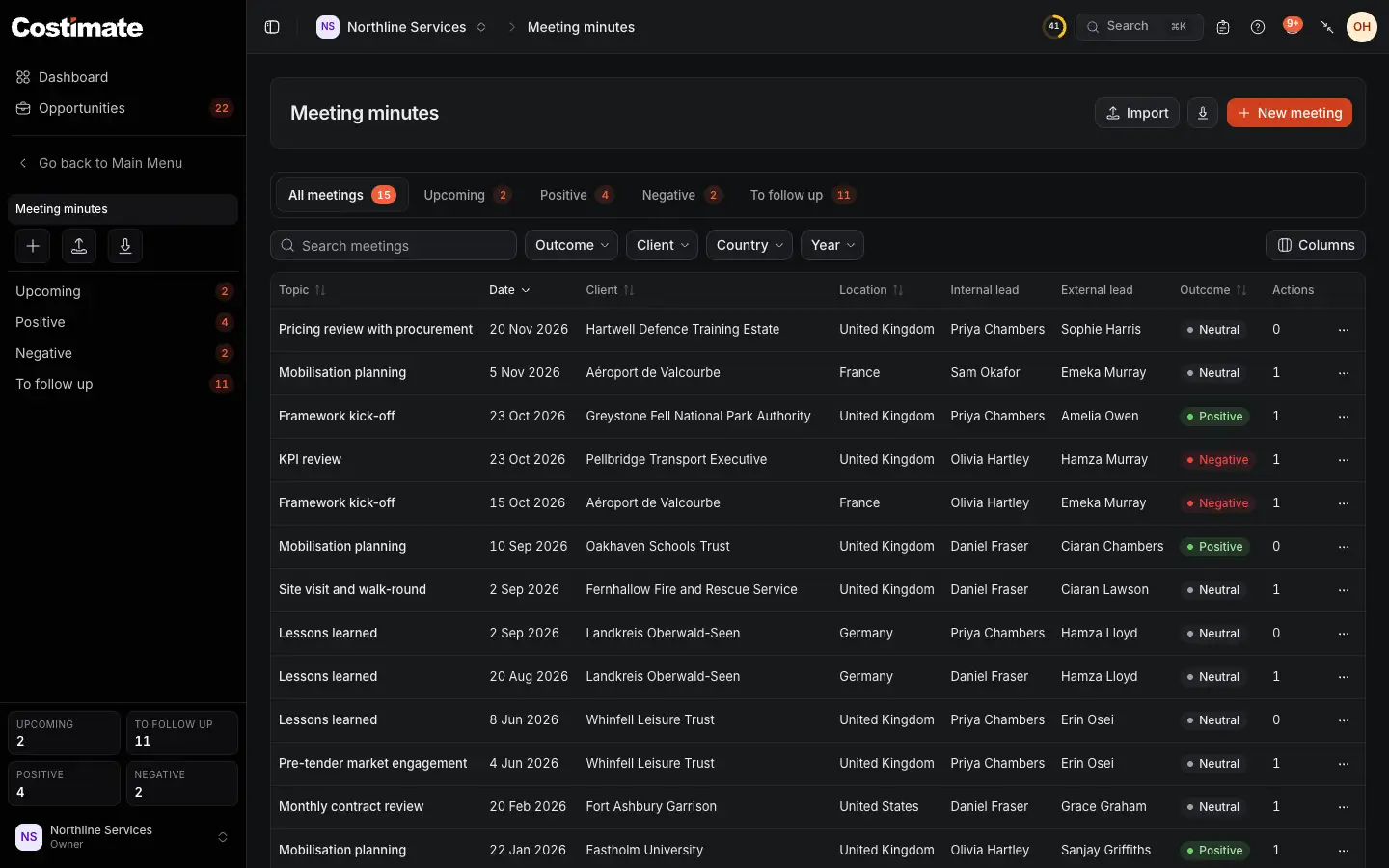
- New meeting. Import is beside it. See Import and export with Excel.
- Upcoming: the meetings of the next 30 days. You can record one before it happens, and write its minutes afterwards.
- To follow up: the meetings with an action item not done.
- The filters, by outcome, client, country and year.
- How each one went. Further right is how many action items it has.
A meeting's page
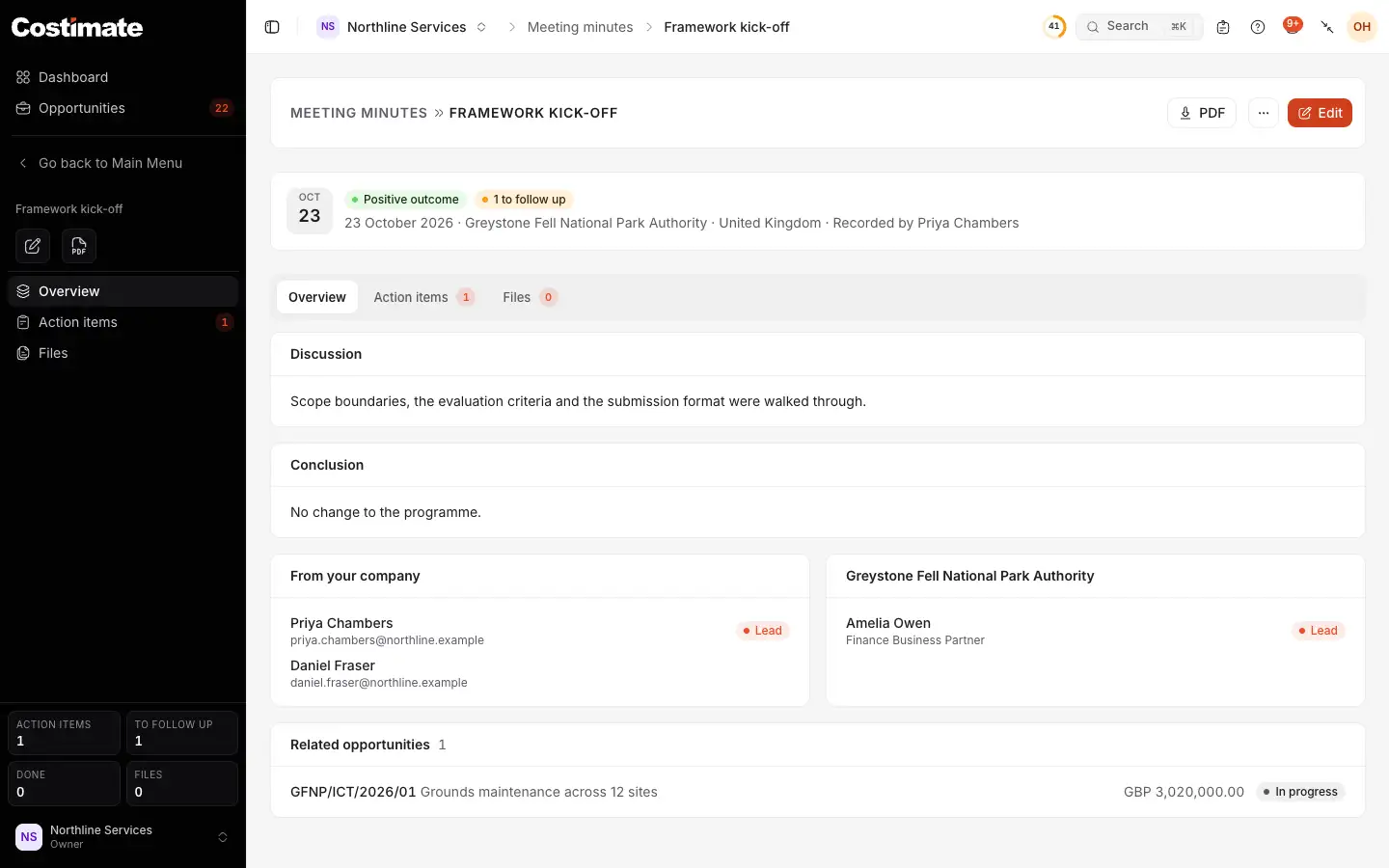
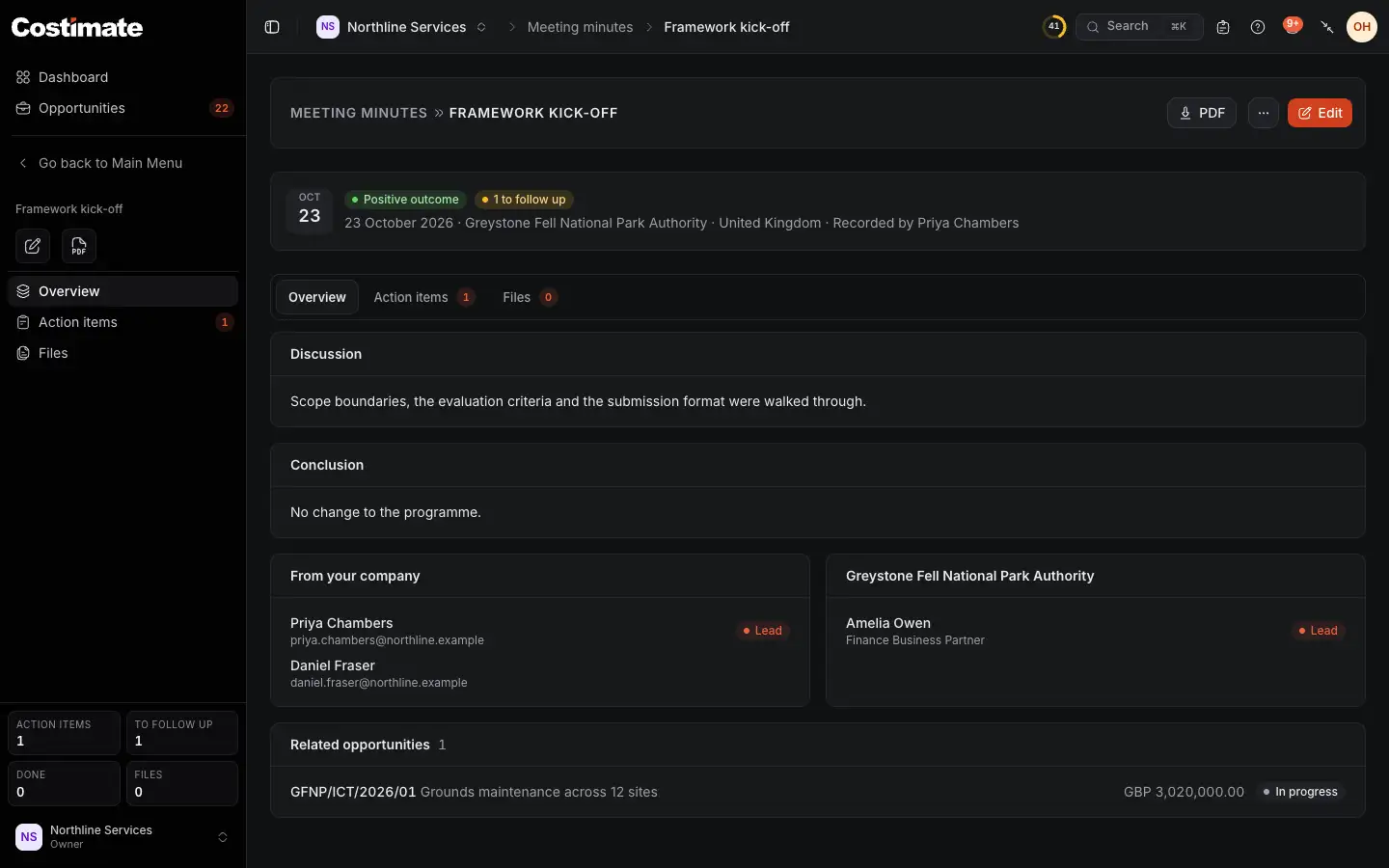
- PDF prints the minutes.
- The outcome.
- How many of its actions are still to do.
- Action items lists them, with who and when. Tick one when it is done. One past its day says Overdue.
- What was said and what was concluded.
- Who was there, from your company and theirs, with the leads marked.
- The opportunities it concerns, each with its reference, title, bid value and status.
The tabs are Overview, Action items and Files.
Where else a meeting shows
- On the Meetings tab of its client and of each contact there.
- On the Meetings tab of each employee who was there.
- In the Activity of each linked bid: its topic, how it went and how many action items it has. See Tasks, files and the activity of a bid.
Good to know
- The people. A person outside your company is one of your contacts. Add them there first, then pick them here.
- Deleting. A deleted meeting is kept for 30 days in Recently deleted, then removed for good with its files. While it is deleted it leaves every list and the bids it was linked to. Restored, it comes back as it was.
- A bid's amount. A linked bid shows its bid value, the announced or planned value, which is open to who reads opportunities. No price you submitted appears here or in the PDF.