

Market Intelligence
See what you know of one sector in one country on one page, beside a map: your opportunities, leads and watched contracts, who is who, and what is coming.
Market Intelligence shows one market at a time. A market is one sector in one country, such as Oil and Gas in the United Kingdom. Its page puts your opportunities, your leads, your watched contracts and the companies around them side by side with a map of the country, under a timeline of the next 24 months.
Markets are shared: everyone on your team who can open Market Intelligence sees the same ones. To add or change a market you need to be able to change markets: the owner, admins, the Proposal manager and the Capture manager can. Deleting one is for the owner and admins.
Add a market
Open Market Intelligence, right under Dashboard. With no market yet, it offers the sectors and countries you already have the most opportunities and watched contracts in. Choose one of them, or New market.
- Pick the Sector and the Country. The sectors are the industries of your Company profile.
- Leave Name as it is, or type your own.
- Choose Add market.
There is one market for each sector and country.
From then on, Market Intelligence opens on the market you opened last in this browser. To open another, choose the button with the market's name at the top right. To add one, choose New market beside it.
Read a market
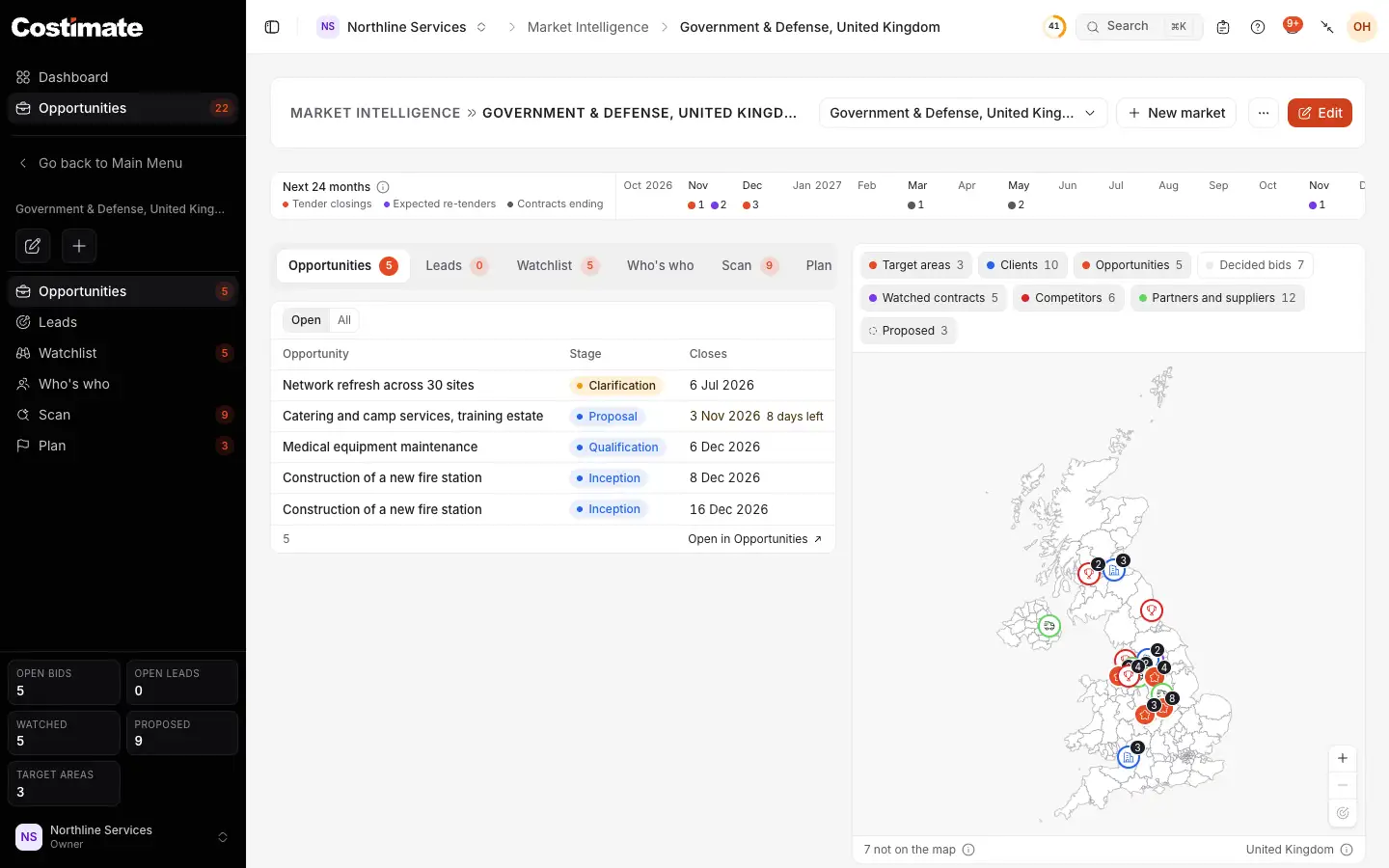
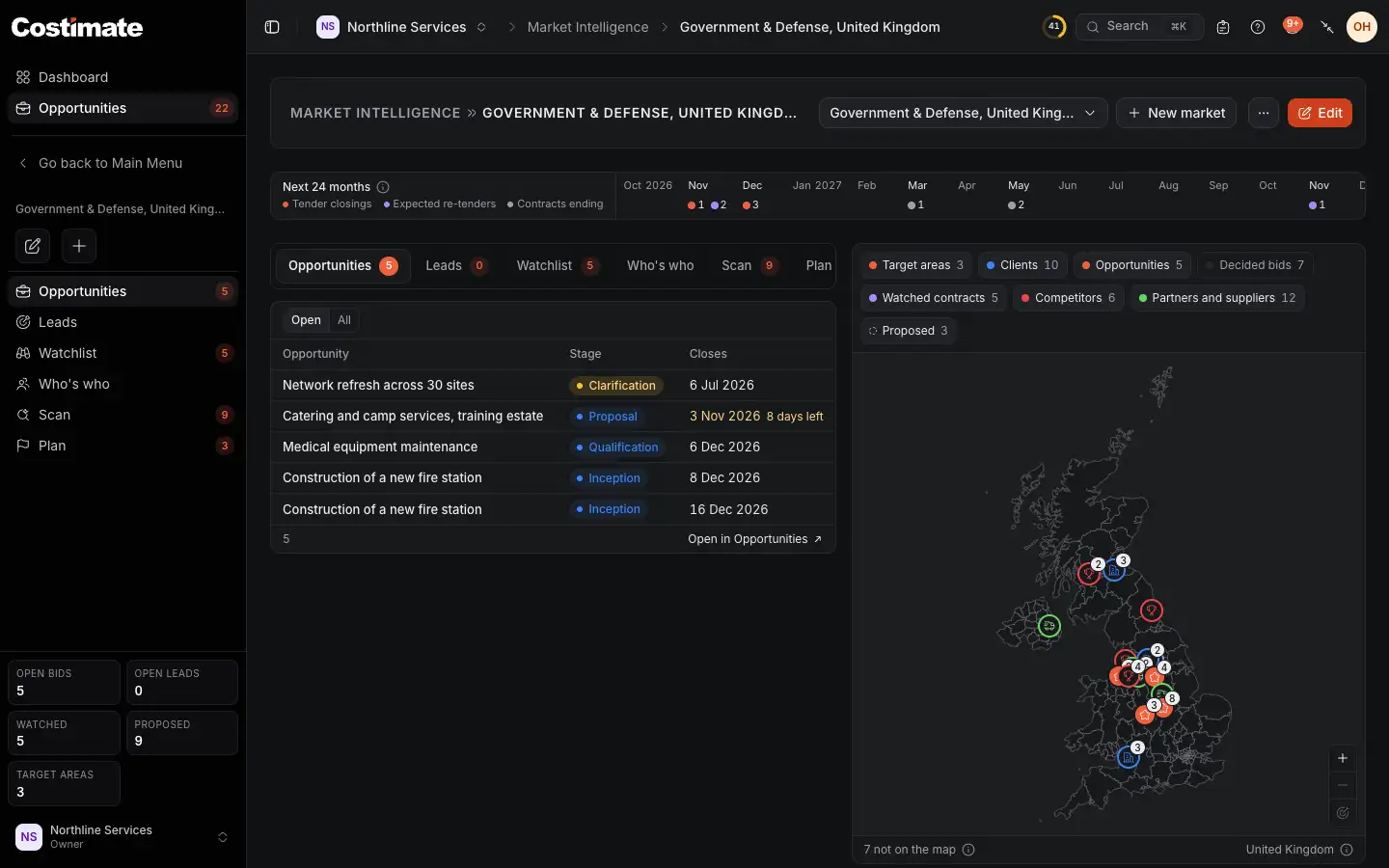
- The market you are in. Choose it to open another.
- New market: add another market.
- Next 24 months: what is coming, month by month.
- The lists, one tab each.
- The layers of the map. Choose one to hide it or show it again.
- The map, with a pin for each town.
- How many of the things shown have no place on the map.
Nothing is put in a market by hand. An opportunity, a lead and a watched contract are in it when their sector and their country are the market's. Archived opportunities are left out.
The lists
| Tab | It shows |
|---|---|
| Opportunities | The opportunities still being worked on, the one that closes first on top. All adds the decided ones. |
| Leads | The open leads, the nearest deadline on top. |
| Watchlist | The watched contracts, the one whose re-tender is expected first on top. |
| Who's who | The clients, the competitors, and the partners and suppliers of the market. |
| Scan | What Scan with AI proposed for the market, until you keep or dismiss it. See Scan a market with AI. |
| Plan | Your team's plan for the market, and its target areas. |
A list shows its first 25 rows and says how many there are. Open in Opportunities, and the same link under the other lists, opens the full list with the market's sector and country as its filters. Choose a row to open it.
Who's who
Each row says why it is there.
- Clients: the clients whose own industry and country are the market's (Sector), and the clients of the market's opportunities, open leads and watched contracts.
- Competitors: the competitors whose own industry and country are the market's, those listed on its opportunities, and those that hold or held its watched contracts.
- Partners and suppliers: those named on the Suppliers tab of its opportunities, except the declined ones, and those whose country is the market's (Based here).
A company that works in several countries is kept as one record for each country's arm, under the company as its Parent account: see Clients. An arm is in the market by its own industry and country, like any client or competitor, and its row says Part of with the company it belongs to. The company abroad is not listed for it.
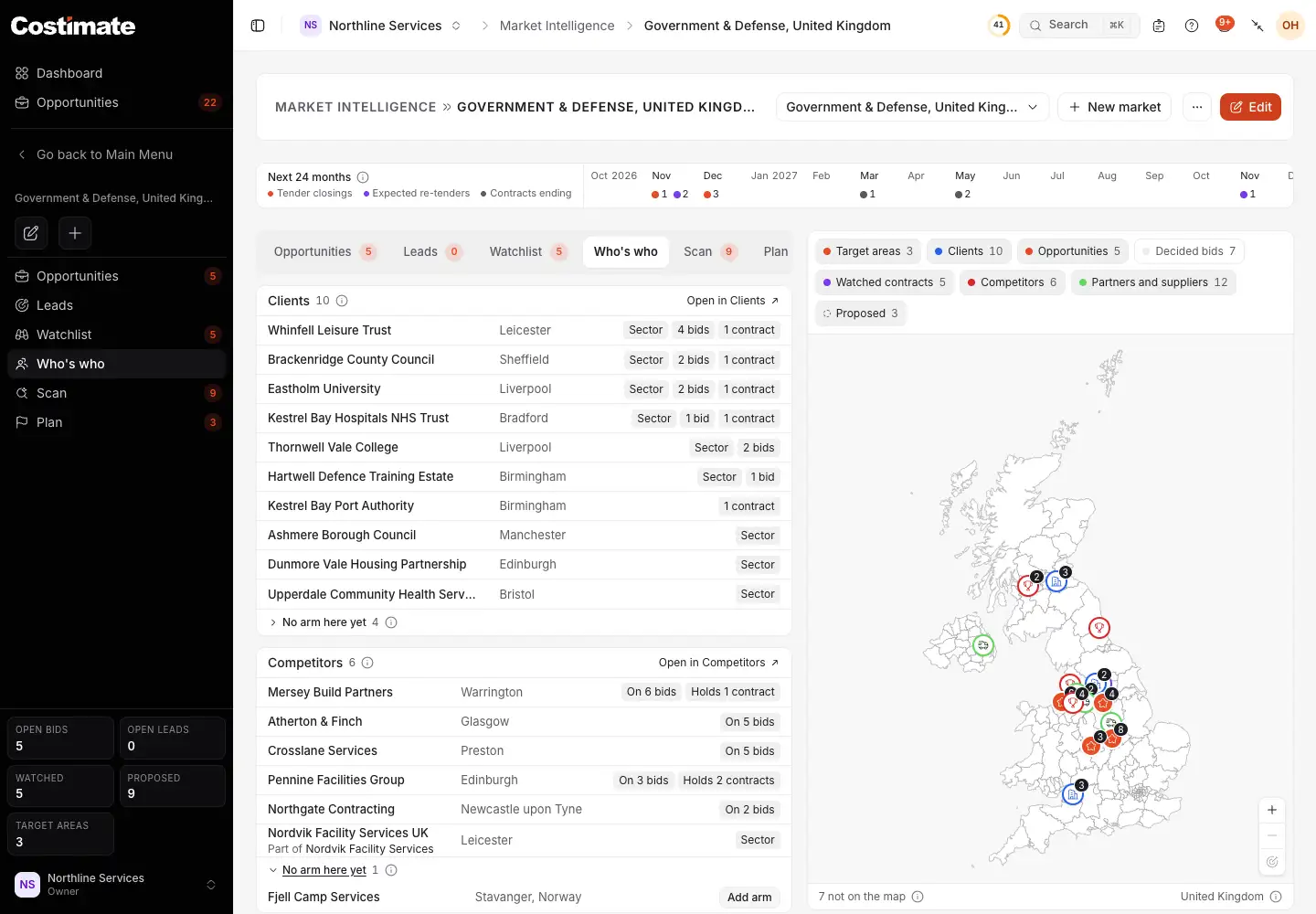
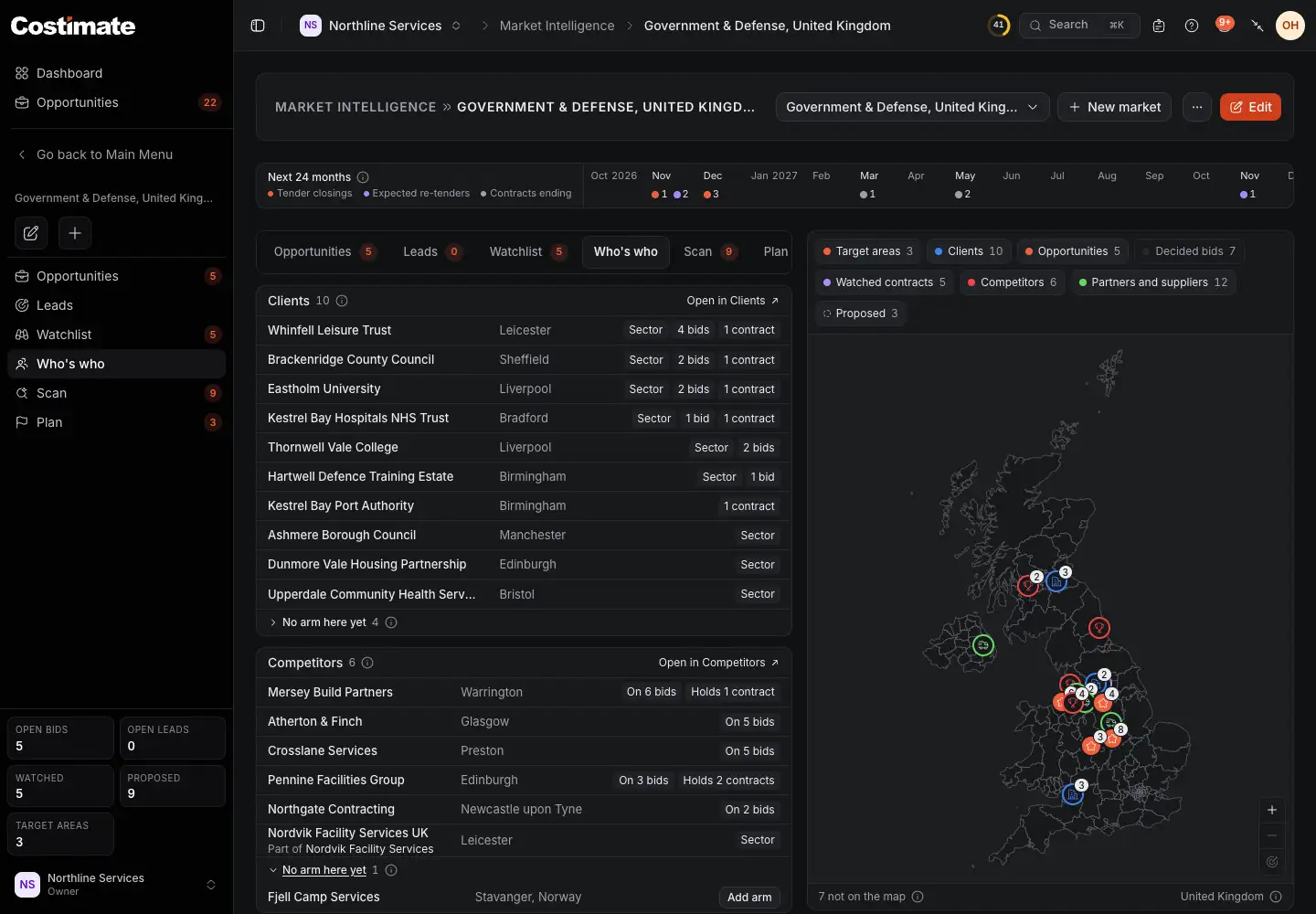
- Part of: the company this one is an arm of. Choose it to open it.
- No arm here yet, with how many there are. Choose it to open the list.
- Add arm adds the company's arm in this market's country.
No arm here yet, under Clients and under Competitors, lists the active ones of the market's industry that are based in another country, have no arm in this one yet, and are not in the group already. It starts closed, so the group stays short. It shows the first ten by name, and says how many there are.
Add arm opens the form of a new client or competitor with the company as its Parent account and the market's country. Save it, and the arm is in the market. Add arm is there for whoever can add clients or competitors. Partners and suppliers have no such list: a supplier has no industry.
The map
The map shows the country and its regions, with one pin for each town.
- A star is a town with an opportunity that is still being worked on, whatever else is there.
- A flag is a target area with no such opportunity.
- A number on a pin says how many things are in that town.
Choose a pin to see what is there.
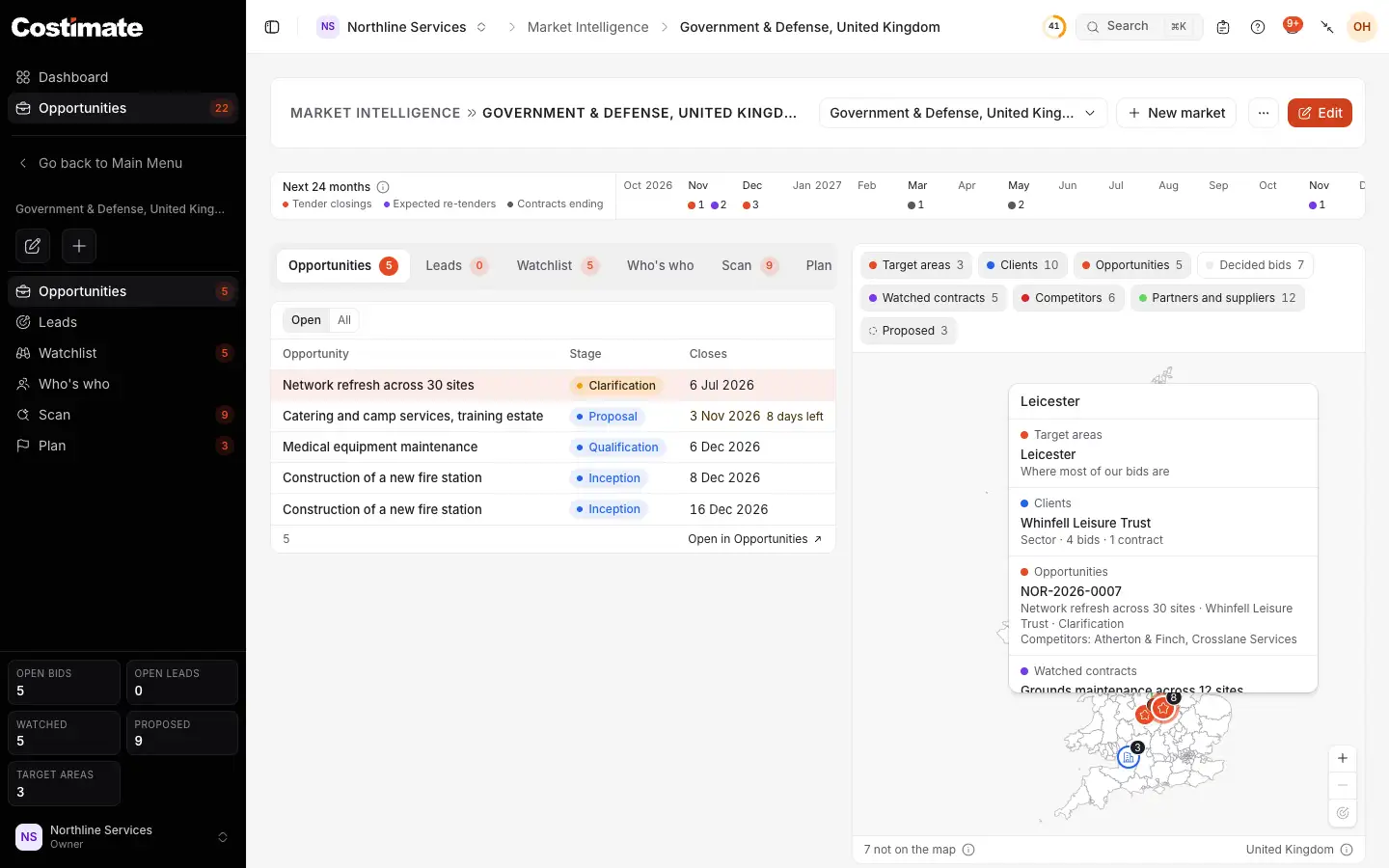
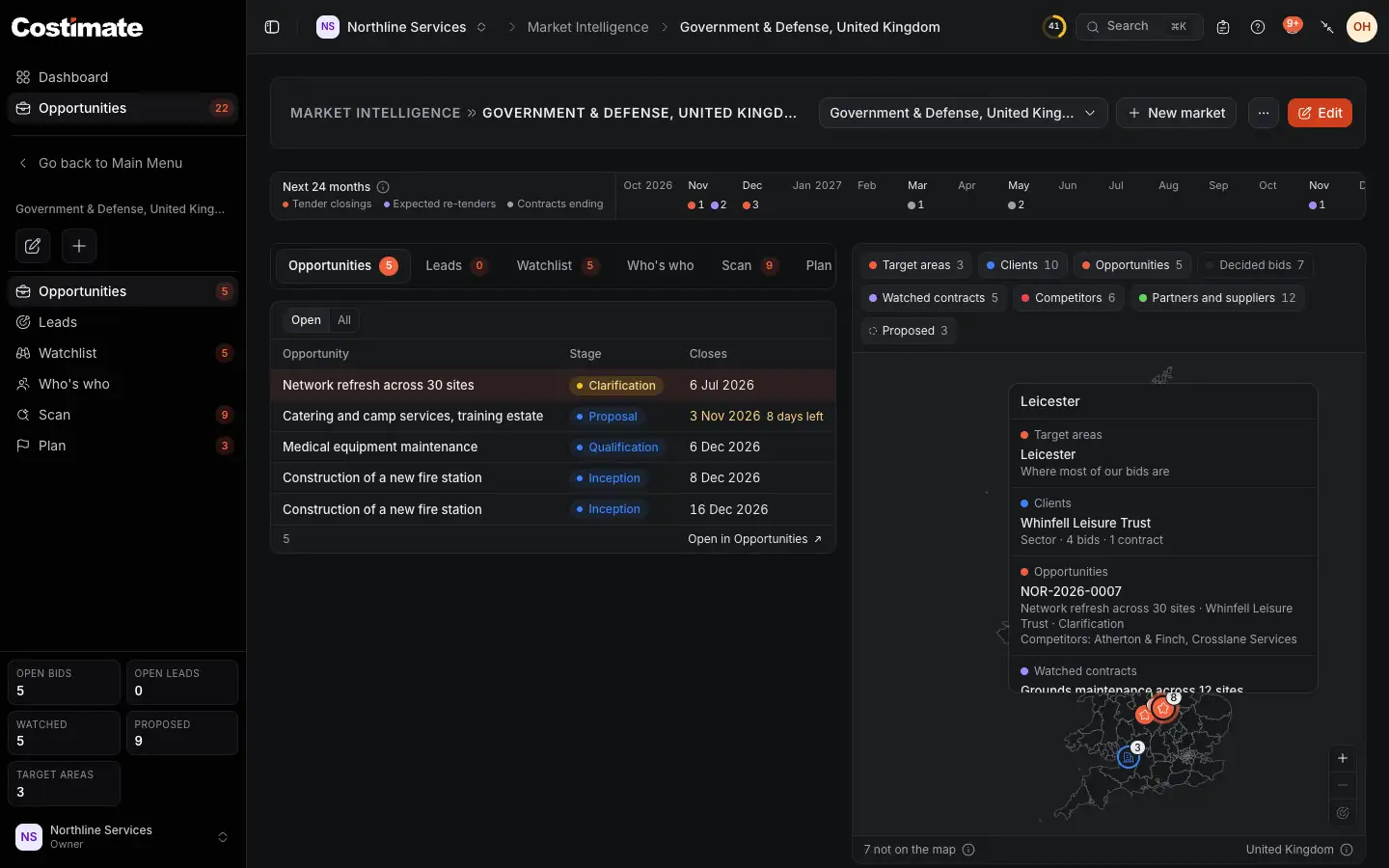
- The town.
- What is there, layer by layer. Choose a name to open it.
- An opportunity names the competitors listed on it and the partners on its Suppliers tab.
A client, a competitor or a supplier that is a company's arm says Part of and the company, as its row of Who's who does.
Where a pin is comes from what you typed on the record:
| On the map | Placed by |
|---|---|
| An opportunity | Where the work is |
| A watched contract | Town |
| A client, a competitor, a partner or supplier | City, when its country is the market's |
| A target area | The town you picked on the Plan tab |
A record with no town, or with a town Costimate does not know, is not on the map. It is counted under the map, and it is never placed by guesswork. A lead has no town, so it has no pin.
The layers are Target areas, Clients, Opportunities, Decided bids, Watched contracts, Competitors, Partners and suppliers and Proposed. Decided bids starts hidden. Proposed is what a scan proposed and nobody decided yet, drawn with a dashed pin. What you hide or show is kept in this browser.
Drag the map to move it. Zoom in, Zoom out and Back to the whole market are at its bottom right.
Costimate draws the map itself, from its own server. Nothing about you or your records is sent to a map company. The place names come from GeoNames (CC BY 4.0) and the shapes from Natural Earth.
The timeline
Next 24 months starts with the current month, on your company's calendar. A dot under a month says something is coming in it:
- Tender closings: an opportunity still being worked on closes, or an open lead reaches its deadline.
- Expected re-tenders: a watched contract is expected to be tendered again.
- Contracts ending: a watched contract ends.
Choose a month to open what is in it, or to see the list when there is more than one thing.
Plan and target areas
Open the Plan tab.
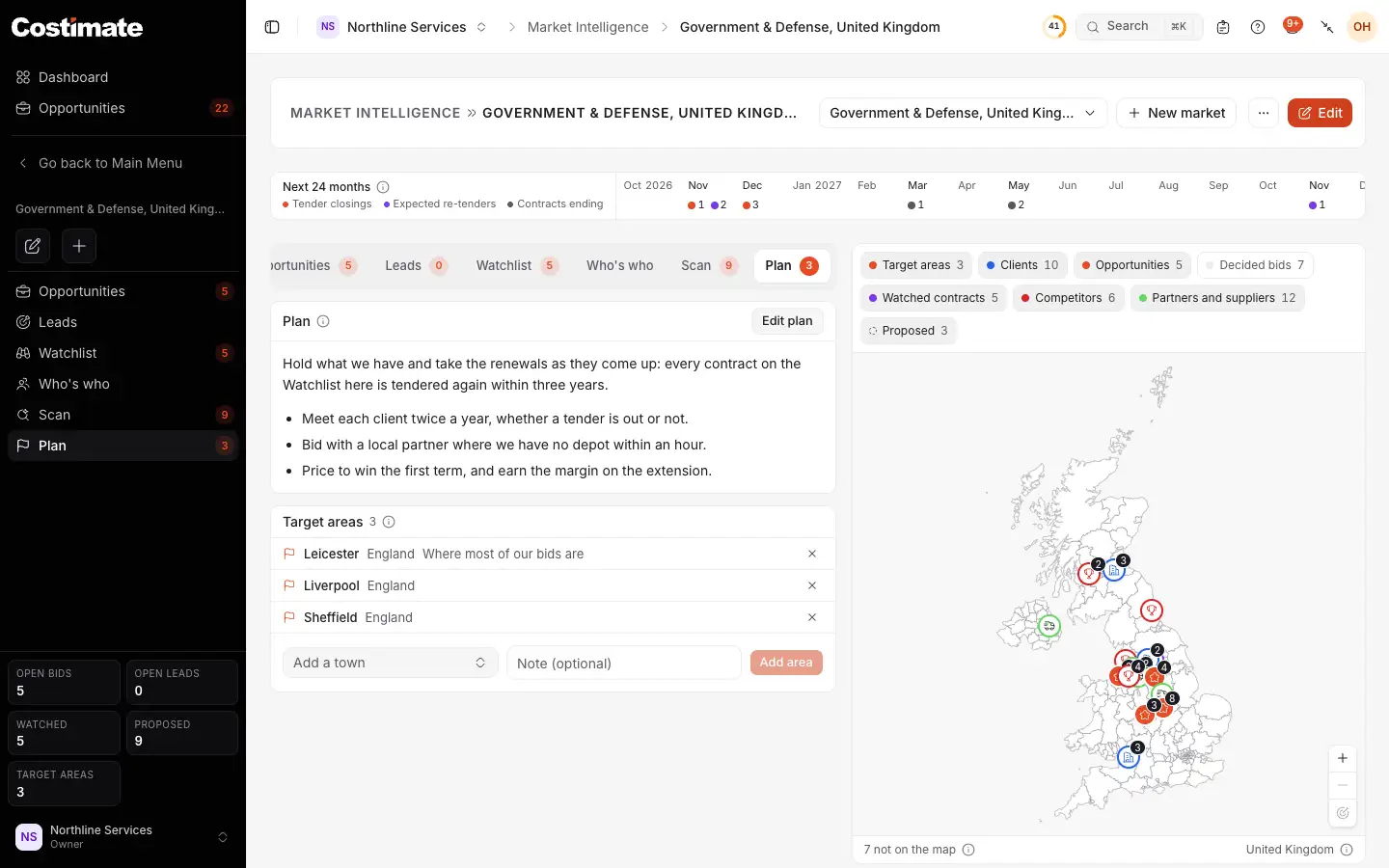
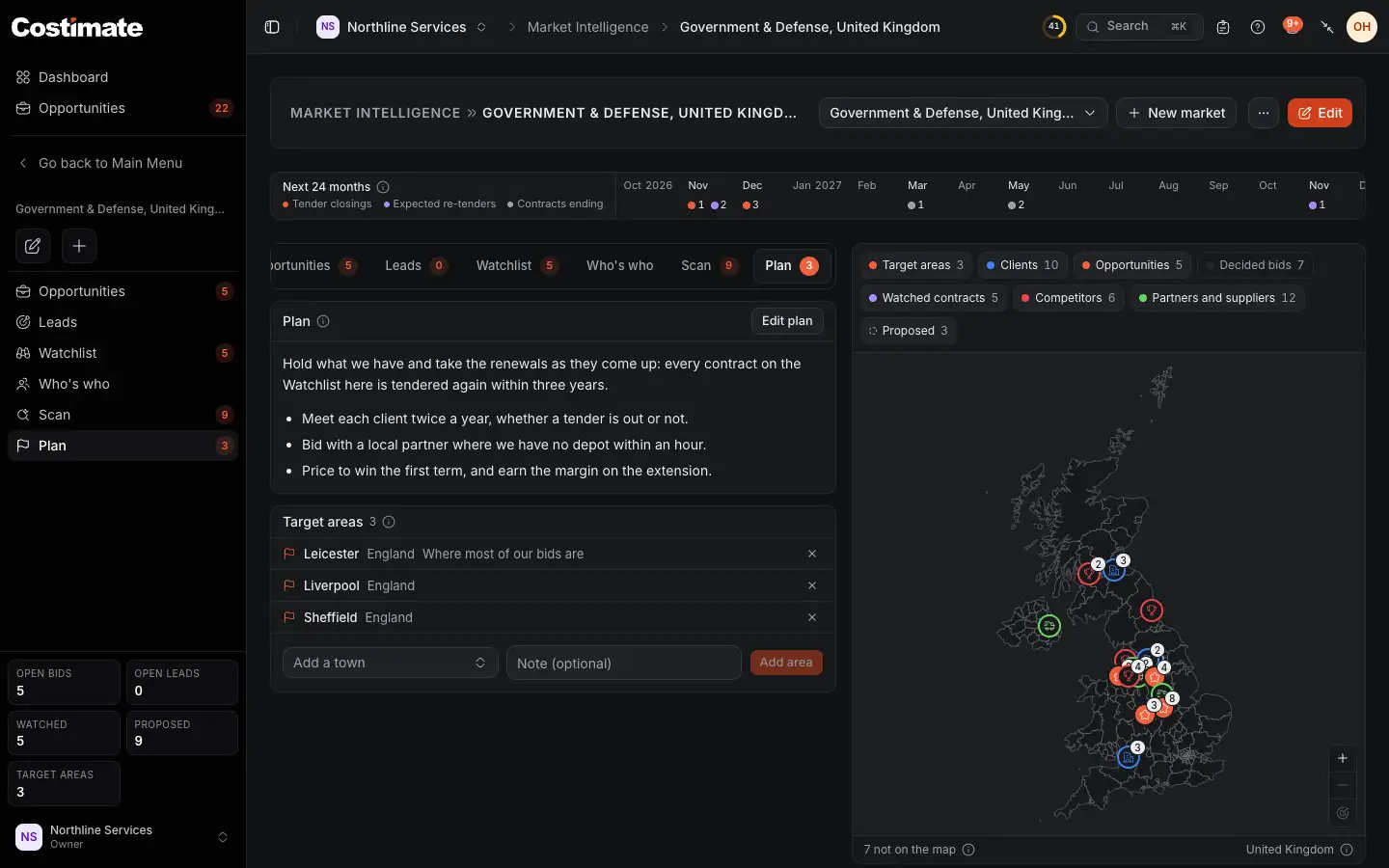
- Plan: how your team means to win work in this market. Choose Write the plan, or Edit plan once there is one, write, then Save plan.
- Target areas: the towns you go after. Pick a town, add a note if you like, and choose Add area.
A target area is a town of the market's country, picked from the list. Each one is a pin on the map.
Where the work is
An opportunity is placed by Where the work is, a field beside Country on the second step of its form. It suggests the country's towns as you type, and keeps whatever you write. See Opportunities and stages.
Good to know
- You see what you can open elsewhere. A list, a group of Who's who, a layer of the map and the dots of the timeline are there only if you can open that part of Costimate. Without Leads, there is no Leads tab.
- No amounts on the map. A pin and the timeline never show a value. A row of a list shows what the same row shows you in its own list.
- A market keeps its country while it has target areas. Remove them to move it to another country.
- Deleting a market sends it to Recently deleted with its plan and its target areas, for 30 days. Its opportunities, leads and watched contracts are not touched: they were never part of it.
- An industry a market uses cannot be deleted from your Company profile, only switched off.