

The Watchlist
Keep the contracts that will be tendered again, whoever holds them now, and start the bid when the re-tender comes.
The Watchlist keeps the contracts that will be tendered again: the ones a competitor holds and you want to win, and the ones you hold and must defend. Each says who holds it, until when, and when its re-tender is expected.
Anyone who can open the Watchlist can read it. To add or change a contract you need to be able to change the Watchlist: the owner, admins, the Proposal manager and the Capture manager can. Taking a contract off is for the owner and admins.
How a contract gets there
- A bid you lose. When it is moved to Lost, its contract goes on by itself, held by the competitor you name as the winner, until the day and at the value you record with the move. If you name no winner, it is held by Not known.
- A bid you win. Its contract goes on by itself, marked Held by you, with the contract dates of its project or the term of its agreement.
- A bid you did not pursue. Nothing is added by itself. Its Overview offers Add to Watchlist.
- Any other contract. Choose Add contract, or Import a list from Excel.
- From an AI app. ChatGPT or Grok can add a contract someone else holds, when you ask it to. It carries the purple mark beside its title, and the address the app read it at is on its page as Read at. Created via, under More filters, finds them. See Connect Grok.
This is for tenders and for framework and long-term agreements. A PQQ, an EOI, an RFI and a call-off put nothing on the Watchlist.
Complete a contract with AI
In Add contract or Edit contract, type the title and choose the client, then choose Complete with AI beside the title. It reads:
- the notice or the page a market scan read the contract in, again and in full, when the form was opened from a proposal of the scan, or the contract was kept from one;
- the newest news of the contract on the web: up to two searches for its buyer, who holds it and its work, and the first pages they find that name the buyer or who holds it;
- the notices of the same buyer in the public registers behind Public buyers, for work of the same kind.
It reads at most eight pages, and never a social network.
It fills only the fields that are empty, and only with what a notice or a page states: the reference as it is written, a date only when the day is stated in full, a value with its currency only for this one contract, and the town and who holds it as the words name them. Each is marked Suggested: check it, and the mark's ⓘ shows the words it was read in and links to where it was read.
- Starts and Ends. Where a source states when the contract starts and how long it runs, and not when it ends, the end is worked out from them, and so is the start when only its month or only its year is stated: a year alone starts on 1 January. What is worked out is marked Estimated, and its ⓘ says how. An extension is said in that ⓘ and never added. When the end worked out is already past, the ⓘ says the contract has probably been tendered again. Expected on is left as it is: the re-tender is then expected six months before the end.
- Who holds it. A competitor of yours with the name the source gives is filled in. With none, the form names it and offers Add it to Competitors.
- What a newer source says. If a newer page says the contract went to another holder, was extended or was renewed, the form says so above the fields, with a link. It changes nothing in the form.
- What has no field, such as the scope, a newer award or a value given for several contracts together, is added to Notes, below what is there, each line with a link to its source.
Check each value before you save. If you save while marks remain, you are asked once whether to keep the values as they are. Nothing is saved until you save the form. It is not offered on a contract held by you.
A reference is filled in only where a notice or a page states one. A private company's tender is in no public register, so its contracts seldom have one.
Read the list
Open Watchlist under Sales. The contract whose re-tender is expected first is on top.
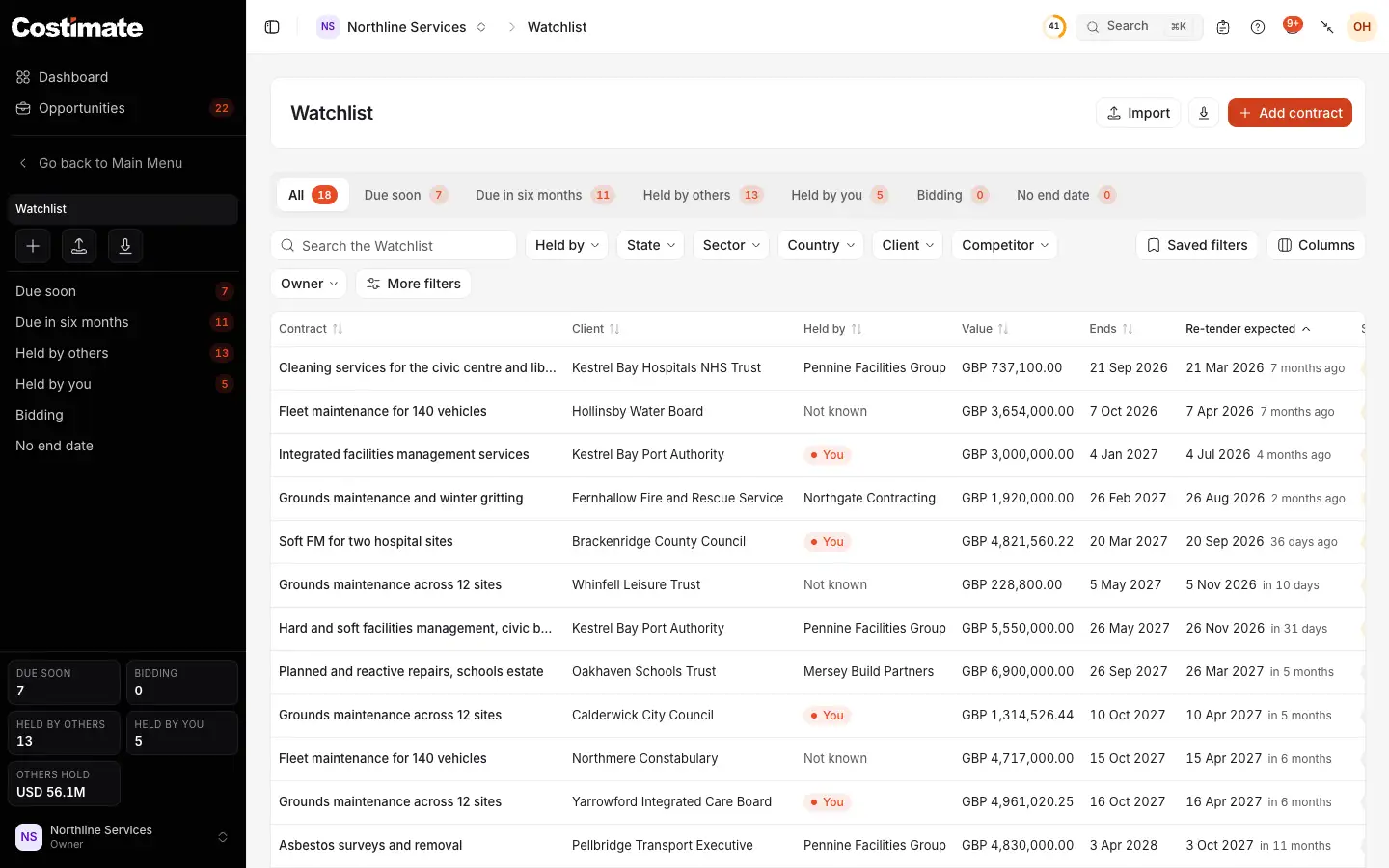
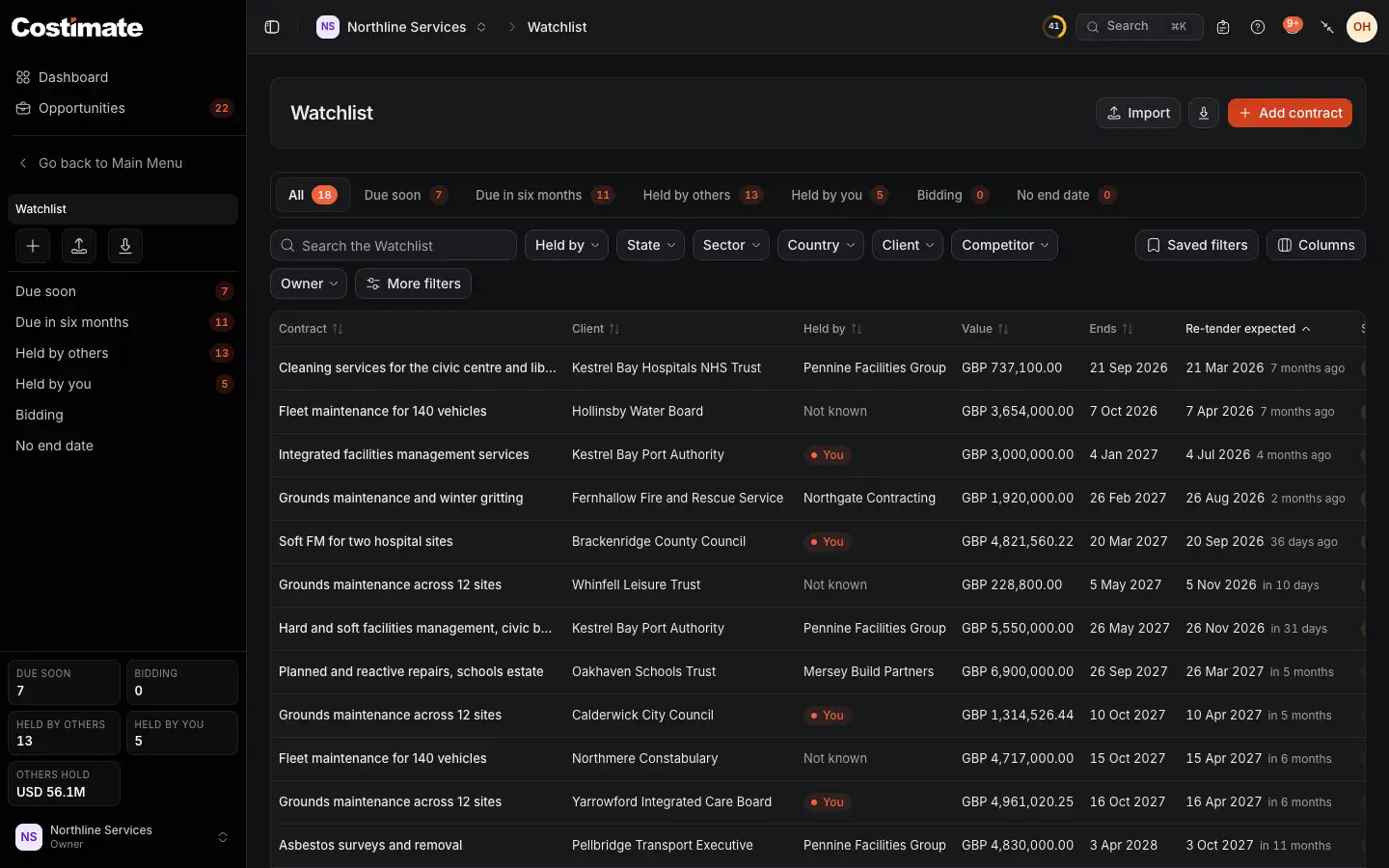
- Add contract: one someone else holds, or whose holder you do not know.
- Due soon: the contracts to act on. The number beside Watchlist in the menu counts them.
- Held by: You, a competitor, or Not known.
- Value: what the contract is worth to who holds it.
- Re-tender expected: the day typed in Expected on. Left empty, six months before the contract ends.
The next column, State, says where the contract stands today.
| State | It means |
|---|---|
| Watching | Nothing to do yet. |
| Due soon | The re-tender is expected within three months, or its day has passed, and nothing is started. |
| Tender out | A lead is linked as its re-tender. |
| Bidding | An opportunity is linked as its re-tender and is still being worked on. |
When the tender comes
Choose a contract to open it.
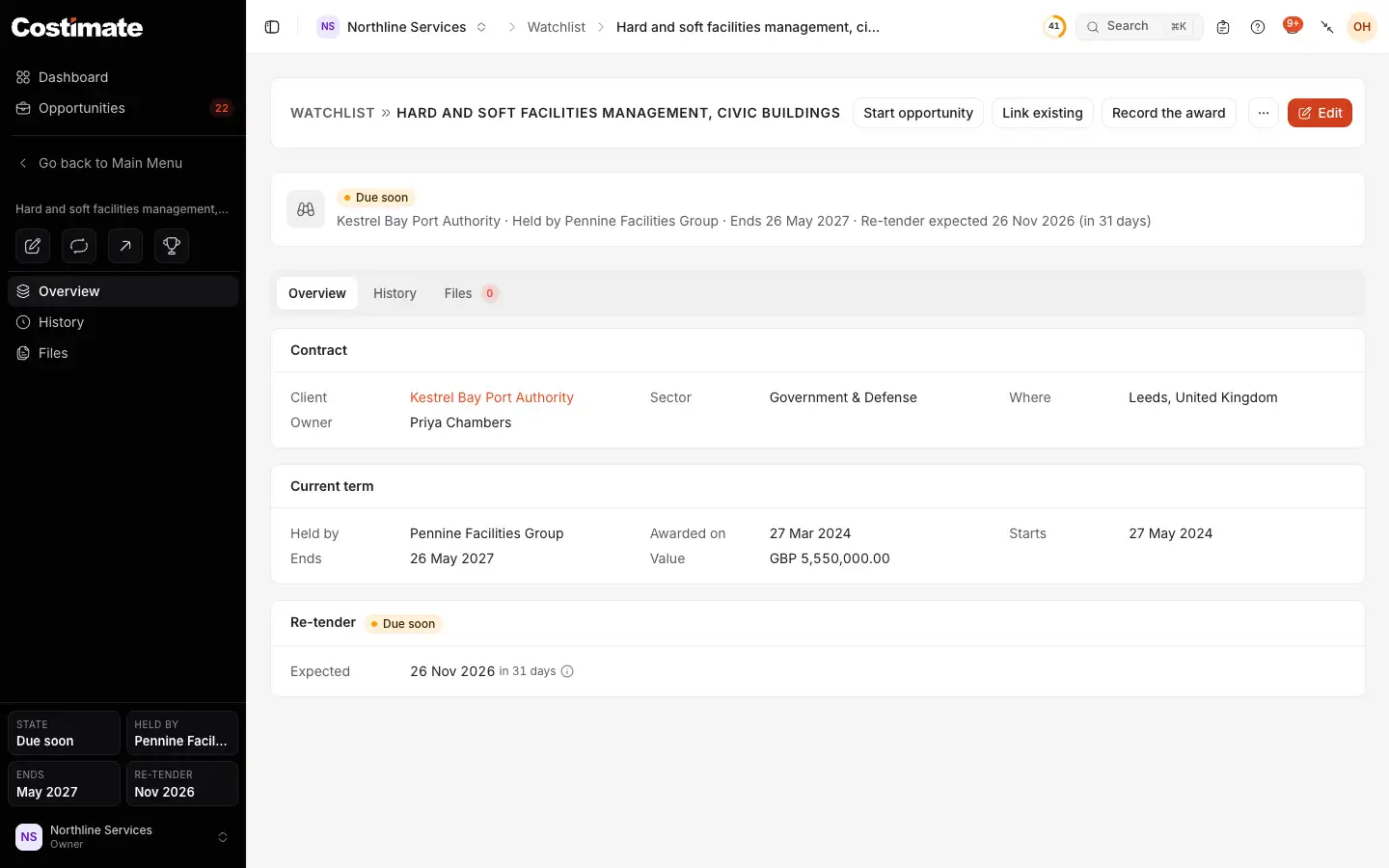
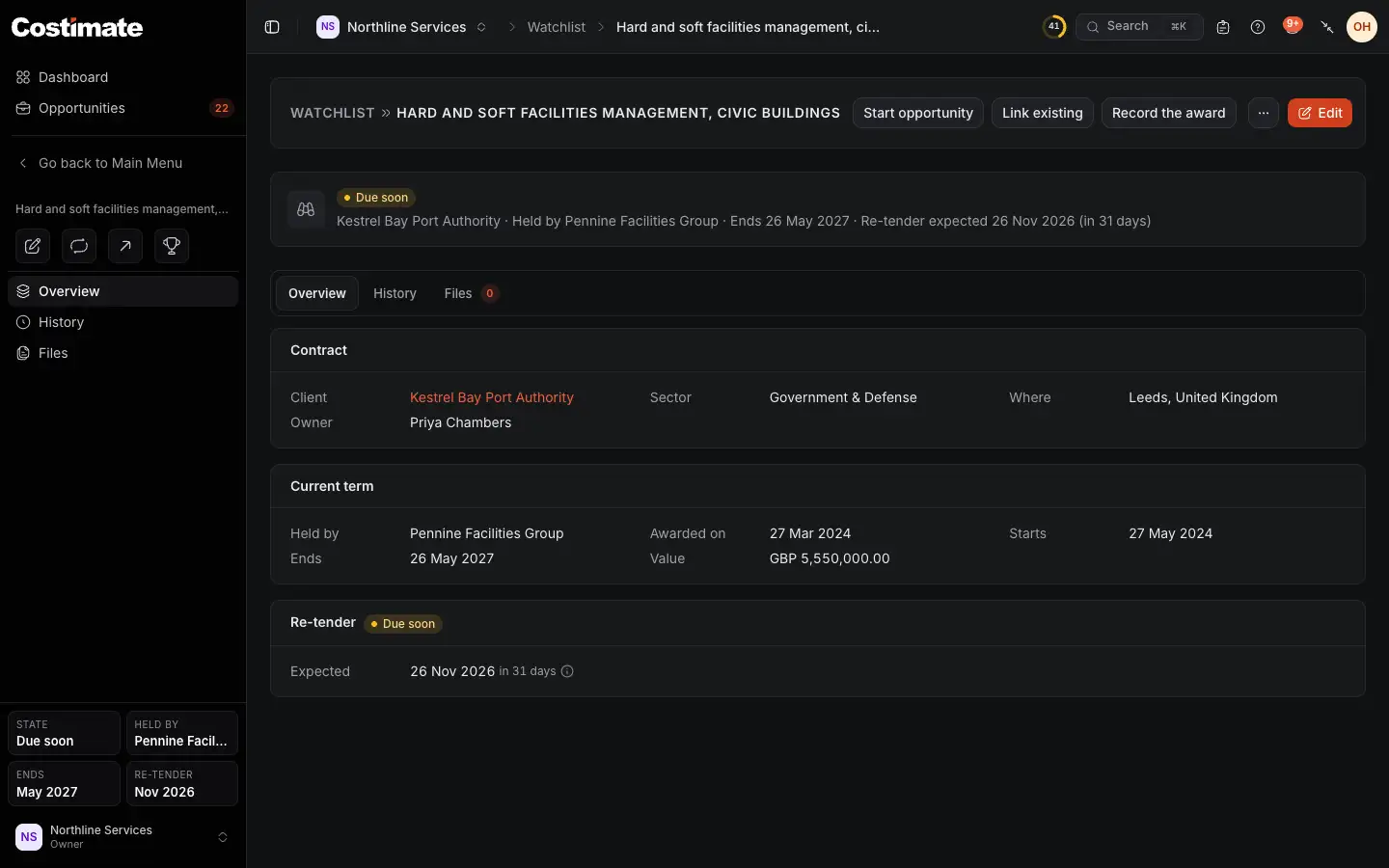
- Its state.
- Start opportunity: the tender is out and not in Costimate yet.
- Link existing: the tender is in Costimate already.
- Record the award: it was awarded in a round you did not bid.
- Who holds it now, the dates and the value.
- When the re-tender is expected, and what is linked as it.
- History: every term, with who held it, the dates, the value and your bid.
Start the opportunity
Choose Start opportunity, check what the contract brings, and save on the last step.
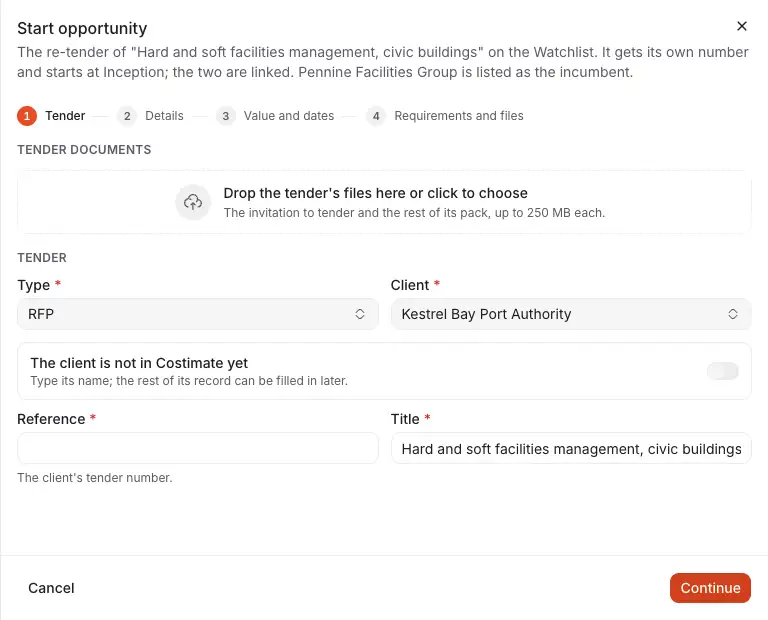
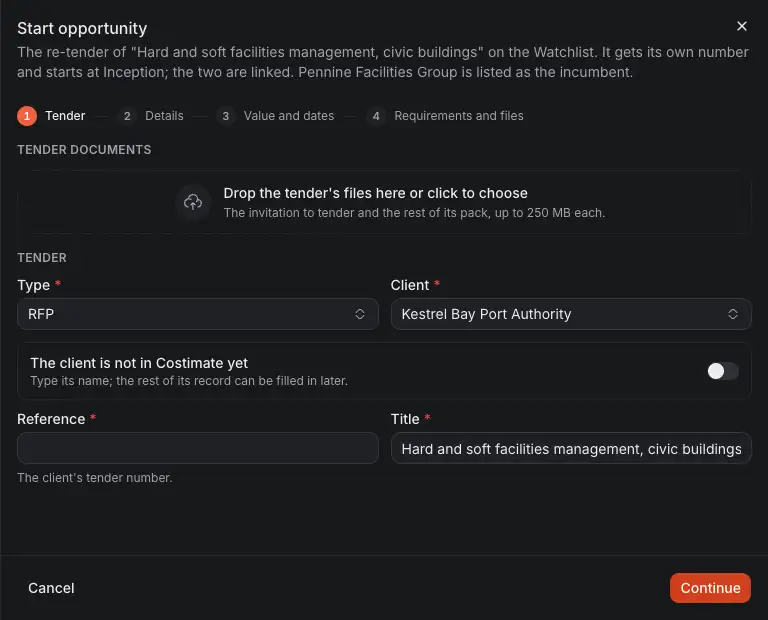
- The contract it re-tenders, and the competitor that holds it.
- Type starts as the type of your last bid for it, or RFP.
- Client and Title come from the contract.
Once saved, the opportunity is the contract's re-tender, and each names the other. A competitor that holds the contract, if it is still active, is listed among the new bid's competitors, marked Incumbent. Bid value starts from the contract's value or, for a contract you hold, from the bid value of your last bid.
Link a lead or an opportunity that exists
Choose Link existing, and pick one of the client's open leads, or one of its opportunities still being worked on. A lead is offered once its client is set. When a linked lead is converted, its opportunity takes its place by itself. So does the tender that follows a linked PQQ, EOI or RFI. Unlink lets go of either.
After the award
When the bid for a re-tender is won or lost, the contract rolls forward by itself: the term that ended moves to History, and the new one says who holds the contract now. For a round you did not bid, choose Record the award and say who was awarded it, the dates and the value.
While an opportunity is linked and still being worked on, none of the three buttons is offered: the outcome of that bid records the award.
Reminders
The contract's Owner is told in the bell and by email three months before the re-tender is expected, and again on the day, at 7 in the morning in your company's time zone. Each is sent once, and again for a new day if the expected day moves.
- No reminder is sent while an opportunity is linked as the re-tender.
- With no owner, or one who can no longer open your company, the people who can take contracts off the Watchlist are told instead: the owner and admins.
Good to know
- Your own contract value is a price. The value of a contract you hold through a project is shown only to people who see the pricing of the bid that won it. Another holder's value, and the ceiling or estimate of an agreement, are open to everyone who can open the Watchlist.
- A contract you hold. Only a bid you won marks a contract as held by you, and its dates are not typed here: they follow the contract dates of its project, or the term of its agreement with its extensions.
- Under an agreement. Start opportunity opens the agreement's Prepare re-tender, in the agreement's last 90 days or once it has ended. From then the agreement's own notice replaces the Watchlist's reminders.
- Undoing an outcome. If a bid is moved back out of Lost or its award is undone, the contract it added is removed, unless someone has changed it, filed on it or linked a re-tender since: then it stays, without the bid. A contract that had rolled forward gets its earlier term back, unless a new re-tender was linked to it since.
- Import only adds. A row of the file is always a new contract.
- Taking a contract off sends it to Recently deleted with its history and files.